Wound consults
Send a wound question with photos to your practice's wound specialists, and answer consults from the queue with a signed note.
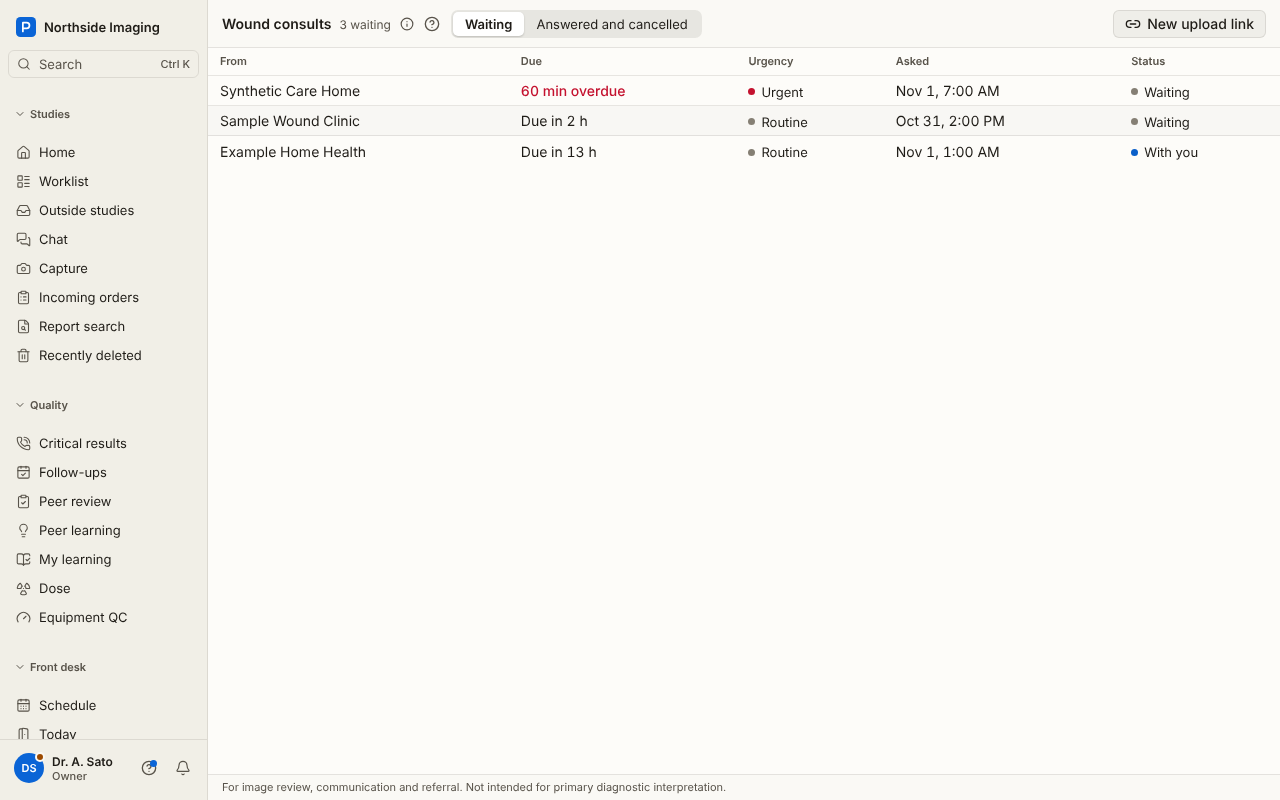
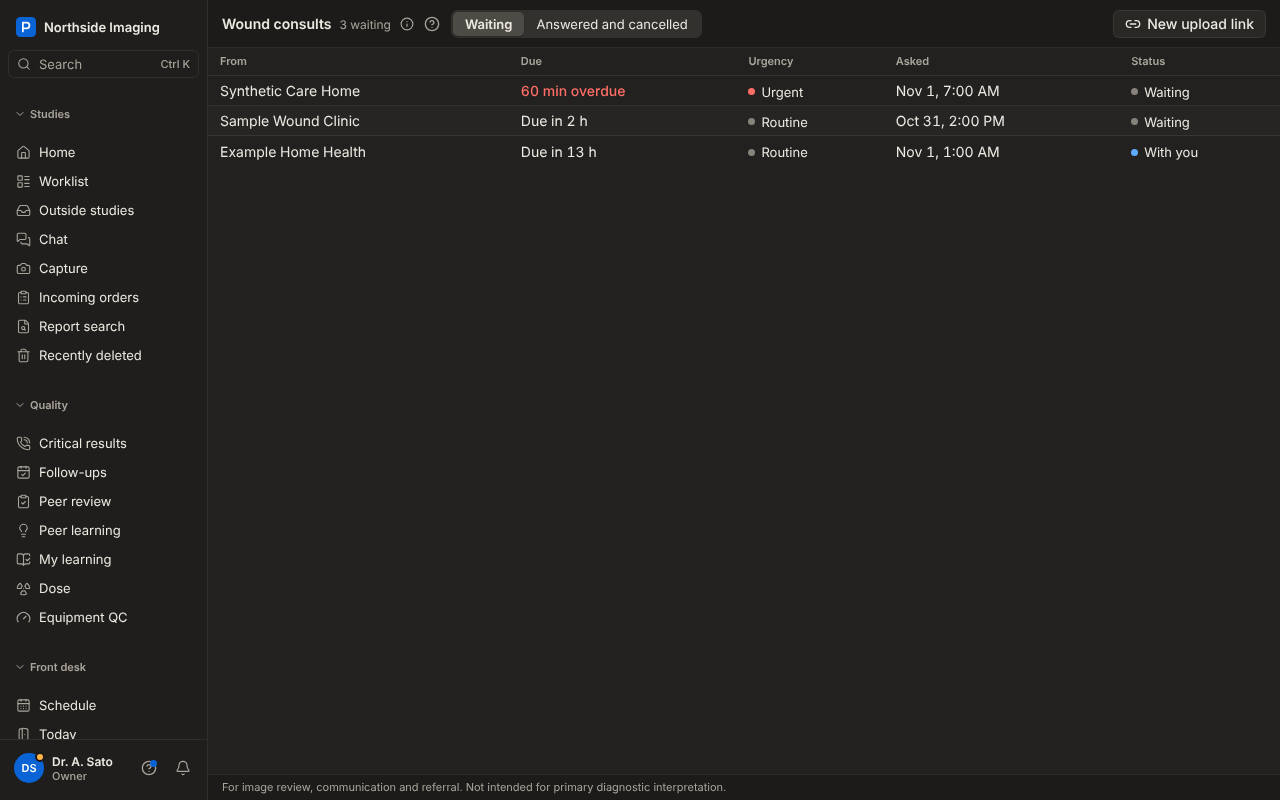
Telewound consults let a nursing home or home health nurse ask your practice's wound specialists about a wound without a visit. The answer is signed as the study's report, so it goes back the way every report does.
What this page is for
The Wound consults page is the queue of wound questions waiting for an answer, overdue first, then by due time. A routine consult is due within 24 hours and an urgent one within 4 hours. Choose Answered and cancelled at the top to see finished consults, newest first.
Telewound consults are part of the Wound care pack and start turned off. An owner or admin turns on Telewound consults under Settings › Specialties, below Wound care. While they are off, this page says so and nothing can be sent.
Who can use it
Anyone who can see studies sees the queue, limited to the studies their visibility group covers. Members who can upload send consults. Members who can make upload links (owners, admins and physicians) send telewound upload links. Answering needs the wound consult permission (owners, admins and physicians) and the permission to sign reports. The sender or a wound specialist can cancel a consult that has not been answered.
How to send a consult
- Upload the wound photos as a study, then open the patient's wounds from the worklist side panel.
- Choose Ask a wound specialist.
- Pick the wounds the question is about, type the question, and add the current dressing and any concerns.
- Choose Urgent (4 h) if the answer cannot wait a day, then choose Send.
How to send a telewound upload link
Use an upload link when the nurse has no PacsPilot account.
- Upload links must be on: an owner or admin opens Links in the sidebar, chooses the Upload links tab and switches on Allow upload links for this practice.
- On the Wound consults page, choose New upload link.
- Fill in the question as the nurse gave it, the current dressing, any concerns, the urgency and the facility or agency.
- Add the nurse's email to send the link, and a PIN if you want one. Pick when the link expires: 1, 3 or 7 days.
- Choose Make link, then copy the link. It is shown only once.
The consult shows as Waiting for photos under Answered and cancelled until the nurse uploads. The first study that arrives through the link joins the queue and its due time starts then. A link is for one patient: later uploads through it do not change the consult.
How to answer a consult
- Choose a consult in the queue to see the question. Choose Open photos to see them in the viewer.
- Choose Take it so others see you are answering. Put back returns it to the queue.
- Type your assessment and orders. Tick Reviewed with the sender on a video visit if you saw the wound with the sender on your practice's video tool.
- Choose Sign and send answer. The answer is signed as the study's report, so it reaches your EHR, copy-to recipients and webhooks, and the sender is notified.
Fields and columns
- From: the facility or agency, and whether it is a nursing home, home health agency or clinic.
- Due: when the answer is due; overdue consults show first.
- Urgency: routine or urgent.
- Asked: when the consult was sent.
- Status: Waiting for photos (an upload link with nothing uploaded yet), Waiting, With you (you took it), In review (another specialist took it), Answered or Cancelled.
If something goes wrong
- The page says telewound consults are off: an owner or admin turns them on under Settings › Specialties.
- Someone else changed this consult: another specialist took or answered it first. Reload the page.
- The study already has a signed report: the consult cannot be signed as a new report. Amend the report instead, or ask the sender to send new photos.
- Ask a wound specialist is missing: telewound consults are off, or your role cannot upload.
- New upload link says upload links are turned off: an owner or admin turns them on in Links › Upload links.
Related
Updated November 6, 2026. Signed in? The same article is in the app's help panel: press
?.