Appearance
Choose light or dark, turn emoji and colour icons on or off, and set how tightly worklist rows are packed on this device.
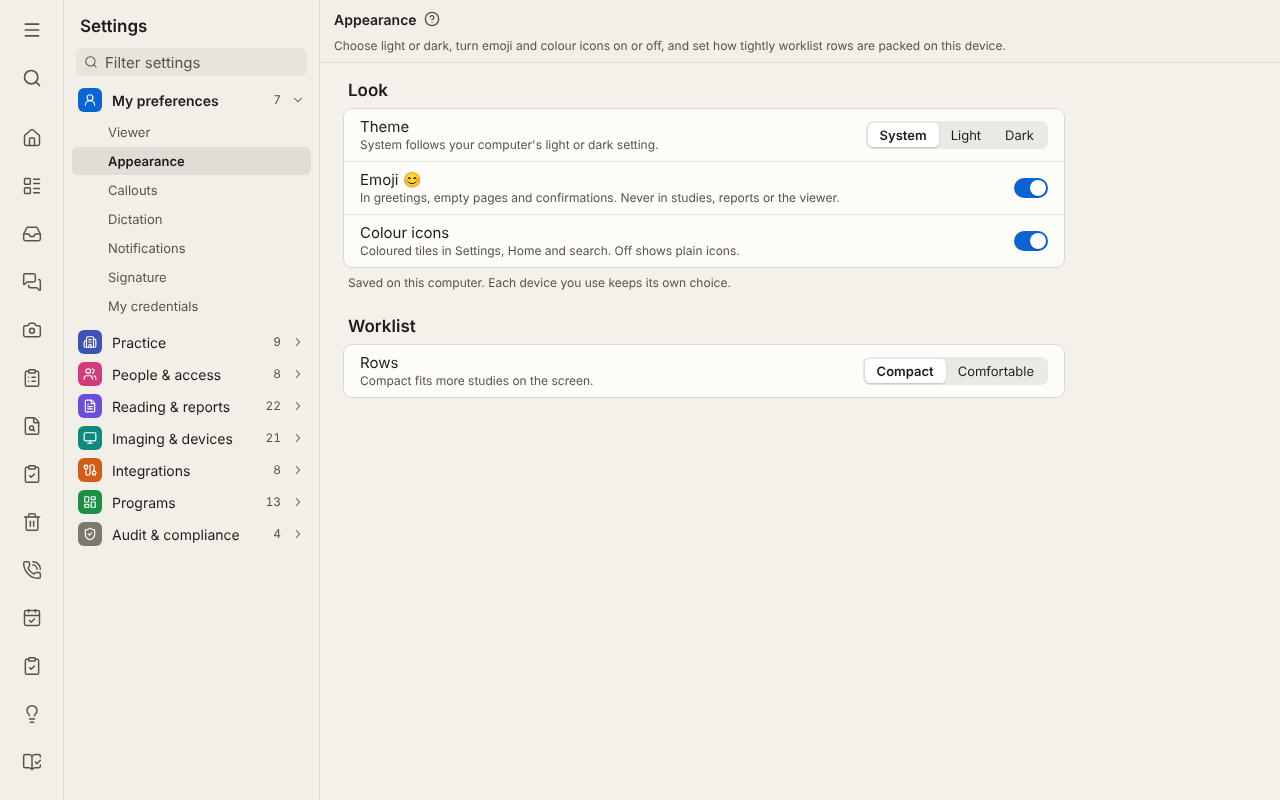
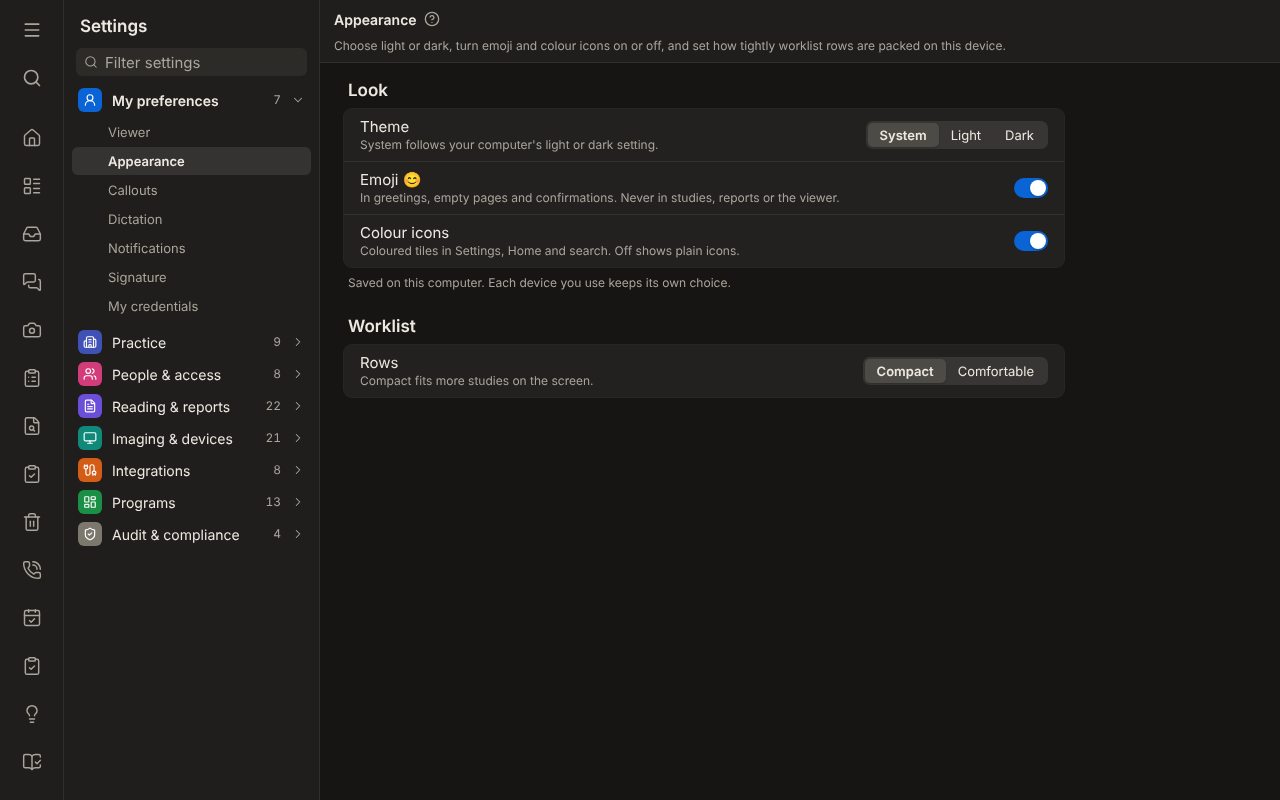
What this page is for
Settings › Appearance sets how PacsPilot looks for you on this device. Nothing here changes what other members see, and nothing here changes patient data, reports or images.
Who can use it
Every member can use this page. The choices are saved in this browser, so set them again on another computer, phone or tablet.
How to change the look
1. Open Settings › Appearance, or open the account menu at the bottom of the sidebar. 2. Under Look, choose: - Theme: Light, Dark, or System to follow your computer. - Emoji: an emoji now and then for good news, such as a cleared worklist or a finished setup step. Emoji never appear next to patient data, in reports, in the viewer, in errors or on billing pages. - Colour icons: coloured tiles behind page icons in Settings and on Home, so kinds of pages are easier to tell apart. Turn it off for plain grey icons. 3. Under Worklist, choose Rows: Comfortable for more space, or Compact to fit more studies on screen.
Each change applies straight away. There is no Save button.
Fields and columns
| Name | What it means |
|---|---|
| Theme | Light, Dark, or System to follow your computer's setting. |
| Emoji | Shows an emoji in greetings, good-news empty pages and confirmations. Never in studies or reports. |
| Colour icons | Shows page icons on coloured tiles. Off shows plain grey icons. |
| Rows | How tightly worklist rows are packed: Compact or Comfortable. |
If something goes wrong
- My choices are gone: they are kept in this browser. A private window, another device or clearing site data starts from the defaults again.
- The theme does not change with my computer: choose System under Theme.
- Emoji stay off even with the switch on: a practice admin has turned emoji off for everyone in Admin › Practice profile › Appearance. Ask them to turn Emoji in the app back on.
Related
Updated November 5, 2026. Signed in? The same article is in the app's help panel: press
?.