Sites
See each site gateway and PacsPilot Agent, its check-ins, queue, disk and devices, add an agent, and test connections to your modalities.
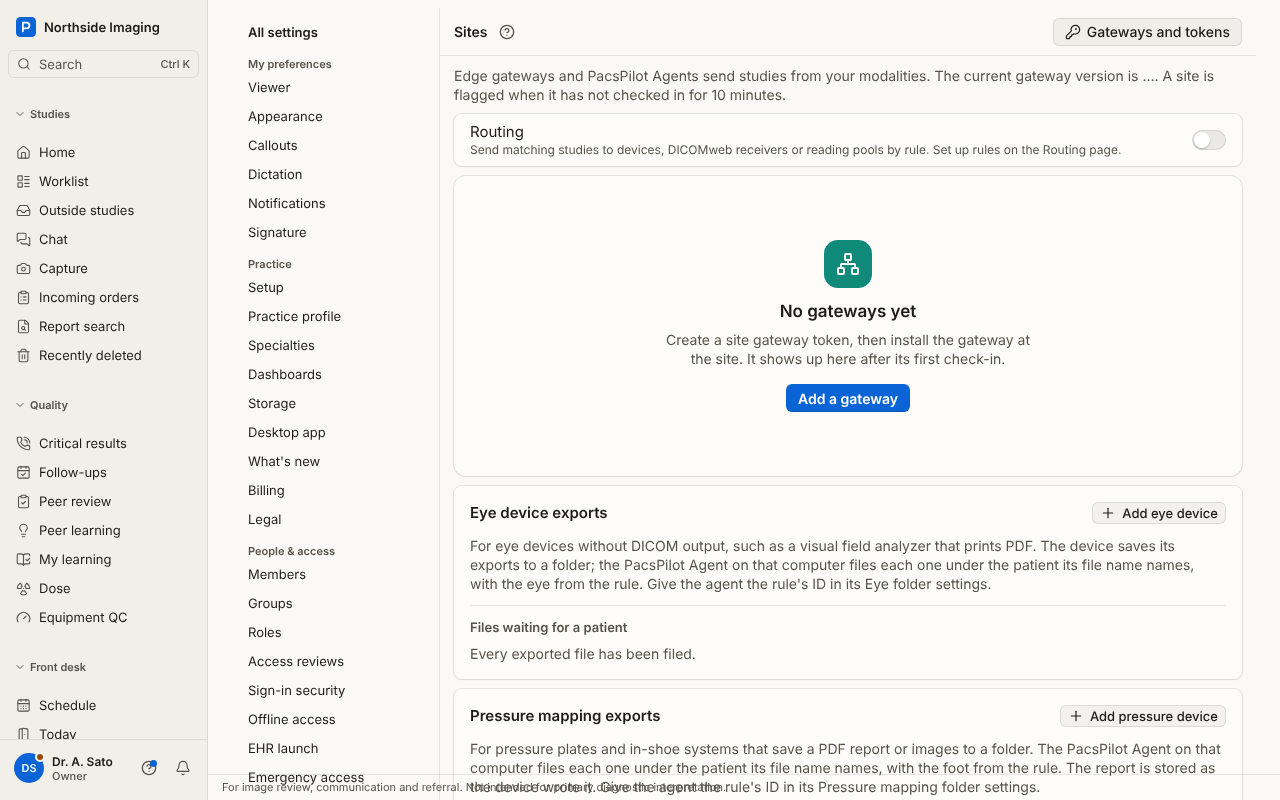
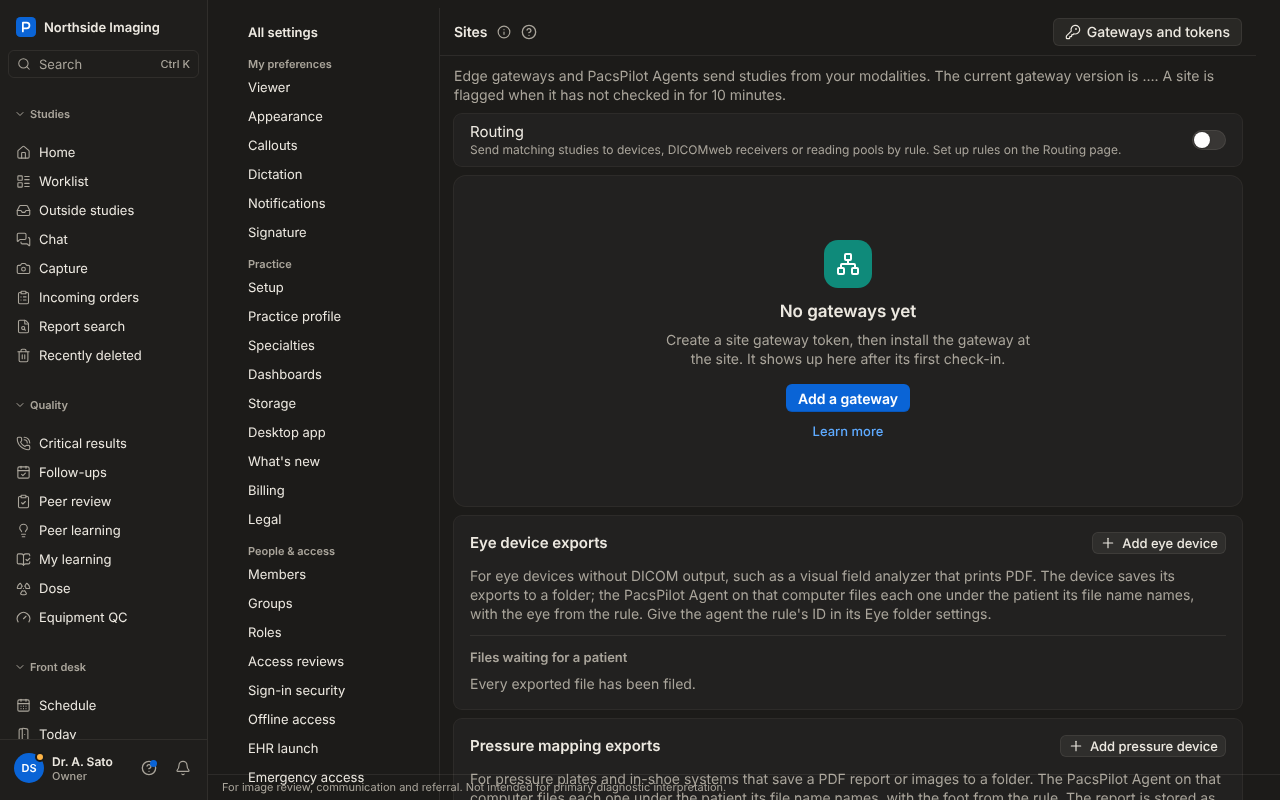
What this page is for
Edge gateways and PacsPilot Agents send studies from your modalities to PacsPilot. Settings › Sites shows one card for each of them: when it last checked in, its version, what is waiting to send, its disk, the last 24 hours of studies it sent, and the devices behind it. From here you add a new agent, list and test your modalities, and turn on routing and query/retrieve.
The page refreshes on its own while it is open. A site is flagged when it has not checked in for 10 minutes.
Who can use it
Owners and admins can open this page. It needs the admin.users permission.
The Routing, Query/retrieve and
Migration from a legacy PACS rows also need the
tenant.settings permission. Query/retrieve and
Migration from a legacy PACS only show once the practice has a PacsPilot Agent.
Add agent only shows when agent enrollment is available for your practice.
How to add a PacsPilot Agent
- Press Add agent.
- Under Computer or location, enter a name that tells you where the agent runs, such as "Front desk PC".
- Press Create code.
- Enter the code in the PacsPilot Agent when its setup asks for it. When an installer is available, the dialog links to the Windows installer (MSI) with its SHA-256 checksum.
- Press Done. The agent shows up as a card after its first check-in.
The code works once and expires at the time shown in the dialog. It is not shown again. To add an edge gateway instead, press Gateways and tokens.
How to add a device
- On the site's card, press Add device, or Import from agent to copy the modalities the agent already knows.
- Enter the Name, AE title, IP address or host name and Port, and choose the Type.
- Optionally enter the Station name and choose the Worklist character set.
- Choose what it may do: May send studies and Gets the modality worklist.
- Press Add device.
Once the practice has locations under Settings › Locations, the site's card and each device also have a Location.
To change a device, open its Actions menu and choose Edit. Search and retrieve options, under Query/retrieve, are set when you edit an existing device behind an agent that supports them. A site holds at most 100 devices.
New devices
When a modality nobody listed sends studies through a site, PacsPilot adds it to the site's devices with a New badge, named after its AE title, and the card says how many new devices sent studies. Its studies are labelled with it straight away. A new device can only send: open its Actions menu, choose Edit, give it a name, type, port and location, and press Save to make it a normal device. Older studies from the same AE title are labelled with the device too.
Moving a device to another location, or changing a site's location, relabels the device's studies within a minute.
How to manage an agent's modality list in PacsPilot
- Add the site's devices first.
- Switch on Managed in PacsPilot on the site's card and confirm with Manage in PacsPilot.
Only the devices listed here may then send studies to the agent. Modalities set up on the agent computer but missing here stop working, and the agent's tray app shows the list read-only. The badge shows Waiting for agent until the agent applies the list at its next check-in, then Applied. Switch it off and choose Use the agent's list to go back to the list saved on the agent computer.
How to test a connection
- Under Modalities, choose a modality and press Test connection (C-ECHO). For a listed device, open its Actions menu and choose Test connection (C-ECHO).
- The gateway or agent runs the test at its next check-in. The latest five results show under the modality picker.
How to turn on routing and query/retrieve
- Switch on Routing to send matching studies to other systems by rule. Routing then shows in Settings, where you set up the rules.
- Switch on Query/retrieve to let workstations and viewers on your network search and pull studies through the agent.
- Choose Answers per search, the most studies one search returns.
- Allow each workstation in its device settings: search, retrieve, or receive retrieved studies.
Each switch saves as soon as you change it.
How to set up eye device exports
This section shows only when the ophthalmology pack is on.
- Under Eye device exports, press Add device and pick the device kind, such as fundus camera or OCT.
-
Describe the file names the device writes, for example
{mrn}_{eye}_{date}, and choose how files match a patient: MRN, accession number, or name and date of birth. - Use Try a file name to check a real file name before you save.
- Copy the rule ID and paste it into the PacsPilot Agent under Eye devices, with the folder the device exports to.
- Files that match no patient wait under Files waiting for a patient. Choose Match to pick the patient and eye, or Dismiss to drop the file. The agent sends matched files at its next check-in.
How to set up pressure mapping exports
This section shows only when the podiatry pack is on. It works like eye device exports, with the foot in place of the eye.
- Under Pressure mapping exports, press Add pressure device and pick pressure plate or in-shoe system.
-
Describe the file names the device writes, for example
{mrn}_{side}_{date}, where{side}is R, L or B (RT, LT, RIGHT, LEFT, BOTH and BILATERAL work too), and choose how files match a patient. - Use Try a file name to check a real file name before you save.
- Copy the rule ID and paste it into the PacsPilot Agent under Pressure mapping, with the folder the device exports to.
- Files that match no patient wait under Files waiting for a patient. Choose Pick the patient to set the patient and foot, or Dismiss to drop the file.
PacsPilot stores each report as the device wrote it: PDF reports as documents, images as photos with the foot. It does not read or recompute pressure values.
How to set up device exports for other packs
A section per pack shows when a pack with device exports is on, starting with urology (Urology device exports). It is for devices without DICOM output, such as a bladder scanner, uroflowmeter, urodynamics system or cystoscopy tower.
- Press Add device and pick the device type. The type lists the files the device writes: PDF, JPEG, PNG, MP4 or CSV.
-
Describe the file names the device writes, for example
{mrn}_{side}_{date}, and choose how files match a patient and where the side comes from. - Use Try a file name, with the extension, to check a real file name before you save.
- Copy the rule ID and add the folder in the PacsPilot Agent under Device folders, with the folder the device exports to.
- PDF, images and clips go to the patient's record. CSV files become values on the patient, such as Qmax or post-void residual.
- Files that match no patient wait under Files waiting for a patient. Pick the patient and side, or dismiss the file.
With the pulmonology pack on, PFT report exports takes the PDF reports a PFT lab system, office spirometer, walk test or CPET system, or FeNO device saves to a folder. The rule has no side. Each report goes to the patient's record as a document, next to the PFT sessions that arrive by HL7.
With the ENT pack on, ENT device exports takes stroboscopy systems and ENT endoscopy towers that export MP4 clips, stills and a PDF report instead of sending DICOM. Clips keep their sound. Set the system to export MP4; MOV and AVI files are not read yet. Strobe parameters show as the system burns them into the video or prints them in its PDF.
With the plastic surgery and aesthetics pack on, Aesthetics device exports takes 3D surface cameras (OBJ, MTL and STL scans with photos and PDF reports) and skin analysis systems (images and PDF reports). The rules have no side. See 3D scans and skin analysis exports.
Fields and columns
| Name | What it means |
|---|---|
| Gateways and tokens | Opens the page where you create site gateway tokens. |
| Add agent | Creates a one-time enrollment code for a PacsPilot Agent. |
| Routing | Turns routing on or off for the practice. |
| Query/retrieve | Lets workstations search and pull studies through the agent (C-FIND, C-MOVE, C-GET). |
| Answers per search | The most studies one search returns. |
| Migration from a legacy PACS | Open goes to the Migration page. |
| Agent, Online, Offline, Never checked in | The kind of site and whether it is checking in. |
| Last check-in | When the site last checked in. |
| Version | The software version. Update available when a newer one exists. |
| Waiting to send | Images queued at the site. |
| Disk used | Disk use at the site. Almost full above 80%. |
| Computer | The agent computer's name and operating system. |
| Listening on | The DICOM and HL7 ports the agent listens on. |
| Waiting to relay | HL7 messages and uploads queued on the agent. |
| Modality worklist | N scheduled or Worklist stale, and when it last synced. |
| Legacy PACS migration | The migration state on the agent and how much is waiting there. |
| This computer | Disk encrypted or Disk not encrypted, Can sleep, and Update failed with the reason. |
| Last 24 hours | Sends, images stored, duplicates, rejected, in progress and failed, with the reasons files were rejected. |
| Devices | The modalities behind the site. |
| Name, Address, Type | The device's name and AE title, host and port, and type. |
| Allowed | Store or No store, Worklist, Search, Retrieve, Receives, Commit and Migration source. |
| Last study | When it last sent images, and how many in 24 hours. |
| Last worklist query | When it last queried the worklist, and how many queries in 24 hours. |
| Last test | When its connection was last tested. |
| Managed in PacsPilot | The agent takes its modality list from this page. |
| Modalities, Test connection (C-ECHO) | The modalities the site reports, and a connection test. |
| Requested, Result | When a test was requested and its result: Waiting for the gateway, Running, Reachable, Not reachable or No answer from the gateway. |
| Name (device form) | Letters, digits, dot, dash or underscore. |
| AE title | As set on the modality, up to 16 characters. |
| IP address or host name, Port | Where the device listens. The port is 1 to 65535. |
| Type | The kind of modality, such as CT, MRI or Ultrasound. |
| Station name (optional) | The device's station name. |
| Worklist character set | Latin-1 (most consoles) or UTF-8. |
| May send studies, Gets the modality worklist | What the device may do. |
| Query/retrieve options | May search PacsPilot, may retrieve to a workstation or itself, receives retrieved studies, storage commitment, reads HTJ2K images, and Studies it can see. |
| Migration source | Imports this PACS's history through the agent, with Retrieve with and Search limit. |
If something goes wrong
- Offline: the site has not checked in for 10 minutes. Check that the computer is on, awake and online.
- Almost full: free disk space on the site computer.
- Disk not encrypted or Can sleep: change these on the agent computer.
- Update failed: the reason is shown next to the badge. Update the agent on its computer.
- No gateways yet: press Add a gateway to create a site gateway token, then install the gateway at the site.
- Could not load sites: press Retry.
- Not reachable or No answer from the gateway: check the modality's address, port and AE title, and that the site is online.
- Wait for the open echo requests to finish: wait for the running tests to end, then try again.
- The enrollment code could not be created, Agent enrollment is not turned on for PacsPilot yet or Too many open enrollment codes; wait for some to expire: wait and try again, or use a gateway token instead.
- Another device behind this site has that name or AE title: choose a different name or AE title.
- The port is a number from 1 to 65535: correct the port.
- A site holds at most 100 devices: delete devices you no longer use.
- Add the site's devices before managing them here: add devices, then switch on Managed in PacsPilot.
- Update the agent to manage its list here or Update the agent to version … or later first: update the PacsPilot Agent on its computer.
- Retrieve by C-GET is only for devices that may see the whole practice; clear the visibility group or use C-MOVE: change Studies it can see or the retrieve option.
Related
- Add a site agent
- Gateways and tokens
- Locations
- Routing
- Migration
- Modality worklist
- Read from another PACS and stand in when it is down
Updated November 16, 2026. Signed in? The same article is in the app's help panel: press
?.