OR cases
Today's and tomorrow's OR cases, each with relevant priors, the surgeon's pinned planning images, a note and a booked-side check.
What this page is for
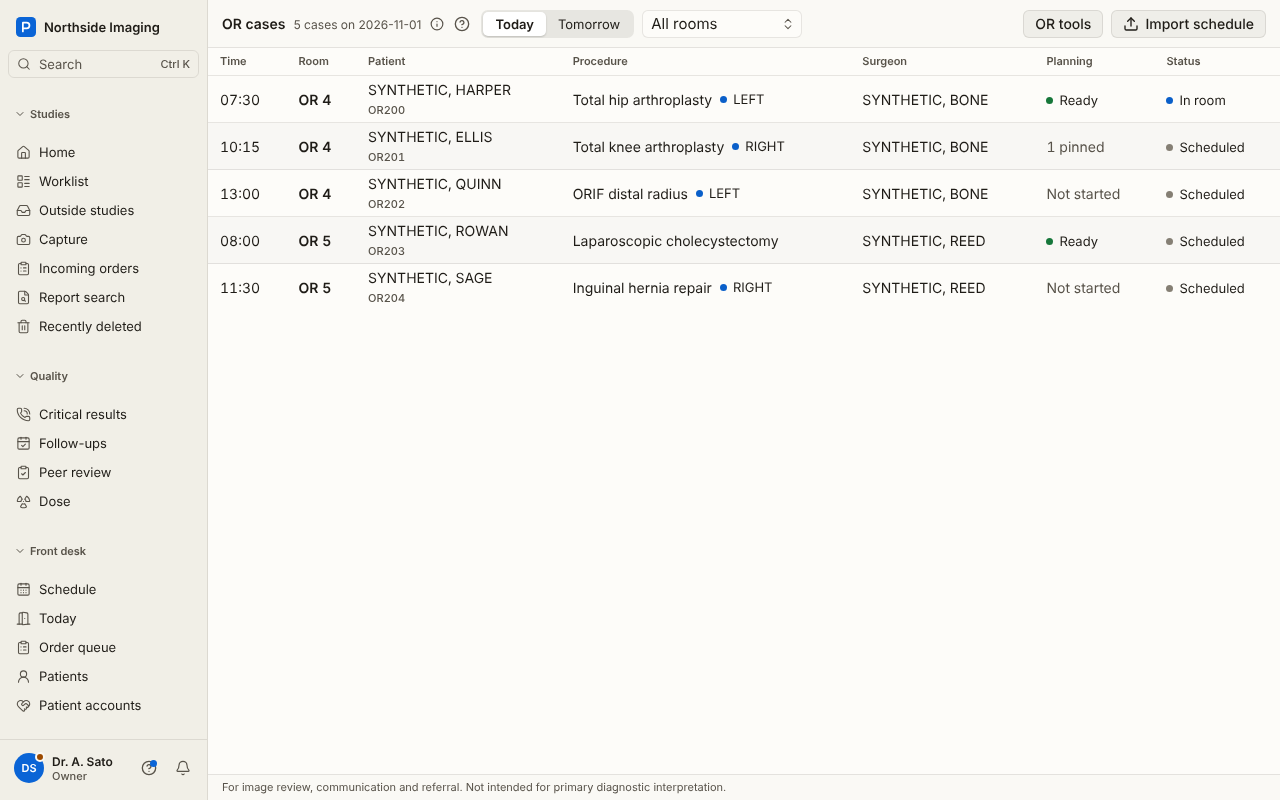
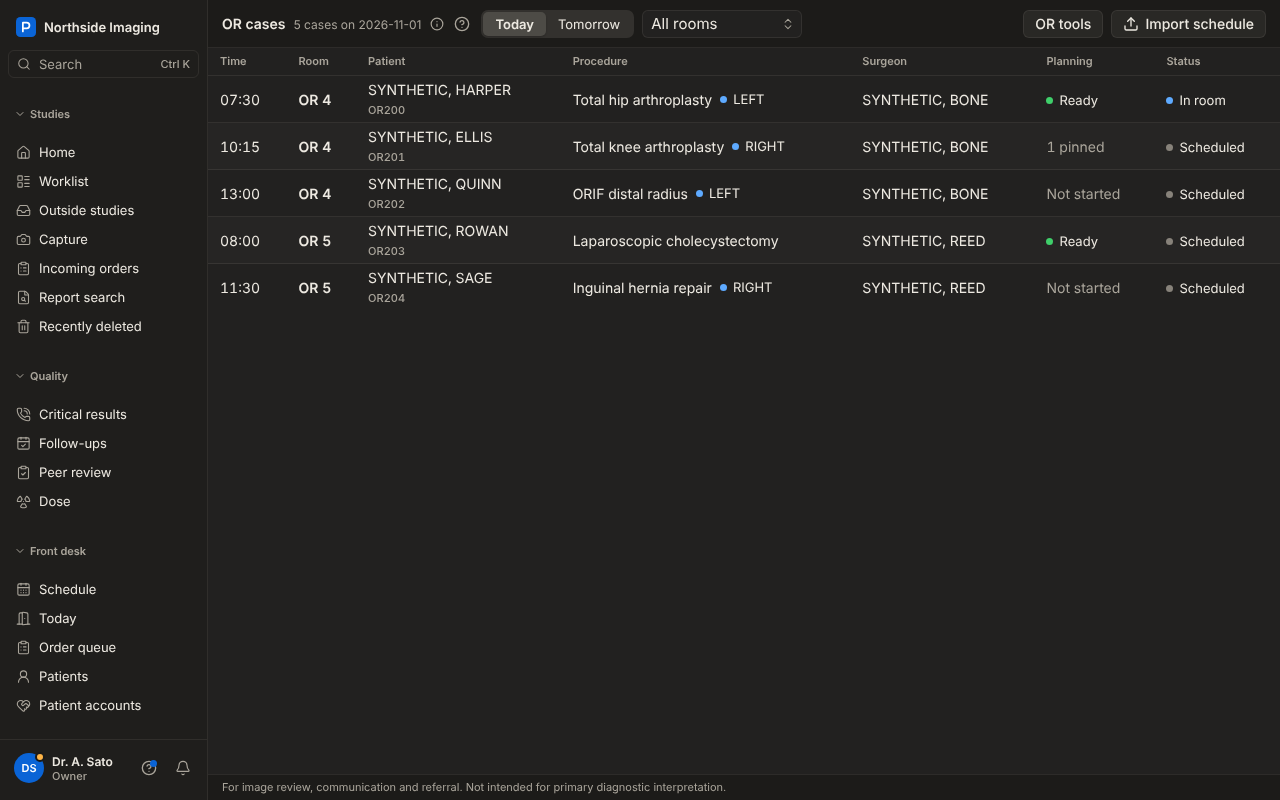
Specialties › OR cases lists the day's operating room cases by room and start time: the patient, the procedure with the booked side (LEFT, RIGHT or BILATERAL), the surgeon, how much of the planning set is pinned, whether planning is marked ready, and the case status (Scheduled, In room, Closed or Cancelled). Switch between Today and Tomorrow, and pick a room when there is more than one.
Select a case to open its page. There the surgeon sees the patient's studies ranked for the procedure (same body region first, then same modality or similar description, newest first), pins the series they want in theatre, writes a short planning note and marks Planning ready. The planning set is what the OR display opens first.
The page appears while the Emergency and operating room pack and its OR half are on under Settings › Specialties.
Where the cases come from
- Your OR scheduling system by HL7 SIU. Send SIU messages to your HL7 interface. A new booking (S12) adds the case; a reschedule or change (S13, S14) updates its date, time, room, surgeon and procedure; a cancellation, deletion or no-show (S15, S16, S17, S26) marks it Cancelled. PacsPilot reads the appointment ID (SCH-2, else SCH-1), the procedure (AIS-3), the start (AIS-4), the room (AIL-3), the surgeon (the AIP with a surgeon role, else the first AIP) and the patient (PID). Updates never touch the surgeon's pinned images, note or ready mark.
- A daily schedule file. Members who manage OR cases choose Import schedule and pick a CSV file. The first row names the columns in any order. Date, Procedure and MRN are required; Case ID, Room, Start, Surgeon, Side, Patient, DOB and Sex are optional. A row with a known case ID updates that case. Rows with a problem are listed by line and skipped; the rest import.
- By hand or by API.
POST /v1/or/casesadds an add-on case.
The booked side comes from the schedule's side column, else from words in the procedure such as "Left", "LT", "Right", "RT" or "Bilateral".
Who can use it
Members who can see studies can open the list and case pages. Owners, admins, physicians and technologists (permission OR cases) can import the schedule, pin and unpin images, change the status and mark planning ready. Members limited to a visibility group cannot open the list, because it covers every patient on the schedule. Every change is in the audit log.
How to use it
- Open Tomorrow the evening before and select a case.
- Under Relevant priors, choose Pin on the studies you want in theatre. Choose Open to look at a study first; templating and Send to TraumaCad or mediCAD work in the viewer as usual.
- Add a Planning note if useful and choose Save note.
- Choose Mark planning ready. The list shows Ready for that case.
Show images on the room screen
The room's screen shows the case's planning set full screen, with the patient's name, MRN and booked side in large type across the top, and nothing else: no worklist and no other patients. A circulating nurse or the surgeon drives it from a tablet or phone, so nobody touches the room PC.
- On the room PC, open the case and choose Show on room screen. A six-digit code appears. It works once, for ten minutes.
- On the tablet or phone, sign in, open OR cases, choose OR tools › OR remote and type the code.
- The room screen opens the planning set. The remote has a button for each pinned image, Previous and Next (and 10 back or forward), Zoom in, Zoom out and Fit, window presets (Default, Bone, Soft tissue, Lung, Brain), Invert, and 1, 2 or 4 images on the screen.
- Choose End pairing when you are done. The pairing also ends when the case is closed or cancelled, and after 12 hours; the screen then covers the images.
The remote can only show the images pinned to this case. Starting a new room screen for the case ends the earlier one. Pairing, joining and ending are in the audit log.
Intraop images and fluoroscopy
Images from the room's C-arm, ultrasound, endoscopy tower or specimen cabinet are filed to the case automatically, and the fluoroscopy time and dose are kept with it.
-
An owner or admin opens OR cases › OR tools › Intraop imaging › Devices and
lists each device on its own line: the station name or AE title it sends, the room, and a label,
separated by commas (for example
OR4-CARM, OR 4, C-arm). Choose Save devices. - A new study from a listed device is filed to the case only when its patient ID matches exactly one case that day. PacsPilot never guesses a patient. Anything else waits under Unmatched, where a member who manages OR cases chooses File to case (the study's patient must be the case's patient) or Dismiss for a test shot.
- The case page shows the filed images under Intraop imaging, with the fluoroscopy time, DAP and reference point dose and where they came from: Dose report, Image headers, Entered in Dose, or Typed from the C-arm. When the C-arm sends no dose report, choose Type fluoroscopy values and copy the numbers from its display.
- Choose Copy op note text to copy a short paragraph for the operative note in your EHR: the images taken, the fluoroscopy time and dose with their source, and a link to the case.
OR tools › Intraop imaging › Fluoroscopy log lists the last 7 or 31 days of cases with intraop images and their totals. A closed case with fluoroscopy or angiography images and no time or dose shows Missing.
Count and specimen films
- On the case page, choose Ask for count film (a retained surgical item check) or Ask for specimen film. Withdraw takes back one asked for by mistake.
- Readers see waiting films in a banner at the top of the worklist, with the room; Answer opens the queue. They can also open OR cases › OR tools › OR films. Films wait there oldest first, with the room number in large type. Choose Open images, then Answer: for a count film, No retained item seen or Item seen with where it is; for a specimen, whether the lesion and the clip are seen and a margin comment. Type who you told in the room if you called.
- The answer appears at once on the case page, on the room screen's top bar and on the paired remote, and the member who asked gets a notification. A retained item shows in red and is always a critical result, so the usual acknowledgement and escalation applies while critical results are on.
- Copy op note text includes the answers.
Fields and columns
- Time and Room: the scheduled start and theatre.
- Patient: name and MRN.
- Procedure: with the booked side.
- Surgeon: from the schedule.
- Planning: Ready, the number of pinned studies, or Not started.
- Status: Scheduled, In room, Closed or Cancelled.
If something goes wrong
- "The case is booked LEFT but pinned images name the other side": a pinned study's description names the other side. This is a warning only. Check the images and the booking, then unpin the wrong study or ask the scheduler to correct the side.
- "This study belongs to another patient than the case": you can only pin the case patient's own studies.
- A case is missing: its SIU message was refused (see Interfaces for the reason), or it is on another day.
- "That code is wrong or has expired": check the six digits on the room screen, or choose Show on room screen again for a new code.
- The room screen says the pairing has ended: the case was closed or cancelled, someone ended the pairing, or 12 hours passed. Start it again from the case.
- An intraop image did not reach its case: check OR tools › Intraop imaging › Unmatched. The study's patient ID or date differs from the case, two cases that day share the patient, or the device's station name or AE title is not on the device list.
- "Correct the study's patient first": the study names another patient than the case. Fix the study's patient if it is wrong, then file it again.
- "Choose the film's study": a retained item is a critical result, which needs the film's study. Wait for the film to arrive (it is filed to the case from the room's device), then answer.
- The page is missing from the sidebar: the Emergency and operating room pack or its OR half is off, or you are limited to a visibility group.
Related
Updated November 1, 2026. Signed in? The same article is in the app's help panel: press
?.