Pathology
Pathology cases with their specimens, blocks and scanned slides, to track scanning and open the slides in the viewer.
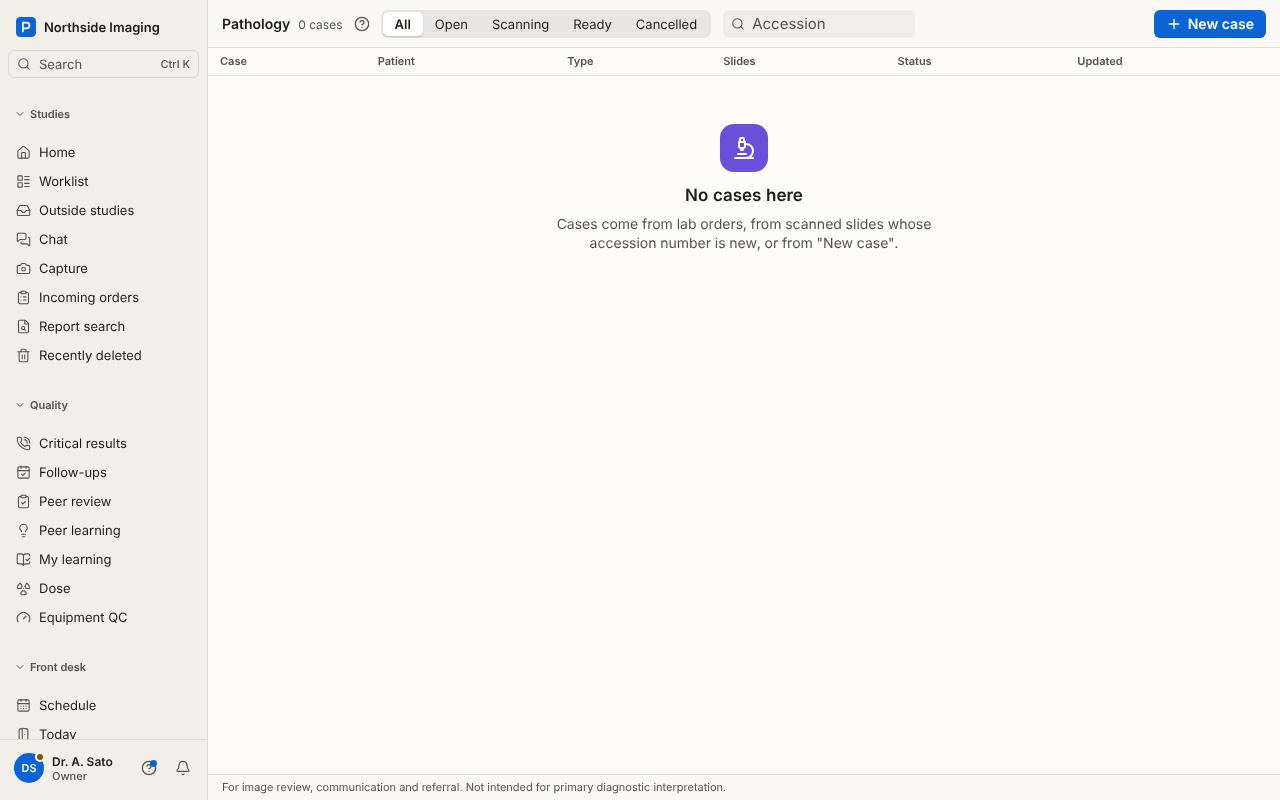
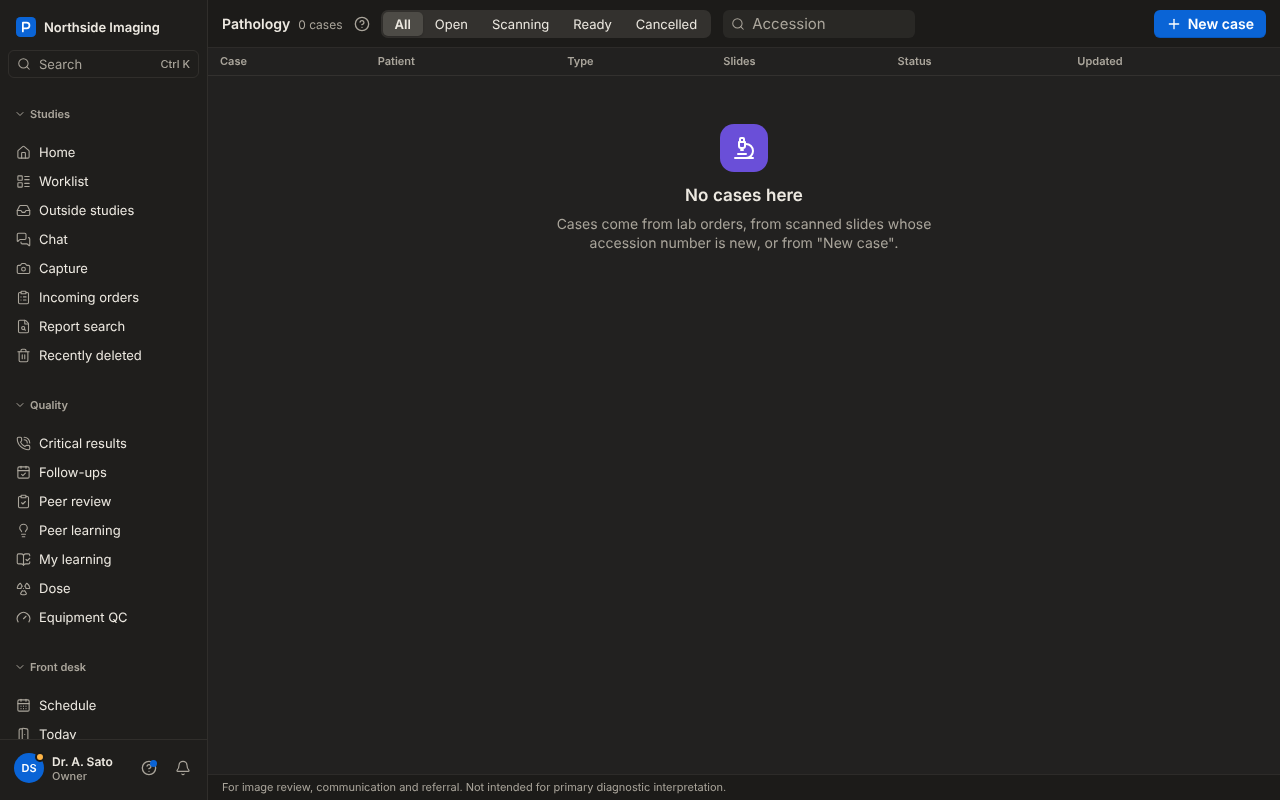
What this page is for
Digital pathology keeps scanned glass slides next to the practice's studies, organized by pathology case. This page lists the cases, newest first. Press a row to open the case page: its specimens, blocks and slides, the scans waiting to be matched, and Open in viewer to pan and zoom the slides.
Cases come from lab orders, from scanned slides whose accession number is new, or from New case. Scanned slides are matched to their case by the accession number, and to their slide by the slide barcode.
Slides are for review, communication and referral. PacsPilot is not cleared for primary diagnosis of pathology slides.
Who can use it
Every member who can view studies can open this page while digital pathology is on. A case follows its study's visibility: if you cannot see the study, you cannot see the case.
What you can do depends on your permissions:
- New case, adding and removing specimens, blocks and slides, linking scans, Request rescan, changing the type, and cancelling or reopening a case need "Create and cancel orders" (owners, admins and technologists by default).
- Add slides (upload vendor slide files) needs "Upload studies", and appears only while slide conversion is on in Settings › Pathology.
- Saving annotations on slides in the viewer needs "Save and hide annotations on whole-slide images" (owners, admins and physicians by default).
You may not see the page because digital pathology is off for the practice. An owner or admin turns it on in Settings › Pathology.
How to find a case
- Choose a status: All, Open, Scanning, Ready or Cancelled. The choice is kept in the page address.
- Type the exact accession number in Find a case by accession number and press Enter. Clear the box to see every case again.
- Press Load more to see older cases.
How to create a case
- Press New case.
- Enter the Accession number from the lab. Scanned slides are matched to the case by it.
- Choose the Type: Surgical, Cytology, Consult or Other.
- Enter the Patient ID (MRN), and the Issuer of patient ID if your practice uses one. A case needs the MRN before vendor slide files can be added.
- Under Specimens, give each specimen a Label (A, B, C and so on) and an optional Description. Press Add specimen for more.
- Press Create case. The case page opens.
How to set up the slides you expect
On the case page:
- Next to Specimens, press Add to add a specimen. Press the plus next to a specimen to add a block to it.
- Next to Slides, press Add slide. Enter the Label, choose the Specimen and Block, and enter the Slide barcode and Stain (H&E by default).
- Press Add slide. The slide shows as Expected until its scan arrives.
When the scanner sends a slide whose barcode matches, the slide becomes Scanned and shows a thumbnail.
How to match an unexpected scan
Scans whose barcode matched no expected slide of the case, and second scans of a slide, appear under Unexpected. Press Link to slide on the scan, choose the Expected slide and press Link.
How to upload vendor slide files
- On the case page, press Add slides.
- Drop one slide's files on the box, or press choose files or a folder. MRXS slides need the file and its folder.
- Under Slide, choose the expected slide, or leave Match by barcode.
- Press Upload and convert. Keep the dialog open until the upload finishes; closing it cancels the upload.
Progress shows under Conversions on the case page. Press Retry on a failed conversion or Cancel on one still running.
How to request a rescan or cancel a case
- Press Request rescan on a scanned slide when the scan is not usable. The slide shows Rescan requested until the new scan arrives.
- Press Cancel case and confirm to cancel a case. A case with scanned slides cannot be cancelled. Press Reopen case to undo.
Fields and columns
| Name | What it means |
|---|---|
| All, Open, Scanning, Ready, Cancelled | Filter by case status |
| Find a case by accession number | Shows the case with exactly this accession number |
| New case | Creates a case by hand |
| Case | The case's accession number |
| Patient | The patient's MRN |
| Type | Surgical, Cytology, Consult or Other |
| Slides | How many expected slides are scanned, such as "5 of 6 scanned", or "No slides" |
| Status | Open: no slide scanned yet. Scanning: some slides scanned, some still expected or waiting for a rescan. Ready: every expected slide is scanned. Cancelled |
| Updated | When the case last changed |
| Load more | Loads the next page of cases |
| Case page: Source | Lab order, Scanned slide or Created by hand |
| Case page: Created, Updated | When the case was created and last changed |
| Specimens | The specimens of the case, with their blocks and slides. A green dot marks a scanned slide |
| Slide card | The slide's label, stain, specimen and block, slide barcode, status and scan time |
| Slide status | Expected, Scanned, Unexpected (no expected slide matched) or Rescan requested |
| Re-encoded | The slide's tiles were re-encoded as JPEG during conversion, so it is not an exact copy of the scan |
| Open in viewer | Opens every slide of the case in the whole-slide viewer, shown once a slide is scanned |
| Conversions | Uploaded vendor files: Uploading, Queued, Converting, Storing, Done, Failed or Cancelled, with the format, file count and size |
| Accession number | The lab's case number, up to 64 characters |
| Patient ID (MRN), Issuer of patient ID | The patient the case belongs to |
| Label | A specimen, block or slide label, up to 32 characters, unique in the case |
| Description | Optional specimen description, up to 200 characters |
| Slide barcode | The ID printed on the slide label. The scanner reads it and matches the scan to this slide |
| Stain | The stain, such as H&E |
If something goes wrong
- "A case with that accession number already exists.": search for it instead.
- "That label is already used in this case.": choose another label.
- "Remove the specimen's blocks and slides first." or "Remove the block's slides first.": remove what is inside, then try again.
- "A scanned slide can't be removed." and "A case with scanned slides can't be cancelled.": scanned images stay with the case.
- "The case has the most specimens or slides allowed.": a case holds up to 104 specimens and 500 slides.
- "Add the patient's MRN to the case before adding slides.": the case has no MRN.
- Unsupported slide format: the converter reads SVS, NDPI, Philips TIFF, MRXS (with its folder), SCN, BIF, VMS and CZI.
- "This format's tiles must be re-encoded during conversion, which is turned off for the practice.": an admin can allow it in Settings › Pathology.
- "Slide conversion is paused. Try again later.": viewing still works; try the upload later.
- "Some files did not finish uploading. Add the slide again." or "The slide's files are no longer kept. Add the slide again.": upload the files again.
- "This case does not exist or you can't see it.": the link is wrong, or the case's study is outside your visibility group.
- "Pathology is turned off for this practice.": ask an owner or admin to turn it on in Settings › Pathology.
Related
Updated October 19, 2026. Signed in? The same article is in the app's help panel: press
?.