Modality worklist
Publish scheduled exams to your scanners through the site agent, so technologists pick the patient from a list instead of typing it.
What this page is for
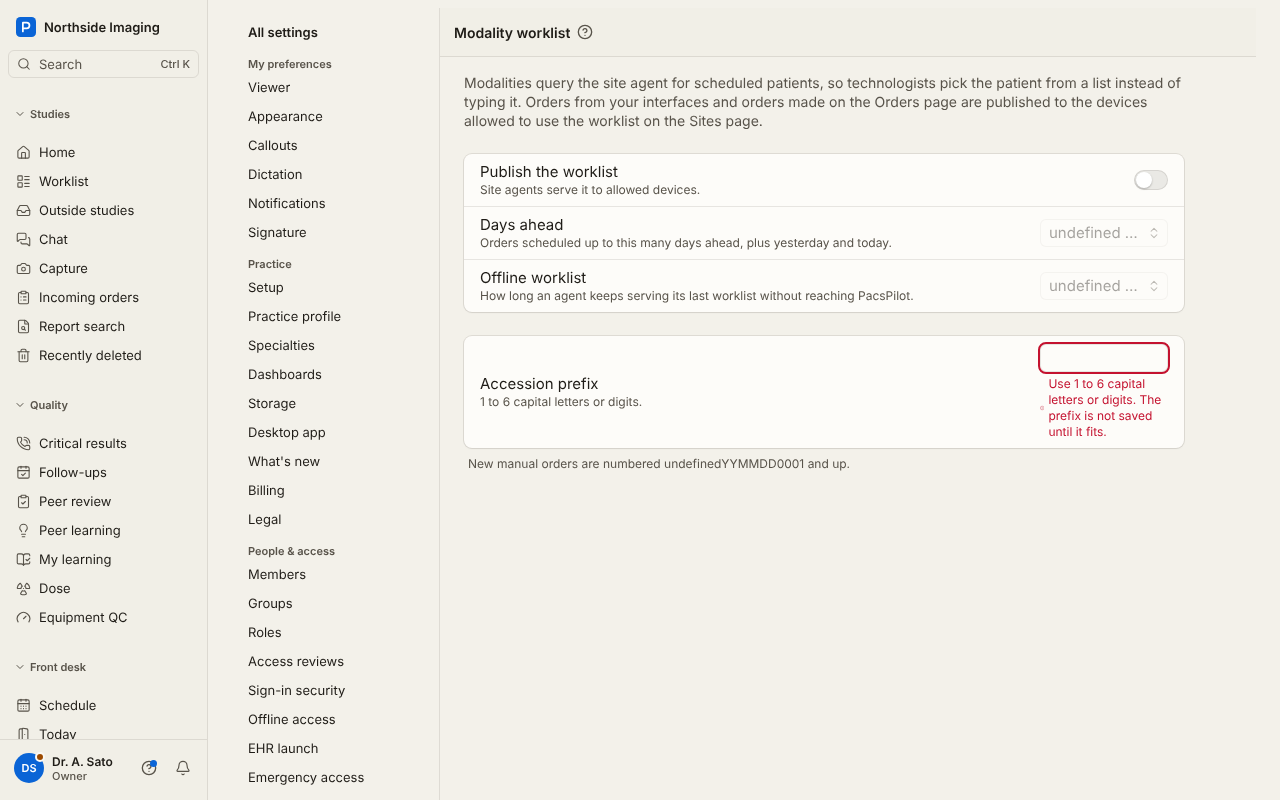
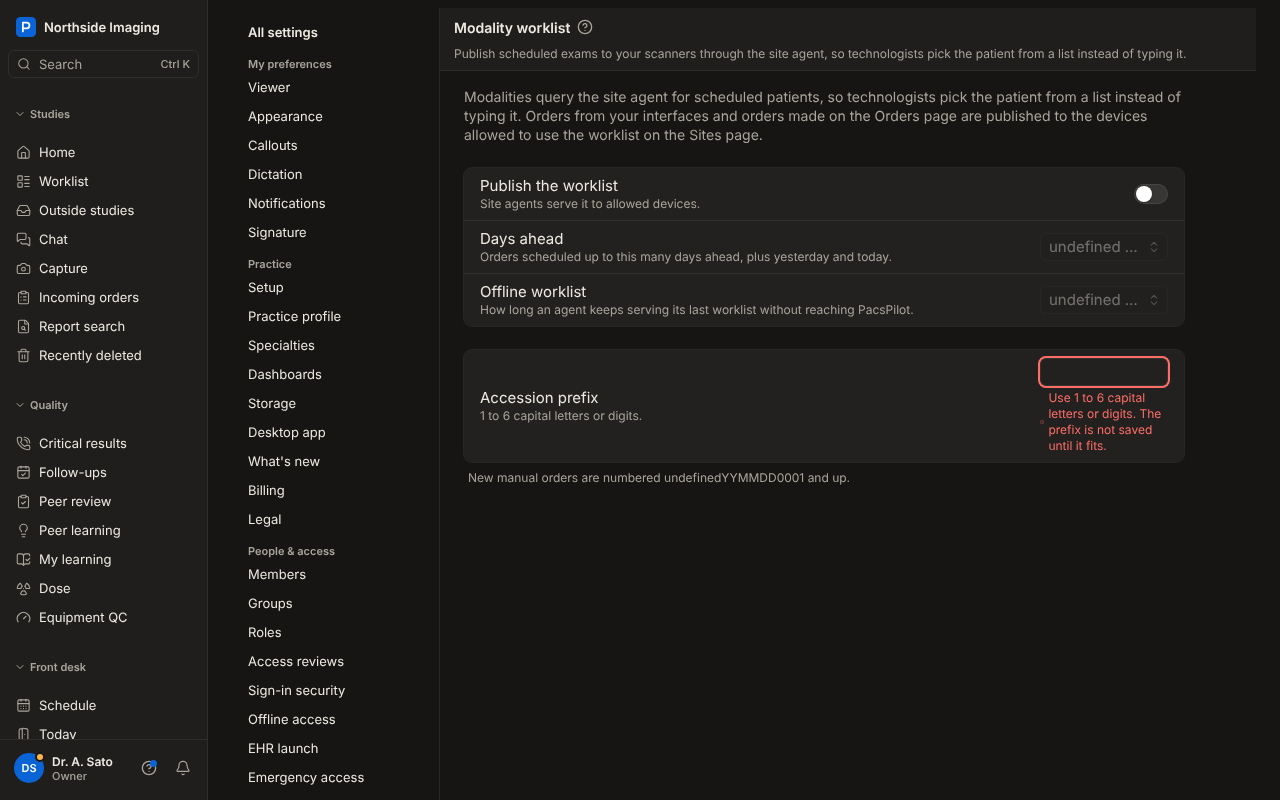
Settings › Modality worklist publishes scheduled exams to your scanners. Modalities query the site agent for scheduled patients, so technologists pick the patient from a list instead of typing it.
Orders from your interfaces and orders made on Incoming orders are published to the devices allowed to use the worklist on Sites.
Who can use it
Owners and admins, or any member whose role has the permission to change practice settings. If your role does not have it, the page is not in Settings.
The worklist is off until someone switches on Publish the worklist. Each device must also be allowed to use the worklist on Sites, and the site needs a site agent.
How to publish the worklist
- Open Settings › Modality worklist.
- Switch on Publish the worklist.
- In Days ahead, choose how far ahead to publish orders.
- In Offline worklist, choose how long a site agent keeps serving its last worklist when it cannot reach PacsPilot.
- On Sites, allow each device that should use the worklist.
Changes are saved as you make them. Each device sees only its own steps. A study that arrives with the step's Study Instance UID or accession number takes it off the worklist.
With the OB/GYN pack on, an ultrasound order for a patient with an ongoing pregnancy also sends the pregnancy's dates, so the scanner shows the right gestational age. The scanner gets a last menstrual period 280 days before the pregnancy's due date: the established due date when a physician set one, otherwise the date from the LMP and cycle length. A patient with two ongoing pregnancies gets no dates until the study is attached to one of them.
How to set the accession prefix
- In Accession prefix, enter 1 to 6 capital letters or digits.
- Click or tab out of the field to save it.
New manual orders are numbered with the prefix, then the date as YYMMDD, then 0001 and up. The line under the field shows an example.
Fields and columns
| Name | What it means |
|---|---|
| Publish the worklist | Site agents serve the worklist to allowed devices. |
| Days ahead | Orders scheduled up to this many days ahead are published, plus yesterday and today. Today only publishes today and yesterday. Off while the worklist is not published. |
| Offline worklist | How long an agent keeps serving its last worklist without reaching PacsPilot, in hours. Off while the worklist is not published. |
| Accession prefix | The start of the accession number for new manual orders: 1 to 6 capital letters or digits. |
If something goes wrong
- Could not load the settings: press the retry button. If it keeps failing, reload the page.
- Could not change the setting: the change was not saved and the page shows the setting as it was. Try again.
- Settings changed at the same time; try again: someone else changed these settings. Make your change again.
- Use 1 to 6 capital letters or digits. The prefix is not saved until it fits.: fix the prefix. Lower-case letters are changed to capitals as you type.
- A device does not show the worklist: check that Publish the worklist is on, that the device is allowed on Sites, and that the site agent is online.
Related
Updated October 19, 2026. Signed in? The same article is in the app's help panel: press
?.