EHR launch
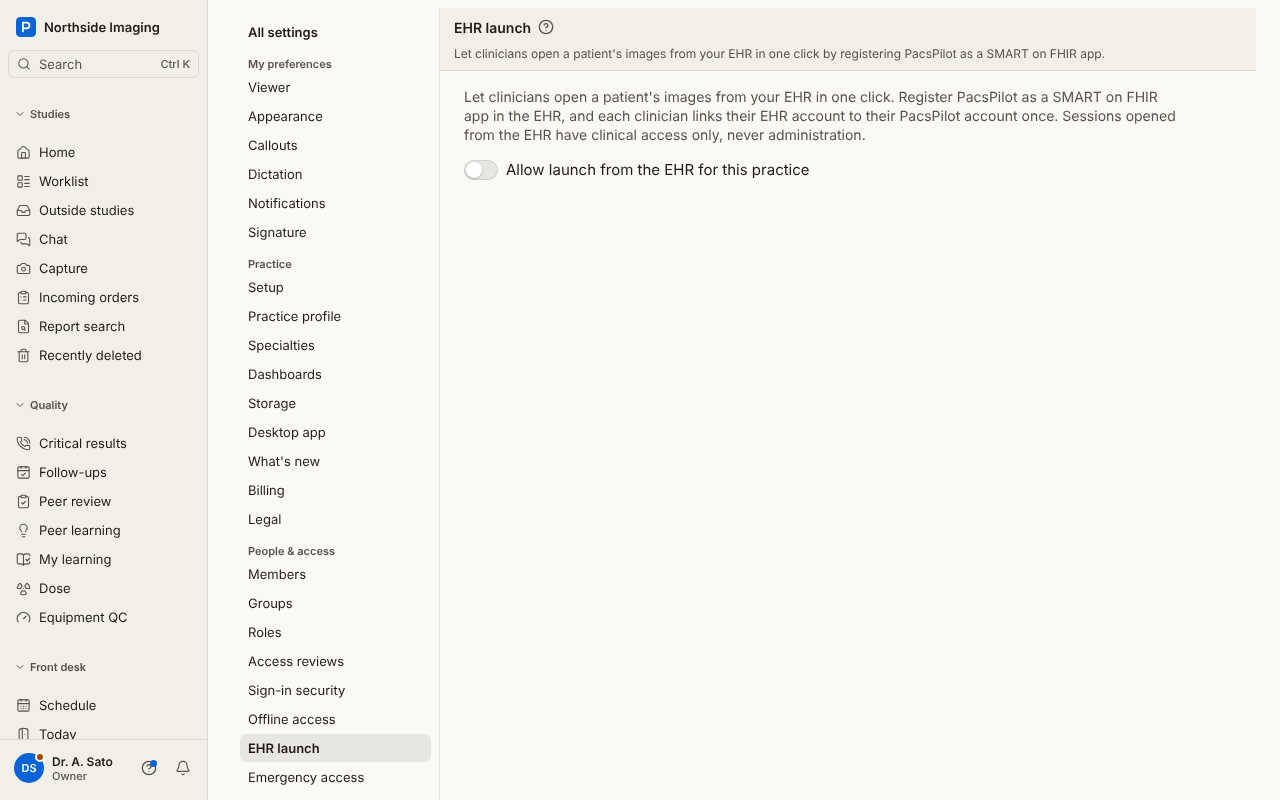
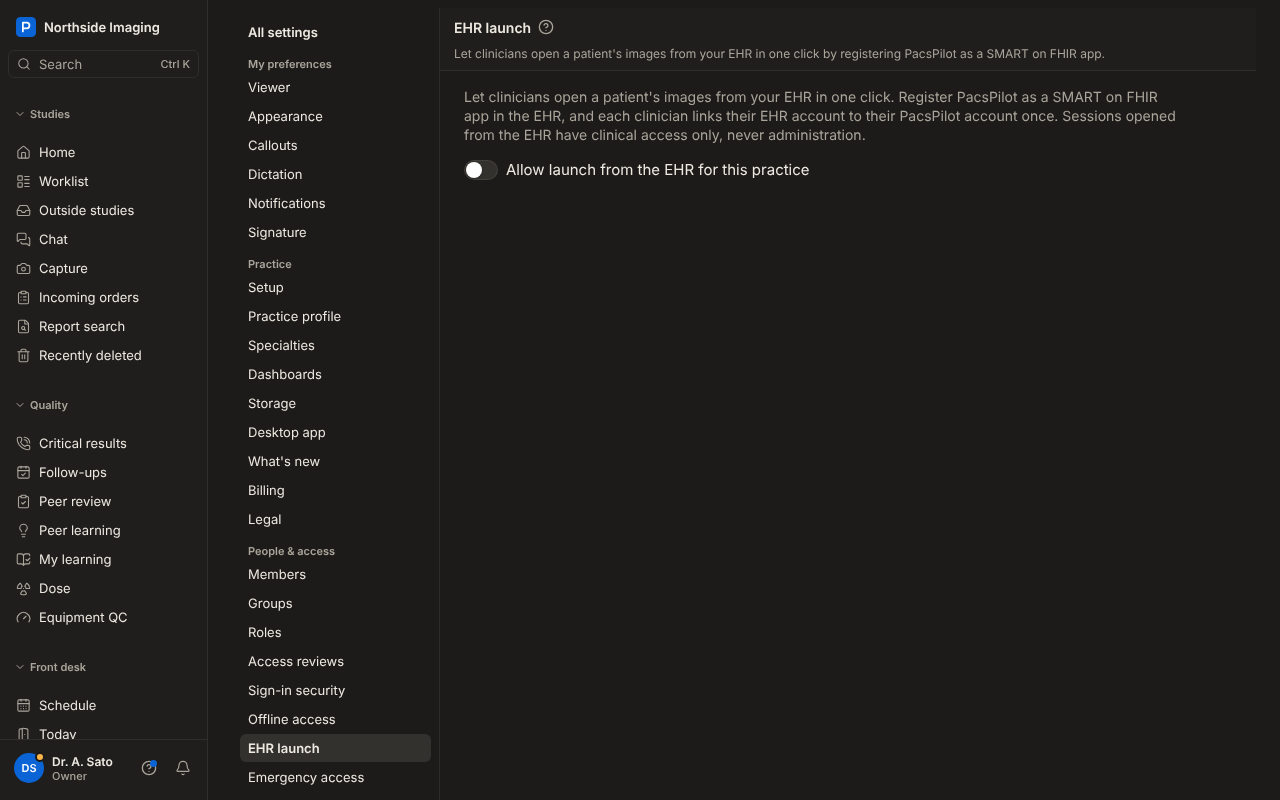
Let clinicians open a patient's images from your EHR in one click by registering PacsPilot as a SMART on FHIR app.
What this page is for
Settings › EHR launch lets clinicians open a patient's images from your EHR in one click. You register PacsPilot as a SMART on FHIR app in the EHR (Epic, Oracle Health or any SMART on FHIR EHR), and each clinician links their EHR account to their PacsPilot account once.
Sessions opened from the EHR have clinical access only, never administration.
Who can use it
Owners, or any member whose role has the permission to change practice security. If your role does not have it, the page is not in Settings.
Launch from the EHR is off until the owner switches on Allow launch from the EHR for this practice. Sending reports to the EHR is a separate page, EHR results.
How to turn on EHR launch
- Open Settings › EHR launch.
- Switch on Allow launch from the EHR for this practice.
How to add an EHR registration
- Register PacsPilot as an app in your EHR. The EHR gives you a client ID.
- Press Add registration.
- Enter a Name.
- Enter the FHIR address (iss): the EHR's FHIR R4 base URL, as the EHR sends it at launch. PacsPilot checks it when you save.
- Enter the Client ID the EHR issued.
- Under Authentication, choose Public key (JWKS) or Client secret. For a client secret, enter the Client secret. It is stored encrypted and never shown again.
- Optionally enter the MRN identifier system: the Patient.identifier system whose value is the DICOM Patient ID. Leave it empty to use the identifier of type MR.
- Optionally enter the Issuer of Patient ID to match only studies with that IssuerOfPatientID. Leave it empty for any issuer.
- Press Add registration.
- A dialog shows the values to enter in the EHR's app registration. Press Copy next to each one, then press Done.
To see these values again later, press EHR values on the registration.
How a clinician links their account
A clinician links their EHR account the first time they open PacsPilot from the EHR. They are asked to sign in to PacsPilot, and the link is listed under Linked EHR users.
How to turn off, delete or unlink
- Turn off stops launches from that EHR registration. Turn on starts them again.
- Delete removes the registration. Launches from that EHR stop at once, sessions opened from it end, and its linked users are removed.
- Unlink on a linked user ends their sessions opened from the EHR. Next time they launch from the EHR they are asked to sign in and link again.
Fields and columns
| Name | What it means |
|---|---|
| Allow launch from the EHR for this practice | The practice switch. |
| Add registration | Opens the dialog to add an EHR registration. |
| Name | The name of the EHR registration. |
| FHIR address | The EHR's FHIR R4 base URL (iss). |
| Linked users | How many members have linked their EHR account through this registration. |
| Status | On or Off. |
| EHR values | The values to enter in the EHR: Launch URL, Redirect URI, JWKS URL (for public key sign-in) and Scopes. |
| Edit | Change the registration. Leave Client secret empty to keep the stored secret. |
| Turn off, Turn on | Stop or start launches from this registration. |
| Delete | Remove the registration. |
| Client ID | The client ID the EHR issued for PacsPilot. |
| Authentication | Public key (JWKS) or Client secret. |
| MRN identifier system | Which patient identifier in the EHR matches the DICOM Patient ID. |
| Issuer of Patient ID | Match only studies with this issuer. |
| Member | The PacsPilot member, by name and email. |
| EHR user | The member's EHR user. |
| Registration | The EHR registration they linked through. |
| Last launch | When they last opened PacsPilot from the EHR, or Never. |
| Unlink | Remove the link between the member and their EHR user. |
If something goes wrong
- Could not load the setting or Could not load EHR registrations: press the retry button. If it keeps failing, reload the page.
- No SMART configuration found at that FHIR address: PacsPilot could not find the EHR's SMART configuration at the address you entered. Check the FHIR address (iss) with your EHR team.
- The FHIR address must be followed by a reason: the address does not meet PacsPilot's rules for outside addresses. Use the EHR's public HTTPS FHIR base URL.
- A client secret is required for this authentication: enter the Client secret, or choose Public key (JWKS).
- Client secrets cannot be stored right now: try again later, or use Public key (JWKS).
- The registration could not be saved: read the message in the banner, fix the field and save again.
- No linked users yet: no clinician has opened PacsPilot from the EHR yet.
Related
Updated October 19, 2026. Signed in? The same article is in the app's help panel: press
?.