Interfaces
See each HL7 sender on a learning token, review the field mapping PacsPilot learned for it and confirm it so held messages become orders.
What this page is for
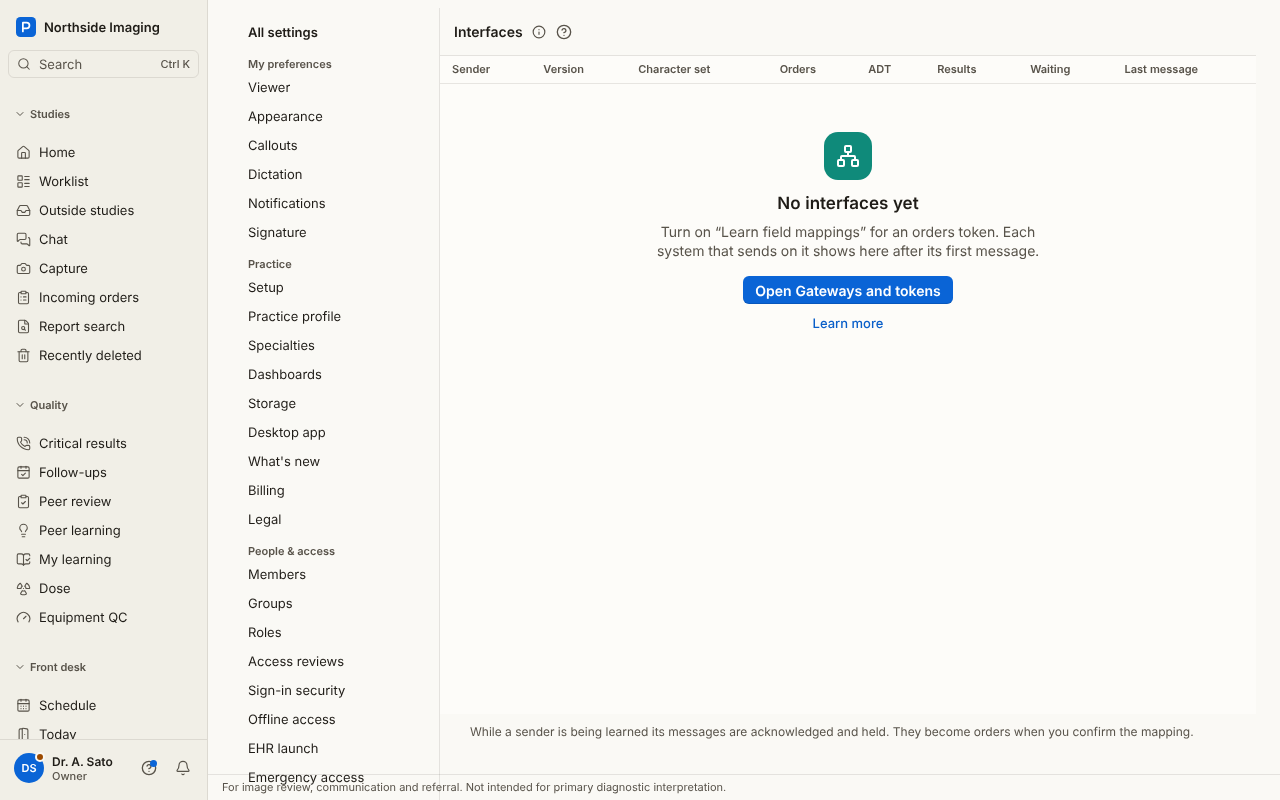
Settings › Interfaces lists every system that sends HL7 messages on a token with Learn field mappings switched on. For each sender, PacsPilot learns where it puts the patient ID, accession number and other fields, and shows you that mapping to check.
While a sender is being learned, its messages are acknowledged and held. They become orders when you confirm the mapping.
Who can use it
Owners and admins, or any member whose role has the permission to manage members. Members limited to a visibility group cannot use it.
You may not see the page if your role does not have that permission. The page stays empty until a token on Settings › Gateways and tokens has Learn field mappings switched on and a sender has sent its first message on it.
How to find a sender
- Open Settings › Interfaces, or press Interfaces on Gateways and tokens.
- Find the sender in the Sender column. A sender is named by its sending application and facility, or Unnamed sender when its messages carry neither.
- Read its state in the Orders, ADT and Results columns.
If the table says No interfaces yet, press Open Gateways and tokens and switch on Learn field mappings for the orders token the sender uses.
How to review and confirm a mapping
- Press the state badge in the column for the category you want to review (Orders, ADT or Results).
- Check the Field mapping table. Each row is a field, with (required) after the fields every message must have.
-
If a location is wrong, choose another one in the list for that field. To type one yourself,
press Other…, enter it (for example a segment and field number such as
ZDS-1) and press Use. For HL7 v3 and CDA senders you choose an Issuer OID instead. - For coded fields, check the values cards below the table and choose what each sender value means, or leave Default.
- If a banner says some samples would be refused, fix the fields it names.
- Press Confirm mapping, then Confirm.
New messages from that sender are then mapped with the confirmed mapping, and its held messages become orders at once. A message tells you how many held messages were applied, how many orders were created and how many were linked to studies.
A proposal is made after 5 messages when every required field is certain, otherwise after 10. You can review and confirm earlier.
How to re-learn a mapping
When a confirmed mapping no longer fits the sender's messages, the state reads Needs review.
- Press the Needs review badge.
- Read the banner. It names what changed. Messages are still mapped with the confirmed mapping meanwhile.
- Press Start re-learning.
- When the new proposal is ready, review and confirm it as above.
Fields and columns
| Name | What it means |
|---|---|
| Sender | The sending application and facility from the messages, or Unnamed sender. |
| Version | The HL7 v2 version seen, or HL7 v3 or CDA. |
| Character set | The character set seen in HL7 v2 messages (ASCII when none is given), or XML for v3 and CDA. |
| Orders, ADT, Results | The state of that category: Learning 3 of 5, Proposal ready, Active, Active, re-learning or Needs review. A dash means the sender has sent nothing in that category. Press the badge to open the review. |
| Waiting | How many messages are held until you confirm. It also shows how many were discarded after 30 days. |
| Last message | When the sender's last message arrived. |
| All interfaces | Goes back to the list from a review. |
| Revision active | The confirmed mapping in use, by revision number. |
| Learning, Proposal ready | How far learning has got, and how many samples it has. |
| Field | The order, patient or result field being mapped. |
| Location | Where in the message the field is read from. For HL7 v3 and CDA senders this column is Issuer OID. |
| Other… | Type a location or issuer OID yourself, then press Use. |
| Confidence | High, Medium, Low or No samples. It can also say how many values match existing studies or orders. |
| Sample 1, 2, 3 | The value the current mapping gives in up to three sample messages. |
| Values cards | For coded fields, each value the sender uses and what it means in PacsPilot. |
| Sample message | One sample message. Point at a field name to highlight where it is read from. For HL7 v3 and CDA senders, an Identifiers table lists each Issuer OID, Value and Element. |
| Confirm mapping | Confirms the mapping for this category after you press Confirm. |
| Start re-learning | Learns a new proposal for a mapping that needs review. |
If something goes wrong
- Could not load interfaces or Could not load the interface: press the retry button. If it keeps failing, reload the page.
- No interfaces yet: no sender has sent a message on a learning token. Switch on Learn field mappings on Gateways and tokens and check that the sender uses that token.
- No messages from this sender in this category yet: there is nothing to confirm yet. Wait for the sender's first message in that category.
- Invalid location for a field: the location you typed is not a valid segment and field. Use the form of the other locations in the list.
- A banner says some samples would be refused: with this mapping those messages cannot become orders. Fix the fields the banner names before you confirm.
- The confirmation message says some messages could not be mapped: those held messages did not fit the confirmed mapping.
- Could not confirm the mapping or Could not start re-learning: try again. If it keeps failing, reload the page.
- Messages that wait longer than 30 days are discarded and counted in Waiting.
Related
Updated October 19, 2026. Signed in? The same article is in the app's help panel: press
?.