Breast letters
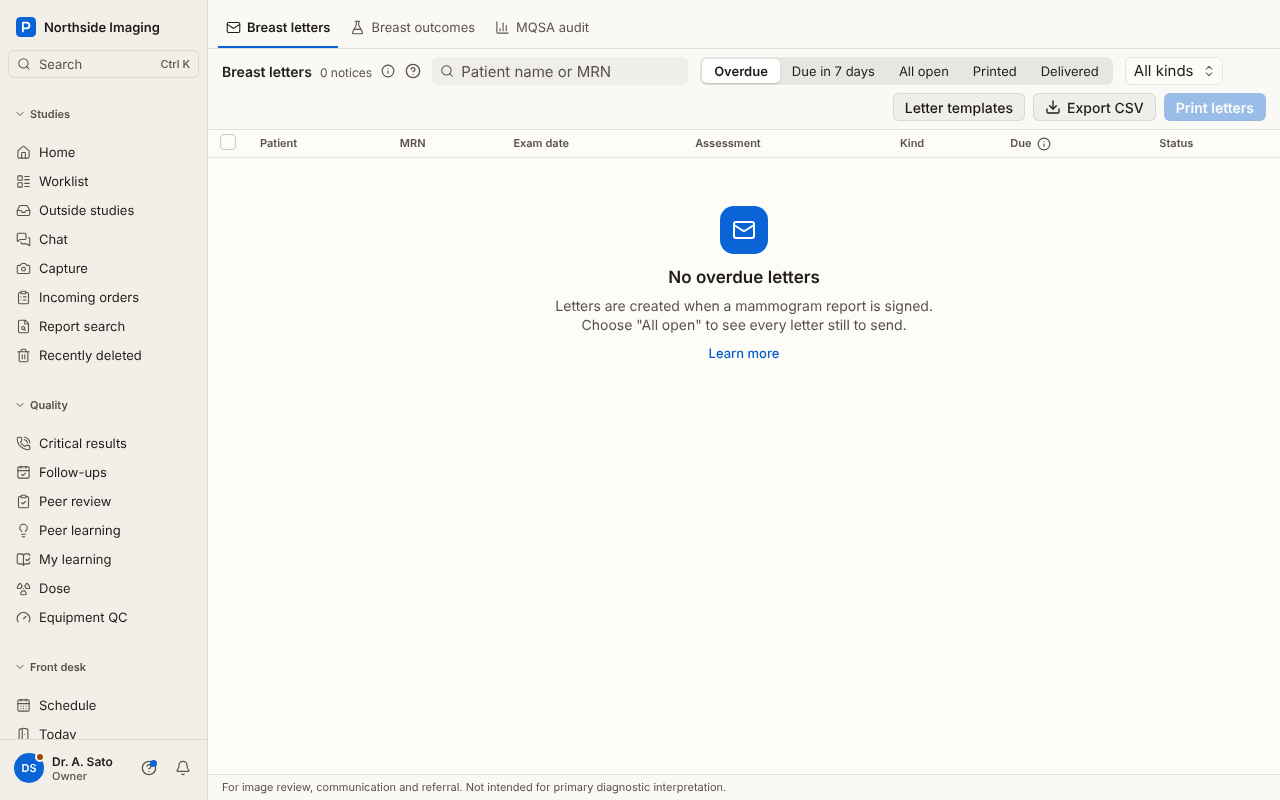
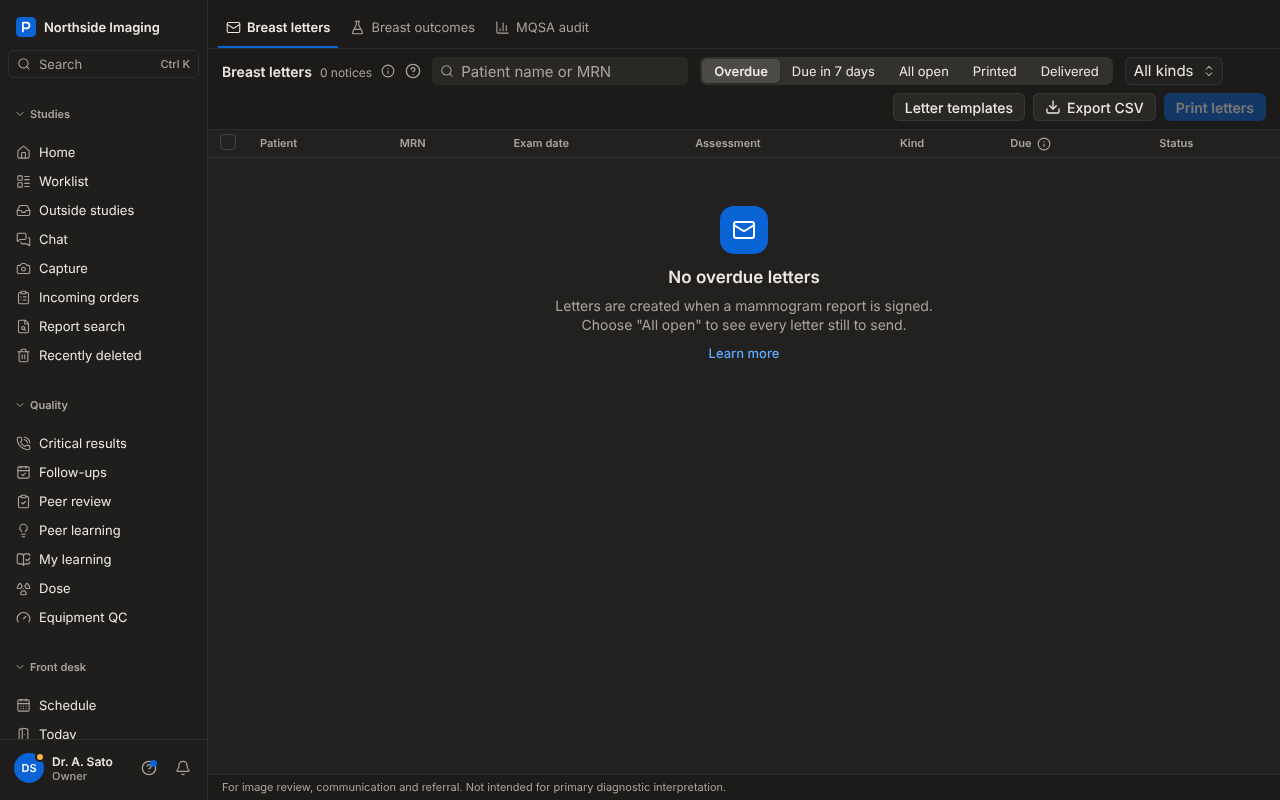
MQSA patient letters and provider reports created when a mammogram is signed, with their due dates, to print, mail and mark delivered.
What this page is for
When a mammogram or tomosynthesis (DBT) report is signed, PacsPilot creates the notices that MQSA requires, each with its due date. This page lists them so staff can print the letters, mail them and record that each one was delivered.
Each signed exam can create up to three notices:
- Patient letter: the lay summary letter for the patient, with the breast density statement.
- Provider report: the written report for the ordering or referring provider.
- Report to self-referred patient: the report for a patient with no known provider.
Due dates follow the federal rule as the product reads it:
- A notice is due 30 days after the exam date.
- For a suspicious result (BI-RADS 4, 4A, 4B, 4C or 5), it is due 7 days after the report was signed when that is earlier.
- When an amendment changes the assessment, density or purpose of a report, open notices are replaced (Superseded) and new ones are created. If a notice was already delivered, a corrected notice is created, due 30 days after the amendment.
The wording, due dates and rules follow engineering's reading of 21 CFR 900.12 and need review by counsel before a facility relies on them.
The sidebar shows a count next to Breast letters: notices due in the next 7 days or overdue.
Who can use it
Owners, admins and technologists can use this page, or any member whose custom role includes "Print, mail and track MQSA letters and provider reports".
You may not see the page because:
- Breast imaging is off for the practice. An owner or admin turns it on in Settings › Breast imaging.
- Your role does not include the permission above. Physicians do not have it by default.
- You are limited to a visibility group. Breast imaging pages are not available to members in a visibility group.
The Letter templates button shows only to members who can change practice settings (owners and admins by default).
How to print letters
- Choose a view at the top, such as Overdue or Due in 7 days.
- Tick the letters you want to print. Only Open and Printed notices can be selected. Tick the header box to select every open or printed notice on the loaded page.
- Press Print (the button shows how many, such as "Print 12 letters"). PacsPilot downloads one PDF with every letter.
- If a patient has no mailing address on file, the Mailing addresses dialog opens. Type the street, city, state and ZIP for each patient listed, then press Print. The address is kept with that letter.
You can print or mark delivered at most 50 letters at a time. Printing marks each notice Printed. It is not delivered yet.
How to mark letters delivered
After you mail a printed batch:
- Select the letters you mailed.
- Press Mark delivered (the button shows how many, such as "Mark 12 delivered").
- Choose How (Mail, Fax, By hand or Other), the Date, and an optional Note of up to 200 characters.
- Press Mark delivered.
The message that follows says how many were marked delivered, and how many were left because they were already delivered or were replaced.
To mark one notice, press its row to open it, fill in Mark delivered at the bottom and press Mark delivered.
A provider report closes on its own when the signed report is delivered to the EHR. You only need to record another delivery (fax, mail or by hand) when it went out another way.
How to publish a letter to the patient portal
- Open a Patient letter row.
- Press Publish to portal.
The button shows only while the patient portal is on. The letter is posted to the patient's portal account. It counts as delivered only when Portal letters count as delivered is on in Settings › Breast imaging; otherwise you still mail it and mark it delivered.
How to find a letter
- Type at least two characters of the patient's name or the start of the MRN in Search letters. The search covers the current view and kind, so if nothing matches, try another view such as Delivered.
- Use Kind to show only one kind of notice.
- The view, the kind and an open notice are kept in the page address, so you can share or reload the link. The search text is not kept.
How to export the list
Press Export CSV. The file has the notices of the current view and kind, with patient columns, up to 10,000 rows. The export is recorded in the audit log.
Fields and columns
| Name | What it means |
|---|---|
| Search letters | A word of the patient's name or the start of the MRN, at least two characters |
| Overdue | Open and printed notices past their due date. This is the default view |
| Due in 7 days | Open and printed notices due within the next 7 days, overdue ones included |
| All open | Every notice still to send |
| Printed | Notices printed but not yet marked delivered |
| Delivered | Notices marked delivered |
| Kind | All kinds, Patient letter, Provider report or Report to self-referred patient |
| Patient | The patient's name |
| MRN | The patient's medical record number |
| Exam date | The date of the mammogram |
| Assessment | The BI-RADS assessment of the exam, such as "BI-RADS 1", "0, more imaging", "0, prior films" or "Marker placement" |
| Kind (column) | The kind of notice; "(corrected)" marks a notice created after an amendment |
| Due | The date the notice must be delivered by. Shown in red when overdue |
| Status | Open, Printed, Delivered, Superseded (replaced after an amendment), Cancelled, or Overdue |
| Letter templates | Opens the editor for the wording of each patient letter group (owners and admins) |
| Export CSV | Downloads the current view as a CSV file |
| Mark N delivered | Records one delivery for every selected letter |
| Print letters | Prints the selected letters as one PDF |
| Load more | Loads the next page of notices |
| Notice: Status | The status, with how and when it was delivered |
| Notice: Exam | The exam date and assessment; opens the report |
| Notice: letter preview | The letter as it will print |
| How | Mail, Fax, By hand or Other. Patient portal and EHR deliveries are recorded by the system |
| Date | The day the notice was delivered. It cannot be in the future |
| Note | Optional proof of delivery, up to 200 characters |
| Publish to portal | Posts a patient letter to the patient's portal account |
| Letter templates: Assessment group | The group of assessments the wording is for, such as "Negative or benign (1, 2)" |
| Letter templates: Paragraph | Up to 8 paragraphs of up to 1,500 characters. Use {exam_date} and {facility} in the text |
| Letter templates: Use built-in wording | Puts back the product's wording for the group |
| Letter templates: Save new version | Saves the wording as a new version for the group |
| Letter templates: Preview | Shows the letter with the facility block and the density statement, which you cannot edit |
If something goes wrong
- "Print or mark delivered at most 50 letters at a time." Select fewer letters.
- "Type a mailing address for each patient listed": the Mailing addresses dialog opens. Type each address, then press Print.
- "Some notices were replaced or cancelled; reload the list": a report was amended while you worked. Press Retry to reload.
- "This notice is already marked delivered" or "This notice was replaced or cancelled": someone else closed it, or an amendment replaced it.
- "The delivery date cannot be in the future": choose today or an earlier day.
- "The patient portal is off or the patient has no portal account": mail the letter instead, or invite the patient to the portal.
- "The study has no patient ID to find a portal account": the study has no MRN. Mail the letter.
- "That notice was not found": a shared link points to a notice that no longer exists or that you cannot see.
- "Breast imaging is turned off for this practice": ask an owner or admin to turn it on in Settings › Breast imaging.
Related
Updated October 19, 2026. Signed in? The same article is in the app's help panel: press
?.