Patient accounts
The patients you invited to the patient portal, with their status, linked MRNs and recent activity, and actions to resend, unlock or disable.
What this page is for
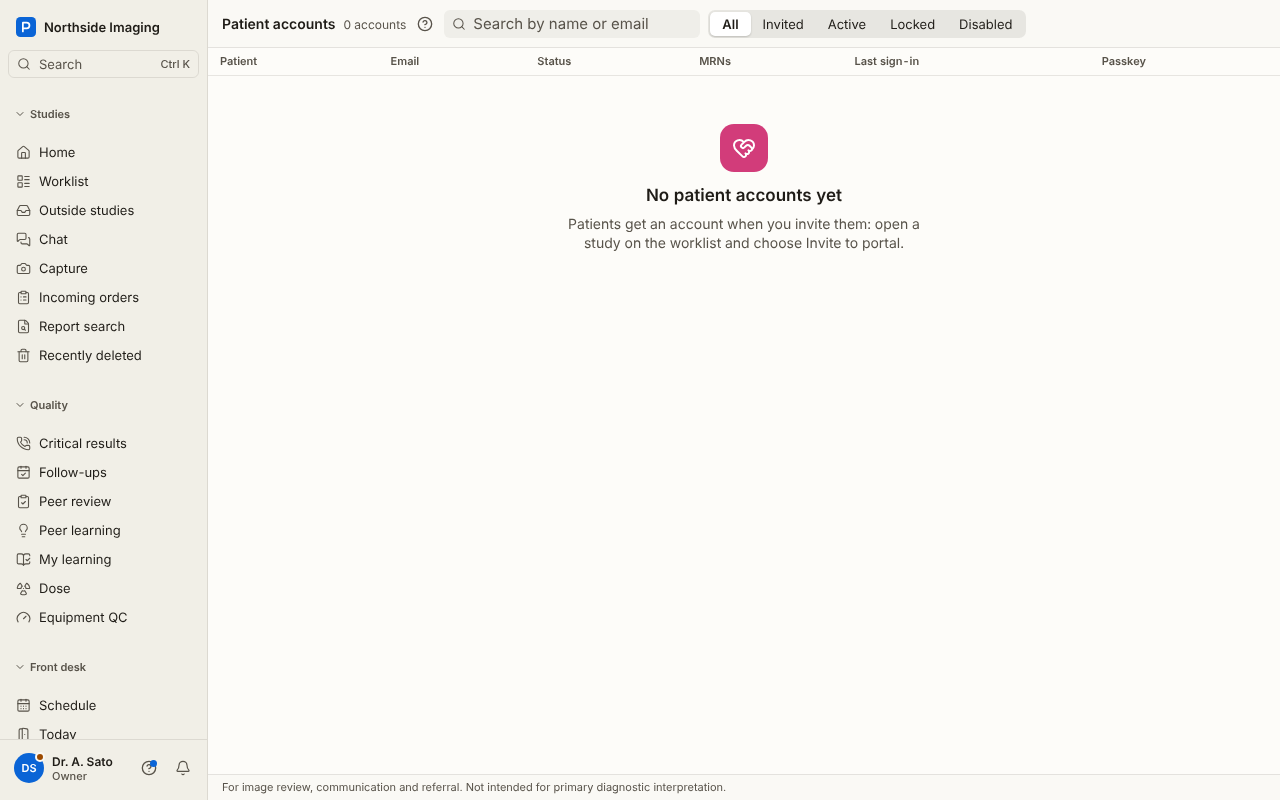
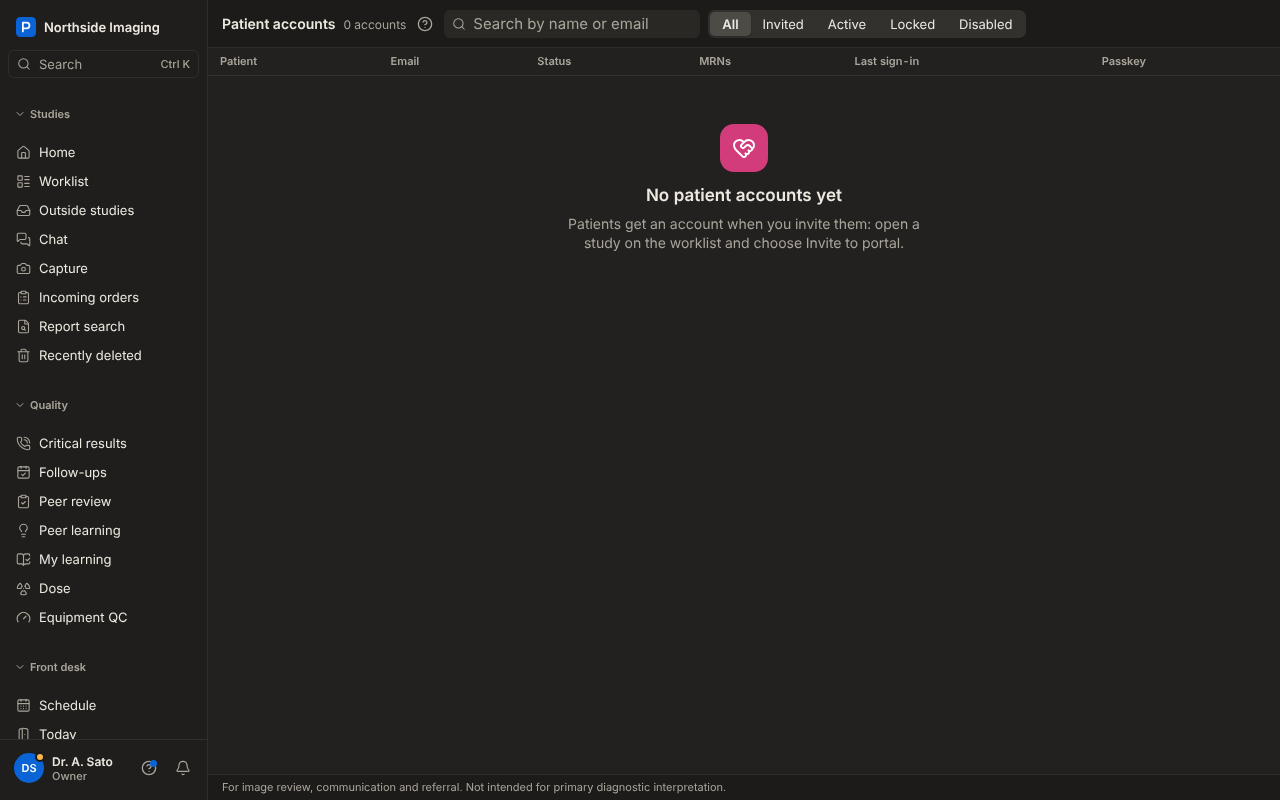
Patient accounts lists every patient you invited to your patient portal. For each one you see their status, the MRNs linked to the account and when they last signed in. Open an account to see what the patient did recently, resend their invitation, unlock them or turn the account off.
Patients see the studies filed under the MRNs linked to their account. The list shows emails partly hidden. Opening an account shows the full email and is recorded in the audit log.
Who can use it
You need the permission Invite patients and manage their portal accounts. Owners, admins, physicians and technologists have it by default. Members limited to a visibility group do not see this page.
The page only appears once an admin turns on the patient portal in Settings › Patient portal. If you do not see Patient accounts under Front desk in the sidebar, the portal is off for your practice, your role does not include it, or you are in a visibility group. Ask an admin.
How to invite a patient
You invite patients from a study, not from this page.
- On the worklist, open the row menu of one of the patient's studies and choose Invite to portal….
- Enter the Patient's email.
- Check the Date of birth. It comes from the study. If the study has none, ask the patient and tick Checked with the patient.
- Choose Send invitation.
The email names your practice and carries a sign-in link only, no study details. Patients under 18 cannot be invited yet. If the patient already has an account, the dialog says so and offers Open account. If the email is already used by another account, you can choose Add MRN to account to link this MRN to it.
How to help a patient who cannot sign in
- Find the patient with Search by name or email, or choose a status such as Invited or Locked.
- Choose the patient's row to open the account.
- If the status is Invited, choose Resend invite. If it is Locked, choose Unlock.
How to remove an MRN or disable an account
- Remove an MRN: open the account and choose Remove next to the MRN, then confirm. The patient no longer sees studies filed under that MRN. Do this when an MRN was linked by mistake.
- Disable: choose Disable and confirm. The patient is signed out at once and cannot sign in until you choose Enable.
Fields and columns
| Name | What it means |
|---|---|
| Search by name or email | Finds accounts by the patient's name or email. Type at least two characters. |
| Status filter | All, Invited, Active, Locked or Disabled. The choice stays in the page address. |
| Count | Under the title: how many accounts are listed ("+" means there are more). |
| Patient | The patient's name. |
| The patient's email, partly hidden. | |
| Status | Invited (has not signed in yet), Active, Locked (the patient cannot sign in for now; the account shows until when) or Disabled. |
| MRNs | The MRNs linked to the account. |
| Last sign-in | When the patient last signed in, or Never. |
| Passkey | Whether the patient added a passkey to sign in. |
| Invited | When the invitation was first sent. |
| Recent activity | What the patient did lately, such as signed in, read a report or downloaded images. |
| Load more | Loads the next page of accounts. |
| Resend invite, Unlock, Disable, Enable | Account actions. Each shows only when it applies. |
If something goes wrong
- "Could not load portal accounts" or "Could not load the account": choose Retry.
- "No patient accounts yet": nobody has been invited. Invite a patient from a study on the worklist.
- "No matching accounts": check the spelling, or search by the patient's email.
- No accounts with a status: choose All to see every account.
- Send invitation is grayed out: the line above the buttons says what is still needed, such as the email or the date of birth.
- To add another MRN for a patient who already has an account: use Invite to portal… on one of their other studies with the same email.
Related
Updated October 19, 2026. Signed in? The same article is in the app's help panel: press
?.