Trials
Set up a trial from its NCT number, enroll subjects, track visits, map, check and send scans, answer sponsor queries, sign reads and export the eCRF.
What this page is for
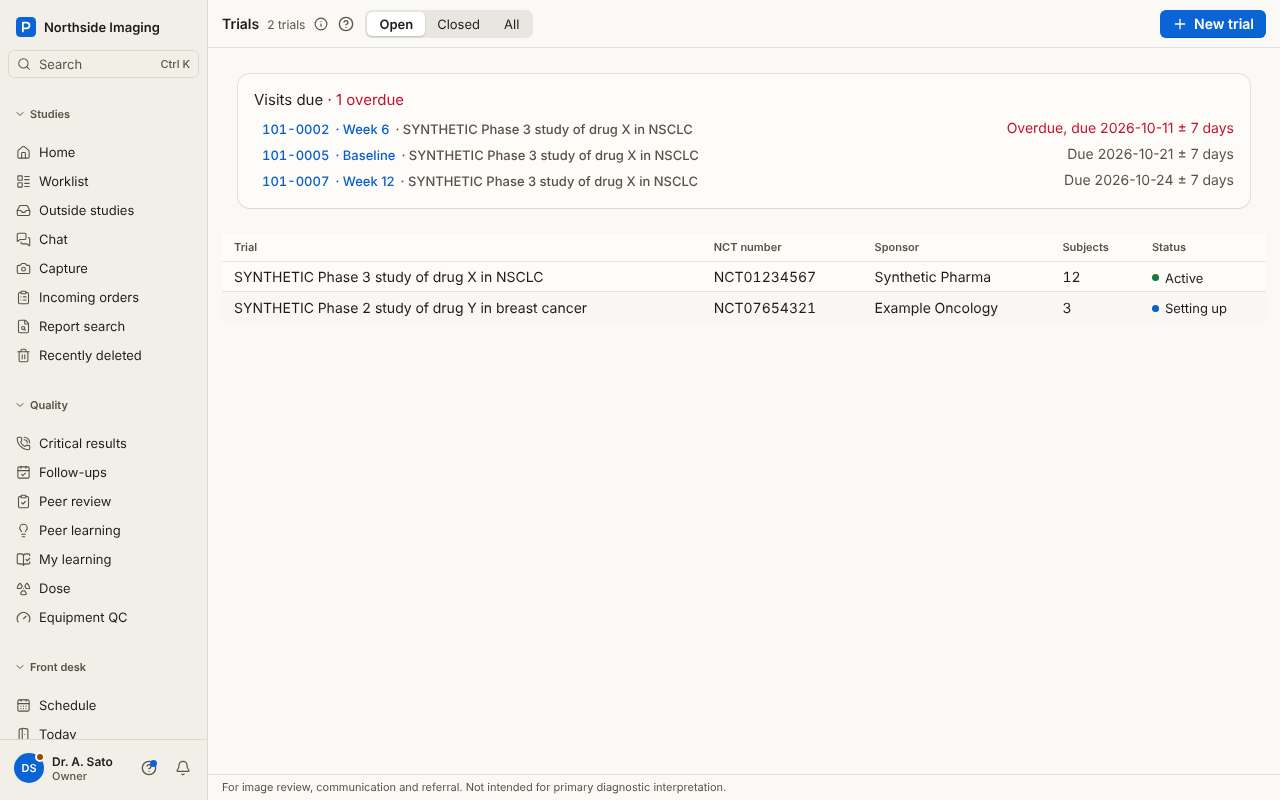
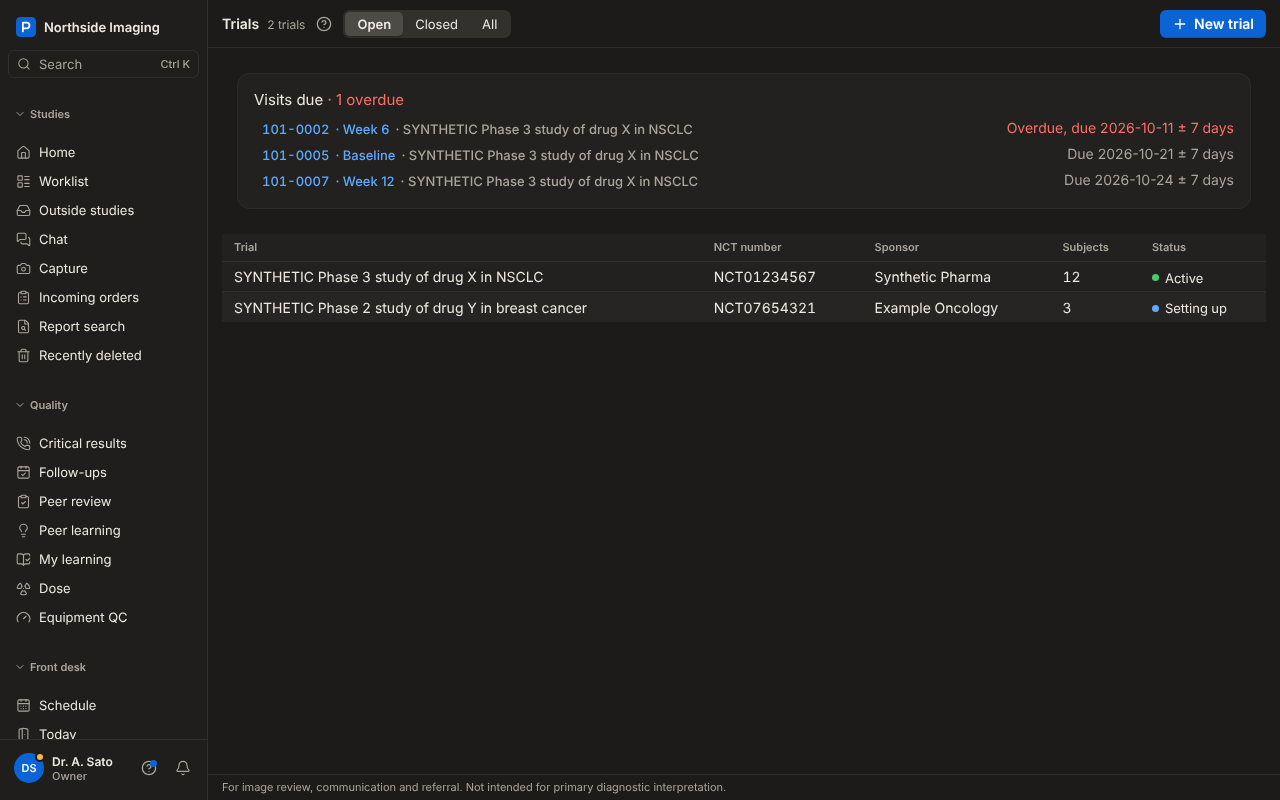
Trials is for sites that scan patients enrolled in clinical trials. Each trial has a visit schedule from its protocol. PacsPilot works out when each subject's next scan is due, flags visits that are overdue, and lets you mark which study is which visit. The baseline scan starts the subject's RECIST 1.1 track on the Oncology page, and later visits join that track.
The top of the page lists visits due in the next 7 days and visits that are overdue. Under that are the trials themselves.
Who can use it
Owners and admins see every trial. Everyone else sees only the trials whose team they are on.
To set up trials and enroll subjects, you need the trial.manage permission. Owners,
admins and the Research coordinator role have it. On each trial, its trial admins
and coordinators make the changes, and other team members can only look.
Owners and admins can turn trials off for the practice under Settings.
How to set up a trial
1. Press New trial. 2. Enter the trial's NCT number, such as
NCT01234567, and press Look up. The title, sponsor and protocol
number fill in from ClinicalTrials.gov, along with the phase and whether an outcome is an imaging
endpoint. Check them and change anything that is wrong. A trial that is not registered needs no
NCT number. 3. Choose the Dates in submissions. Most sponsors want real scan
dates, which your site agreement covers. The other choice shifts dates by each subject's own
offset. 4. Press Create trial. 5. Under Visits, enter the visits
from the protocol: - Day: days after the subject's anchor date. Baseline is day
0. - ± days: the visit window. - Repeat every: for a visit that
repeats, such as every 6 weeks (42 days). - Leave Day empty for unscheduled
visits, such as end of treatment. 6. Under Checklist, add the series the protocol
asks for (see below). 7. Under Team, add the members who work on the trial and
give each a role. 8. Press Start trial when you are ready.
If ClinicalTrials.gov does not answer, enter the details by hand. Trials you already set up keep working. On Protocol, Refresh gets the latest registry details.
How to set up the imaging checklist
The checklist catches a missing or wrong series before the sponsor sees it. Add one rule for each series the protocol asks for:
- Rule: a name, such as "CT chest with contrast, 5 mm or thinner".
- Modality, Body part and Description has: which series count. Leave a field empty to accept any.
- Contrast: with, without, or either.
- Max slice (mm): the thickest slices allowed.
- Only at: tick visits to use the rule only at those visits. With none ticked, it applies to every visit.
Each rule needs one series in the study that meets all of it. The check reads the image headers only.
How to enroll a subject
- Open the trial and press Enroll subject.
- Search for the patient by name, MRN or accession, and pick one of their studies.
-
Enter the sponsor's Subject ID, such as
101-0007. When studies are sent to the sponsor, it replaces the patient's name and ID. - Enter the Consent date and the Anchor date. The anchor is the randomization or baseline date that the visit days count from.
- Press Enroll.
Each patient can be enrolled once per trial. Setting a subject to Off study removes the visits still due. Setting them back to On study brings those visits back.
How to map a scan to a visit
- On the worklist, select the subject's new study.
- In the study panel, Trials shows the trial and subject. Under Trial visit?, the visit whose window covers the scan date is already picked.
- Press Map to visit.
If the scan falls outside the visit's window, you need a Deviation note that says why. Do not put patient details in it. When a visit that repeats is mapped, its next visit becomes due.
Mapping runs the checklist. The visit then shows Checklist passed, or each failed rule with the series it found and why, such as "Slice thickness 7.5 mm, the most allowed is 5 mm". After the site fixes the study, open the subject and press Check again.
Mapped a scan by mistake? Open the subject on the trial page and press Unmap on that visit.
How to send a visit to the sponsor
1. Open the subject on the trial page. 2. On a mapped visit, press Submit. 3. Choose where it goes: - The sponsor's PacsPilot practice: when the trial is linked to the sponsor or core lab on PacsPilot. This is the default. - A zip to download and upload to the sponsor's portal. - The sponsor's storage bucket: one of the practice's tested export destinations. An owner or admin adds them under Settings. - A share link: a de-identified copy you can share with the sponsor by link. 4. Press Submit visit.
PacsPilot makes a de-identified copy for the sponsor. The subject ID replaces the patient's name and ID, and the sponsor, protocol and visit are written into each image. Scan dates stay real unless the trial shifts them. If the checklist did not pass, tick Send it anyway to send it regardless.
Some images, such as ultrasound, can have patient details burned into the pixels. Then the visit shows Waiting for review:
- Press Review images.
- For each image, press Draw boxes and drag a box over any text. Then press Approve, or Exclude to leave the image out.
- Press Send to sponsor.
When the visit shows Sent, a zip visit has Download zip. The zip link works for 7 days. A share visit has Share link: choose how many days it works (14 unless you change it, at most 30) and whether it needs a PIN. The link shows once, so copy it then. Press Submit again to send a corrected study.
How to answer a query from the sponsor
When the sponsor's core lab finds a problem with a visit, it sends a query. The visit then shows Query open, and the query is listed under Queries.
- Open the query, from Queries or from the subject's visit.
- Read the sponsor's message. If a series is missing or wrong, fix the study and press Submit again on the visit.
- Write a reply and press Send reply.
The sponsor closes the query when it is resolved, and the visit shows Received by sponsor. You can also open a query yourself: on a subject's visit, press Open a query, pick a reason and write the message. Only the side that opened a query can close it.
Do not put patient details in a message. PacsPilot refuses messages with dates, long numbers, IDs or the patient's MRN. Use the subject ID and visit instead.
How to sign the site read
If your site reads the visits for the trial:
- Open the subject's study from the visit and measure it in the RECIST panel, then press Finalize.
- Back on the subject, the visit shows Read final, not signed. Press Sign read and confirm with your passkey.
The signature records your name, the time, and "I read this timepoint as the site radiologist". If you change the read later (reopen, measure, finalize), the visit shows Read changed and you press Sign again with the reason for the change. Earlier signatures are kept. You need the permission to sign reports.
How to export the eCRF
- On the trial's Subjects view, press Export eCRF.
- Choose One row per visit (sums, responses and the signature) or One row per lesion (each measurement).
The CSV has subject IDs only, never names or MRNs. Scan dates are real or shifted, as the trial is set up. Each export is recorded in the audit log with a checksum of the file.
How trials are billed
Each active trial at a site is billed as a monthly add-on. For a sponsor's core lab, each central read of a visit is billed once, when its reader first signs it. Both show on the Usage page in billing.
Fields and columns
- Next visit: the subject's earliest visit still due, with its due date. It shows in red once the window has passed.
- Mapped: how many visits have a study.
- Status on a visit: Due, Mapped, or Overdue (still due after its window).
If something goes wrong
- "This patient is already enrolled in the trial": each patient is one subject per trial.
- "The scan is outside the visit window": add a deviation note, or pick the right visit.
- "This study belongs to another patient": you picked a study of a different patient than the subject.
- "A visit that subjects already have cannot be removed": you can rename a visit or change its day, but you can't delete it once subjects have it.
- "This visit is already being prepared for the sponsor": wait for it to finish, or finish its review.
- "This trial is not linked to a sponsor on PacsPilot": accept the sponsor's invite code first, or pick another way to send it.
- "The message looks like it holds patient details": take out dates, IDs and long numbers, then send it again.
- "Finalize the read in the RECIST panel first": the read is still a draft.
- "Choose a tested export destination": the bucket has not passed its test under Settings yet.
- "Contrast is not recorded in the header" or "Slice thickness is not recorded": the scanner left that field empty. Check the series by eye, and tell the sponsor if needed.
- "No series matches": no series has that modality, body part or description. Check the rule's words against the series descriptions.
- The page is missing from the sidebar: trials are off for the practice, or your role has no trial permission.
Related
Updated October 25, 2026. Signed in? The same article is in the app's help panel: press
?.