Your imaging
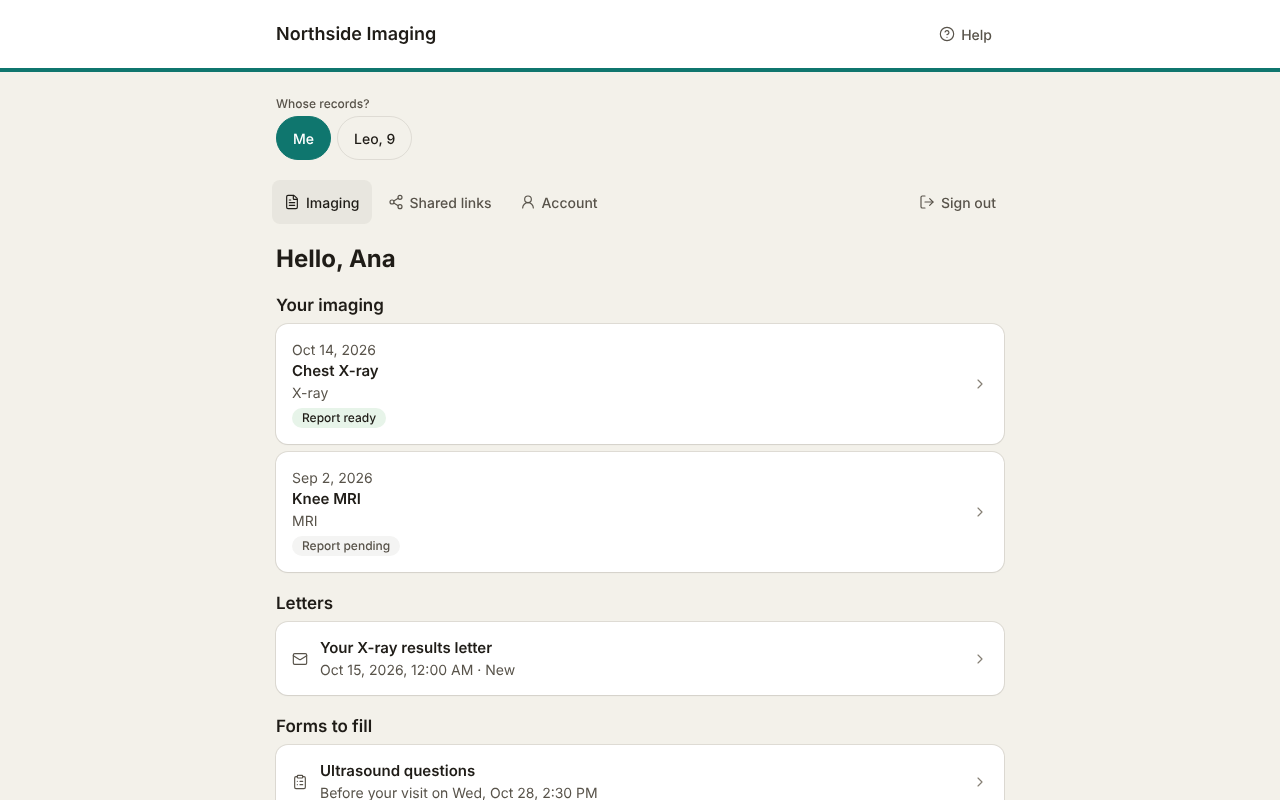
The first page of your patient portal. It lists your scans, newest first, and shows if each report is ready.
What this page is for
This is the first page you see after you sign in. It lists your scans, such as an X-ray or an MRI. The newest scan is at the top.
Each scan shows its date, its name and the kind of scan. A label tells you if the report is ready and if the images are ready to view.
Your practice may also show letters, forms to fill in and upcoming visits on this page.
Who can use it
You can use it if your practice invited you to its patient portal. You only see your own scans.
How to open a scan
- Find the scan in Your imaging.
- Tap or click it.
- The scan's page opens. There you can read the report and view your images.
See Your scan and report for more.
How to read a letter
- Look for Letters on this page.
- Tap or click a letter. It opens in a new tab.
- A letter you have not opened yet says New.
How to fill in a form before a visit
- Look for Forms to fill.
- Tap or click the form.
- Fill it in and send it to your practice.
See Forms before your visit for more.
Fields and columns
| Name | What it means |
|---|---|
| Date | The day of the scan. |
| Name | What the scan was, as your practice wrote it. |
| Kind of scan | For example CT scan, MRI, X-ray or Ultrasound. |
| Report ready | The doctor's report is ready to read. |
| Report ready (amended) | The report was changed after it was first signed. |
| Report pending | The report is not ready yet. |
| Images processing | The images are not ready to view yet. |
| Letters | Letters from your practice about your results. |
| Forms to fill | Forms your practice asks you to fill in before a visit. |
| Appointments | Your next visits, with the time and how to get ready. |
At the top of the page you can go to Imaging, Shared links and Account, or choose Sign out.
If something goes wrong
- No results yet. Your practice will email you when a result is ready.
- Your results could not be loaded. Check your internet, then choose Try again.
- You do not see a scan you had. It may not be ready yet. Some practices wait a few days before they show a new report. If you still do not see it, call your practice.
Related
Updated October 19, 2026. Signed in? The same article is in the app's help panel: press
?.