POCUS exams
Your point-of-care ultrasound exams, exams waiting to be claimed, exams that still need a patient, and every exam in the practice.
What this page is for
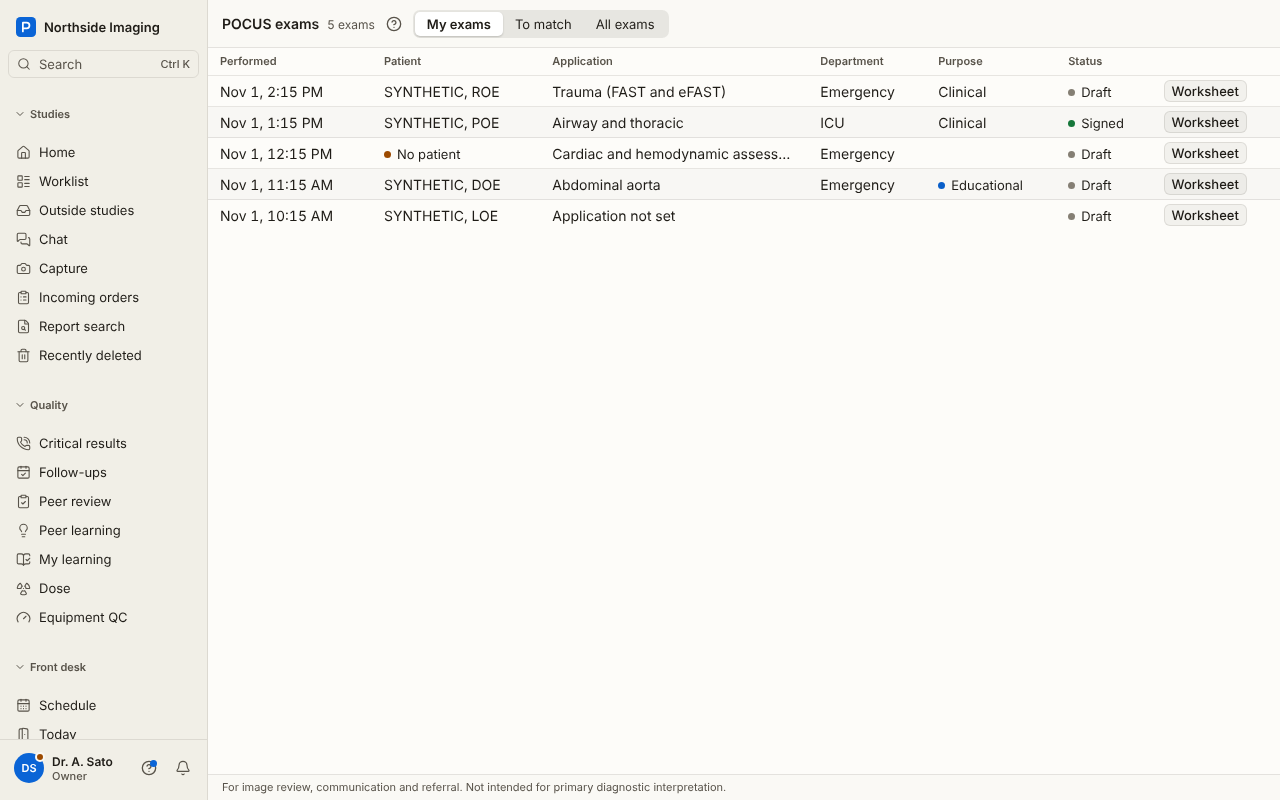
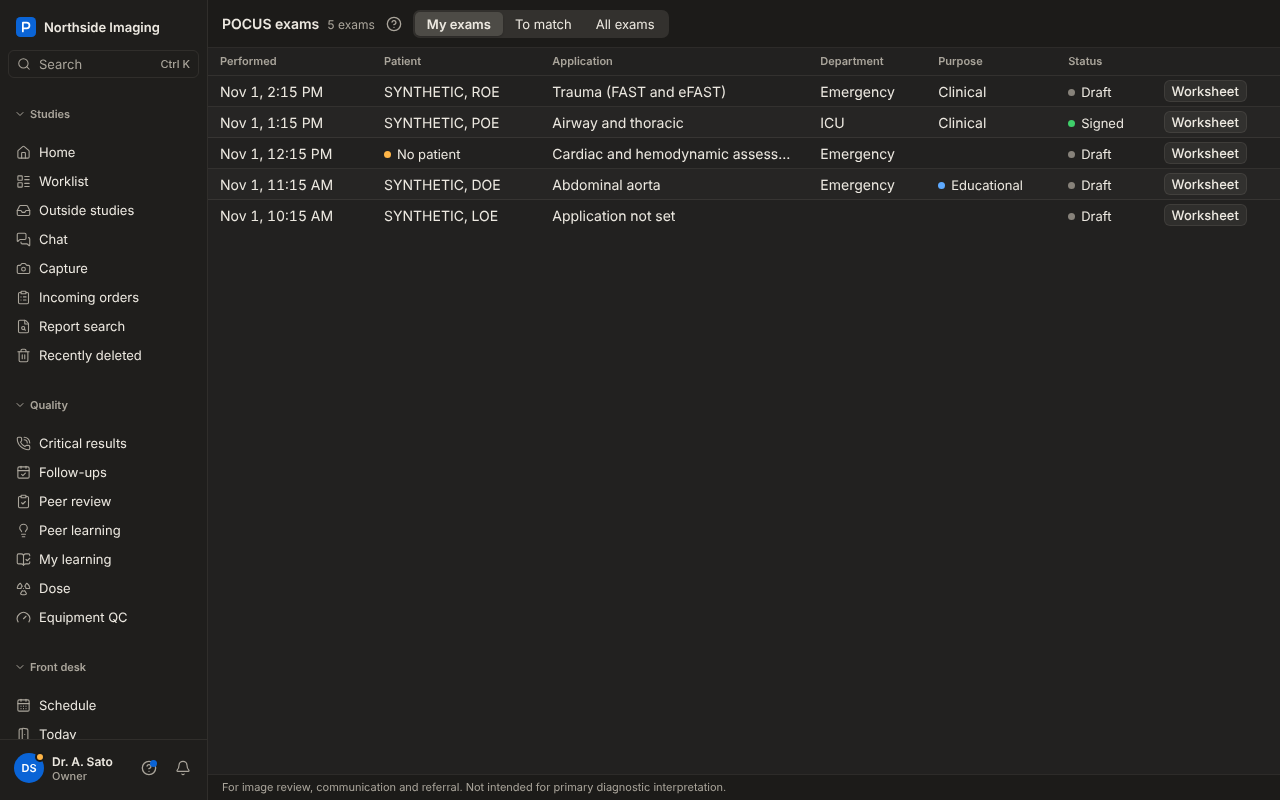
Specialties › POCUS exams lists point-of-care ultrasound exams. An exam is a study scanned at the bedside, for example an eFAST in the emergency department or a lung scan in the ICU. Select a row to see the exam's clips.
The page appears while the Point-of-care ultrasound pack is on under Settings › Specialties.
Who can use it
Owners, admins, physicians, trainees, technologists and members with the POCUS clinician role can scan, see their own exams and claim exams under To claim. Owners, admins and physicians also see To match and All exams. Each exam follows its study's visibility, so a member limited to a group sees only that group's exams. Claiming a study, changing an exam and changing a device profile are in the audit log.
How to find an exam
1. Open Specialties › POCUS exams. 2. Pick a list: - My exams: exams you scanned, newest first. - To claim: exams from your POCUS devices that name no clinician PacsPilot knows. Press Claim on yours. - To match: exams from your POCUS devices that arrived without a patient. They wait here until the study is matched to a patient. - All exams: every exam in the practice. 3. Select a row to see the exam's clips. Press Show more at the bottom for older exams.
Watch the clips
Selecting an exam opens its clips as a grid of short loops that play by themselves, without sound. Each loop is a small, quick version of the clip, so a whole exam starts playing in a few seconds even on a phone or a weak connection. Only the loops on screen play; scroll to start the others.
- When the exam has an application, for example Trauma (FAST and eFAST), the clips are arranged By view: one row per view the application expects, in order, such as Right upper quadrant, Left upper quadrant and Pelvis. PacsPilot places each clip by the label the scanner gave it, such as RUQ or Morison's. A view with no clip says Not captured. Clips whose label names no view are under Other clips. Choose All clips to see every clip in one grid.
- To compare, choose an earlier exam of the same patient in Compare with an earlier exam. Each view then shows This exam beside the earlier exam's clips of the same view, for example a lung or IVC scan before and after treatment. Choose Compare with an earlier exam again to stop comparing.
- Select a loop to enlarge it. The full-quality clip plays, and you can pause, step one frame back or forward, play at a quarter, half, normal or double speed, and play it once or on a loop.
- A tile with the series name and no loop is a still image. Select it to open the exam in the viewer.
- Open in viewer opens the study in the viewer for measurements and the other image tools. Worksheet opens the exam's worksheet.
Watching the clips is recorded in the audit log as viewing the study.
Measure in the viewer
In the viewer, POCUS on the toolbar (or POCUS readouts in the command menu) opens the readouts: IVC diameter and collapse, TAPSE, E-point septal separation, optic nerve sheath diameter, mean sac diameter, crown-rump length with gestational age, aortic diameter and bladder volume.
- Pick the readout. A line under it says what to measure.
- Draw a Length measurement on the image, then press Use last length beside each value, or type the values in millimetres.
- Read the result with its published cut-off and source. A value past the cut-off is shown in red.
- Press Copy and paste the sentence into the worksheet or report.
The readouts appear once the pack has been signed off for clinical use on your server. They are aids, not diagnoses; check every value.
How an exam finds its clinician
Most scanners send the name of whoever is logged in, as the operator name. When you claim an exam under To claim, PacsPilot remembers that operator name as yours: your other exams waiting under the same name come to My exams, and so do later scans. Owners and admins can see and remove the remembered names under Settings › POCUS devices › Operator names.
A scanner that marks a scan as a training scan (the DICOM code for educational intent) makes the exam Educational. Otherwise you set the purpose on the worksheet.
Where exams come from
A study becomes an exam in two ways. It arrives from a device that has a POCUS profile, and the exam takes the device's department when the device belongs to only one department. Or a clinician claims a study as their POCUS exam, which is how scans from a device outside the fleet are counted. Owners and admins give each POCUS scanner a profile in Settings › POCUS devices, with its model, serial number and departments.
Fields and columns
| Column | What it shows |
|---|---|
| Performed | When the exam was done. |
| Patient | The patient's name, or No patient while the exam waits to be matched. |
| Application | The exam type, for example Trauma (FAST and eFAST) or Airway and thoracic, or Application not set. |
| Department | The department the exam belongs to. |
| Purpose | Clinical for a scan that guides care, Educational for a training scan. |
| Operator | The operator name the scanner sent, if any. |
| Status | Where the exam is in its lifecycle, starting at draft. |
If something goes wrong
- The page is not in the menu. Ask an owner to turn on the Point-of-care ultrasound pack under Settings › Specialties. Viewers and front desk staff do not scan, so the page is not shown to them.
- A scan is missing. Check that the scanner sent the study and that it appears on the worklist. If the scanner has no POCUS profile, open the study and claim it as your exam.
- My scan is under To claim. The scanner sent an operator name PacsPilot has not seen, or none. Claim it; later scans under that name come to you.
- Scans go to the wrong clinician. Two people shared a scanner login. Ask an owner to remove the name under Settings › POCUS devices › Operator names, and give each person their own login on the scanner.
- A clip is under Other clips. The scanner sent no view label, or one PacsPilot does not recognise. Label the view on the scanner before you save the clip, or set the right application on the worksheet.
- There is no Compare with an earlier exam. It appears in By view when the patient has an earlier POCUS exam that you can see. Exams without a patient ID have no earlier exams.
- A tile says Tap to play. The quick loop is not ready, or the exam arrived before quick loops existed. Select it to play the full clip.
- There is no POCUS button in the viewer. The readouts appear only once the pack is signed off for clinical use, and never in a shared or portal viewer.
- Use last length says to draw a measurement. Draw a Length line on the image first; other tools do not count.
- To match keeps growing. Studies from a POCUS scanner without a patient ID land here. Pick the patient on the scanner's worklist before you scan.
Related
Updated November 13, 2026. Signed in? The same article is in the app's help panel: press
?.