Recently deleted
Studies deleted in the last 7 days, with the time each one can be restored until, so you can bring back a study deleted by mistake.
What this page is for
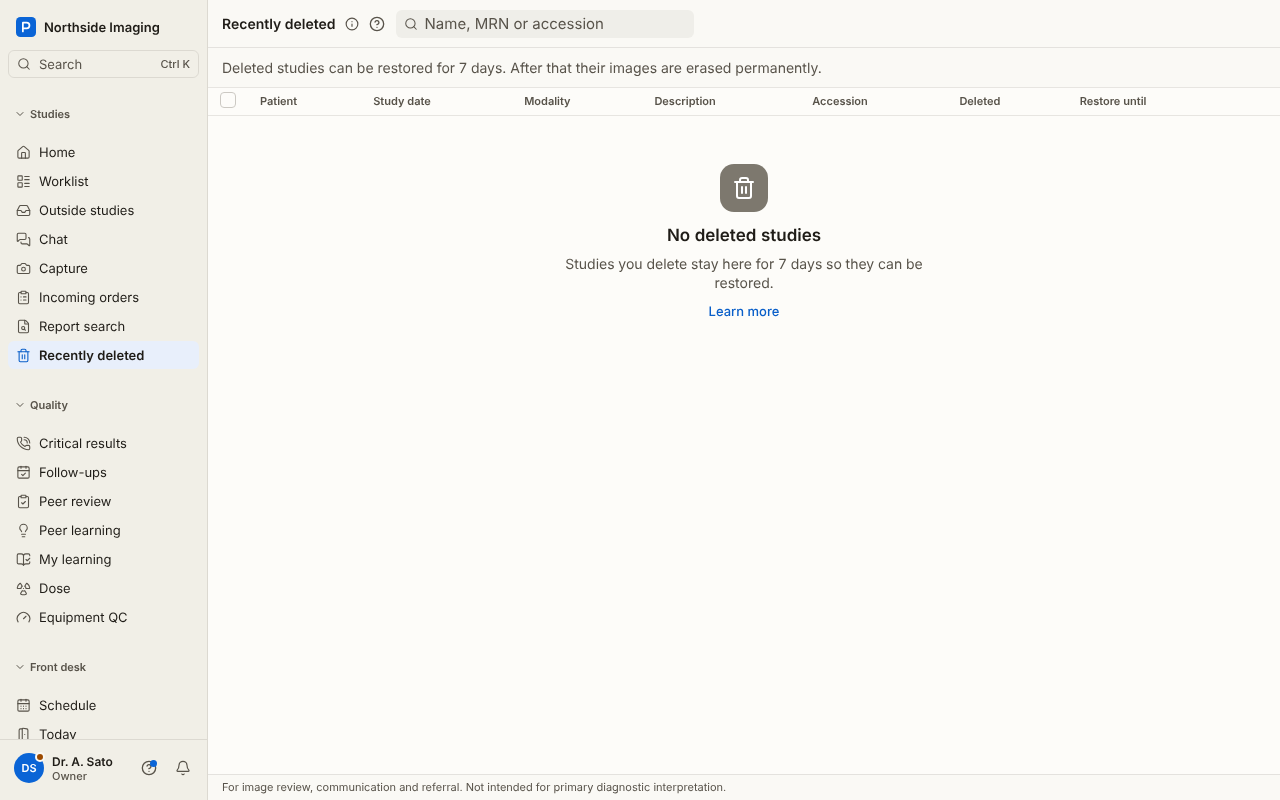
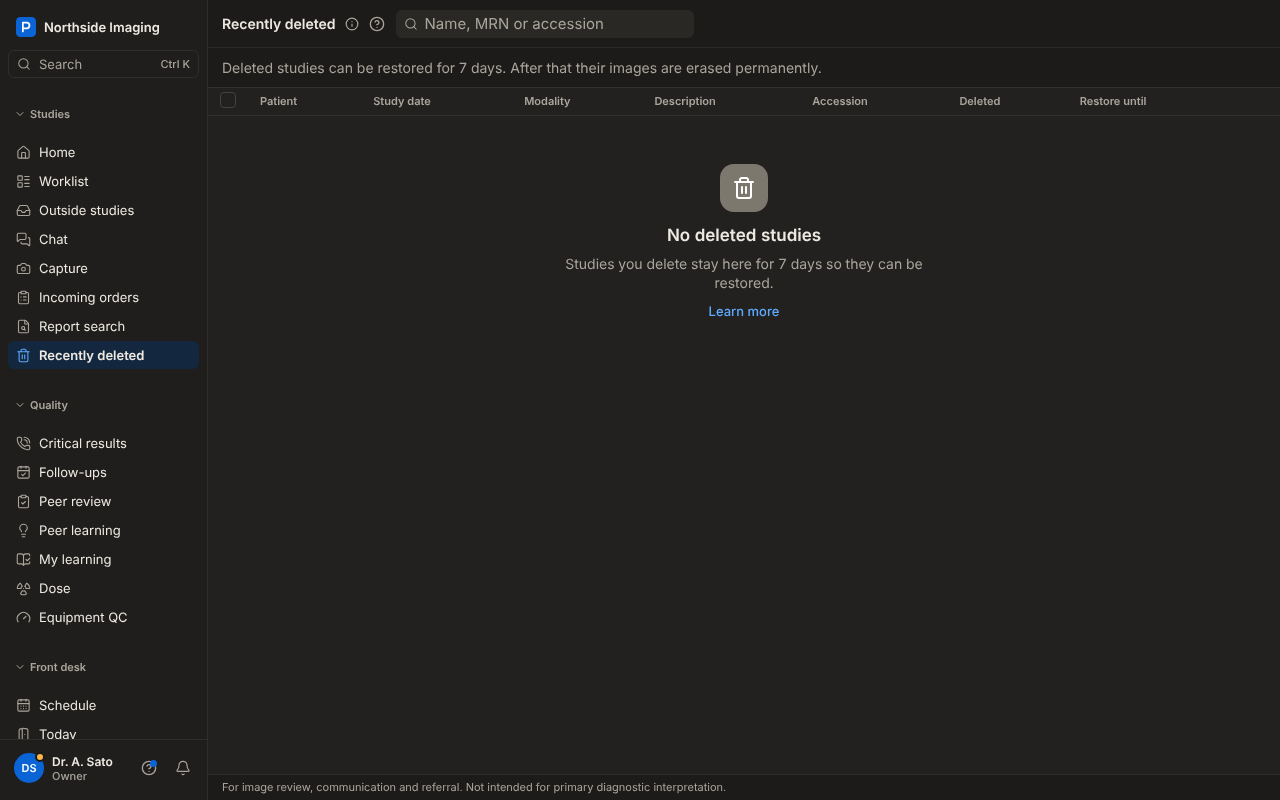
Recently deleted lists the studies your practice deleted, newest first. A deleted study can be restored for 7 days. After that its images are erased permanently, and the row can no longer be restored.
Studies removed by a retention batch are listed here too.
Who can use it
Owners and admins. The page needs the study.delete permission, the same permission
that deletes a study on the worklist, so a custom role with it can open the page too.
If Recently deleted is missing from the sidebar, your role does not have
study.delete. Opening the page anyway shows
Recently deleted isn't available to you.
How to restore a study
- Open Recently deleted in the sidebar.
- Find the study. Type a patient name, MRN or accession number in Search deleted studies to narrow the list.
- Press Restore on its row.
The study is back on the Worklist at once. A message says it opens in the viewer once it has been prepared again, so for a short while it can show as Receiving or Partly viewable.
How to restore several studies
- Tick the box at the start of each study's row, or the box in the header to select every study that can still be restored.
- Press Restore N selected at the top of the page.
- Confirm with Restore.
The studies are restored one after another. A message says how many were restored.
How to delete a study
You delete studies on the worklist, not here.
- On the Worklist, open the study's More actions menu, or right-click the row.
- Choose Delete… and confirm with Delete.
The study disappears from the worklist and from every share link. The message that confirms the delete has an Undo button; otherwise restore it from this page.
Fields and columns
| Name | What it means |
|---|---|
| Search deleted studies | Finds deleted studies by name, MRN or accession. |
| Restore N selected | Restores every selected study. Shown once you tick at least one row. |
| Patient | The patient's name, with the MRN in brackets. |
| Study date | The date of the study. |
| Modality | The modalities in the study. |
| Description | The study description. |
| Accession | The accession number. |
| Deleted | When the study was deleted. Retention batch means a retention batch removed it. |
| Restore until | The last moment you can restore it. Waiting to be erased means the 7 days have passed. |
| Restore | Brings the study back to the worklist. Shown only while the study can still be restored. |
| Load more | Shows the next page of deleted studies. |
If something goes wrong
- Could not load deleted studies: press Retry on the message.
- No deleted studies: nothing was deleted in the last 7 days.
- No matching deleted studies: nothing matches the search. Try a patient name, MRN or accession number.
- Waiting to be erased with no Restore button: the restore window has ended. The study cannot be brought back.
- No deleted study with that UID can still be restored: the restore window ended, or someone already restored it. Reload the page to see its current state.
- A message that the study was restored, but preparing it for the viewer could not start: the study is back on the worklist but will not open in the viewer. Contact support.
- Restored 3 of 5 after restoring several: the rest could not be restored. Read the reason in the banner, then select them again.
Related
Updated October 19, 2026. Signed in? The same article is in the app's help panel: press
?.