Assignment rules
Assign new studies automatically to a reader or a pool of readers, with an ordered list of rules that match each study as it arrives.
What this page is for
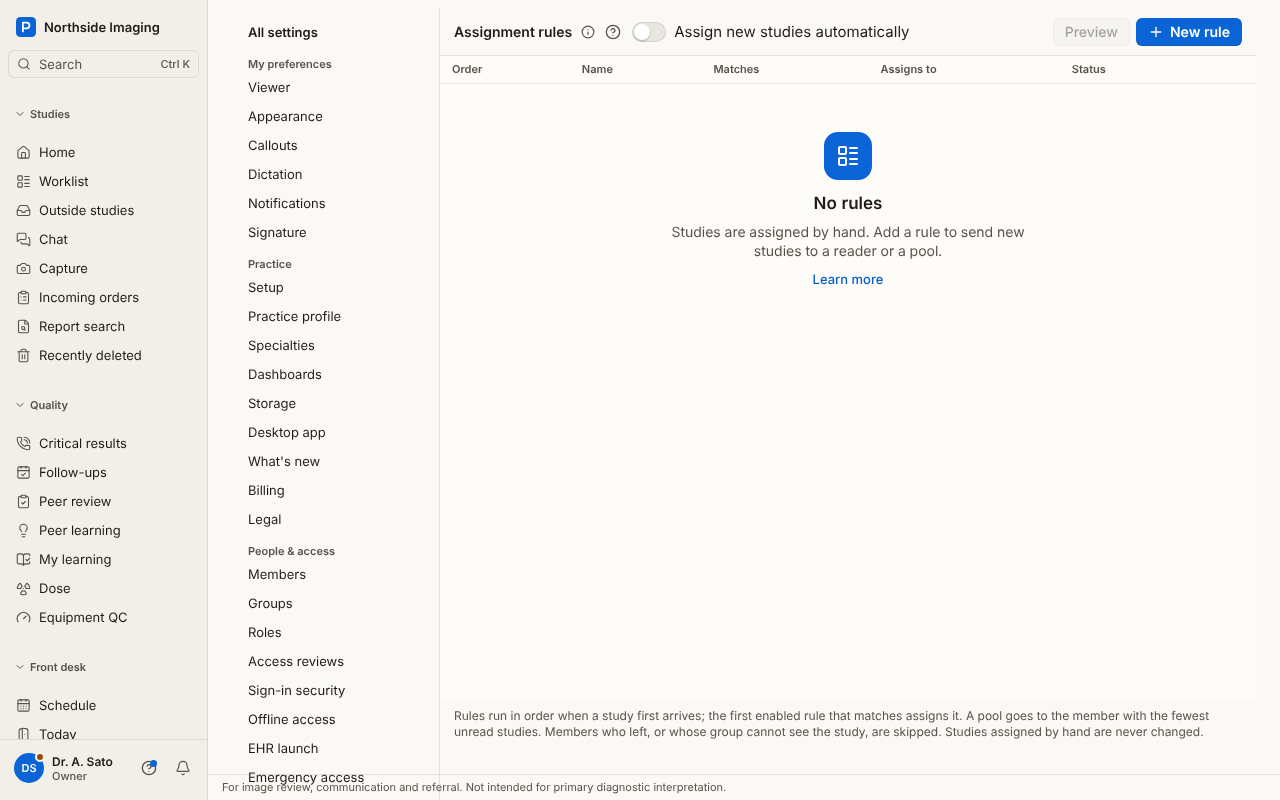
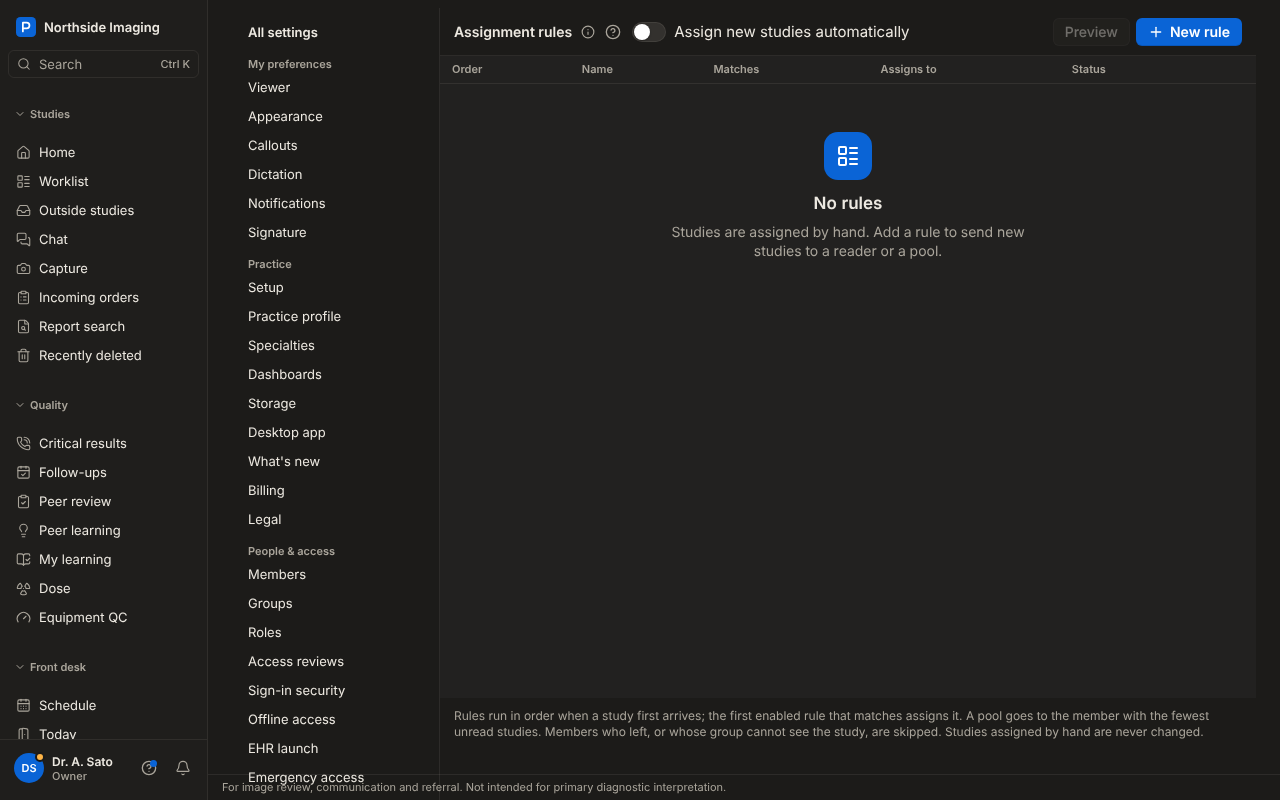
Settings › Assignment rules decides who reads which studies. You make an ordered list of rules. When a study first arrives, the first rule that is on and matches it assigns the study to one member, or to the member of a pool with the fewest unread studies.
Studies assigned by hand are never changed. Members who left, or whose group cannot see the study, are skipped.
When your practice uses credential-aware assignment (Settings › Credentials), a member is also skipped when a check set to hard fails, for example a missing state license, or when they are over their unread work cap. A rule whose members are all skipped passes the study to the next rule. Pools are balanced the way Credentials › Settings says: by count (as before), by work units, or by share.
Who can use it
Owners and admins, or any member whose role has the permission to change practice settings. If your role does not have it, the page is not in Settings.
Rules do nothing until someone switches on Assign new studies automatically. Without rules, studies are assigned by hand.
How to add a rule
1. Press New rule. 2. Enter a Name. Leave Rule is on switched on. 3. Under Match studies, fill in the fields that matter. Leave a field empty to match anything. A study must match every field you fill in. - Modalities: any of these, separated by commas. - Arrived from: how the study came in. - Sites (gateways): which sites, when your practice has any. - Institutions: one per line, as written in the studies' Institution Name. - Referring physicians: one per line, family name first. - Description or body part contains: any of these words in the study or series description or body part. 4. Under Assign to, tick one member, or several to share the work. With credential-aware assignment on, you can instead switch on Eligible readers: every member who signs reports and passes the credential checks for the study. Narrow it with Only readers with this subspecialty or Only readers in this group. Tick Only readers on shift in the study's area now to use the reader schedule: with nobody on, the next rule is tried, or the study waits for the next shift when the schedule holds studies. 5. Press Create rule.
How to turn on automatic assignment
- Switch on Assign new studies automatically at the top of the page.
- New studies are now assigned by your rules.
How to order and check rules
- Use the up and down arrows on a rule to move it. Rules run in order, and the first one that matches wins.
- Press Preview to see which rule would match each of the last 50 studies. Without credential-aware assignment the preview does not check who is free to take them. With it, Goes to names the reader each study would go to and why each skipped member was passed over, such as "No TX license".
How to change or delete a rule
- Press Edit to change a rule, then Save. Switch off Rule is on to keep a rule without using it.
- Press Delete, then Delete again to confirm. Studies it already assigned stay assigned.
Fields and columns
| Name | What it means |
|---|---|
| Assign new studies automatically | The practice switch. Rules are saved but not applied while it is off. |
| Preview | Shows which rule matches each of the last 50 studies. |
| New rule | Opens the dialog to add a rule. |
| Order | The rule's place in the list. |
| Name | The rule's name. |
| Matches | What the rule matches, or Every new study when all match fields are empty. |
| Assigns to | The member, Pool: and the members who share the work, or Eligible readers. |
| Status | On or Off. |
| Up and down arrows | Move the rule up or down the list. |
| Edit, Delete | Change or remove the rule. |
| Rule is on | Whether this rule is used. |
| Modalities | Modality codes such as CT or MR, separated by commas. |
| Arrived from | Browser upload, Site agent upload, Gateway, DICOMweb (STOW), Migration or Outside upload link. |
| Sites (gateways) | The sites a study can come from. |
| Institutions | Institution names, one per line. |
| Referring physicians | Referring physician names, one per line, family name first. A name in DICOM form also matches longer forms of the same name. |
| Description or body part contains | Words to look for in the descriptions and body part, for subspecialties. |
| Assign to | The members the rule assigns to. Readers are listed first. |
| Eligible readers | With credential-aware assignment on: assign to every reader who passes the credential checks instead of named members. |
| Only readers with this subspecialty | Eligible readers only: limit the pool to readers with that subspecialty. |
| Only readers in this group | Eligible readers only: limit the pool to members of that group. |
| Only readers on shift in the study's area now | Eligible readers only, with the reader schedule's assignment link on: limit the pool to readers on a reading shift for the study. |
| Study, Modality, Rule | In the preview: each recent study, its modalities and the rule that matches it, or No rule. |
| Goes to | In the preview, with credential-aware assignment on: the reader the study would go to, or Nobody eligible, and who was skipped and why. |
If something goes wrong
- Could not load assignment rules: press the retry button. If it keeps failing, reload the page.
- The member list could not be loaded: assignees show as unknown and New rule is greyed out. Reload the page to try again.
- Rules are saved but not applied: switch on Assign new studies automatically.
- Pick at least one member to assign to: tick a member under Assign to.
- Every assignee must be an active member of this practice: untick members who have left.
- A practice can have at most 100 rules: delete rules you no longer use.
- The rules changed; reload and try again: someone else changed the order. Reload the page and move the rule again.
- Former member in Assigns to: that member left the practice. Edit the rule and pick someone else.
- Could not run the preview: close the preview and try again.
- Eligible readers needs credential-aware assignment turned on for this practice: turn it on in Settings › Credentials, or pick members instead.
- Nobody eligible in the preview: no member of the rule passes the hard checks. Check the readers' licenses, privileges and subspecialties in Settings › Credentials, or make the check soft.
Related
- Worklist
- Members
- Groups
- Sites
- Find and open studies on the worklist
- Limit what a member sees with visibility groups
Updated November 3, 2026. Signed in? The same article is in the app's help panel: press
?.