Dose
Reviews of exams above a dose reference level, every exam's recorded dose with export, and a comparison of scanners for one protocol.
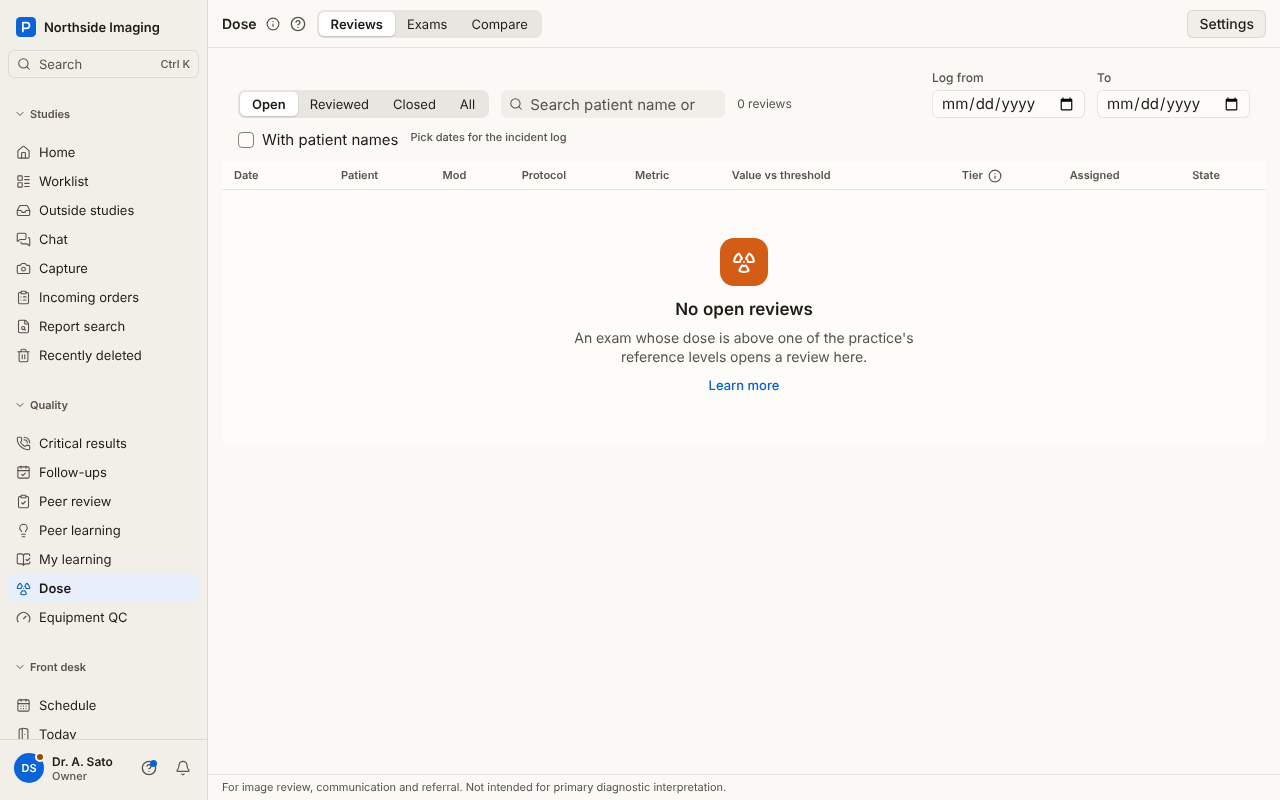
What this page is for
PacsPilot reads the radiation dose that scanners report with each exam (CTDIvol, DLP, SSDE, DAP, fluoroscopy time and administered activity). When an exam is above one of the practice's reference levels, it opens a dose review. This page has three tabs:
- Reviews: the dose reviews to investigate, record a reason and action, and close.
- Exams: every exam with recorded dose, with filters and CSV export.
- Compare: one practice protocol across scanners, to spot a scanner that runs high.
Who can use it
Owners, admins and physicians can use this page, or any member whose custom role includes "Review dose alerts, the exam list, incident log and protocol comparison". A practice can give this to a custom "Medical physicist" role.
You may not see the page because:
- Radiation dose monitoring is off. An owner or admin turns it on in Settings › Radiation dose.
- Your role does not include the permission above.
Settings shows only for members who can change practice settings.
How to work a dose review
- On Reviews, choose Open. Press a row.
- Read the exam's values, the level it exceeded and the level's basis. Press Show study to open the study in the worklist.
- Choose who it is Assigned to, if someone else should look at it.
- Choose the Reason and the Action. Add a Note; it is required when either is Other.
- Press Mark reviewed.
- A second member then opens the review and presses Close review. Closing is final.
Unless the practice allows single-person close, the member who marked a review reviewed cannot close it. With single-person close on, they can close it themselves after 24 hours.
How to export the incident log
On Reviews, enter the Log from and To dates, tick With patient names if you need patient names, notes and study IDs in the file, and press Incident log CSV. The export is recorded in the audit log.
How to find and export exams
On Exams, filter by Modality, From and To dates, and Above a level only, or search by patient, ID or accession. Press the Date header to switch between newest and oldest first. Press a row to open the study in the worklist. Press Export CSV to download the current filters and search, up to 50,000 rows. The export is recorded in the audit log.
The filters and sort on each tab are kept in the page address, so you can share or reload the link. Search text is not kept.
How to compare scanners
- On Compare, choose a Protocol (a practice protocol set up in Settings › Radiation dose), the Metric and the Period.
- Read the table: one row per scanner, highest p75 first, with a range bar from the median to p95 and a tick at p75.
- A scanner marked p75 over 1.5× median runs high for this protocol compared with the other scanners.
- Press Export CSV to download the comparison. It holds no patient data.
The comparison is rebuilt every night from the last 24 months of exams.
Fields and columns
| Name | What it means |
|---|---|
| Reviews, Exams, Compare | The page's tabs |
| Settings | Opens Settings › Radiation dose |
| Open, Reviewed, Closed, All | Filter reviews by state |
| Search patient name or ID | Finds reviews by patient |
| Log from, To | The dates for the incident log |
| With patient names | Adds patient name, patient ID, study ID and notes to the incident log |
| Incident log CSV | Downloads the reviews created between the dates |
| Date (Reviews) | When the review opened. Press the header to sort |
| Patient | The patient's name (on Exams, with the patient ID below) |
| Mod | The modality group: CT, XA/RF (fluoroscopy and interventional), DX (radiography), MG (mammography) or NM (nuclear medicine) |
| Protocol | The practice protocol, or "Unmapped" when the scanner's protocol name is not mapped |
| Metric | The dose value that was above the level, such as CTDIvol or DLP |
| Value vs threshold | The exam's value, the level it exceeded and how many times the level it is, such as "18 mGy vs 15 mGy (1.2×)". Press the header to sort by that ratio |
| Tier | Notify: above the level's notify value (an in-app notice). Alert: above its alert value (a critical alert) |
| Assigned | Who the review is assigned to |
| State | Open, Reviewed or Closed |
| Show more | Loads the next page |
| Reason | Patient size, Repeat scan, Extended coverage, Clinical indication, Protocol error, Wrong protocol chosen, Equipment, Operator, Data error or Other |
| Action | None needed, Protocol changed, Staff education, Service call, Physicist review, Reported to the RSO, Reported externally or Other |
| Assigned to | The member who should look at the review, or No one |
| Note | Up to 2,000 characters. Required when the reason or action is Other |
| Mark reviewed, Close review | Move the review to Reviewed, then Closed |
| Show study | Opens the study in the worklist |
| Modality (Exams) | Filter by modality group |
| From, To (Exams) | Filter by exam date |
| Above a level only | Show only exams above a notify or alert level |
| Search patient, ID or accession | Finds exams by patient name, patient ID or accession number |
| Export CSV (Exams) | Downloads the current exam list |
| Date (Exams) | The exam date. Press the header to change the order |
| Device | The scanner's label |
| Dose | The main values: CTDIvol and DLP for CT, DAP and fluoroscopy time for X-ray and fluoroscopy, administered activity and radionuclide for NM |
| Source | From RDSR (the scanner's dose report), From image headers, no DLP, Entered by hand or Dose screen only (values still to be entered from the scanner's dose screen image) |
| Level | Above alert level, Above notify level or a dash |
| Protocol, Metric, Period (Compare) | What to compare, over the last 3, 6, 12 or 24 months |
| Export CSV (Compare) | Downloads the comparison |
| Device (Compare) | The scanner, with p75 over 1.5× median when it runs high |
| Exams (Compare) | How many exams the row counts |
| Median, p75, p95 | The middle value, and the values 75% and 95% of exams are at or below, in the unit shown under the table |
| Range | A bar from the median to p95, with a tick at p75 |
If something goes wrong
- "Could not load the dose reviews", "Could not load the dose exams" or "Could not load the comparison": press Retry.
- "Another member must close a review you reviewed": ask another member with dose access to close it, or ask an admin to turn on single-person close.
- "Marking reviewed needs a reason and an action" or "A note is required when the reason or action is Other": fill in the missing fields.
- "A closed review is final": closed reviews cannot change.
- "Pick dates for the incident log": enter both dates before downloading.
- "No practice protocols yet" on Compare: an owner or admin adds practice protocols and maps scanner protocol names in Settings › Radiation dose.
- "Radiation dose monitoring is turned off for this practice": ask an owner or admin to turn it on in Settings › Radiation dose.
Related
- Radiation dose: reference levels, protocols, devices and the registry.
Updated October 19, 2026. Signed in? The same article is in the app's help panel: press
?.