Setup
The getting-started checklist: every setup step with its live status, your readiness score, and Finish setup.
What this page is for
Settings › Setup is your practice's getting-started checklist. It lists every setup step by section (Practice, People, Connect, Test and Account), shows whether each one is done, and gives a readiness score. It stays after setup is finished, so you can come back to check the practice's health.
The steps depend on which features your practice has. Common steps are Practice profile, Invite your team, Connect a site, Send a test study and Open it in the viewer. Steps marked Required must be done before you can finish setup. The others are recommended.
The step-by-step setup guide covers the same steps one at a time. Press Open setup guide to use it.
Who can use it
Owners and admins can open this page. It needs permission to change practice settings.
Some steps are for the owner only, such as Single sign-on and Choose a plan and go live. An admin sees them as Owner only and cannot confirm, skip or undo them.
If the setup guide is turned off for the practice, this page only shows the Setup guide switch to turn it on, and it is not listed in Settings.
How to work through the checklist
- Open Settings › Setup.
- Steps that need attention come first in each section. Read the line under each step.
- Press the step's button, such as Open practice profile or Open Members, to go to the page that does the work. When you are done there, use the link back to setup.
- For a step that is done by confirming it, press Confirm. Press Undo to take the confirmation back.
- The status updates by itself, for example when a test study arrives or opens.
How to skip a step
- Press Skip, not needed on a recommended step. Required steps cannot be skipped.
- In Why is it not needed?, write one line, with no patient details.
- Press Skip step.
Skipped steps leave the readiness score and stay on the checklist. Press Undo skip to bring a step back.
How to finish setup
- Complete every required step. The summary shows how many required steps are done.
- Press Finish setup.
The page then shows the date setup was finished.
How to turn the setup guide on or off
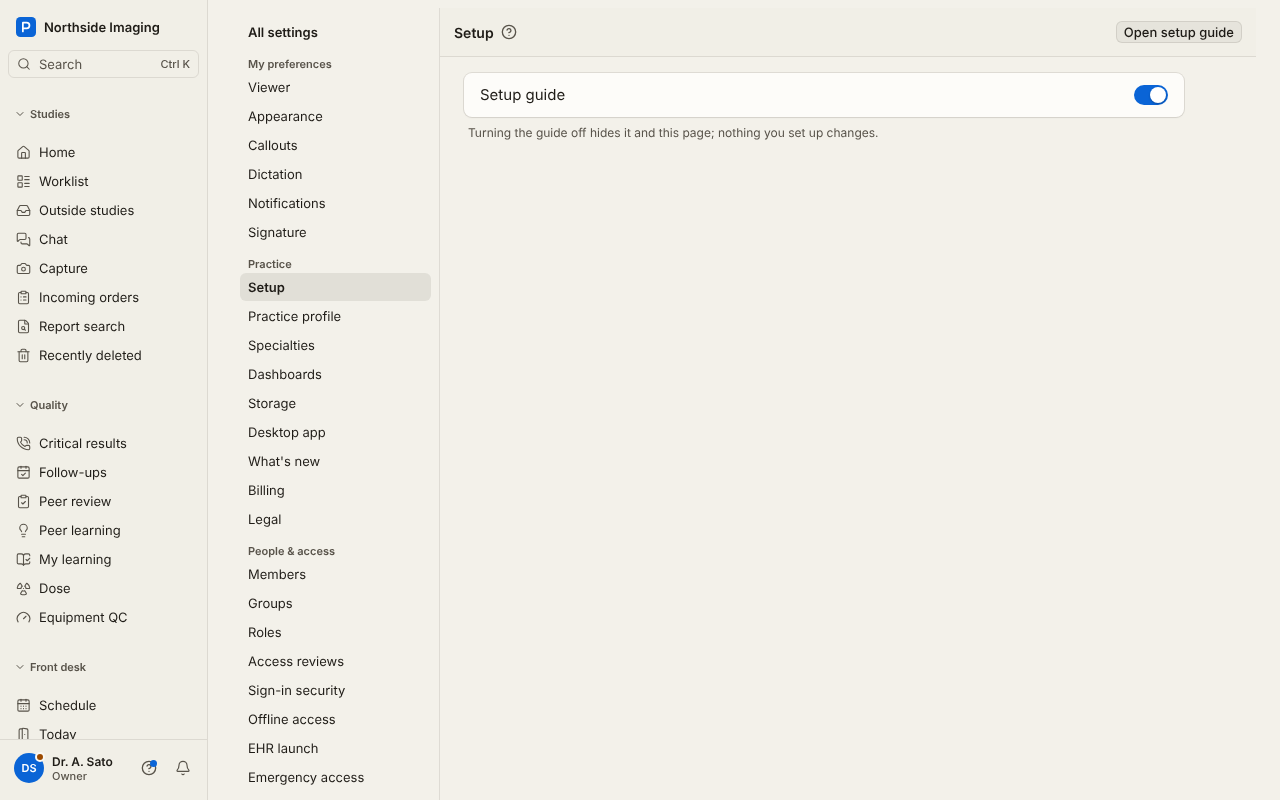
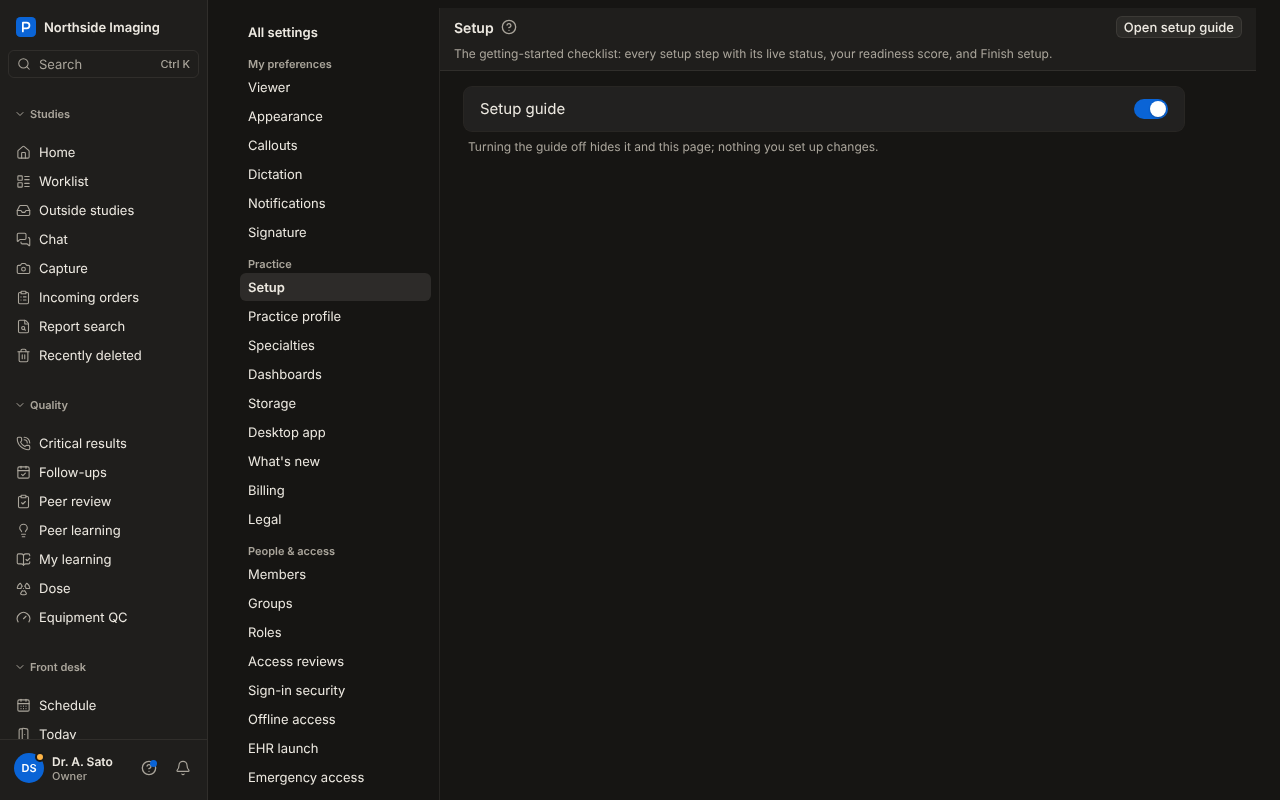
- At the bottom of the page, switch Setup guide off or on.
Turning the guide off hides it and this page. Nothing you set up changes.
Fields and columns
| Name | What it means |
|---|---|
| Readiness ring | The readiness score as a percentage. Required steps count more than recommended ones. Skipped steps are left out. |
| Readiness | The score, and how many steps are done in all and how many required steps are done. |
| Finish setup | Marks setup finished. Available once every required step is done. |
| Open setup guide | Opens the step-by-step guide. Shown until setup is finished. |
| Step name | The step, with Required next to required steps. |
| Done | The step is complete. |
| To do | The step is not done yet. |
| Needs attention | Something about the step needs a look. The line under it says what. |
| Skipped | Someone skipped the step as not needed. |
| Owner only | Only the owner can do this step. The owner's name may be shown. |
| Step button | Opens the page that does the work, such as Open Sites or Open Billing. |
| Confirm / Undo | Mark a step done by confirming it, or take that back. |
| Skip, not needed / Undo skip | Skip a recommended step with a reason, or bring it back. |
| Setup guide | Turns the setup guide and this checklist on or off. |
If something goes wrong
- Finish the required steps first: complete every step marked Required, then press Finish setup again.
- Required steps cannot be skipped: required steps must be done.
- Say in a few words why this step is not needed: enter a reason before you press Skip step.
- Only the practice owner can change this step: ask the owner.
- Settings changed at the same time; try again: reload the page and try again.
- Could not load setup: reload the page.
Related
Updated October 19, 2026. Signed in? The same article is in the app's help panel: press
?.