Callouts
Keep your callouts, the report shortcuts you insert by typing a dot and a trigger, and the dials their fields pick from.
What this page is for
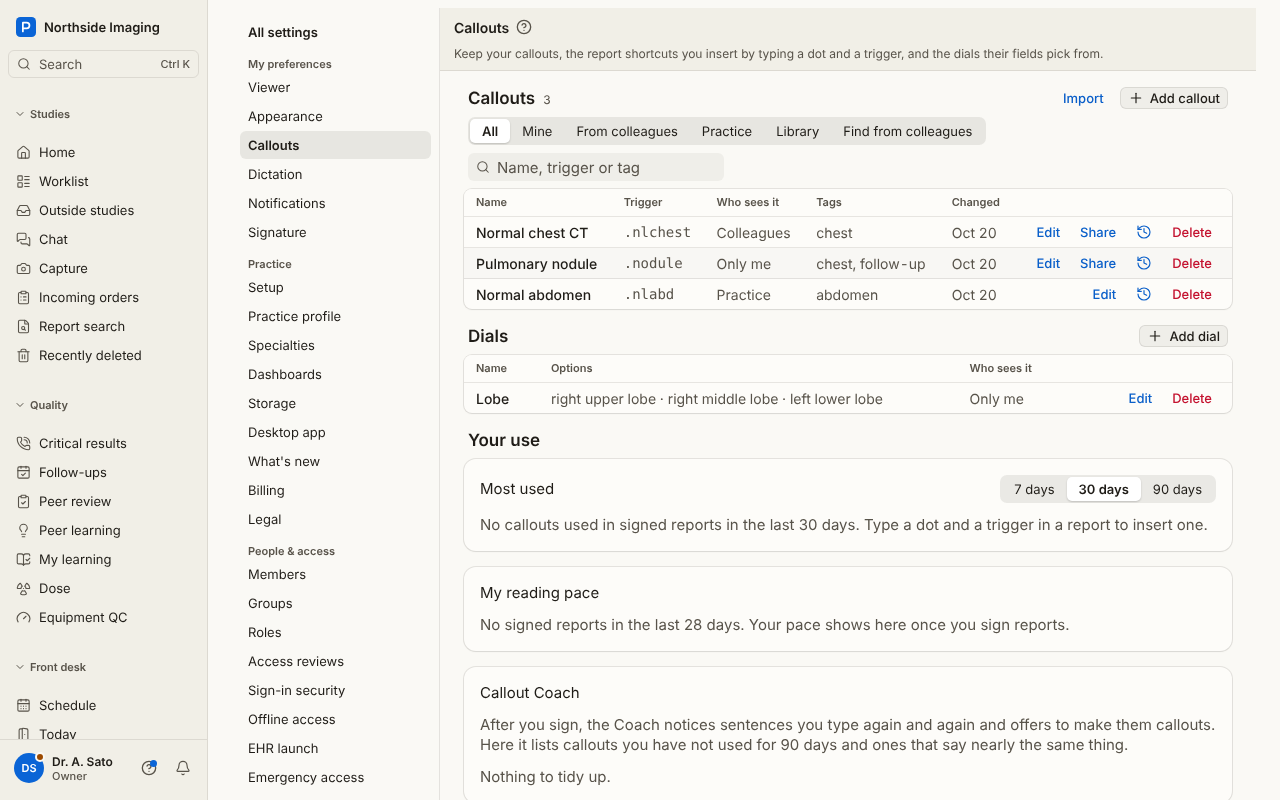
Settings › Callouts holds the callouts you use in reports. A callout is prepared
report text with a trigger. Type a dot and the trigger in a report, such as .nlchest,
and pick it from the list to insert its text. On this page you can:
- add, edit, archive and delete your callouts,
- see the callouts colleagues share, the practice's callouts and the PacsPilot Callout Library collections that are on,
- copy any of those to your own, share yours with named colleagues, or propose one to the practice,
- import phrases from Epic, a CSV file or JSON,
- look at earlier versions of a callout and restore one,
- restore a callout you deleted in the last 30 days,
- keep your dials, the lists a callout field picks from.
Callouts replace macros. When your practice has callouts on, your macros and pick lists show here as callouts and dials.
Who can use it
You need permission to write reports. Owners, admins and physicians have it. The page shows only while your practice has callouts on. Practice callouts and dials can be changed by members who can change practice settings; everyone else can use them.
How to add a callout
Press Add callout. Each callout has a name, a trigger and some text. Leave the trigger empty and one is made from the name. Text can go at the caret or into a report section, such as Impression. The text can hold fields the reader fills in after inserting:
| Write | What the reader gets |
|---|---|
[ ] or [hint] |
A waypoint: a blank to type in. F2 jumps to the next one. |
[?Name] |
A dial: pick one option from the dial called Name. |
[??Name] |
Pick several options, joined as the dial says. |
[#name] |
A gauge: a typed value such as a size or a side. |
[@key] |
A readout: a value filled from the study, such as the prior exam date. |
[.trigger] |
Another callout's text. |
[//note] |
A note for the reader; it never prints. |
The preview under each text box shows the callout on a sample CT chest. It never uses a real patient. Names, dates of birth and other patient details cannot be saved in a callout; the editor says where it found one.
When your practice uses AI report drafting, Add callout also offers Describe the callout you want. Write what the callout should say and press Draft with AI: the draft fills the name, text and fields, marked AI draft until you save. Only your description leaves PacsPilot, with patient details removed, and the draft never goes into a report on its own.
Who can use it sets who sees the callout. Colleagues is the default: colleagues can find and copy it, but only you can change it.
How to copy, share or propose a callout
- Copy to mine is on every callout you can use but not change: the practice's, a colleague's and the library's. Choose Find from colleagues to see callouts colleagues let others find and copy. Your copy is yours to change. If you already have the trigger, type another one.
- When the original of a copy changes, its row shows Original updated. Open it to see what changed. Use theirs fills the form with the original's wording, and Save keeps it. Keep mine leaves your copy as it is and hides the notice until the original changes again.
- Share on one of your callouts lets you pick colleagues, and groups if you can see them, who can then use it in their reports. Only you can change it. Clear everyone to stop sharing.
- Propose to practice in the editor of one of your callouts sends that version to the members who manage Practice callouts. If they approve it, everyone in the practice can use it.
- When a library collection has a new release, a notice lists what changed. Got it hides it.
How to import callouts
Press Import, choose Epic text, CSV or JSON, paste the text and press Preview. Each row shows its warnings; Epic choice lists that are kept outside the text can be added before you import. Nothing is saved until Import. Imported callouts are yours; members who can change practice settings can import practice callouts.
How to restore a version or a deleted callout
Every save keeps a version, up to the last 100. Choose the versions button on a row to see them and restore one; restoring saves the old text as a new version. Archived keeps a callout but stops offering it in reports. A deleted callout stays in Recently deleted for 30 days.
How to add a dial
Press Add dial, give it a name and at least two options, one per line. Choose Pick several to let the reader pick more than one, and choose how picked options are joined, such as "a, b and c".
Your use and the Callout Coach
Your use, at the bottom of the page, shows how you use callouts. Only you see these numbers.
- Most used: the callouts you inserted into signed reports, how often, and the keystrokes they saved you.
- My reading pace: your last 28 days compared with the 28 days before: signed reports, time from opening a report to signing it, how much of your signed text was filled for you, and keystrokes saved by callouts.
- Callout Coach: your callouts not used for 90 days, and pairs of your callouts that say nearly the same thing, so you can archive or merge them.
Owners and admins also see Practice use: for the last 7, 30 or 90 days, how many different callouts each reader used, how many inserts, the keystrokes saved and on how many days, and for each callout its kind and how many readers used it. A reader's personal callouts show as "A reader's personal callout", without their name or text. A reader who left the practice shows as "Former member".
After you sign a report, PacsPilot looks at the sentences you typed or dictated yourself, not text that was already in the report or that a callout inserted. Numbers, sizes, dates and sides become fields, and only a fingerprint of the sentence and a count are kept, never the text. When the same sentence of 40 characters or more turns up in 5 of your signed reports within 30 days, PacsPilot asks once, Make this a callout? Choose Save as callout to open the editor with the sentence filled in. Close the editor without saving and it does not ask about that sentence again. The Coach uses no AI.
Fields and columns
| Name | What it means |
|---|---|
| Show | All, Mine, From colleagues (shared with you), Practice, Library or Find from colleagues. |
| Callouts table | Name, Trigger, Who sees it, Tags and Changed, with Edit (or View for a callout you cannot change), Copy to mine, Share, the versions button and Delete. |
| Trigger | Typed after a dot in a report. A letter first, then up to 23 letters, digits or dashes. |
| Other names | Other words that find the callout in the list. |
| Who can use it | Colleagues can find and copy it, Only me, or Whole practice for members who can change practice settings. |
| Goes to | At the caret, or the report section the text goes into. |
| Archived | Kept, but not offered in reports. |
| Original updated | The callout this was copied from has changed since your copy caught up with it. |
| Not synced yet | Saved on this computer while offline; it is already offered in reports and syncs when the connection is back. |
| Dials table | Name, Options and Who sees it, with Edit and Delete. |
| Pick several | The reader can pick more than one option; Join picked options as sets how they print. |
| Recently deleted | Callouts deleted in the last 30 days, with Restore. Shows only when there are some. |
| Inserts | How many times you inserted callouts into reports you then signed. |
| Keystrokes saved | Characters a callout inserted, minus the dot and trigger you typed. |
| Open to sign-off | The middle (median) time from opening a report to signing it. |
| Days used | Days with at least one insert, under Practice use. |
| Nearly the same | Two of your callouts whose wording is at least 85% alike. |
In the report
With callouts on, the report page also has:
-
Readouts. A
[@key]field fills from the study when you insert the callout, such as[@prior.date]or[@measure.last]. A value the study does not have becomes a waypoint that says what is missing. Patient names, numbers and dates of birth are never readouts. If a measurement or order changes after you insert it, signing warns you and shows the new value; if the value is gone, fill it in or delete it before signing. Say update readouts to take the new values where you have not changed the text. Specialty pack templates add their own readouts, such as[@vhs],[@laAo]and[@aspects], which print the value typed on that field's line of the report. - Flight Deck. A row of one-tap buttons above the report: callouts, templates, Normal, Sign and next and, beside the images, a viewer layout. Alt+1 to Alt+9 run the first nine. Press the sliders button to choose the items, for every study or for one modality. Your Flight Deck follows you to your other devices.
- Presets. With a smart template, Presets fills the template's empty fields with a named set of values, such as "Normal adult knee". Fields you already filled stay as they are. Choose Save these values as a preset to keep the values filled now. The worksheet dialog has the same menu.
- Search this patient. Type words and press Enter to search this patient's earlier reports, orders, technologist notes and worksheets. Insert as comparison adds that study to the Comparison section. Each search is recorded in the audit log.
- Voice. With dictation on, say callout and its name to insert it, next waypoint or previous waypoint to move between fields, or a gauge's name and its value, such as "liver span 15". In Settings › Dictation you can give a microphone button Update readouts or Flight Deck item 1 to 3.
- Coded choices. A dial option can carry a RadElement, RadLex or SNOMED code. When you pick it and sign, the code is kept with the report's coded findings and sent to the EHR with the report.
If something goes wrong
- Could not load callouts or Could not load dials: press Retry.
- Use modality codes such as CT or MR: modality codes are 2 to 4 letters, separated by commas.
- A letter first, then letters, digits or -: a trigger starts with a letter and holds up to 24 letters, digits or dashes.
- You already have a callout with that trigger: choose another trigger. When copying, type another trigger in Copy to mine.
- This callout is already waiting for review: a proposal of it is still open. Wait for the decision.
- Share only with members of this practice: someone you picked has left the practice; pick again.
- The source is no longer available: the original was deleted or its collection was turned off. Your copy stays as it is.
- Callouts are reused for other patients, so they cannot hold patient details: remove the name, date of birth or number from the text, then save.
- _.a → .b → .a_ repeats itself or Callouts nest at most 3 deep: a callout inserts another callout that leads back to it, or callouts nest more than three deep.
- This callout was changed since you opened it: close the editor, open it again and redo your change.
- Callout no longer available under Most used: the callout was deleted or is no longer shared with you. Its past use still counts.
- Your use is empty: only signed reports count. Inserts in drafts that were never signed are not counted.
- You have reached the callout limit: delete callouts you no longer use. You can keep up to 2,000.
- Your Flight Deck changed on another device: close the Flight Deck editor, open it again and redo your change.
- A preset with this name exists: choose another name for the preset.
- Callout under Changes on this computer says Needs your attention: the callout was changed on another computer while you were offline. Choose Keep theirs, or Save mine as newest, which keeps both in its versions.
Deleting a callout does not change reports that already used it. Deleting a dial leaves its fields in callouts, to be typed by hand.
Related
Updated October 27, 2026. Signed in? The same article is in the app's help panel: press
?.