Dictation
Set up your microphone, dictation style, keyboard shortcuts, dictation microphone buttons, vocabulary, and your own macros and pick lists.
What this page is for
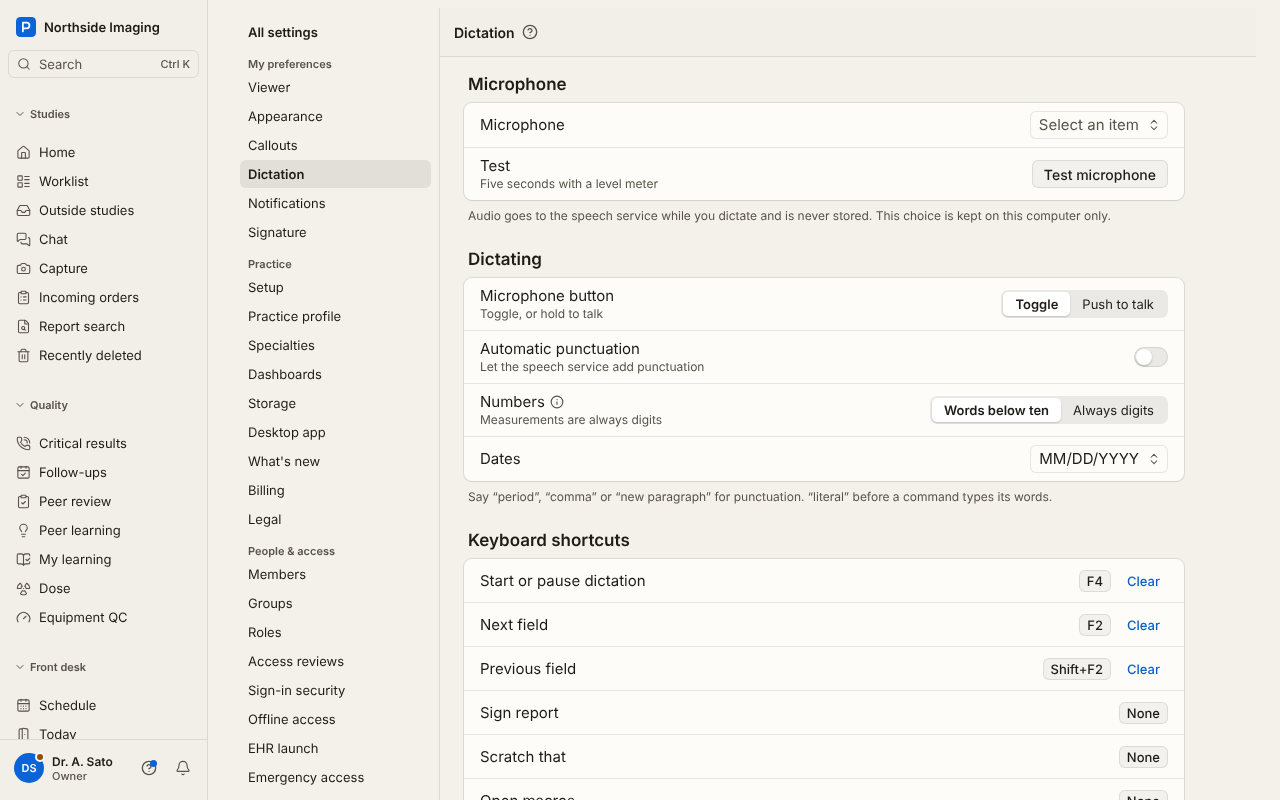
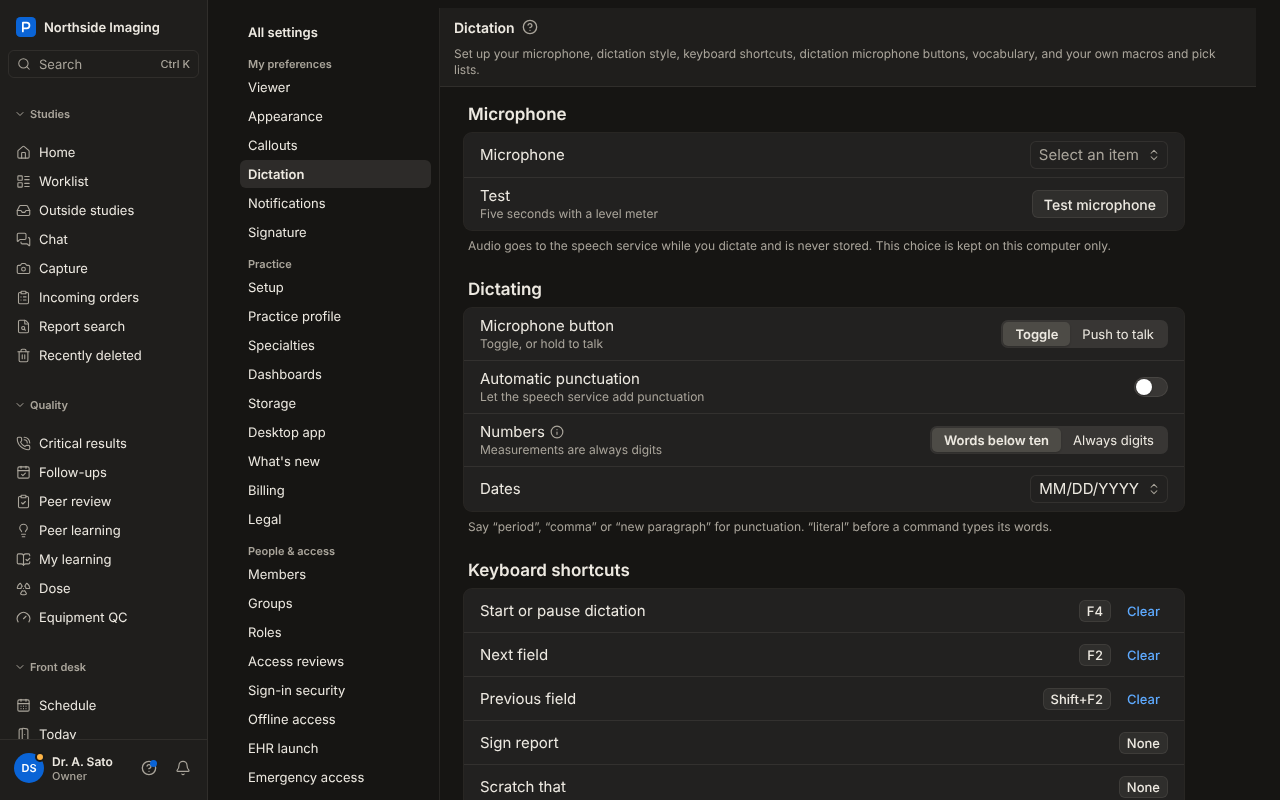
Settings › Dictation holds your own dictation preferences. Nothing here changes what other members use. On this page you can:
- choose and test your microphone,
- choose how the microphone button works, and how punctuation, numbers and dates are written,
- set keyboard shortcuts for dictation,
- connect a PowerMic or SpeechMike and choose what each button does,
- add words the speech service should expect,
- keep your own macros and pick lists.
When your practice has callouts on, your macros and pick lists move to Settings › Callouts as callouts and dials, and this page links there.
Most changes save at once and show "Saved". Vocabulary has its own Save vocabulary button.
Who can use it
You need permission to write reports. Owners, admins and physicians have it. The page shows only while your practice has voice dictation turned on in Settings › Dictation and AI. If dictation is off for the practice, the page is not listed in Settings.
The Impression style and Measurements groups show only when your practice has those features on.
How to choose and test your microphone
- Under Microphone, choose a device, or System default.
- Press Test microphone and speak. A level meter shows for five seconds.
Your microphone choice is kept on this computer only. Audio goes to the speech service while you dictate and is never stored.
How to set a keyboard shortcut
- Under Keyboard shortcuts, press the button next to an action. It shows Press a key….
- Press a function key, or a key with Ctrl, Alt or ⌘. Press Esc to cancel.
- To remove a shortcut, press Clear. To go back to the defaults (F4 starts and pauses, F2 and Shift+F2 move between fields), press Reset.
Shortcuts also work for microphones and foot pedals programmed to send keys. If a key is already used by another action, it moves to the new one.
How to use dictation microphone buttons
- Use Chrome or Edge.
- Under Dictation microphone, press Connect and allow the device when the browser asks.
- Press a button on the microphone. The page shows "Last pressed:" and the button's name.
- For each button, choose what it does, or Nothing.
Press Add device to connect another microphone. Turn the switch off to stop using the microphone buttons.
How to add vocabulary
- Under Vocabulary, type names, places and terms the speech service should expect, one per line.
- Press Save vocabulary.
You can have up to 200 entries, each up to 64 characters. If you leave the page with unsaved changes, the browser asks first.
How to add a macro
- Under My macros, press Add macro.
- Enter a Name. You insert the macro by saying "macro" and this name.
- In Modalities, enter codes such as CT, MR, or leave it empty for all modalities.
- Choose where the text Goes to: At the caret, or a report section such as Findings or Impression.
- Type the Text. Use [ ] for a blank and [?Name] for a pick list field.
- Press Add a section to insert text into another section as well.
- Press Save.
You can also press \ in the report to open your macros.
Make or edit a macro by voice
When the voice macro editor is on under reporting automation, you can do this from the report while dictating:
- Select text in the report and say "save selection as macro" and a name, such as "save selection as macro liver normal". The text becomes your own macro, inserted where the cursor is.
- Say "edit macro" and the name to open that macro's editor.
How to import or export macros
- Under My macros, press Import.
- Choose a file, or paste into Or paste. Use a CSV with the columns name,section,text (one row per section), or a PacsPilot macro export. Up to 500 rows.
- Press Import.
Press Export to download your macros as a file you can import again.
How to add a pick list
- Under My pick lists, press Add pick list.
- Enter a Name. A [?Name] field in a template or macro uses this list.
- Enter the Options, one per line, 2 to 20.
- Press Save.
While dictating, say "choose" and an option, or "option" and its number.
Fields and columns
| Name | What it means |
|---|---|
| Microphone | The microphone used for dictation on this computer. |
| Test | Test microphone runs a five-second test with a level meter. |
| Microphone button | Toggle, or Push to talk (hold to talk). |
| Automatic punctuation | Lets the speech service add punctuation. You can always say "period", "comma" or "new paragraph". |
| Numbers | Words below ten or Always digits. Measurements are always digits. |
| Dates | The date style: MM/DD/YYYY, DD/MM/YYYY or YYYY-MM-DD. |
| Keyboard shortcuts | One key for each of: Start or pause dictation, Next field, Previous field, Sign report, Scratch that, Open macros. |
| Defaults | Reset puts back the default shortcuts. |
| Dictation microphone | Connect or Add device for a PowerMic or SpeechMike, a switch to stop using its buttons, and one action for each button. |
| Draft in my style | In Impression style: drafted impressions follow the structure of your recent signed reports. Only your own reports are used. |
| Send measurements to the report automatically | In Measurements: each measurement you finish in the viewer goes into the open report. When off, use "Send to report" on the measurement. |
| Vocabulary | Words the speech service should expect, one per line. Save vocabulary saves them. |
| My macros table | Name, Say (the words that insert it), Inserts (section and text), Modalities (or All), with Edit and Delete. A search box shows when you have more than five macros. |
| My pick lists table | Name, Field (the [?Name] to use), Options, with Edit and Delete. |
If something goes wrong
- Could not load your dictation settings: press Retry.
- Could not save your dictation settings: the change is undone on the page. Try again.
- Could not open the microphone. Allow it in the address bar and try again.: allow microphone access for PacsPilot in your browser, then press Test microphone again.
- This browser cannot read dictation microphone buttons: use Chrome or Edge, or program the buttons to send the keyboard shortcuts (F4 starts and pauses).
- The browser did not connect the microphone: press Connect again and choose the device.
- Use a function key, or a key with Ctrl, Alt or ⌘: the key you pressed cannot be a shortcut on its own.
- Vocabulary error such as "1 entry is longer than 64 characters" or "the limit is 200": shorten or remove entries, then save.
- Use modality codes such as CT or MR: modality codes are 2 to 4 letters, separated by commas.
- Add a name and 2 to 20 options to save.: a pick list needs a name and between 2 and 20 options.
- "_n_ imported; _n_ rows skipped": the import added the rows it could read and lists why the others were skipped. Fix those rows and import them again.
- Could not load macros or Could not load pick lists: press Retry.
Deleting a macro does not change reports that already used it. Deleting a pick list leaves its fields in templates and macros, to be typed by hand.
Related
- Dictation and AI
- Report templates
- Use AI summaries, the assistant, voice and automations
- Callouts
- Settings
Updated October 27, 2026. Signed in? The same article is in the app's help panel: press
?.