People who can see my records
See who else can see your records in the patient portal, invite a caregiver, change what they see and remove them at any time.
What this page is for
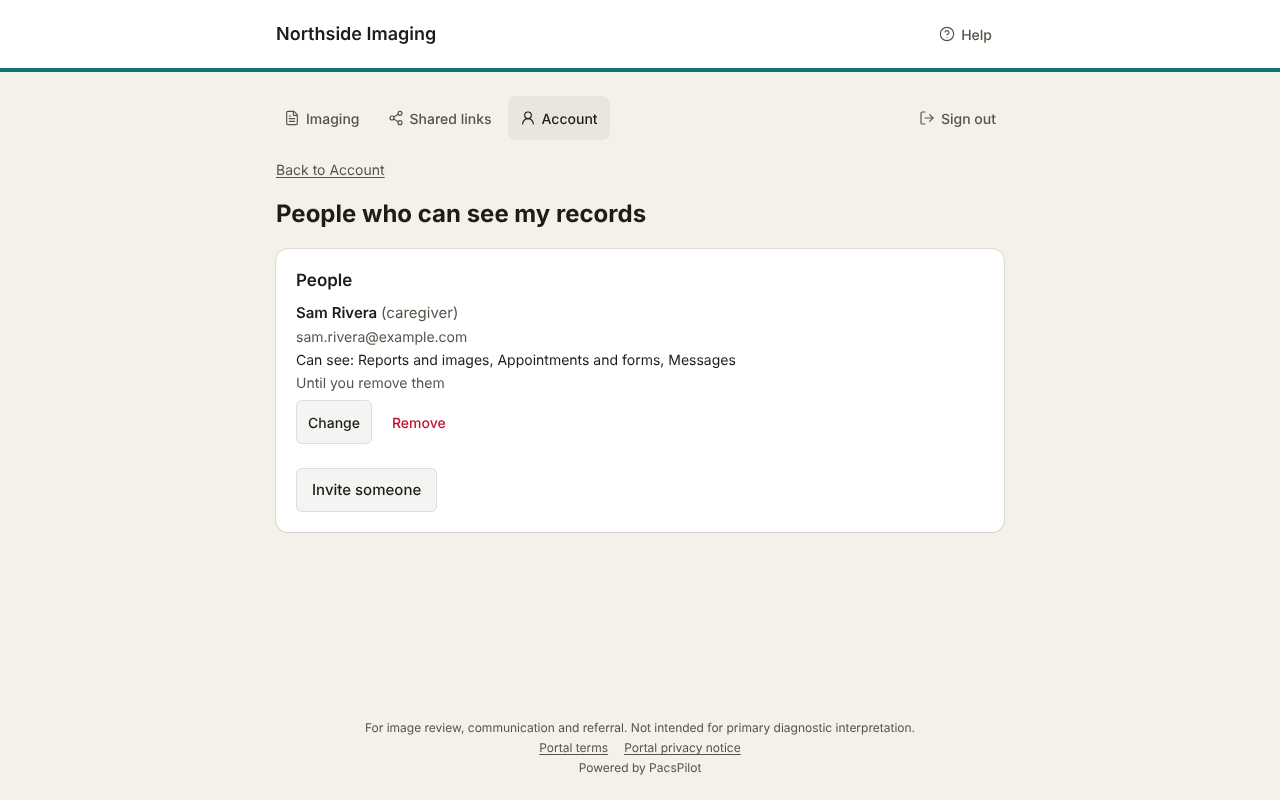
Some people help a family member with their care. This page lists everyone who can see your records in this portal besides you: a caregiver you invited, or someone your practice added, such as a legal guardian.
For each person you see what they can see and until when.
Who can use it
You can use it if you are an adult patient and your practice offers access for caregivers. If your practice does not, you do not see Who can see my records on your Account page.
How to invite someone
- Open Account and choose People who can see my records.
- Choose Invite someone.
- Type their name and email.
- Choose if they are your Caregiver or your Health care agent.
- Tick what they can see and do, for example Reports and images and Appointments and forms.
- If you like, pick the day their access ends. Leave it empty to keep it until you remove them.
- Choose Send invitation.
We email them a link that works for 7 days. They sign in with their own email and their own date of birth, never yours. Some practices check each invitation before the person can see anything.
How to change what someone sees
- Find the person on this page.
- Choose Change.
- Tick or untick what they can see, or change the end date.
- Choose Save.
You can change only the people you invited yourself.
How to remove someone
- Find the person on this page.
- Choose Remove.
- Choose Remove again to confirm.
They lose access at once. We tell them by email, without giving a reason.
Fields and columns
| Name | What it means |
|---|---|
| Can see | What this person can see and do in the portal for you. |
| Invitation sent | They have not accepted yet. |
| Waiting for approval | They accepted, and your practice still has to approve it. |
| Until | The day their access ends. |
| Added by your practice | Your practice set this up, for example for a guardian. |
If something goes wrong
- There is no Remove button. A court or your practice set this up. Call your practice to change it.
- You cannot invite anyone. Your practice may not allow it, or you may be under 18. Ask your practice.
- They did not get the email. Ask them to check their spam folder, or remove them and invite them again.
Related
Updated November 3, 2026. Signed in? The same article is in the app's help panel: press
?.