Oncology
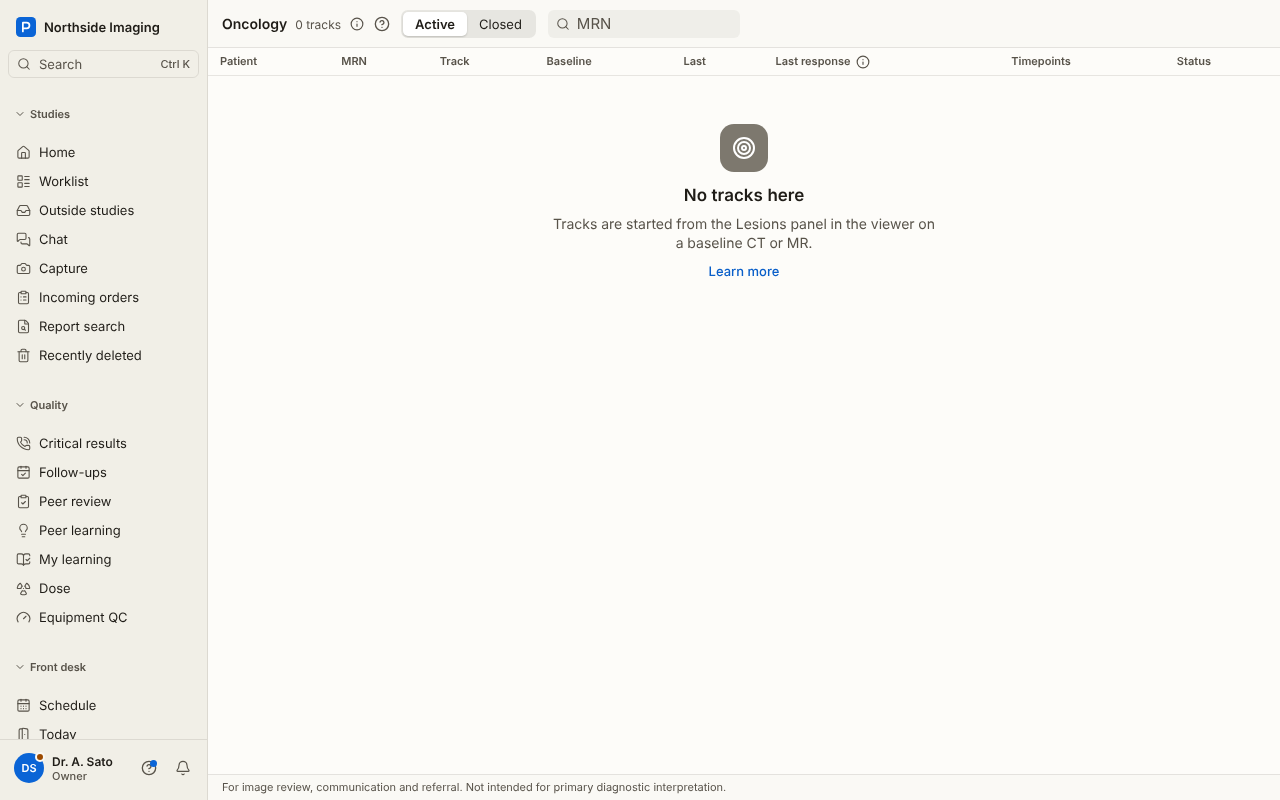
Each patient's RECIST 1.1 lesion tracks, with the latest response, to open, add follow-ups to, and close.
What this page is for
Lesion tracking follows a patient's target and non-target lesions from a baseline CT or MR through every follow-up, using RECIST 1.1. Each course of treatment is one track. This page lists the tracks; press a row to open the track page with the timeline, the sum-of-diameters chart and every lesion at every timepoint.
Measuring happens in the viewer's Lesions panel. A track is started there, on a baseline CT or MR. This page reads tracks, adds follow-ups, reopens timepoints and closes tracks. Responses are an imaging assessment only.
Who can use it
Every member who can view studies can open this page while lesion tracking is on. A track shows only when you can see every study in it.
What you can do on a track depends on your permissions:
- Add follow-up and Remove a draft follow-up need "Record measurements" (owners, admins, physicians and technologists by default).
- Track settings, Close track, Reopen track, reopening a timepoint and retrying an archive write need "Sign reports" (owners and physicians by default).
You may not see the page because lesion tracking is off for the practice. An owner or admin turns it on in Settings › Oncology.
How to find a track
- Choose Active or Closed. The choice is kept in the page address.
- Type a patient's exact MRN in Find a patient by MRN and press Enter. Clear the box to see every track again.
- Press Load more to see older tracks.
How to add a follow-up
- Open the track and press Add follow-up.
- The dialog lists the patient's CT and MR studies after the baseline that are not yet in the track. Press Add next to the study.
- Measure the lesions on that study in the viewer's Lesions panel.
To take back a follow-up that is still a draft, press Remove on its card in Timeline and confirm. Its draft measurements are deleted; the study itself is not changed.
How to compare with the baseline
Press Compare with baseline at the top of the track, or Compare on a follow-up card. The viewer opens the follow-up next to the baseline. Open on a card opens that study alone.
How to reopen a final timepoint
- On the latest final timepoint, press Reopen.
- Enter a Reason (up to 200 characters) and press Reopen.
The measurements become editable again. When it is finalized again, a new measurement object is added to the archive and the earlier one stays. A signed report must be amended to change its table. Only the latest final timepoint can be reopened.
How to change the track settings
Press Track settings:
- Label: a name for the track, up to 80 characters, for example "1st line, from March".
- Confirm complete and partial responses: on when the protocol needs a second scan to confirm a CR or PR, with Confirmation after (days).
- Stable disease counts as best response after (days): how long after baseline stable disease must last to count as the best response.
The defaults are 28 and 42 days. Trial protocols set their own values.
Clinical trial hint
When an owner or admin has turned on the clinical trial hint, a track whose order has a cancer diagnosis code shows a line such as "12 recruiting trials for lung cancer near Seattle, Washington on ClinicalTrials.gov". The link opens that search on ClinicalTrials.gov in a new tab. It is not a recommendation; each trial decides who is eligible. The line does not appear when the order has no cancer code, the practice has no address, or ClinicalTrials.gov does not answer.
How to close or reopen a track
Press Close track and confirm. A closed track keeps its measurements but takes no more follow-ups. Press Reopen track on a closed track to make it active again.
Fields and columns
| Name | What it means |
|---|---|
| Active, Closed | Show tracks still in use, or closed tracks |
| Find a patient by MRN | Shows only the tracks of the patient with exactly this MRN |
| Patient | The patient's name |
| MRN | The patient's medical record number |
| Track | The track's label, or "RECIST 1.1" when it has none |
| Baseline | The date of the baseline study |
| Last | The date of the latest timepoint |
| Last response | The overall response at the latest timepoint: CR (complete response), PR (partial response), SD (stable disease), PD (progressive disease), NE (not evaluable) or Non-CR/non-PD |
| Timepoints | How many studies are in the track, the baseline included |
| Status | Active or Closed |
| Best response | On the track page: the best overall response so far, and where it was confirmed |
| Timeline | One card per timepoint: Baseline, Follow-up 1, Follow-up 2 and so on, with the response, Draft, Final or Reopened, the sum, and the percent change from baseline and from the nadir |
| Archive status (on a card) | Not written, Writing to archive, In archive or Archive write failed. A final timepoint is saved in the archive as a DICOM structured report in a new series of that study |
| Sum of diameters chart | The sum at each timepoint, with lines for the nadir, the PR line (30% below baseline) and the PD line (20% above the nadir and at least 5 mm more) |
| Lesions | Each lesion at each timepoint: T for target, NT for non-target, N for new; "node" marks a lymph node |
| Organ | Where the lesion is |
| Measurement | The size in mm, or Too small (counts as 5 mm), Gone (counts as 0 mm), Not evaluated, Merged, Split, Present or Progression. Nodes count by short axis |
| Sum of target diameters | The sum of the target lesions at each timepoint |
| Target response, Non-target response, Overall response | The RECIST 1.1 response at each timepoint |
| New lesions | Yes, No or Equivocal at each timepoint |
If something goes wrong
- "This track does not exist or includes studies you can't see.": the link is wrong, or one of its studies is outside your visibility group.
- "Someone else changed this track. Reload to see their changes.": reload the page and try again.
- "Only CT and MR studies can be timepoints.", "That study is older than the baseline." or "That study belongs to a different patient.": choose another study.
- "That study is already in the track.": the study is a timepoint already.
- "The track is closed.": reopen the track first.
- "The track has the most timepoints allowed.": a track holds up to 50 timepoints. Start a new track for the next course.
- "Final timepoints can't be removed. Reopen it first." or "Reopen the later final follow-up first.": reopen timepoints from the latest one back.
- Archive write failed on a card: press Retry on the card.
- A card says "Study deleted" or "Now belongs to another patient": that timepoint is left out of the response.
- "Oncology is turned off for this practice.": ask an owner or admin to turn it on in Settings › Oncology.
Related
Updated October 19, 2026. Signed in? The same article is in the app's help panel: press
?.