Share links
Every share link your practice made, with who it went to, how often it was opened and its state, so you can revoke a link that should stop working.
What this page is for
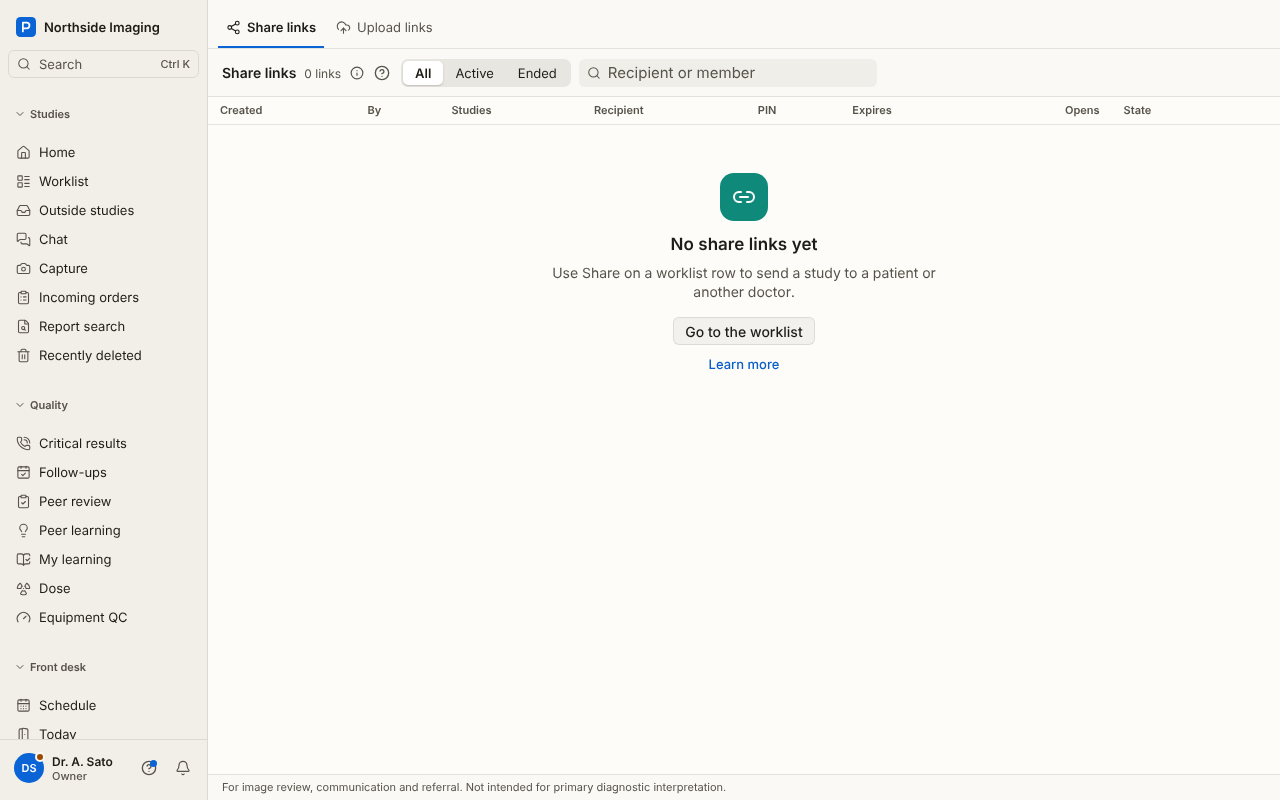
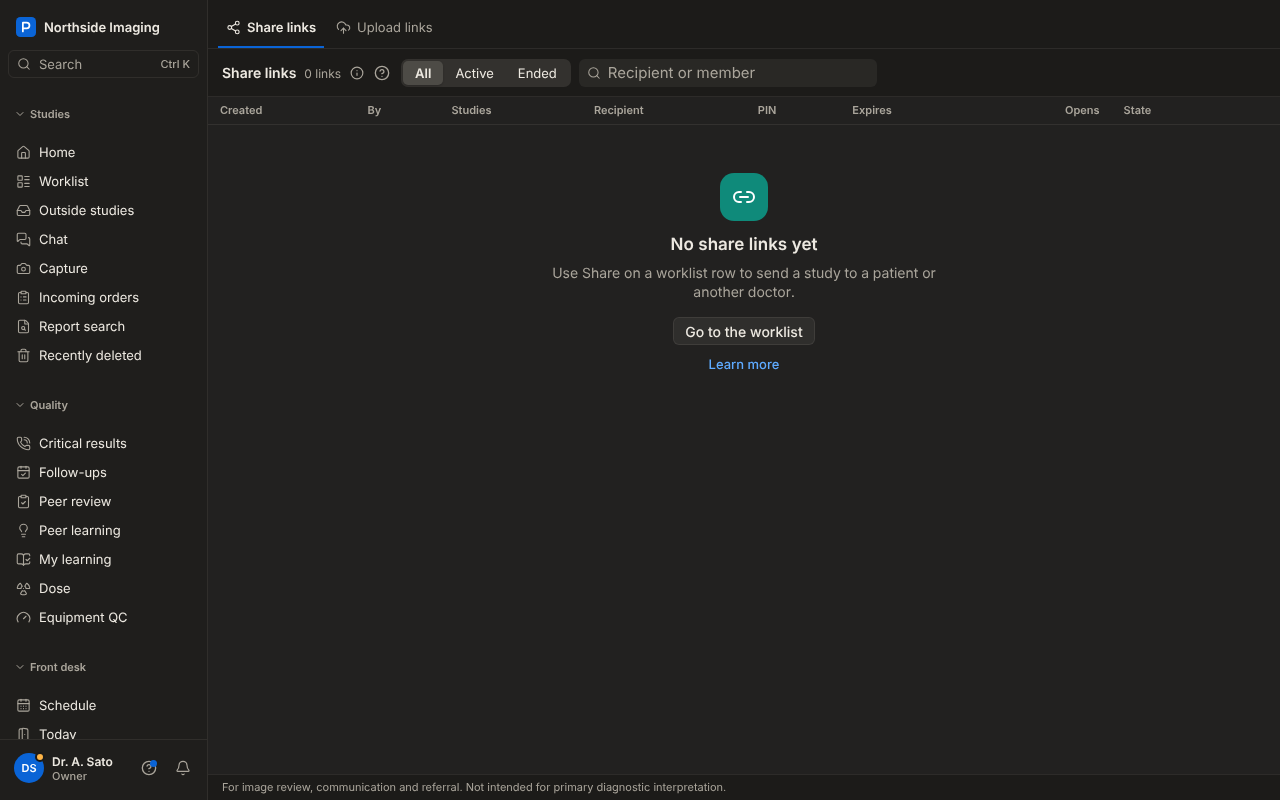
Share links lists the links your practice created to let someone outside the practice view studies without an account, newest first. Use it to see whether a link was opened and to revoke a link before it expires.
You create links on the Worklist, not here. Open the page from Links in the sidebar, on the Share links tab.
Who can use it
Owners, admins and physicians. The page needs the share.create permission, so a
custom role with it can open the page too.
A member in a visibility group sees only the links they created. Everyone else sees every link of the practice.
If Links is missing from the sidebar, or opening the page shows
Share links isn't available to you, your role does not have
share.create.
How to create a share link
- On the Worklist, select the study and press Share in the inspector, or choose Share… from the row's More actions menu.
- Fill in the Share study dialog and press Create link.
- Press Copy and send the link. It is not shown again.
The link then appears on this page. Share a study by link explains every option in the dialog.
How to revoke a link
- Find the link. Its State must be Active.
- Press Revoke on its row.
- Confirm with Revoke in Revoke this link?.
Anyone holding the link loses access. A message says Link revoked.
Fields and columns
| Name | What it means |
|---|---|
| All, Active, Ended | Which links to show. Ended links expired, were revoked or were locked. |
| Search share links | Finds loaded links by recipient or member. |
| Count | Under the title: how many links are shown, of those loaded so far ("+" means there are more). |
| Created | When the link was made. |
| By | The member who made it. Created by patient means a patient made it from the patient portal. Former member means the member has left the practice. |
| Studies | How many studies the link shows. Click it to open them in the viewer. |
| Recipient | The email address the link was sent to, if any. |
| PIN | Yes if the link needs a PIN, otherwise No. |
| Expires | When the link stops working. |
| Opens | How many times the link was opened, and when it was last opened. |
| State | Active, Expired, Revoked or Locked (wrong PINs). |
| Revoke | Stops an active link working now. |
| Load more | Shows the next page of links. |
The list refreshes by itself when someone opens a link.
If something goes wrong
- Could not load share links.: press Retry on the message.
- No share links yet: nobody has shared a study. Press Go to the worklist and use Share on a study.
- Locked (wrong PINs): someone entered the wrong PIN too many times. The link no longer opens. Create a new link for the recipient.
- Expired: the link passed its expiry time. Create a new one if the recipient still needs it.
- Could not revoke the link or Share not found: the link may already be revoked, or it belongs to another member while you are in a visibility group. Reload the page.
Related
- Worklist
- Upload links
- Audit log
- Share a study by link
- Limit what a member sees with visibility groups
Updated October 19, 2026. Signed in? The same article is in the app's help panel: press
?.