Gateways and tokens
Create, rotate and revoke the tokens that site gateways, partner uploads and HL7 or FHIR order feeds use to send data to PacsPilot.
What this page is for
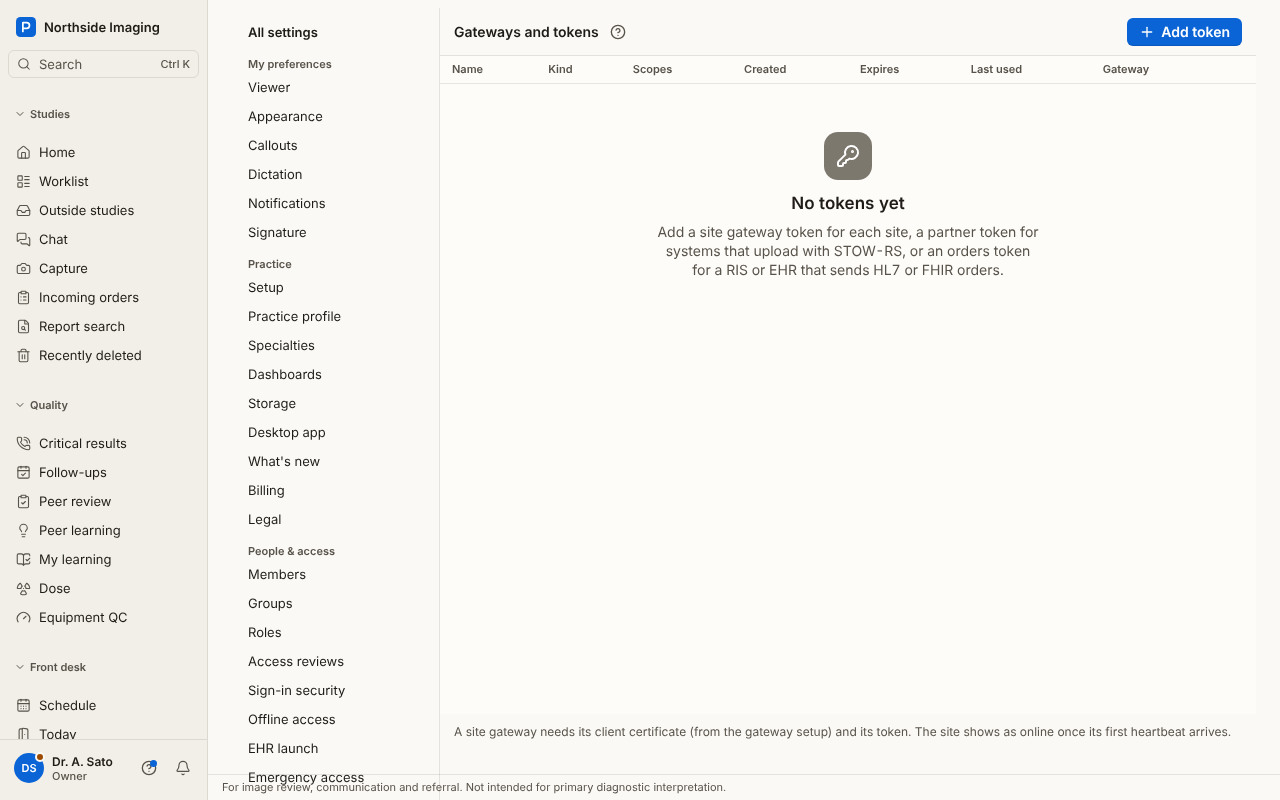
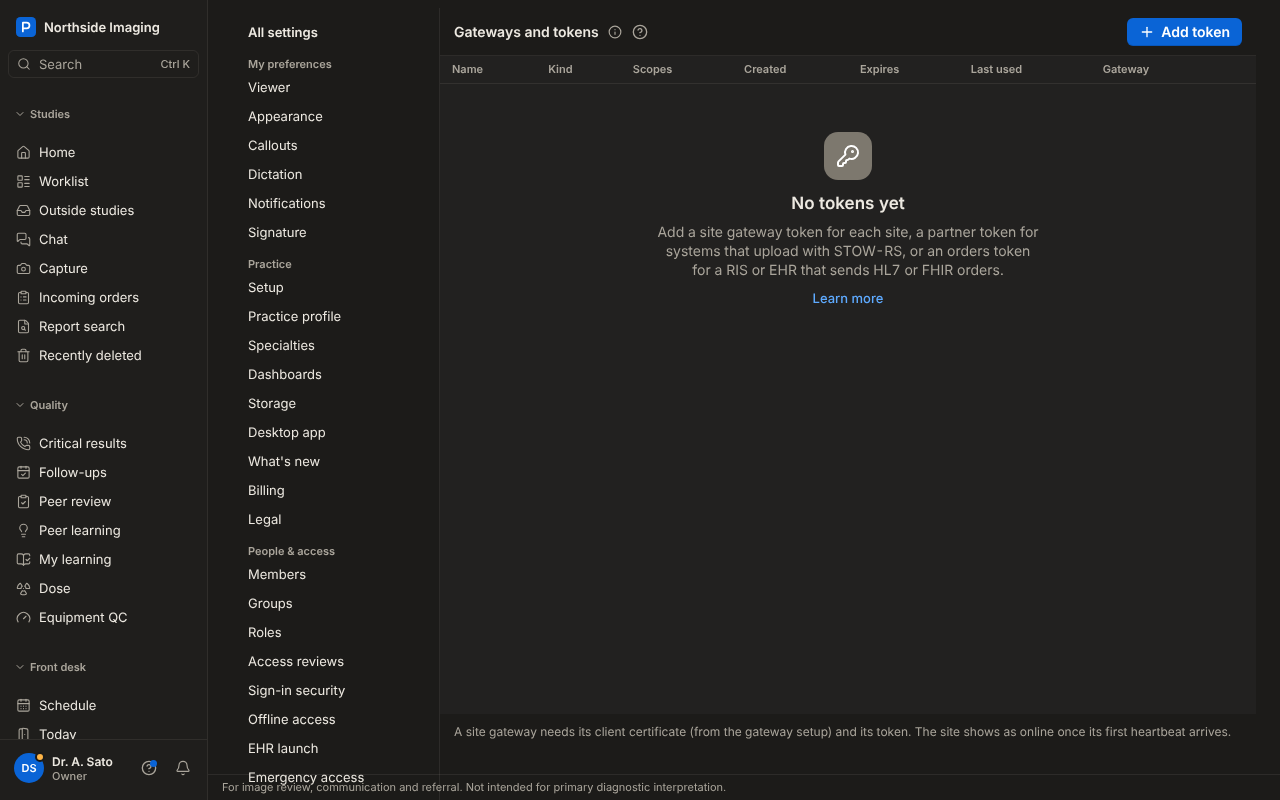
Settings › Gateways and tokens holds the tokens that systems use to send data to PacsPilot without a person signing in. There are three kinds:
- Site gateway: an edge gateway at a site that forwards studies from your modalities. It also needs its client certificate.
- Partner upload (STOW-RS): another system that uploads studies with DICOMweb STOW-RS.
- Orders (HL7 / FHIR): a RIS or EHR that sends HL7 or FHIR orders. Orders are matched to studies by accession number.
For a PacsPilot Agent you do not need a token here. Use Sites instead.
Who can use it
Owners and admins, or any member whose role has the permission to manage members. If your role does not have it, the page is not in Settings.
How to create a token
- Press Add token.
- Choose the kind: Site gateway, Partner upload (STOW-RS) or Orders (HL7 / FHIR).
- Enter a Name that says what uses the token.
- For a site gateway, paste the Client certificate SHA-256 shown by the gateway setup.
- For a partner upload token, tick Also allow study search (QIDO-RS) if the partner also needs to search studies.
- For an orders token, tick Also accept HL7 v3 and CDA documents if the sender uses them. When your practice has context launch on, you can also tick Also issue context launch links that open a study in PacsPilot.
- Under Expires after, choose 90 days, 1 year or 2 years. Every token stops working on that date; owners get an email 30 days and 7 days before.
-
To accept the token only from your own network, enter its addresses or ranges under
Only accept from, separated by commas (for example
203.0.113.0/24, 2001:db8::/32). Leave it empty to accept any address. - Press Create token.
- Press Copy and store the token in the system that uses it. It is not shown again. Press Done.
For an orders token the dialog also shows the addresses to send to, with the token as an
Authorization: Bearer header: one for HL7 v2 and one for FHIR.
How to learn an HL7 sender's field mapping
- On an orders token or a site gateway token, switch on Learn field mappings.
- Messages from each sender on that token are now held until you confirm the sender's mapping on Interfaces.
- Switch it off to use the standard field mapping again.
When an orders token exists, an Interfaces button at the top of the page opens Interfaces.
How to renew a token
In the 30 days before a token expires, press Renew for a year on it. PacsPilot asks for your passkey, then the token works for another year with nothing to change in the system that uses it. Rotating a site gateway's certificate also renews its token for a year, and a site agent's token lasts as long as its certificate.
How to rotate a gateway certificate
- On the site gateway token, press Rotate certificate.
- Enter the New client certificate SHA-256.
- Press Rotate. The old certificate stops working as soon as you save.
How to revoke a token
- Press Revoke on the token.
- Press Revoke again to confirm. Anything using the token stops working at once.
A revoked token stays in the list, greyed out, with a Revoked badge and the time it was revoked.
Fields and columns
| Name | What it means |
|---|---|
| Name | The name you gave the token. |
| Kind | Site gateway, Partner upload (STOW-RS) or Orders (HL7 / FHIR). |
| Scopes | What the token is allowed to do. |
| Created | When the token was created. |
| Expires | When the token stops working, with Soon in its last 30 days and Expired after. Below it, the addresses it is limited to, if any. |
| Last used | When the token was last used, or Never. |
| Gateway | For a site gateway: Online or Offline with when it was last seen, its version, queued items and disk use, or No heartbeat yet. For a revoked token: Revoked and when. |
| Learn field mappings | On orders and site gateway tokens: hold each sender's HL7 messages until you confirm its mapping on Interfaces. |
| Rotate certificate | On site gateway tokens: replace the client certificate. |
| Renew for a year | In a token's last 30 days: it works for another year. |
| Expires after | How long a new token works: 90 days, 1 year or 2 years. |
| Only accept from | Optional IP addresses or ranges the token is accepted from. |
| Revoke | Stops the token working at once. |
| Add token | Opens the dialog to create a token. |
| Interfaces | Opens Interfaces. Shown once an orders token exists. |
| Client certificate SHA-256 |
The fingerprint of the gateway's client certificate, as AB:CD:… or 64 hex
characters.
|
| Also allow study search (QIDO-RS) | Lets a partner upload token also search studies. |
| Also accept HL7 v3 and CDA documents | Lets an orders token also send HL7 v3 messages and CDA documents. |
| Also issue context launch links that open a study in PacsPilot | Lets an orders token create links that open a study. Shown only when context launch is on. |
| Copy | Copies the new token. |
If something goes wrong
- Could not load tokens: press the retry button. If it keeps failing, reload the page.
- The token could not be created: check the name and, for a site gateway, the certificate fingerprint, then try again.
- certSha256 is required for site_gateway tokens: paste the gateway's client certificate fingerprint.
- You closed the dialog before copying the token: the token cannot be shown again. Revoke it and create a new one.
- A site gateway shows No heartbeat yet: the gateway has not reported in. The site shows as online once its first heartbeat arrives. Check that the gateway has both its client certificate and its token.
- A site gateway shows Offline: the gateway stopped reporting. Check the gateway and its network.
- No active token with that id: the token was already revoked. Reload the page.
-
not an IPv4 or IPv6 address or CIDR range: check the addresses under
Only accept from, for example
203.0.113.0/24. - A system reports This api token has expired: create a new token, or renew one that has not expired yet, and update the system.
- A system reports This api token is not accepted from this address: it is calling from outside the ranges you set. Add its address or clear the list.
Related
- Interfaces
- Sites
- Incoming orders
- Audit log
- Create gateway and API tokens
- Confirm an HL7 mapping
- Add a site agent
- Open studies from another system
Updated October 22, 2026. Signed in? The same article is in the app's help panel: press
?.