Follow-ups
Follow-up exams recommended in reports, in due order, for navigators to assign, chase, match to the later exam and close.
What this page is for
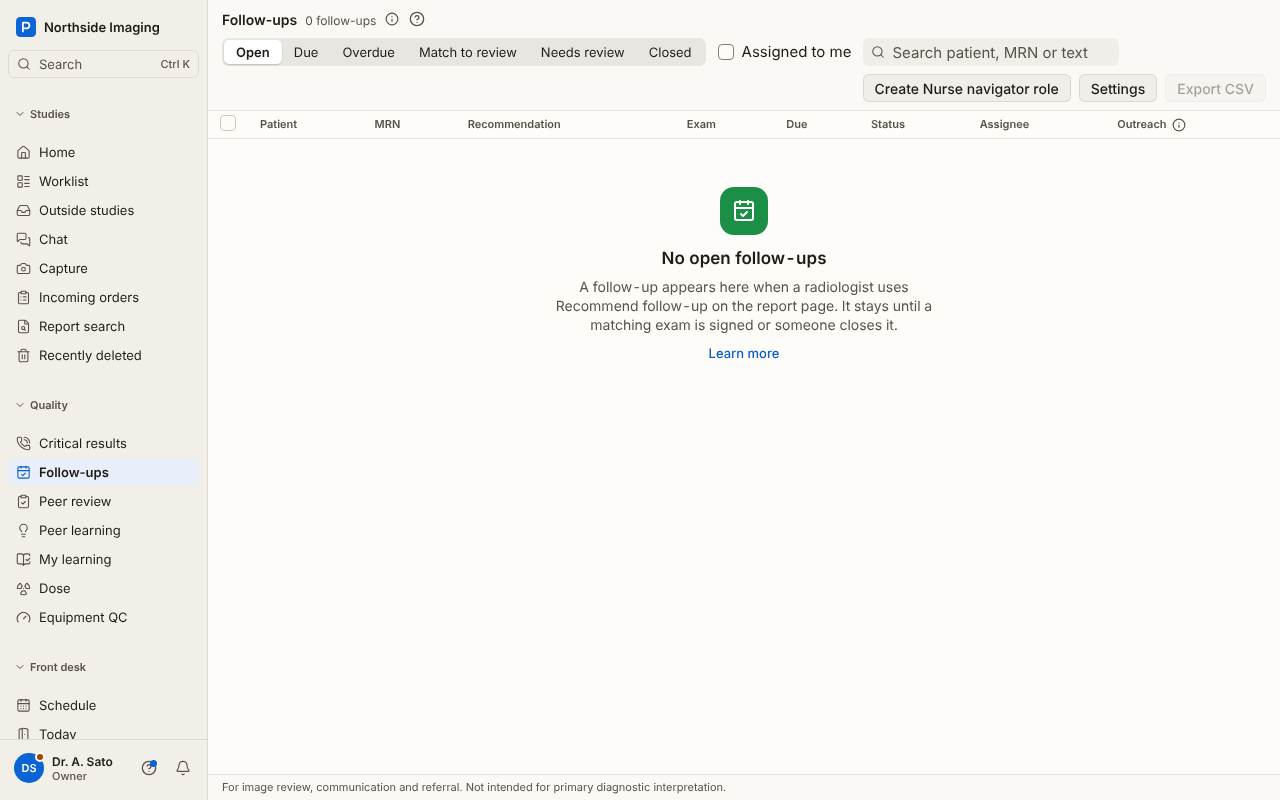
When a radiologist uses Recommend follow-up on the report page, PacsPilot tracks the recommendation as a follow-up: which exam is due (modality and body region), and by when. This page is the navigator's worklist of those follow-ups, soonest due first.
With the Vascular and vein pack on, Recommend follow-up also offers surveillance duplex buttons (carotid, aorta, EVAR, graft or stent, dialysis access, venous). A press fills the exam, body region and wording; you choose the interval.
A follow-up closes on its own when the same patient has a matching exam with a signed report. When the match is not certain (for example the body region is unknown, or the exam came early), it waits under Match to review for someone to decide. Anything else is closed by hand with a reason.
Who can use it
Owners, admins and physicians can use this page, or any member whose custom role includes "Work the follow-up tracking list".
You may not see the page because:
- Follow-up tracking is off. An owner or admin turns on Critical results and then Follow-up tracking in Settings › Critical results.
- Your role does not include the permission above. Technologists and viewers do not have it by default.
Create Nurse navigator role and Settings show only for members who can change practice settings. You see only follow-ups whose source study is inside your visibility group.
How to work the list
- Choose a status: Open (everything not closed), Due, Overdue, Match to review, Needs review or Closed.
- Tick Assigned to me to see only your follow-ups.
- Search by patient name, MRN or recommendation text in Search patient, MRN or text.
- Press a row to open the follow-up.
The status and Assigned to me are kept in the page address, with the open follow-up, so you can share or reload the link. The search text is not kept. Press Load more to see the next page.
How to assign follow-ups
- One at a time: open the follow-up and press Assign to me.
- Several at once: tick the rows (or the box in the header to select all loaded rows), then use Assign to me, Assign to… or Unassign in the bar above the table. Closed follow-ups are left as they were. Press Clear selection to start over.
You cannot select rows while Closed is chosen.
How to log outreach
- Open the follow-up and press Log outreach.
- Choose Patient or Referrer, then How you reached out and the Outcome.
- Add a Note if needed and press Log.
Each attempt counts in the Outreach column. You need at least 3 logged attempts before you can close a follow-up as Lost to follow-up.
How to review a possible match
When PacsPilot finds a later exam that might complete the follow-up, the follow-up shows Possible matches with the exam and the reasons it was not certain.
- Press Completes it when the exam fulfils the recommendation. The follow-up closes as completed.
- Press Not related when it does not. The follow-up stays open.
How to close or reopen a follow-up
- Open the follow-up and press Close.
- Choose the Reason and write a Note. The note is required.
- Press Close follow-up.
To reopen a closed follow-up, open it and press Reopen. You can reopen it up to 90 days after it closed.
A follow-up marked Needs review comes from a report that was amended after the follow-up was made. Press Keep if the recommendation still stands, or close it with Recommendation withdrawn.
How to export the list
Press Export CSV. The file holds the current status, Assigned to me and search, up to 5,000 rows, with patient name, MRN and recommendation text. The export is recorded in the audit log.
How to set up a navigator
Press Create Nurse navigator role to add a custom role that can view studies, work this list and document calls on Critical results. Then give it to a member in Settings › Members.
Fields and columns
| Name | What it means |
|---|---|
| Open, Due, Overdue, Match to review, Needs review, Closed | Filter by status. Open shows every follow-up that is not closed |
| Assigned to me | Show only follow-ups assigned to you |
| Search patient, MRN or text | Matches patient name words, the MRN or recommendation text |
| Export CSV | Downloads the current list |
| Create Nurse navigator role | Adds a custom role for navigators |
| Settings | Opens Settings › Critical results |
| Patient | The patient's name |
| MRN | The patient's medical record number |
| Recommendation | The radiologist's recommendation text |
| Exam | The modalities and body regions that would complete the follow-up |
| Due | The date the follow-up exam is due |
| Status | Open: not due yet. Due: the window for the follow-up exam has started. Overdue: more than 14 days past the due date. Match to review: a possible matching exam needs a decision. Needs review: the source report was amended. Closed |
| Assignee | "Me", the assigned member's name, or a dash when nobody is assigned |
| Outreach | How many outreach attempts have been logged |
| Load more | Loads the next page of follow-ups |
| Assign to me, Assign to…, Unassign | Change the assignee of the selected rows (up to 50 at a time) |
| From | Link to the report the recommendation came from |
| History | Every change to the follow-up: created, reminders sent, outreach, matches, assignment, closing and reopening |
| Completes it, Not related | Accept or reject a possible matching exam |
| Keep | Keep a follow-up whose source report was amended |
| Log outreach | Opens the outreach form |
| Who (Patient, Referrer) | Who you contacted |
| How | Phone, Email, Letter, Fax, Patient portal or Other |
| Outcome | Reached, Left a message, No answer, Wrong number or Sent |
| Note | Free text up to 500 characters. Required when closing |
| Reason | Completed elsewhere, No longer indicated, Patient declined, Patient deceased, Lost to follow-up, Duplicate or Recommendation withdrawn |
| Close, Close follow-up | Closes the follow-up with the reason and note |
| Reopen | Reopens a closed follow-up, within 90 days |
If something goes wrong
- "Could not load follow-ups": press Retry.
- "Log at least 3 outreach attempts before closing as lost to follow-up": log the attempts first, or choose another reason.
- "Add a note saying why this follow-up is closed": write a note before closing.
- "This follow-up is closed; reopen it first": press Reopen, then make the change.
- "A follow-up can be reopened for 90 days after closing": the follow-up closed more than 90 days ago. Ask the radiologist to recommend a new follow-up from the report page.
- "The assignee must be a member of this practice": the member left the practice. Choose someone else.
- "Follow-up tracking is turned off for this practice": ask an owner or admin to turn it on in Settings › Critical results.
- A follow-up you expect is missing: its source study may be outside your visibility group, or it may already be closed. Choose Closed to check.
Related
- Critical results: the communications queue for flagged findings.
- Critical results settings: the Follow-up tracking and Patient reminders switches.
- Members: give the Nurse navigator role to a member.
Updated November 1, 2026. Signed in? The same article is in the app's help panel: press
?.