Claims
Build 837 claim files from approved charges, download them for your clearinghouse and mark them submitted.
What this page is for
Some practices send claims straight to a clearinghouse instead of through a billing system. For a billing entity set up that way, this page collects its approved charges into an 837 claim file. You download the file, upload it to your clearinghouse, then mark it submitted so its charges are posted.
Who can use it
Members with permission to view charges can see the page. Building, downloading, marking submitted and discarding files need permission to code charges. By default owners and admins have both.
Charge capture must be turned on in Settings › Charge setup with the Charge capture switch, and at least one billing entity must send approved charges to Claim files. If you do not see Claims in the sidebar, your role cannot view charges or charge capture is off.
How to build and send a claim file
- If your practice has more than one entity sending claim files, choose the entity at the top.
- Check Ready for the next file. Blocked charges stay out until their edits are fixed; select a row to open the charge in the charge queue.
- Choose Build claim file. It takes the ready charges, up to the limit the page shows; the rest wait for the next file.
- Under Claim files, choose Download. The first time for each entity, confirm that the clearinghouse is covered by your practice's business associate agreement. This is recorded in the audit log.
- Upload the file to your clearinghouse.
- Choose Mark submitted and confirm. The file's charges are marked posted and leave the list.
How to discard a file you did not send
Choose Discard on a built file and confirm. Its charges go back to Ready for the next file. Only discard a file you did not upload; a submitted file cannot be discarded.
Fields and columns
| Name | What it means |
|---|---|
| Billing entity | Which entity's claims you are working on. Shown when more than one entity sends claim files. |
| Build claim file | Builds a file from the ready charges. Off until at least one charge is ready. |
| Ready, blocked | How many waiting charges can go in the next file, and how many are blocked. |
| DOS | Date of service. |
| Mod | Modality. |
| Codes | Procedure codes on the charge. |
| Total | The charge's total fee, or the file's total. |
| Blocked | The edits that keep a charge out of the file, or a dash when it is ready. |
| Created | When the claim file was built. |
| Charges | How many charges the file holds. |
| Status | Built, Submitted (with the time) or Discarded. |
| Usage | Production, or Test while the entity's Production box is off in Settings › Charge setup. |
| Actions | Download, Mark submitted and Discard. |
If something goes wrong
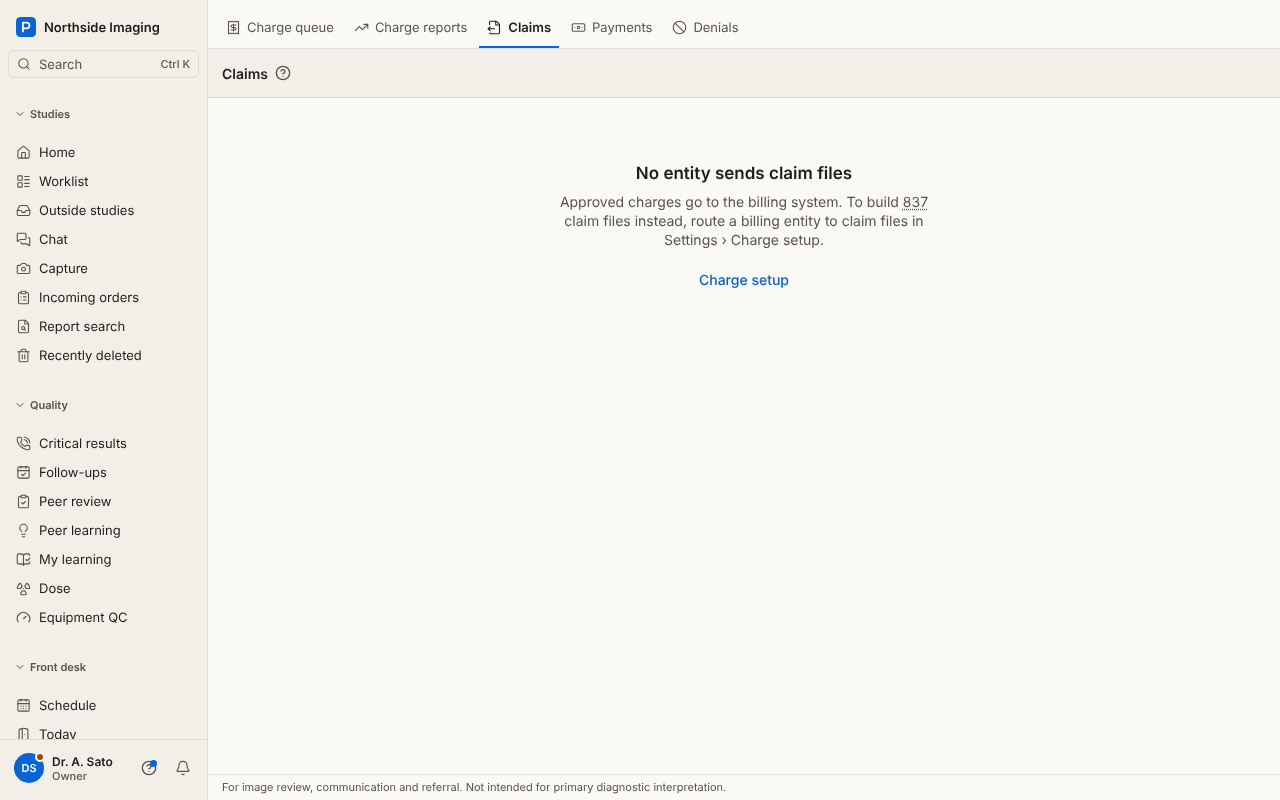
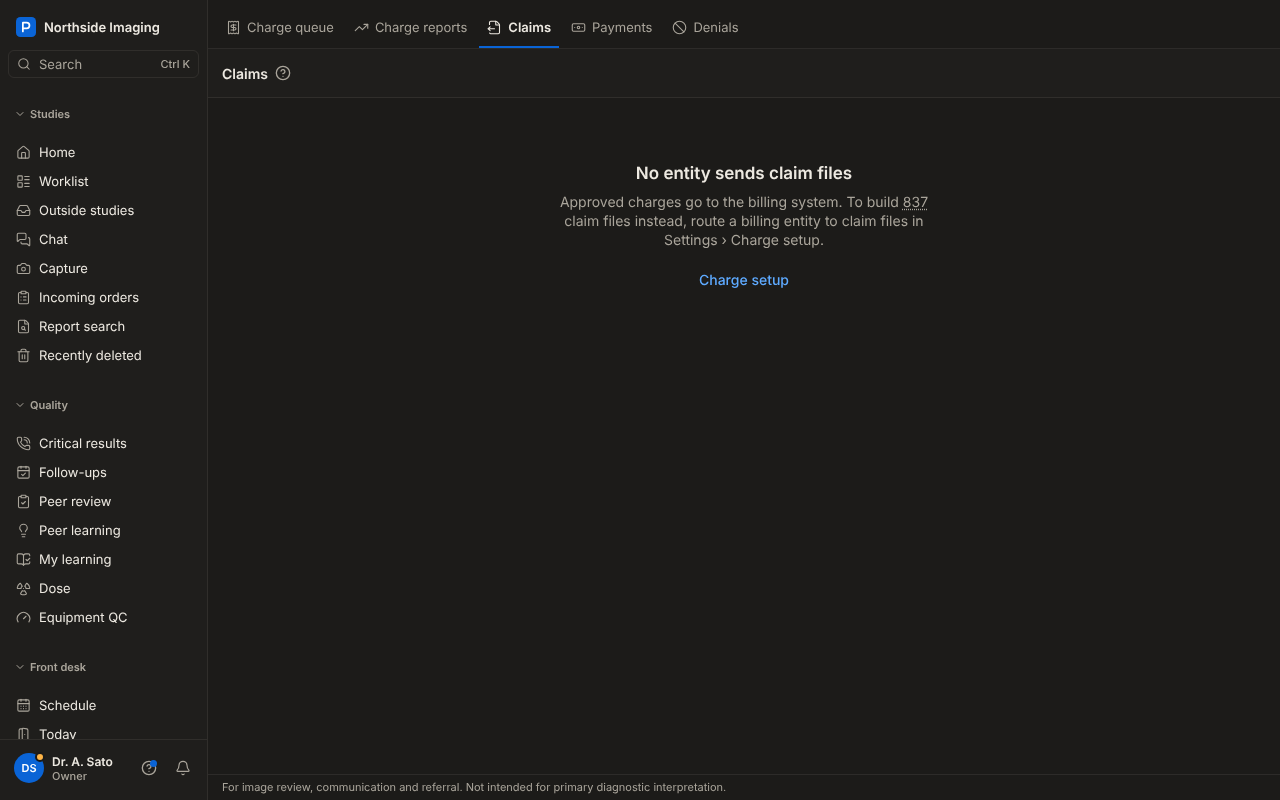
- No entity sends claim files: approved charges go to the billing system. To build claim files instead, an admin opens Settings › Charge setup, edits a billing entity and chooses Claim files under Claims.
- Nothing waiting: no approved charges for this entity are outside a file. Approve charges in the charge queue first.
- No charges are ready for a claim file: every waiting charge is blocked. Fix the edits listed in Blocked.
- A red banner with Retry means the entities or files could not be loaded. Choose Retry.
- Clearinghouse rejections are not read back into PacsPilot. Check them in your clearinghouse.
Related
Updated October 19, 2026. Signed in? The same article is in the app's help panel: press
?.