Payments and estimates
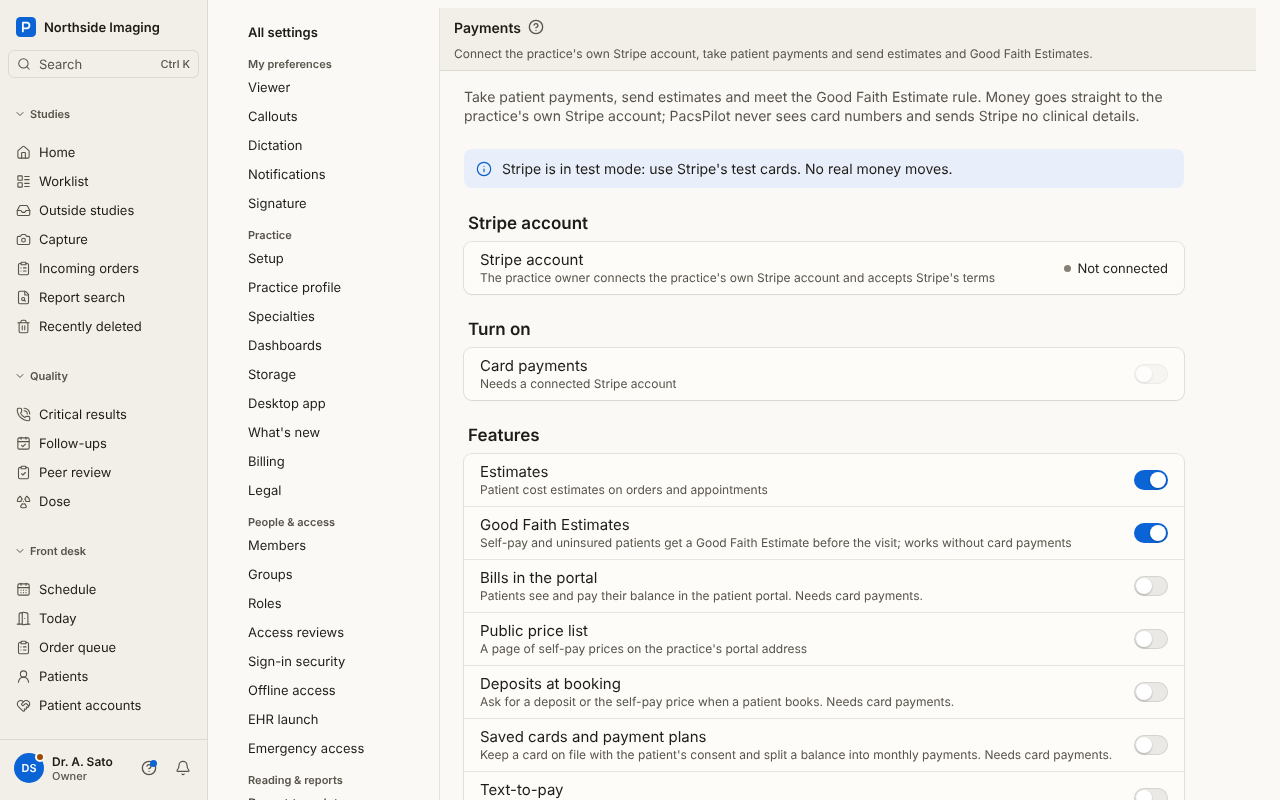
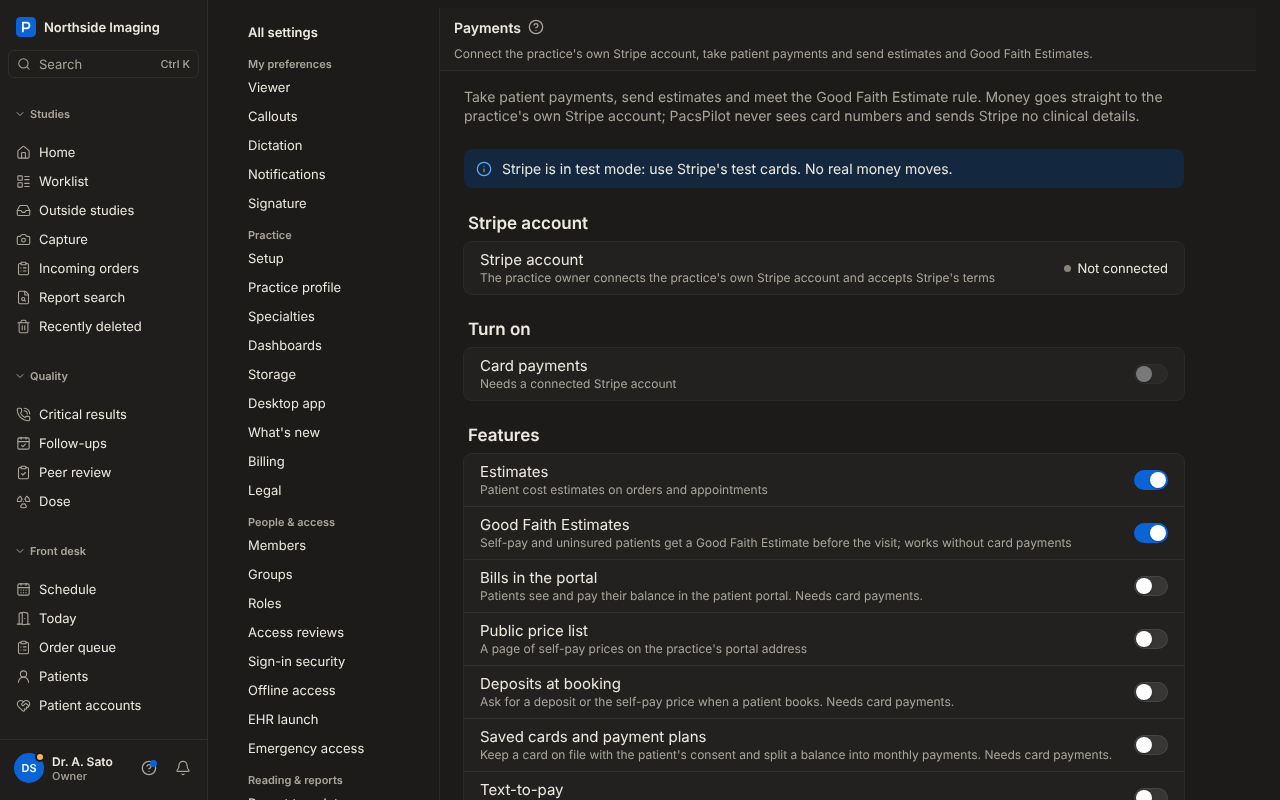
Connect the practice's own Stripe account, take patient payments and send estimates and Good Faith Estimates.
What this page is for
Payments is where the practice sets up patient payments and estimates. Money goes straight to the practice's own Stripe account: the practice is the merchant, PacsPilot never sees card numbers, and Stripe gets no procedure names, codes or other clinical details.
You can use Estimates and Good Faith Estimates without taking cards, so a practice can meet the No Surprises Act Good Faith Estimate rule for self-pay and uninsured patients before it connects Stripe.
Who can use it
Owners and admins, or anyone whose role has Set up patient payments. Open it from Settings › Payments. Only the practice owner connects the Stripe account, because that accepts Stripe's terms for the practice.
The page appears only when patient payments are offered for your practice. Scheduling must be on first: estimates, Good Faith Estimates and payments all hang off orders and appointments.
How to turn payments on
- Turn on scheduling under Settings › Scheduling if it is not on yet.
- The owner selects Connect Stripe under Stripe account. Stripe opens: create the practice's account, or sign in to an existing one, and give Stripe the business and bank details it asks for. Stripe brings you back to this page, which shows the account's state at once.
- Turn on Card payments.
- Choose the features you want under Features. Each one saves as soon as you change it.
While Stripe is in test mode, the page says so. Use Stripe's test cards; no real money moves.
Fields and columns
- Stripe account: Not connected; Setup not finished (the owner left Stripe before finishing); Stripe needs more details (Stripe is reviewing the account or wants more from the practice); Connected; or Disabled (Stripe disabled the account, or the practice disconnected PacsPilot in Stripe).
- Connect Stripe or Finish setup: opens Stripe to create or finish the practice's account. Only the owner sees it enabled. If you leave Stripe halfway, Finish setup picks up where you stopped.
- Open Stripe dashboard: once connected, payouts, bank details and disputes are managed in the practice's Stripe dashboard.
- Card payments: collect at the desk, send pay links and QR codes, refund and close the day. Needs a connected Stripe account.
- Estimates: patient cost estimates on orders and appointments.
- Good Faith Estimates: an estimate for self-pay and uninsured patients before the visit. Works without card payments.
- Bills in the portal: patients see and pay their balance in the patient portal. Needs card payments and the patient portal.
- Public price list: a page of self-pay prices on the practice's portal address. It shows no patient information.
- Deposits at booking: ask for a deposit or the full self-pay price when a patient books.
- Saved cards and payment plans: keep a card on file with the patient's consent and split a balance into monthly payments.
- Text-to-pay: send pay links by text message. Needs text messages to be set up for your practice.
- Statements: monthly statements and balance reminders, in the patient portal and by email with a pay link.
If the account becomes Disabled, card payments turn off by themselves and stay off until the owner connects again. Estimates and Good Faith Estimates keep working.
Features marked as needing card payments are saved but do nothing until Card payments is on. Every change on this page is recorded in the audit log. PacsPilot support can see whether payments are on for your practice but cannot turn them on for you.
Prices
Prices lists each scheduling procedure with its self-pay price, the amount your fee schedule gives for it, and the date the price took effect. Estimates and Good Faith Estimates for self-pay and uninsured patients use these prices.
- Fill from fee schedule gives every procedure without a price one from its charge rule: each charge master fee on the rule times its units. Procedures with no charge rule, or a rule line without a fee, are listed as skipped. Prices you already set are kept.
- Select a procedure to change its price, its prompt-pay discount, the date it takes effect, and whether it shows on the public price list.
- Import CSV takes the columns procedure_code, location_id, self_pay, prompt_pay_pct, effective_from, effective_to, public. Name each procedure by its scheduling code; leave location_id empty for a price at every location. Dates are YYYYMMDD and the end date is the last day the price applies. Two prices of the same procedure and location may not cover the same day.
Payer rates
Payer rates holds what each insurance plan allows per code under your contract. Estimates for insured patients use them, and when payment posting is on, a remittance that pays a line below its rate is flagged as underpaid.
Import them as CSV with the columns payer_id, code, modifier, allowed, effective_from, effective_to. The payer_id is the ID on the patient's coverage and on the payer's remittance files. Leave modifier empty for a rate that applies to any modifier; a rate for a specific modifier, such as 26, wins over it. Importing a row with the same payer, code, modifier and start date replaces that rate. Tick Replace every rate of the payers in this file for a new contract: the payers' old rates go first. Download gives a payer's rates back as CSV, and Remove deletes them.
Payer rates also appear when patient payments are not offered but payment posting is on, through the same address.
Good Faith Estimate additions
When Good Faith Estimates is on, Good Faith Estimate additions sets what the practice adds to every Good Faith Estimate. The standard wording comes from PacsPilot and cannot be changed here; what you add prints after it.
- Add co-provider lists another provider who also bills for the visit, such as a reading group that bills its professional fee. Give the name and the service; the NPI, TIN, address or phone and expected charge are optional. Leave Expected charge blank when that provider gives the patient its own estimate. When charges are filled in, the estimate shows a total for all providers.
- Add paragraph adds a paragraph of your own, such as where to park or how to ask about financial help. Up to six paragraphs and six co-providers.
- Save additions saves both lists. Estimates that are not Good Faith Estimates leave them off.
The order's diagnosis codes print on the Good Faith Estimate when the order carries them.
Statements
When Card payments and Statements are on, Statements sets when patients get a bill.
- Statement day of the month (1 to 28): each month, on or after this day in your practice time zone, every patient who owes at least the minimum gets a statement in their patient portal.
- Minimum balance: smaller balances get no statement. The default is $5.
- Reminder days: up to three, such as 30, 60, 90. When a balance has been owed that many days, the patient gets a reminder. A balance found late gets only the latest reminder that is due, not several at once. After the last reminder the balance shows Send to collections? for the biller; PacsPilot does not send accounts to collections or report to credit bureaus.
- Save statement schedule saves all three.
Each statement lists the activity since the last one, the balance due and how to pay, on your practice letterhead. A patient with an email address on file also gets an email with a pay link for the balance (and a text with text-to-pay on and text consent); the link works once and for 7 days, like any pay link. Patients with neither a portal account nor a way to reach them are listed for the front desk to print. When a visit was billed $400 or more over the Good Faith Estimate the patient was given, the statement adds the Good Faith Estimate dispute notice.
Billing system
Send payments to the billing system sends each patient payment and refund to the practice's billing system as an HL7 payment line (DFT, FT1 type PY), once a day, through the EHR delivery destinations that take approved charges. It needs at least one such HL7 destination under Settings › EHR delivery. A payment is sent as a credit (negative amount) with its method and check or receipt number; a refund as a positive amount. Each one is sent once; the message shows as Patient payments in the destination's deliveries. Practices without an interface can use Export CSV on Patient payments › Daily close instead.
Patient balances
Each patient has a ledger of charges, payments, adjustments and transfers, and a balance. A correction never edits an entry: it adds a reversing entry, so the history stays complete. When payment posting is on, the patient's share from a remittance becomes the visit's charge and replaces the estimate for that visit. Practices that bill elsewhere can import balances from their billing system as CSV with the columns mrn, issuer, amount, date, reference; PacsPilot adds one entry per patient for the difference.
If something goes wrong
- Turn on scheduling first: estimates and payments hang off orders and appointments. Turn on scheduling under Settings › Scheduling.
- Connect the practice's Stripe account before taking card payments: the owner connects the Stripe account first.
- Fix the listed rows; nothing was imported: a CSV had rows with errors. Choose Check file to see each row and what to fix.
- Dates cross the price starting ...: another price of the same procedure and location already covers those days. End it first, or pick a later start date.
- Enter a valid 10-digit NPI or Enter a 9-digit TIN: a co-provider's NPI or TIN is mistyped. Leave it blank if you do not have it.
- List the reminder days from first to last: each reminder day must be later than the one before.
- Settings changed at the same time: someone else saved this page a moment ago. Reload and try again.
- The page is missing from Settings: patient payments are not offered for your practice yet, or your role cannot change payment settings.
Related
- Patient payments: collect at the desk, refunds and open balances
- Scheduling settings
- Patient portal settings
- Roles
Updated November 16, 2026. Signed in? The same article is in the app's help panel: press
?.