Groups
Create visibility groups so a member sees only the patients of certain referring physicians or institutions.
What this page is for
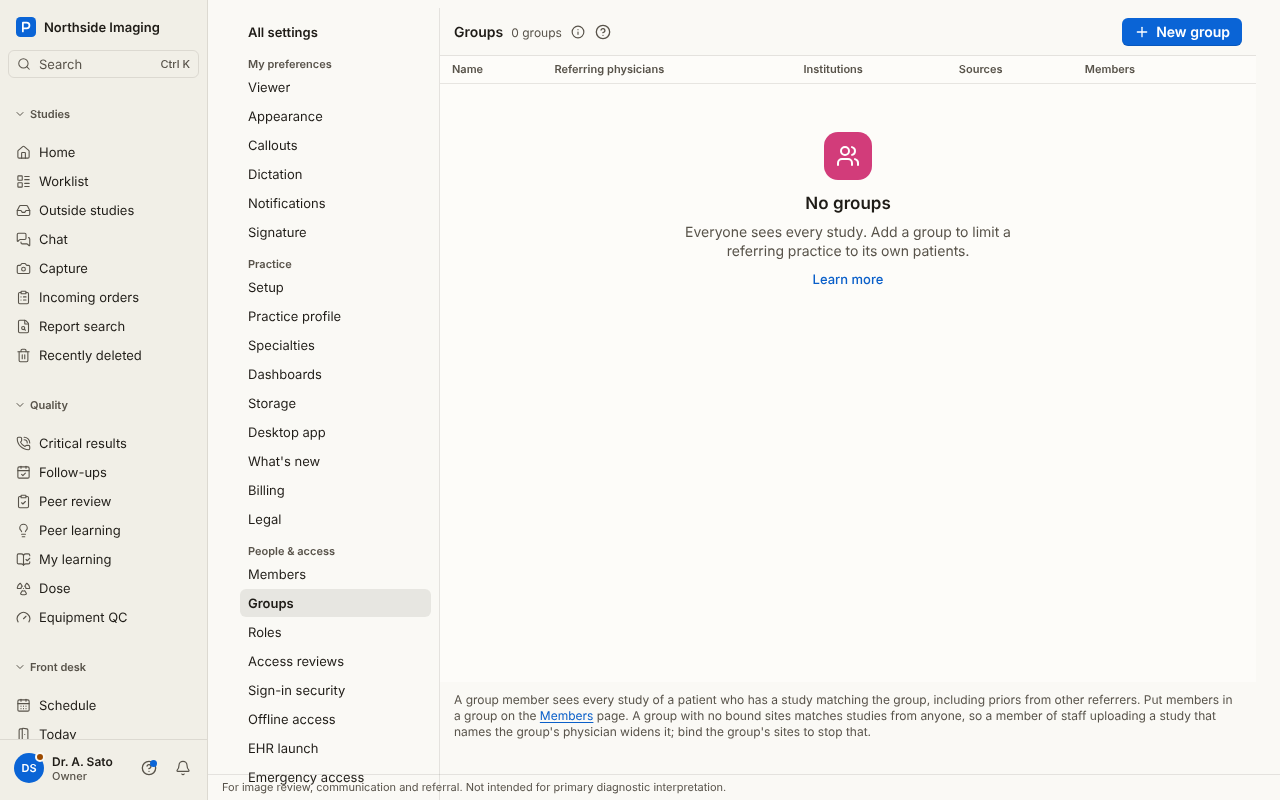
Settings › Groups lists your practice's visibility groups. A group limits its members to the patients of certain referring physicians or institutions, for example a referring clinic that should see only its own patients.
A group member sees every study of a patient who has a study matching the group, including priors from other referrers, plus the studies they upload. Members without a group, owners and admins see every study.
Who can use it
Owners and admins can open this page. It needs permission to manage members, which a custom role cannot grant.
How to create a group
- Press New group.
- Enter a Name.
- Under Referring physicians, enter one per line, family name first. SMITH^JOHN also matches SMITH^JOHN^A^DR.
- Under Institutions, enter one per line, as written in the studies' Institution Name.
- Under Trusted sources, tick the sites and tokens that send this group's studies. The rules then count only studies they sent. With none ticked, the rules count studies from any source, including uploads by your staff.
- Check the line under the fields. It says how many studies match these rules now.
- Press Create group.
Why bind trusted sources
Without trusted sources, anyone who uploads a study naming the group's referring physician or institution adds that patient to the group. Binding the group's sites stops a staff upload, by mistake or on purpose, from widening what the group sees. Groups made before trusted sources existed show Any (review) in the Sources column until you tick their sites.
How to put members in a group
Groups do nothing until members are in them.
- Open Members.
- Choose the group in the member's Sees picker, or when you invite them.
Choose All studies to take a member out of a group.
How to edit or delete a group
- Press Edit in the group's row, change it, and press Save.
- To remove a group, press Delete, then Delete in the confirmation.
A group that still has members cannot be deleted. The dialog says how many members it has and offers Open Members, so you can move them to another group first.
Fields and columns
| Name | What it means |
|---|---|
| New group | Opens the group editor. |
| Name | The group's name. |
| Referring physicians | The referring physician names the group matches, or None. |
| Institutions | The institution names the group matches, or None. |
| Sources | How many sites and tokens are bound, or Any (review). |
| Trusted sources | In the editor: the sites and tokens the rules trust. |
| Members | How many members are in the group. |
| Edit / Delete | Change or remove the group. |
| Match count | In the editor: how many studies match the rules as you type. |
If something goes wrong
- A group with this name exists: choose another name.
- Move this group's members to another group first: change their group on Members, then delete it.
- Could not load groups: press Retry.
- The group could not be saved: try again.
- Unknown site or token: a ticked site was revoked or removed. Reopen the editor and save again.
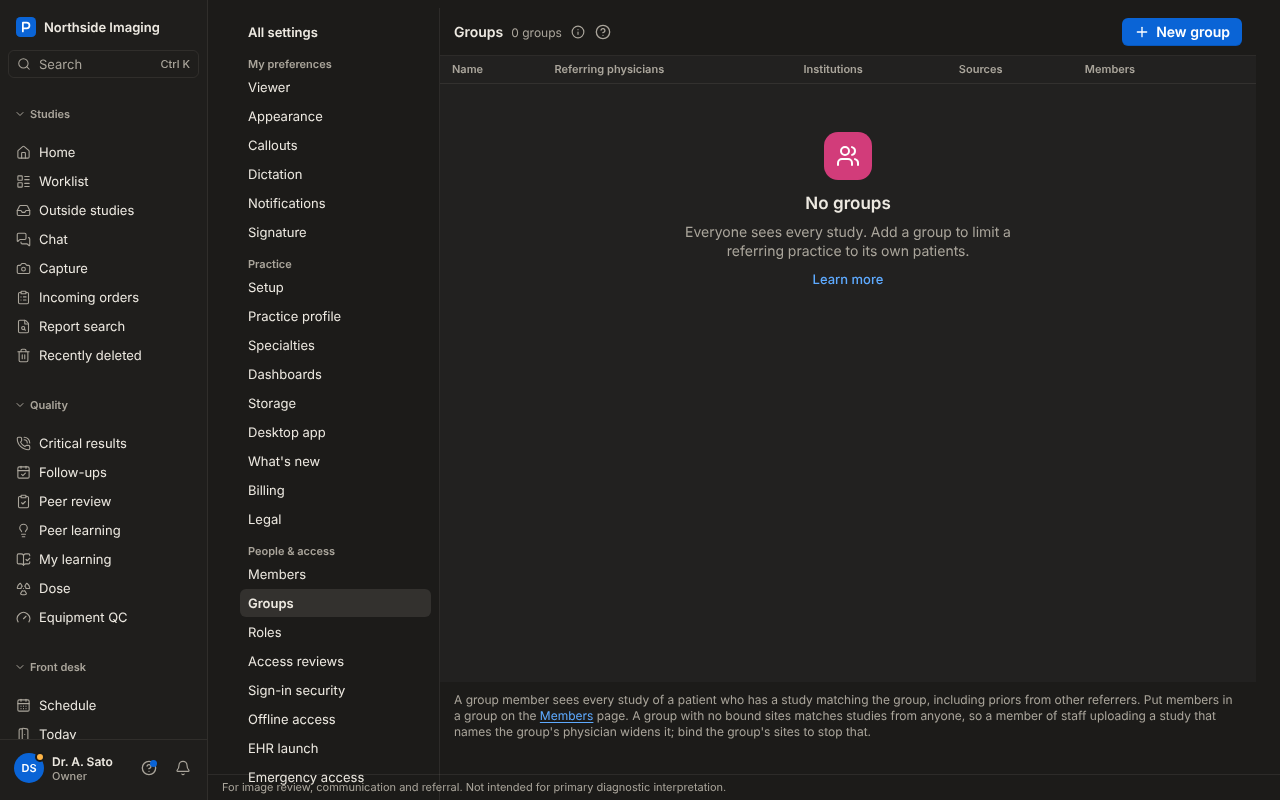
- No groups: everyone sees every study. Press New group to add one.
Related
- Limit what a member sees with visibility groups
- Invite members and manage their access
- Members
- Roles
- Emergency access
Updated October 22, 2026. Signed in? The same article is in the app's help panel: press
?.