Alerts
Turn practice alerts on, choose who gets each alert, how and when, set the practice digest and hours, and see who each alert went to.
What this page is for
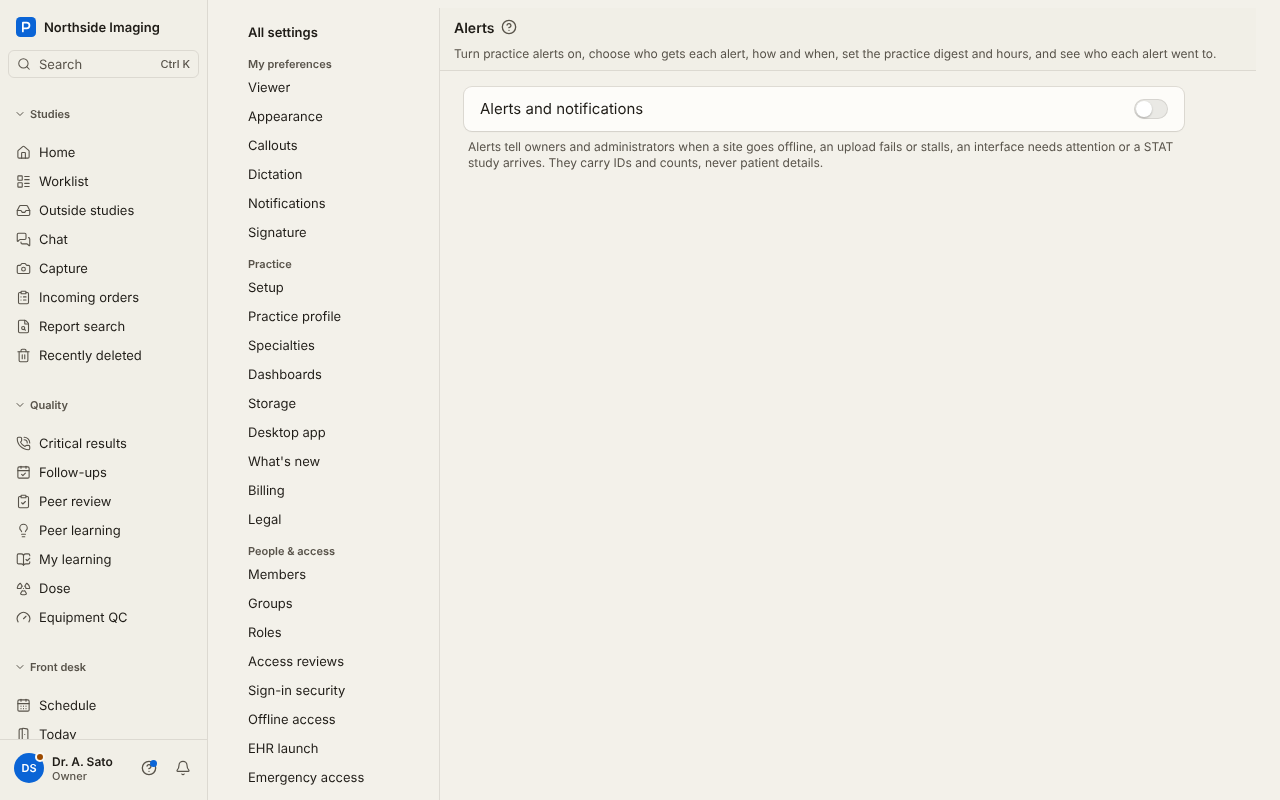
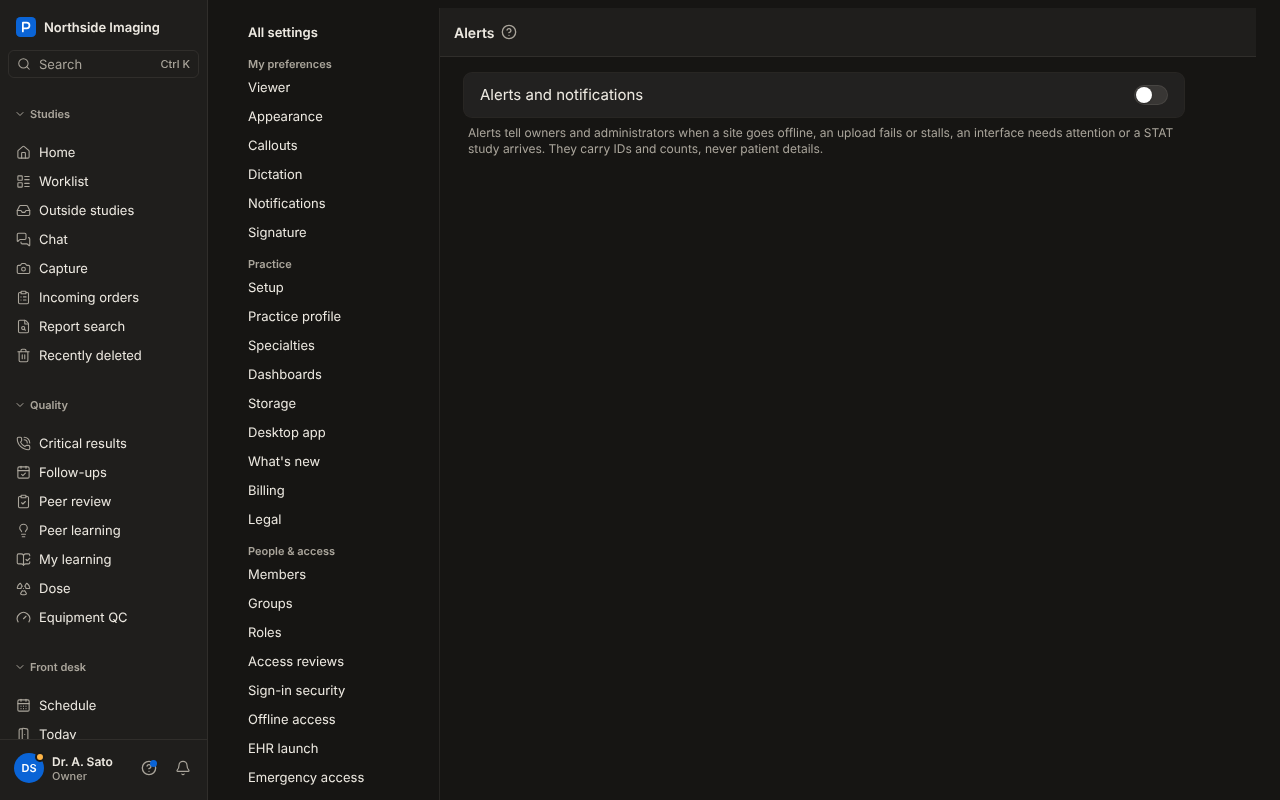
Settings › Alerts tells owners and administrators when a site goes offline, an upload fails or stalls, an interface needs attention or a STAT study arrives. Alerts carry IDs and counts, never patient details.
On this page you turn alerts on for the practice, choose who gets each alert, how and when, set the practice-wide digest, hours and email ceiling, and see who each alert went to in the last 90 days. The page has four tabs: Alerts, Addresses, Practice settings and History.
Who can use it
Owners and admins, or any member whose role has the permission to change practice settings. If your role does not have it, the page is not in Settings.
Billing alerts can only be changed by the practice owner, and only go to owners.
How to turn on alerts
- Open Settings › Alerts.
- Switch on Alerts and notifications.
Turning alerts on also makes Webhooks available.
How to change who gets an alert
- Find the alert in its group, such as Sites, Uploads, Interfaces, Clinical, Account or System.
- Press Edit.
- Switch Send this alert on or off.
- Under Send to, tick the roles, and any other recipients the alert offers, such as The study's assigned physician.
- Under How, tick In app, Email or Webhooks.
- If Email is ticked, choose Delivery: At once, In the next digest, Daily digest only or In app only. Alerts that can carry a critical result only offer the first two.
- For At once, you can set Emails at once per person per hour. After that many, the rest wait for the next digest. Leave it empty for no limit.
- Fold repeats within (minutes) turns repeats for the same study, site or upload into one email. 0 turns it off.
- Tick Email only during practice hours to hold the email until the practice opens.
- For critical alerts you can turn on Escalate and choose who gets the alert if nobody reads it within the minutes you set.
- Look at Preview to see how many alerts of this type the last 7 days had, and how many emails your changes would have sent compared with now.
- If the alert has a threshold, enter it in Threshold. The allowed range is shown under the field.
- If the alert stays open until something recovers, you can enter Remind every (hours). Leave it empty for no reminder.
- Press Save.
An alert you changed shows Customized. Press Reset to default in its settings to go back to the PacsPilot default.
How to send alerts to a shared mailbox
- Open the Addresses tab.
- Enter the Email address and, if you like, a Name, such as IT desk.
- Press Add address. The address gets an email with a link to confirm. It gets no alerts until someone opens that link.
- Open the Alerts tab, press Edit on an alert, and tick the address under Addresses.
- Press Save.
A practice can have up to 10 addresses. Clinical and billing alerts never go to an address. Every alert email to an address has an unsubscribe link.
How to send an alert to named members or only for some sites
- Press Edit on the alert.
- Under Named members, tick the members who should get it in addition to the roles.
- Under Only for, tick locations or sites to limit what named members and addresses get. Roles always get every event, so owners and admins still hear about every offline site.
- Press Save.
How to set the practice digest and hours
- Open the Practice settings tab.
- Choose how often Send the digest goes out, and the Daily digest time.
- Tick the days the practice is open and enter its hours.
- Switch on Hold emails overnight to set practice quiet hours. Critical alerts still go at once.
- Set the Daily email ceiling, the Sender name and where replies go.
- Press Save.
How to see who got an alert
- Open the History tab.
- Choose an Alert or a Delivery state to narrow the list.
- Press Load more to see older deliveries. History covers the last 90 days.
How to send a test
- Press Send test at the top of the page.
- A message says whether the test was sent in the app, or in the app and by email.
How to act on an open alert
- Look under Open alerts. Offline sites, stalled uploads and failing interfaces show here until they recover.
- Press Open on an alert to go to the page where you fix it.
Why alert emails sometimes come as one summary
PacsPilot keeps a burst of alerts from filling your inbox:
- Emails at once per person per hour: after that many emails at once for one alert, the rest wait for the next digest.
- Fold repeats within: a repeat for the same study, site or upload inside that time is one email, not two.
- Burst protection: if the practice sends 50 alert emails in 10 minutes, alerts that would go at once wait for the next digest for one hour. Owners see Alert emails switched to a summary for an hour in the app. Level 1 critical results still go at once.
- Daily email ceiling: after the ceiling, alerts wait for the daily digest. If the daily email spend limit is reached, the rest are dropped and owners and admins see Today's email limit was reached in the app once that day.
Every alert is still in the app, and History shows what happened to each email.
Fields and columns
| Name | What it means |
|---|---|
| Alerts and notifications | The practice switch for alerts. |
| Send test | Sends a test alert to you, in the app and by email. Shown while alerts are on. |
| Open alerts | Alerts that are open now, with their severity, detail and how long they have been open. Nothing open when there are none. |
| Open | Goes to the page where the alert is fixed. |
| Alert rows | Each alert, with who gets it, how, its threshold and its reminder. Turned off and an Off badge when it is not sent. |
| Edit | Opens the alert's settings. |
| Send this alert | Whether the alert is sent at all. |
| Send to | The roles and other recipients that get the alert. Named members, if any, are listed below. |
| How | In app, Email or Webhooks. Some alerts never go to webhooks. |
| Threshold | The value that sets the alert off, in the unit shown. Only for alerts that have one. |
| Customized | You changed this alert. Without it, the alert follows the PacsPilot default. |
| Addresses | Shared mailboxes that can get alerts after they confirm. Waiting for confirmation, Confirmed or Unsubscribed. |
| Named members | Members who get the alert as well as the roles. Billing alerts offer owners only. |
| Only for | Locations and sites that limit what named members and addresses get. Nothing ticked: every event. |
| Delivery | When the email goes: at once, in the next digest, in the daily digest only, or in the app only. |
| Fold repeats within | Repeats for the same object within these minutes become one email. |
| Preview | The last 7 days replayed with your changes: alerts, people and emails, compared with the current settings. |
| Send the digest | How often waiting emails go out together: every 15 minutes, every hour, every 4 hours or once a day. |
| Daily email ceiling | The most alert emails the practice sends in a day, from 0 to 2,000. After it, alerts wait for the daily digest. |
| History | Each delivery in the last 90 days: time, alert, who it went to, and whether it was read in the app and what the email did. |
| Remind every (hours) | How often to remind while the alert stays open, from 1 to 168 hours. |
If something goes wrong
- Could not load alerts: press the retry button. If it keeps failing, reload the page.
- Could not change the setting: try the switch again.
- Enter a whole number from the minimum to the maximum: the threshold must be a whole number in the range shown.
- Remind every 1 to 168 hours, or leave it empty: enter a whole number of hours in that range.
- Only the practice owner can change billing alerts: ask the owner. The Edit button on billing alerts is greyed out for other members.
- This event is never sent to webhooks: untick Webhooks for that alert.
- Five test notifications an hour; try again later: wait before you send another test.
- This alert must reach at least one owner or administrator: add the Owner or Admin role, or a named owner or admin. Site offline and failed upload alerts need one.
- Critical results always go out at once or batched: alerts that can carry a critical result go at once or in the next digest.
- That address already gets alerts: it is on the list already.
- A confirmation was sent a few minutes ago: wait 10 minutes before you add a waiting address again.
- A practice can add up to 10 addresses: remove one first.
- This alert goes to members only: clinical and billing alerts never go to an address. Untick it.
- Could not load the history: press Retry.
- The alert could not be saved: read the message in the banner and try again.
Related
Updated October 26, 2026. Signed in? The same article is in the app's help panel: press
?.