Vascular lab QA
Check duplex results against angiography, CTA or MRA per exam type and year, and keep staff credentials current for accreditation and annual QA.
What this page is for
Accreditation asks a vascular lab to show how well its duplex results agree with angiography or CT and MR angiography, how quickly it reports, and that its staff credentials are current. Specialties › Vascular QA brings these together.
The page appears while the Vascular and vein pack is on under Settings › Specialties.
Who can use it
Recording reference results, reading the accuracy report and changing credentials needs the
vas.qa permission. Owners and admins have it; give it to a lab manager with a custom
role under Settings › Roles. Every member can see their own credentials.
How to set up your exam types
- Press Exam types and targets.
-
For each exam type, enter a word from your study descriptions, such as
carotidorvenous. A study counts for that exam type when its description contains the word. - List your criteria table's categories from least to most severe, separated by commas.
-
Enter your targets in minutes from the exam to the preliminary and to the final report, then
press Save. Everyone with
vas.qasees the same list.
How to record a reference result
- Open the duplex study in the worklist and choose Record reference result in the inspector.
-
Enter the Exam type (for example
carotid), and pick the Vessel and Side. - Type the Duplex category and the Reference category in the words your criteria table uses.
- Pick whether the Reference was angiography, CTA or MRA, and optionally paste the reference study's UID.
- Press Record.
How to read the accuracy report
- Pick the Exam type and the Year.
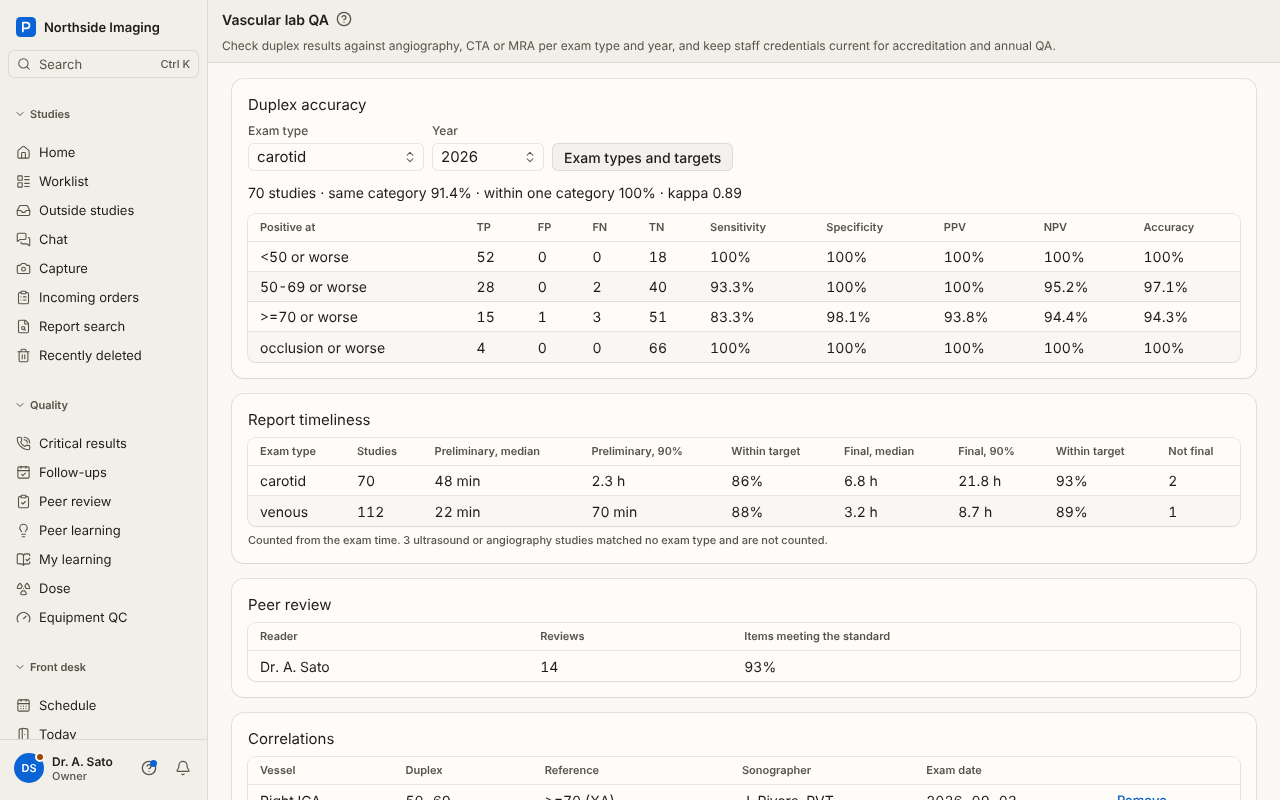
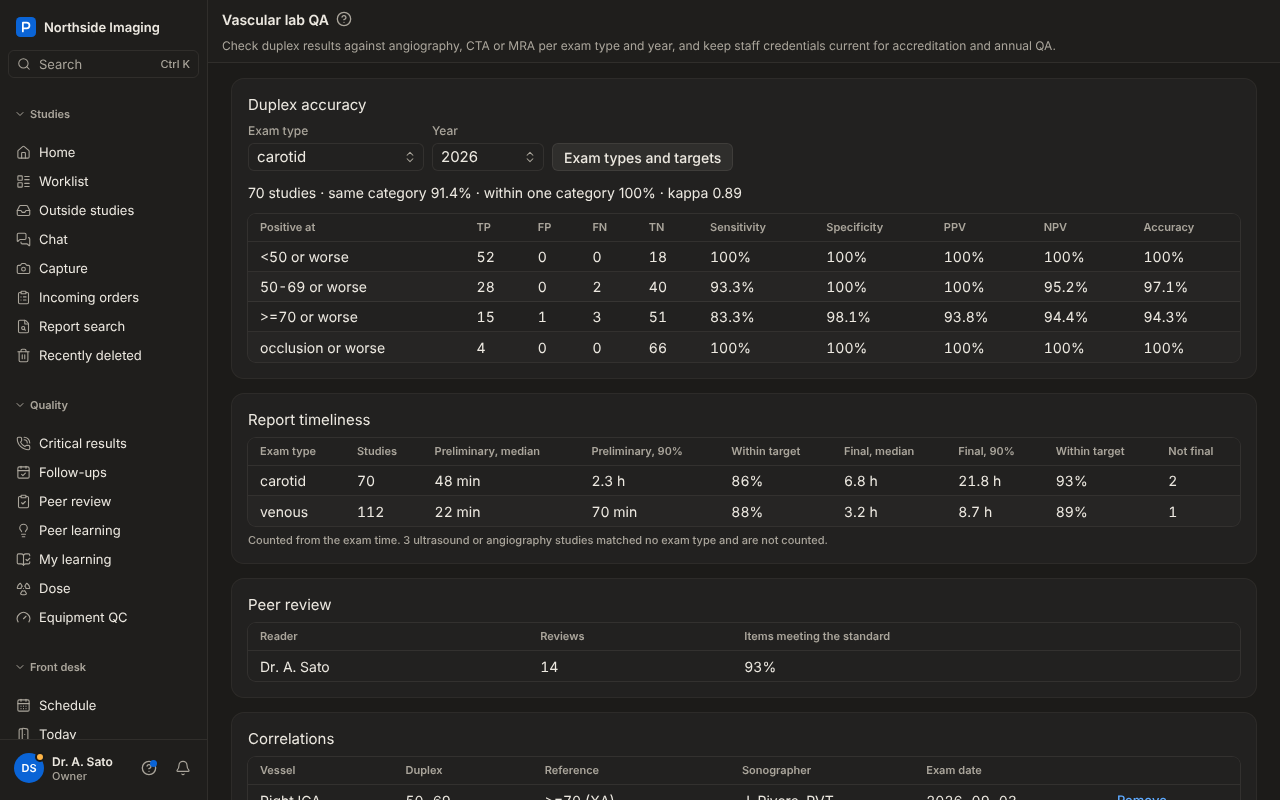
- The report shows the number of studies, how often the categories matched exactly or within one category, and Cohen's kappa; then, for each threshold, true and false positives and negatives, sensitivity, specificity, predictive values and accuracy; then agreement for each sonographer.
How to read report timeliness
Report timeliness lists each exam type's ultrasound and angiography studies for the year, with the median and 90th percentile time from the exam to the first preliminary report and to the final report, and the share within your targets. It uses practice analytics, so it shows once analytics is on under Settings › Analytics settings.
How to read the peer review summary
On an ultrasound peer review, the reviewer also scores four vascular lab items under Vascular lab review: protocol complete, image quality, criteria applied as your table says, and report agrees with the worksheet. Each is Meets the standard, Minor problem or Major problem. Peer review on this page shows, for each reader, the number of reviews and the share of items that met the standard this year.
How to update credentials
- Under Staff credentials, choose a member in Edit a member's credentials.
- Add a credential such as RVT, RPhS or RPVI, or Add other, with its number, expiry date and continuing education hours.
- Press Save. Owners and admins get a notification 30, 7 and 1 days before a credential expires and on the day it expires. A changed expiry date starts the reminders again.
Fields and columns
- Correlations: the vessel and side, the duplex and reference categories, the reference type, the sonographer and the exam date.
- Positive at: a threshold; a study counts as positive when its category is that one or more severe.
- TP, FP, FN, TN: true positives, false positives, false negatives and true negatives against the reference.
- Within target: the share of reports done within the exam type's target; a dash when there is no target.
- Not final: studies of that exam type with no final report yet.
- Staff credentials: credentials that expire in the next 30 days or have expired, with Current, Expiring or Expired.
If something goes wrong
- No report shows: add at least two categories to the exam type under Exam types and targets.
- Report timeliness is empty: no study description contains one of your exam types; check the word, or turn on practice analytics.
- Results are "left out": their category is not in your list; check the spelling against your criteria table.
- "Not found" when recording: the duplex or reference study is not one you can see.
-
The page is missing from the sidebar: the Vascular and vein pack is off, or you
do not have
vas.qa.
Related
Updated November 1, 2026. Signed in? The same article is in the app's help panel: press
?.