Procedure cases and the case board
The day's IR and cath lab cases by room, starting a case from a booking, and each case's status, checklists, time-out, recovery, team and studies.
What this page is for
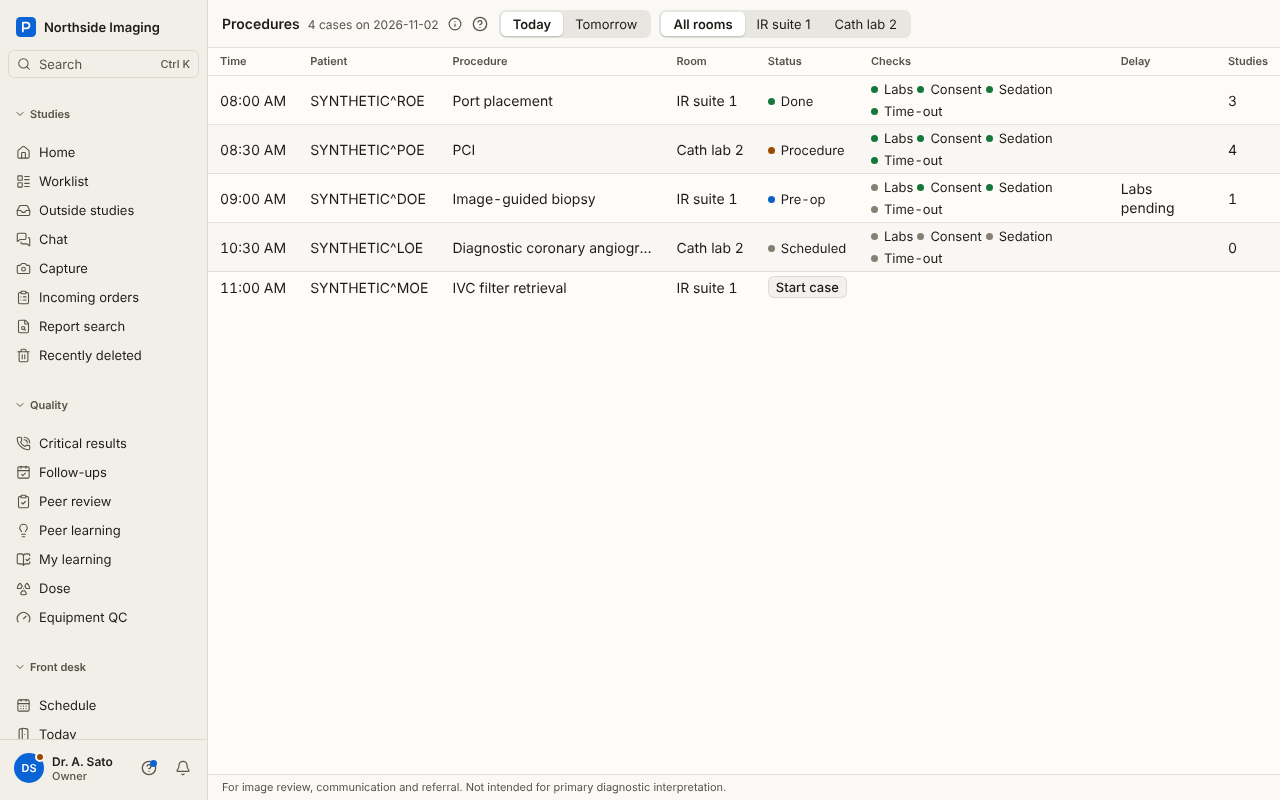
Procedures lists the day's interventional radiology and cath lab cases in each procedure room, with where each patient is: Scheduled, Pre-op, In room, Procedure, Recovery, Done or Cancelled, and any delay. Bookings in a procedure room that have no case yet show with Start case. Select a case to open it.
The page appears while the Interventional radiology or Cath lab pack is on under Settings › Specialties. Cases use your schedule: turn on scheduling under Settings › Scheduling. Your procedure rooms are the scheduling rooms with the modality XA or RF until an admin picks rooms for procedures.
Who can use it
Members who can see the schedule see the board and open cases. Owners, admins, physicians, trainees, technologists and anesthetists can start cases and change them; viewers cannot. Members limited to a group do not see procedure cases. Each case opened or changed is in the audit log.
How to start a case
- Pick Today or Tomorrow, and a room when you have more than one.
- On a booking without a case, press Start case.
- Pick the Procedure. For procedures done on one side, pick the Side that was booked.
- Press Start case. The case takes the patient, order, room and time from the booking.
How to move a case through the day
- Open the case from the board.
- Press the button for the next status, for example Pre-op or In room. To skip a step, or to go back one step after a mis-tap, pick the status under Status.
- If the case is running late, pick a Delay reason. It shows on the board. Pick No delay to clear it.
The time each status was first reached is kept under Status times, where Case opened is when the case was started. Going back one step clears the later times.
The pre-procedure checklist
Open the case and fill in Pre-procedure: the indication, whether prior imaging was reviewed, labs (INR, platelets, haemoglobin, creatinine), anticoagulants and antiplatelets with the procedure's bleeding risk, allergies and contrast allergy, the sedation plan and ASA class, consent, the NPO time, and pregnancy status (or the weight in a veterinary practice). Press Save checklist.
Still to do lists what is missing, and the board shows Labs, Consent, Sedation and Time-out chips for each case. Nothing is blocked: the operator decides.
With a creatinine, the patient's sex and an adult date of birth, the page shows the eGFR by the 2021 CKD-EPI creatinine equation. Next to each drug the page shows your practice's hold instruction for that drug at the case's bleeding risk. PacsPilot does not ship hold times: an admin enters the instructions your reviewer approved, with the discharge criteria and the indication list, under Settings › Procedures.
How to record the time-out
- Add everyone in the room under Team first. They are the time-out's participants.
- Under Time-out, tick each item as it is confirmed aloud, pick the Side said and type the Site.
- Press Record time-out.
If the side said differs from the booked side, the page shows Side mismatch in red before and after you record it, and the board shows it on the case. Record a new time-out once the side is resolved; every time-out is kept.
Recovery and discharge
Under Recovery and discharge, note the closure device, press Site fine now or Problem now at each access site check, tick your practice's discharge criteria, and set the discharge time. Press Save recovery.
The case log
Under Case log, type the times (in room, sedation start, access, procedure start and end, out of room), add each access site with its sheath size and closure, and record the contrast agent and volume. With the patient's eGFR, the case shows the contrast to eGFR ratio, flagged when it is above your practice's threshold, and the contrast given in the last 72 hours. Record moderate sedation with its independent observer and times, and press Record complication for any adverse event, with when it happened and how severe it was. Press Save on each card. The case lists what is still not recorded.
Devices and implants
Press Add device and scan the barcode on the package: the lot, serial number and expiry fill in, and the name comes from your practice catalogue when it knows the barcode. You can also pick from the catalogue or type the name. A device that has expired is refused unless you press Log expired device. Practice admins keep the catalogue under Catalogue.
Radiation dose
Radiation dose shows the case's Dose (RP), kerma-area product, fluoroscopy time and peak skin dose, and the patient's dose from earlier procedures. Set the pregnancy status and press Check dose: when the case reaches a substantial dose level, it lists the follow-up tasks, such as telling the patient and skin checks. Tasks are only created once your practice's physicist has confirmed the dose levels under Dose levels, where the physicist can also type a peak skin dose estimate for the case.
The team and the studies
Add the people in the room under Team with their role. Under Studies, the case lists every study of its order as it arrives, and any study filed to it by hand. Press Open to view one, or Open all together to see them side by side.
Findings and report
Under Findings and report on the case page, pick the report template for the procedure and answer its questions. Cath cases with a coronary template get a Coronary tree: set the dominance and add each lesion with its segments, stenosis, TIMI flow and any stent. A diagram above the lesions colours each segment by its worst lesion and outlines treated ones; the study report PDF prints the same diagram once the study is filed to the case. Peripheral IR cases get a Vascular map with each segment's grade and treatment. Type the hemodynamic recorder's values under Recorder values exactly as the recorder reported them, and pressure-wire results (FFR, iFR and others) per lesion under Pressure wire. When the recorder sends its Hemodynamics Report to PacsPilot as a structured report, file that study to the case and its values appear under Recorder values marked _from the recorder_; they can't be edited, and values you type sit beside them.
The sections under Report draft fill themselves from the case. Each shows where its text came from. Once you edit a section it stays yours; press Use the case's text to go back. PacsPilot calculates no gradients, valve areas, cardiac output or scores.
To sign and send the report, save the findings, then under Sign and send pick the study and press Put into the study report. The report's sections, with the devices you logged, become that study's report draft; press Open the study report and sign it there. Signing sends it to the EHR and the referring doctor the way your practice sends every report. A study report that is already signed is never changed from the case: write an addendum in the report editor. When the study's draft already has text, PacsPilot asks before replacing it.
When critical results is on for the practice, a case with a recorded complication also shows Critical result from a complication. Put the report into the study report first, then press Raise a critical result beside the complication: the usual Flag finding dialog opens on the study, and Use fills the summary from the complication. Whether a complication is a critical result is your call; nothing is flagged until you press Flag. The call is logged on the study as for any critical finding.
Writing findings needs report access. Technologists and nurses with case access can type recorder values.
Calibrated measurements on XA runs
Distances and diameters on an XA or fluoroscopy run read in millimetres at the isocentre when the system recorded its geometry in the image, and the Calibration line on the image says so. When it didn't, choose Calibrate from marker in the command menu, draw a line across the catheter from edge to edge, and pick its French size (6F is 2.0 mm), or pick Ball or other marker and type the size. Every length on that image then uses the catheter, and the Calibration line reads, for example, _Catheter 6F_. These are manual measurements, not quantitative coronary analysis.
Re-pick the mask on a subtracted run
DSA runs show as the system sent them. To subtract a run yourself, or to fix one where contrast or motion spoiled the mask, open Subtract in the viewer (the advanced visualization pack's Subtraction switch must be on), pick the XA run, and under Mask choose the frame to use, usually the last frame before contrast arrives. Row and Col shift the mask by half a pixel at a time to remove motion. It changes only what you see; nothing is saved to the study.
IVUS and OCT pullbacks in the viewer
Show an IVUS or intravascular OCT pullback in the viewer and choose Intravascular pullback (IVUS and OCT) in the command menu. The panel shows the frame on screen and, when the console recorded it, how far the catheter had pulled back at that frame. Press Lumen and outline the lumen with the freehand tool, then press Vessel and outline the vessel wall. Each frame you trace lists its lumen area, shortest and longest lumen diameter, vessel area and plaque burden, and the frame with the smallest lumen area is marked MLA. Copy for report copies the measurements as sentences. Under Open beside, open the console's PDF report, its structured report or the OCT longitudinal view next to the pullback. These are manual measurements: PacsPilot does not outline vessels itself, so check them against the console.
Layouts and cone-beam CT in the viewer
Choose Layouts for this case in the command menu to lay out the case's runs: the latest biplane pair side by side, the left coronary runs beside the right coronary, the ventriculogram runs, peripheral runs by station from the aorta down to the foot, the first and last run at the same angles (pre and post), or a prior CTA or MRA beside the run on screen. A layout appears only when the runs allow it; vessel and station layouts read the series description, so they need runs named for the vessel or station.
Choose Cone-beam CT or 3D angiography in MPR to show the case's 3D angiography volume, or the cone-beam CT of a study with runs, in MPR. MPR needs the advanced visualization pack; without it the volume opens as images.
Fields and columns
- Time: the booked start, in the practice's time zone.
- Patient: from the booking.
- Procedure: the case's procedure, or the booked procedure on a row without a case.
- Room: the procedure room.
- Status: where the case is, or Start case on a booking without one.
- Checks: labs, consent, sedation and time-out, green when done; Side mismatch in red when the last time-out's side differs from the booked side.
- Delay: the delay reason, when one is set.
- Studies: how many studies are on the case.
If something goes wrong
- "Procedure cases use your schedule": scheduling is off. Turn it on under Settings › Scheduling.
- No rows although procedures are booked: the rooms need the modality XA or RF, or an admin picked other rooms for procedures.
- "The appointment already has a case": someone started it first. Open the case from the board.
- "The case changed since you opened it": someone else saved first. The page reloads the case; make your change again.
- "Say how consent was recorded": pick Recorded as under consent.
- "No hold instruction in Settings › Procedures": your practice has not entered an instruction for that drug and bleeding risk, or the checklist has unsaved changes.
- No eGFR: the labs have no creatinine, or the patient's sex or date of birth is missing, or the patient is under 18.
- "This case is not available": its pack was turned off, or the link belongs to another practice.
- The page is missing from the sidebar: both the Interventional radiology and Cath lab packs are off under Settings › Specialties, or your access is limited to a group.
Related
Good to know
- One booking has at most one open case. Cancel a case to start a new one from the same booking.
- The case log, devices, dose, report signing, follow-up, registries and charges join the case page as they are released.
Updated November 6, 2026. Signed in? The same article is in the app's help panel: press
?.