Referring clinics
List the clinics and vets that refer animals, choose how each gets reports, record who referred a study, and send a clinic an upload link.
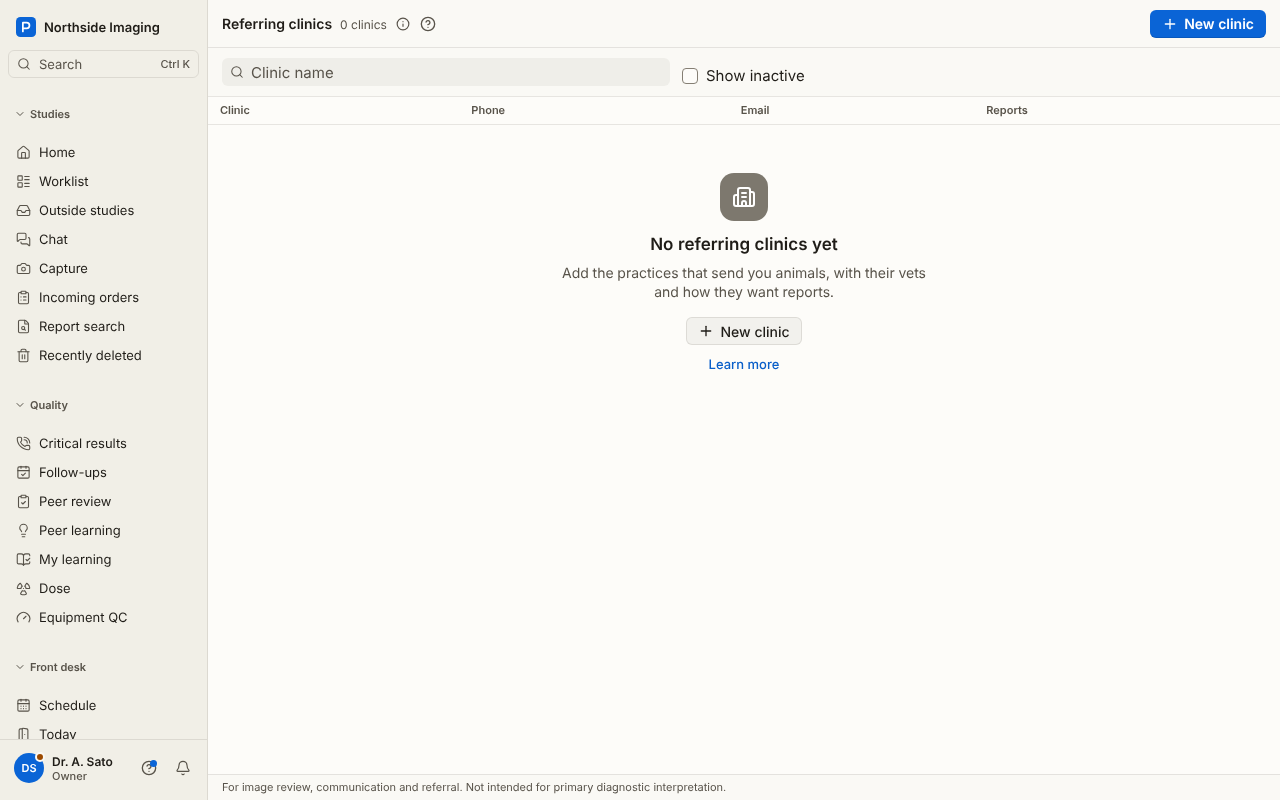
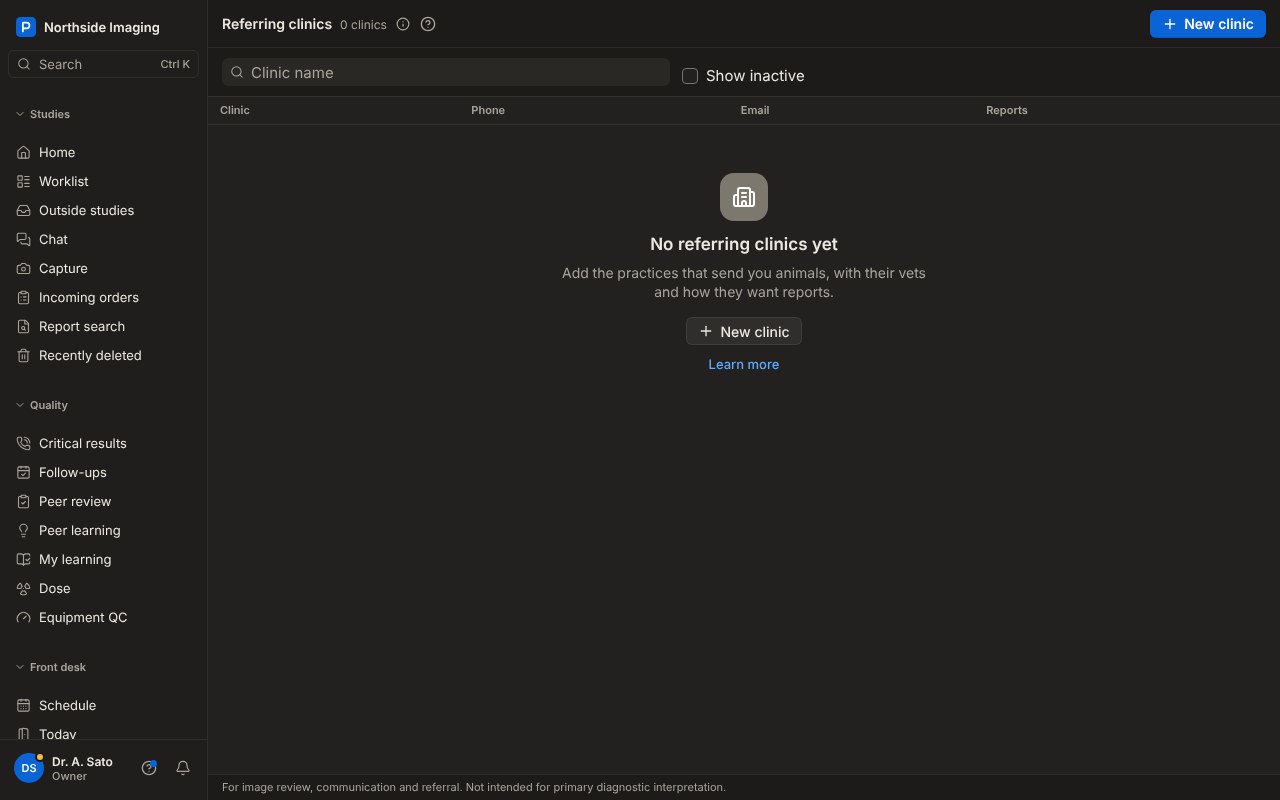
What this page is for
Referral practices see animals sent by other veterinary practices. This page lists those referring clinics and their vets, and says how each clinic gets its reports. It is in the sidebar under Front desk when your practice kind is Veterinary (see Specialties).
Who can use it
Members who can see studies can open the list. Adding and editing clinics and recording referrals
needs the client.write permission. Owners, admins and technologists have it. Making
an upload link also needs permission to create upload links. Members limited to a group can look
but not change anything.
How to add a clinic
1. Press New clinic. 2. Type the clinic's name. Add its phone, fax and email if you have them. 3. Under How the clinic gets reports, choose one: - Email a secure link: each signed report, and each amendment, goes to the referring vet by email as a secure link. The email has no animal or owner details. The vet confirms their email address to open the report. When the referral names no vet, or the vet has no email, the clinic's email is used. Your practice needs cc delivery on under Settings › Reporting automation. - Portal sign-in: the vet signs in to PacsPilot as a member of a group whose rule names them (see Groups). Recording a referral names the vet as the study's referring physician, so the group sees the study. - We send it ourselves: PacsPilot does not send this clinic anything. 4. For email, tick Include the plain-language summary for the client if the clinic wants it. The summary is added after the signed report once someone with the right to sign reports has released it. 5. Press Add clinic.
Open the clinic again to add its vets: press Add vet, type their name and email, and press Add vet.
How to record who referred a study
- On the worklist, select the study.
- In the study panel, find Referred by and press Record.
- Choose the clinic and, if you know it, the vet.
- Press Record referral.
For an email clinic, the vet is added to the report's copy list, so they get the report as soon as it is signed, or at once if it is already signed. If the study has no referring physician, the vet becomes its referring physician. Change records another clinic and takes the first vet off the copy list. Remove takes the referral away.
How to get studies from a clinic
Open a clinic and press Make upload link, then Copy and send the link to the clinic. A study uploaded through the link shows From the clinic's upload link under Referred by. When its report is signed, the referral is recorded and the clinic gets the report as it chose. You can also record another clinic before then.
Fields and columns
| Name | What it means |
|---|---|
| Search clinics | A clinic's name, or a word in it. |
| Show inactive | Also lists clinics marked inactive. |
| Clinic | The clinic's name, with Inactive when it no longer refers. |
| Phone, Email | The clinic's contact details. |
| Reports | How the clinic gets reports. |
| Fax | A US or Canadian fax number, kept for your records. |
| Notes | Anything your team should know about the clinic. |
| Active | Inactive clinics leave the list and the referral picker; their referrals stay. |
| Vets | The clinic's vets with their email and phone. |
| Referred by | In the study panel: the clinic, the vet and how reports go, or that none is recorded. |
If something goes wrong
- "The clinics could not be loaded": choose Retry.
- Saving says someone else changed the clinic: close it, open it again and redo your change.
- "Enter a 10-digit US or Canadian fax number": check the fax number, or leave it empty.
- The vet did not get the report: check that the clinic is set to Email a secure link, that the vet has an email, and that cc delivery is on. The report's copy list shows each delivery.
- The report already has 10 cc recipients: remove one from the report's copy list, then record the referral again.
Related
Updated October 24, 2026. Signed in? The same article is in the app's help panel: press
?.