Schedule
A calendar of booked exams with one column per room, where you book, move and cancel appointments.
What this page is for
The Schedule shows every booked exam for a day or a week. In the day view each room gets its own column. In the week view you see one room across seven days. Each card shows the start time, the patient, the procedure and the status. Gray areas are times the room is closed, and striped areas are blocked times.
The calendar updates on its own when someone else books or moves an appointment. Times are in the practice time zone. When your computer uses a different zone, the line under the title says which zone the times are in.
Who can use it
You need the permission See the schedule, front desk and patients. To book, move or cancel, you also need Book, move and check in patients. Owners, admins and technologists have both by default. Physicians can look but not change.
The page only appears once an admin turns on scheduling in Settings › Scheduling. If you do not see Schedule under Front desk in the sidebar, scheduling is off for your practice or your role does not include it. Ask an admin.
How to book an appointment
- Choose Book, or click an empty time in a room's column to start with that room and time.
- Search for the patient by name, MRN, birth date or phone, and pick them. If they are new, choose New patient and register them.
- Choose the Procedure. Its length and any patient prep show below it.
- Pick a Date and, if you like, a Room. Leave Any room to see free times in every room that can do the procedure.
- Choose one of the free times.
- Add a Note if needed, then choose Book.
If Book is grayed out, the line next to it says what is still missing.
How to book outside free times
- In the Book dialog, tick Overbook (book outside free times).
- Choose a Room and type a Time.
- Enter a Reason. It shows on the calendar and is recorded.
- Choose Book.
Overbooked cards are striped on the calendar. If you pick a time that was just taken, the dialog switches to overbook for you and asks for a reason.
How to move an appointment
- Drag the card to another time or room. A message confirms the new time and room.
- Or open the card, choose Move…, set the Date, Time and Room, and choose Move.
Only appointments that are scheduled or arrived can be moved. If someone else changed the appointment at the same time, the card goes back and the schedule refreshes.
How to cancel an appointment
- Open the card and choose Cancel appointment….
- Pick a Reason.
- Tick Cancel the order too if the exam is no longer needed. Leave it clear to send the order back to the Order queue to be booked again.
- Choose Cancel appointment.
How to send a reminder or a form
Open the card. Under Reminders you see each reminder that was planned, sent or skipped. Choose Email now or Text now to send one right away. Under Forms you can add an intake form to the visit, read answers, choose Fill at desk, or choose Kiosk view to hand a tablet to the patient. Leaving kiosk view asks for your passkey.
Fields and columns
| Name | What it means |
|---|---|
| Previous, Today, Next | Move back or forward one day (or one week), or return to today. |
| Date | Jump to any date. |
| Day, Week | Day shows one column per room. Week shows one room for seven days. |
| Room chips | In day view, pick which rooms to show (none picked shows all). In week view, pick the one room to show. |
| Book | Opens the Book dialog. |
| Card | One appointment: status color, start time, patient and procedure. Striped means overbooked. Faded means completed or no-show. |
| When | The appointment's date, start and end time. |
| Status | Scheduled, Arrived, In progress, Completed, No-show or Cancelled. |
| MRN, Born, Accession | The patient's MRN and birth date, and the order's accession number. |
| Overbooked | The reason given when the time was booked outside free times. |
| EHR | Shows "EHR time differs" when the time in your EHR does not match this booking. |
| Confirmed | When the patient confirmed from their reminder link. |
| Patient | Shows "Asked to cancel or reschedule" when the patient asked from their link. |
| Note | The note entered when booking. |
| Reminders | Each reminder with its status (Planned, Sending, Sent, Skipped, Failed or Cancelled), channel and time. Skipped ones say why. |
| Forms | Intake forms on the visit: Waiting, Received or Reviewed, and Flagged when an answer needs review. |
| Free times | In the Book dialog, open start times per room for the chosen procedure and day. |
| Check insurance eligibility after booking | Shown when your practice checks insurance. Runs a check right after the booking. |
If something goes wrong
- "The schedule could not be loaded": choose Retry. If it keeps failing, reload the page.
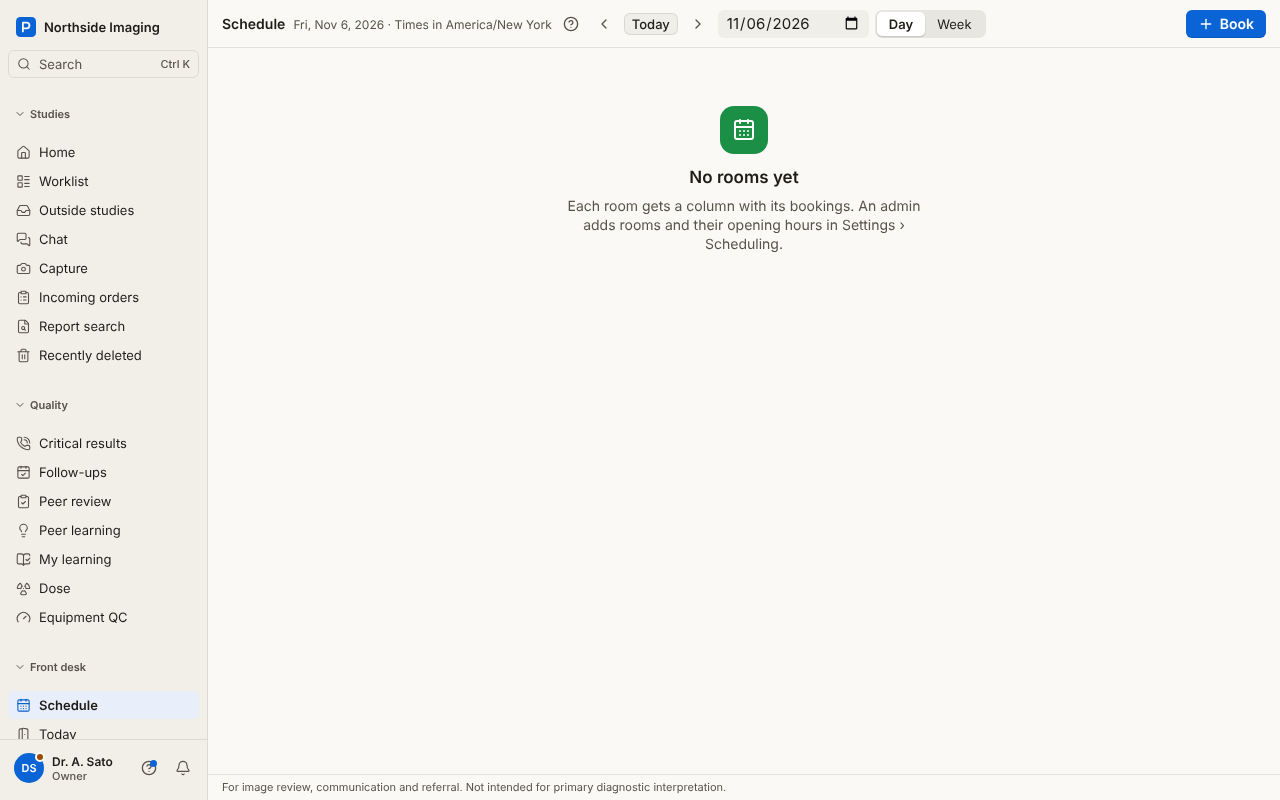
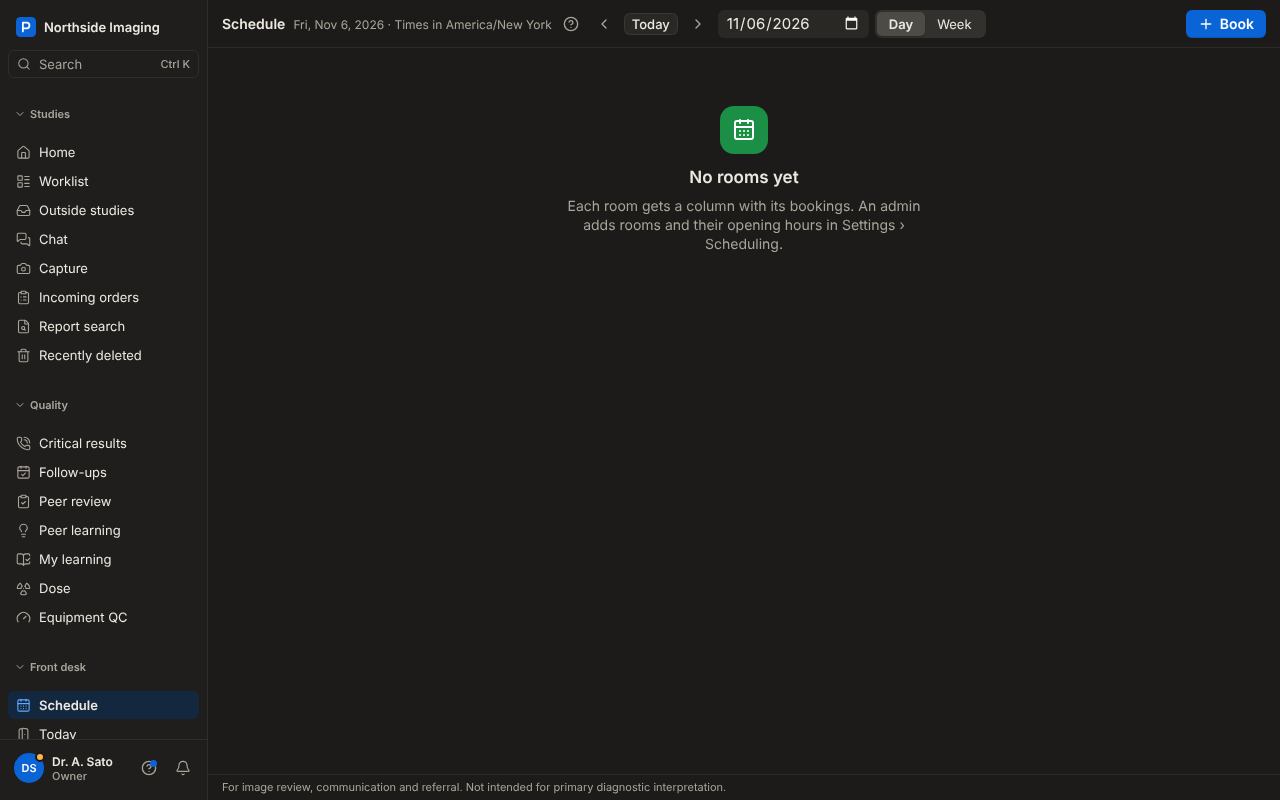
- "No rooms yet": no rooms are set up. An admin adds rooms and their hours in Settings › Scheduling.
- "No free time on this day": pick another day or room, or overbook with a reason.
- "Someone else changed this appointment": another person moved or changed it first. The schedule refreshed, so try again.
- "That time does not exist on this day (clock change)": the time falls in a daylight saving gap. Pick another time.
- "No patients found" in the Book dialog: check the spelling, or choose New patient.
- "Add a passkey in Settings first" when starting kiosk view: add a passkey to your account, then try again.
Related
Updated October 19, 2026. Signed in? The same article is in the app's help panel: press
?.