Patients
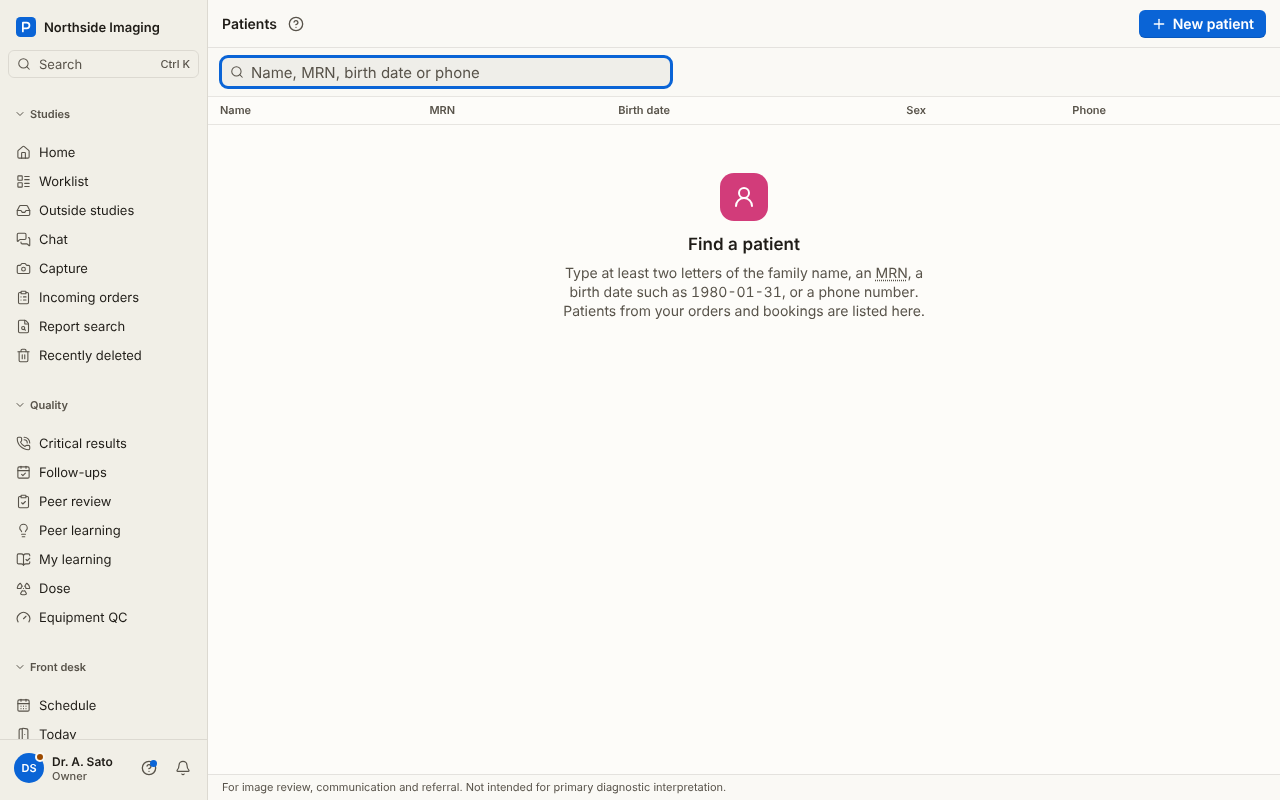
Find a patient by name, MRN, birth date or phone, register new patients, and keep their contact details, reminder consent and insurance.
What this page is for
Patients is where the front desk looks up and registers patients. Patients from your orders and bookings are listed here. Open a patient to see and edit their details, record whether they agree to reminders, and, when your practice checks insurance, keep their insurance on file.
The search is not saved in the page address, because it can be a patient's name. An open patient is, so you can copy the address to come back to them.
Who can use it
You need the permission See the schedule, front desk and patients to search and view. To register or edit patients, record consent or add insurance, you also need Book, move and check in patients. Owners, admins and technologists have both by default. Physicians can look but not change.
The page only appears once an admin turns on scheduling in Settings › Scheduling. The Insurance part of a patient only shows when your practice has eligibility checks turned on there too. If you do not see Patients under Front desk in the sidebar, scheduling is off for your practice or your role does not include it. Ask an admin.
How to find a patient
- Type in Search patients: at least two letters of the family name, an MRN, a birth date such as 1980-01-31 or 1/31/1980, or a phone number.
- Choose the patient's row, or move to it and press Enter.
If there are more results, choose Show more.
How to register a new patient
- Choose New patient.
- Enter the Family name (required), Given name, Birth date, Sex, Phone and Email.
- Leave MRN empty to have one made for you, or type the MRN the patient already has.
- Choose Register.
If the patient may already be registered (same name and birth date, or the same phone), a warning lists the matches. If it is the same person, choose Cancel and search for them. If it is a different person, choose Register anyway.
How to record reminder consent
- Open the patient.
- Under Reminders, tick Email reminders allowed, Text reminders allowed or both.
- Choose how the patient gave consent in Consent given: Verbal, Written or Intake form.
- Choose Save consent.
Reminders only go to patients with recorded consent. The phone and email in the sheet are saved with the consent.
How to add or deactivate insurance
- Open the patient. Insurance shows the coverages on file.
- Choose Add insurance, pick Primary or Secondary, enter the Payer, Payer ID and Member ID, and the Group number if there is one. Choose Add.
- To stop using a coverage, choose Deactivate and confirm. It stays on file as inactive. To use it again, add it again.
When the patient has an upcoming appointment and active insurance, choose Check eligibility to check their coverage for that visit.
Fields and columns
| Name | What it means |
|---|---|
| Search patients | Name, MRN, birth date or phone. |
| Name | The patient's name, family name first. |
| MRN | The patient's ID at your practice. |
| Birth date | The patient's date of birth. |
| Sex | Female, Male, Other or blank. |
| Phone | The patient's phone number. |
| New patient | Opens the form to register a patient. |
| No-shows in 12 months | On an open patient: how many exams they missed in the past year. |
| MRN (when registering) | Leave empty to generate one with your practice's prefix. |
| Email reminders allowed, Text reminders allowed | Whether the patient agreed to each kind of reminder. |
| Consent given | How the patient agreed. Required before you can save consent. |
| Recorded | When consent was last recorded, and how. |
| Insurance | Primary and secondary coverages, with payer, member ID, group and whether each is inactive. |
| Next appointment, Check eligibility | The patient's next booked visit and the latest coverage check for it: Coverage active, Coverage inactive, Check failed or Checking. |
If something goes wrong
- "Search failed": choose Retry.
- "No patients found": check the spelling, try the MRN or birth date, or register a new patient.
- "This patient may already be registered": check the matches before you choose Register anyway, so the same person does not get two records.
- "That patient could not be opened": the link may be old. Search for the patient instead.
- Save consent is grayed out: pick an option in Consent given first.
- "The check could not run": try Check eligibility again later. A failed check never changes the booking.
Related
Updated October 19, 2026. Signed in? The same article is in the app's help panel: press
?.