Charge queue
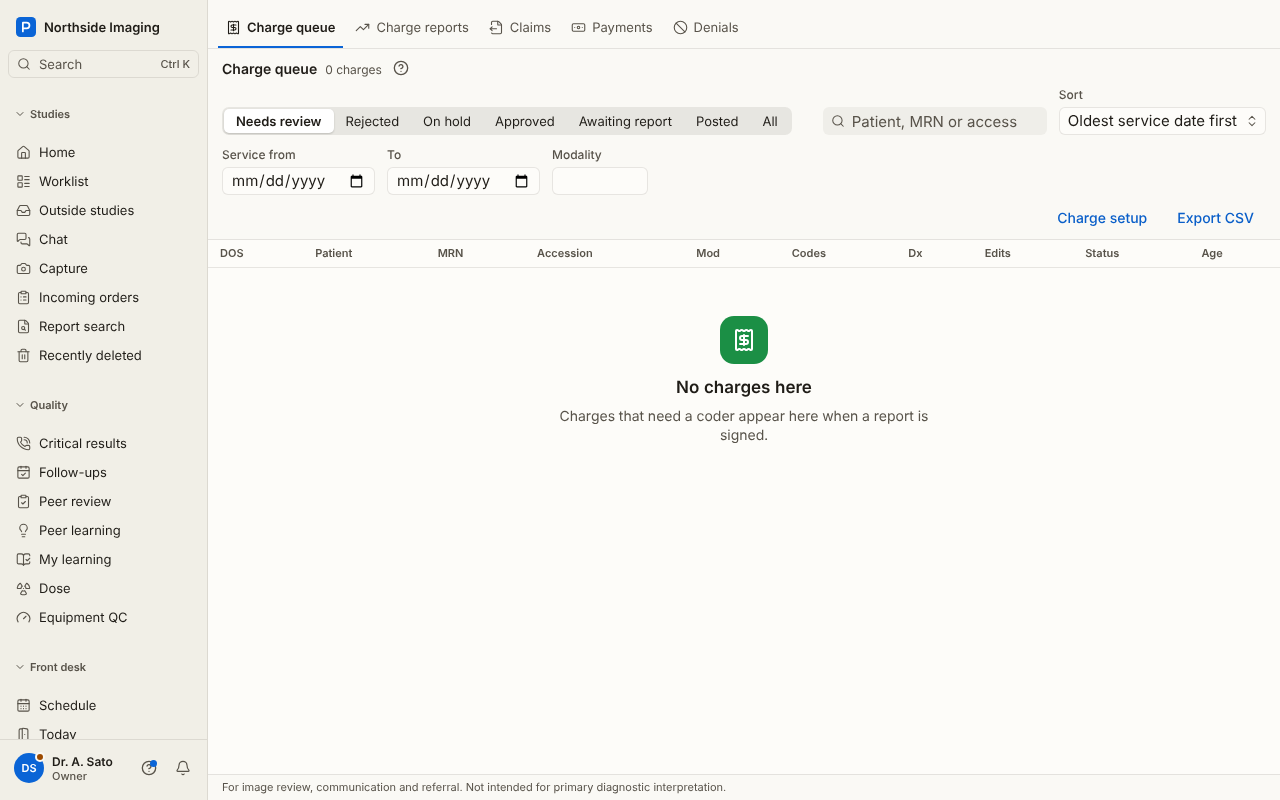
Charges created from signed reports, waiting for a coder to check, fix and approve them before they go to billing.
What this page is for
PacsPilot creates a charge when a study is ready and fills in its codes when the report is signed. The charge queue is where coders check those charges, fix codes and diagnoses, and approve them so they can be sent to your billing system.
Charges are listed by status. Open one to see the signed impression, the charge lines, the diagnoses and any edits (problems found by the checks).
Who can use it
Members with permission to view charges can open the queue. Approving, editing, holding, releasing and voiding a charge, and exporting the CSV, need permission to code charges. By default owners and admins have both; a coder is usually a custom role with both.
Charge capture must be turned on in Settings › Charge setup with the Charge capture switch. If you do not see Charge queue in the sidebar, your role cannot view charges or charge capture is off.
How to work the queue
- Start on Needs review. Use search, the service dates, Entity and Modality to narrow the list, and Sort to work oldest or newest first.
- Select a charge to open it.
- Read the Edits list. Each edit says what is wrong and how to fix it.
- Change lines (codes, Modifiers, Units, Dx pointers) or Diagnoses as needed. Use Add a code and Add a diagnosis to search. Codes from the order show under From order for one-click adding.
- Choose Save. Edits are checked again.
- Choose Approve.
While a charge is open, press J for the next charge and K for the previous one. If you leave with unsaved changes, PacsPilot asks before discarding them.
How to approve a charge that still has an error
If you are sure the charge is right, choose Approve with override, enter the reason and choose Approve. The reason is kept with the charge and in the audit log.
How to hold, release or void a charge
- Hold: enter a reason. The charge moves to On hold until someone chooses Release.
- Void: enter a reason. If the billing system already has the charge, credits for its lines are sent first.
How to send charges with a CSV
Use this when no HL7 destination receives approved charges.
- Set the service dates, entity or modality if you want a smaller file, then choose Export CSV. The file holds approved charges that match those filters, whatever tab or search you chose.
- The first time, confirm that the billing system or company you send it to is covered by your practice's business associate agreement. This is asked once for the practice and recorded.
- Once your billing system has the charges, choose Mark posted in the banner and confirm. Posted charges leave the queue and are not exported again.
Fields and columns
| Name | What it means |
|---|---|
| Charge setup | Opens Settings › Charge setup. Shown to members who can change practice settings. |
| Export CSV | Downloads approved charges for the service dates, entity and modality. Needs permission to code charges. |
| Status tabs | Needs review, Rejected, On hold, Approved, Awaiting report, Posted and All. |
| Search | Patient name, MRN or accession. Not kept in the page address. |
| Sort | Oldest service date first or Newest service date first. |
| Service from, To | Date of service range. |
| Entity | Billing entity. Shown when the practice has more than one and you can change settings. |
| Modality | Two to four letters, such as CT. |
| DOS | Date of service. |
| Patient, MRN, Accession | Who and which exam. |
| Mod | Modality. |
| Codes | Procedure codes on the charge lines. |
| Dx | Diagnosis codes. |
| Edits | Number of errors (red) or warnings found by the checks. |
| Status | Awaiting report, Needs review, On hold, Approved, Sending, Posted, Rejected or Void, and the entity name when there are several. |
| Age | Days since the date of service. |
| Signed impression | The impression of the signed report, and the order reason codes. |
| Billing entity | Who bills this charge. |
| Rendering NPI, Ordering | The reading physician's NPI and the ordering provider's name and NPI, or "missing". |
| History | What happened to the charge and when; "(automatic)" marks steps PacsPilot took. |
| Open study | Opens the study on the worklist. |
If something goes wrong
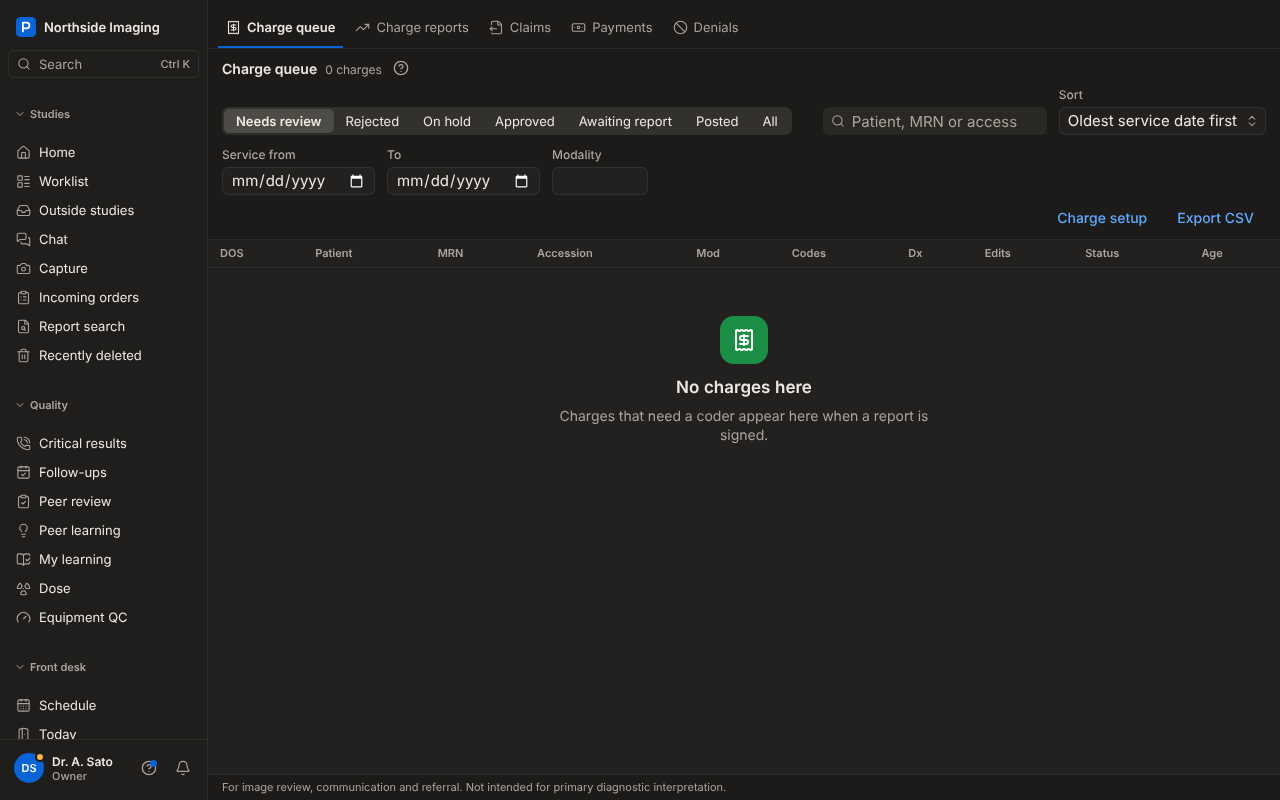
- No charges here: nothing has this status yet. Charges that need a coder appear on Needs review when a report is signed.
- No charges match these filters: choose Clear filters.
- A search banner says more studies match than can be searched: type more of the name, MRN or accession.
- Approved automatically. It goes to the billing system once a coder approves it.: confirm the charge with Approve.
- The reading physician has no NPI: an admin adds it in Settings › Charge setup under Reading physicians.
- No approved charges to export: there are no approved charges for the service dates.
- A red banner with Retry means the list or the charge could not be loaded. Choose Retry.
Related
Updated October 19, 2026. Signed in? The same article is in the app's help panel: press
?.