Patient payments at the front desk
Collect payments at the desk, see the day's payments, find patients who owe, send statements, close the day and refund a payment.
What this page is for
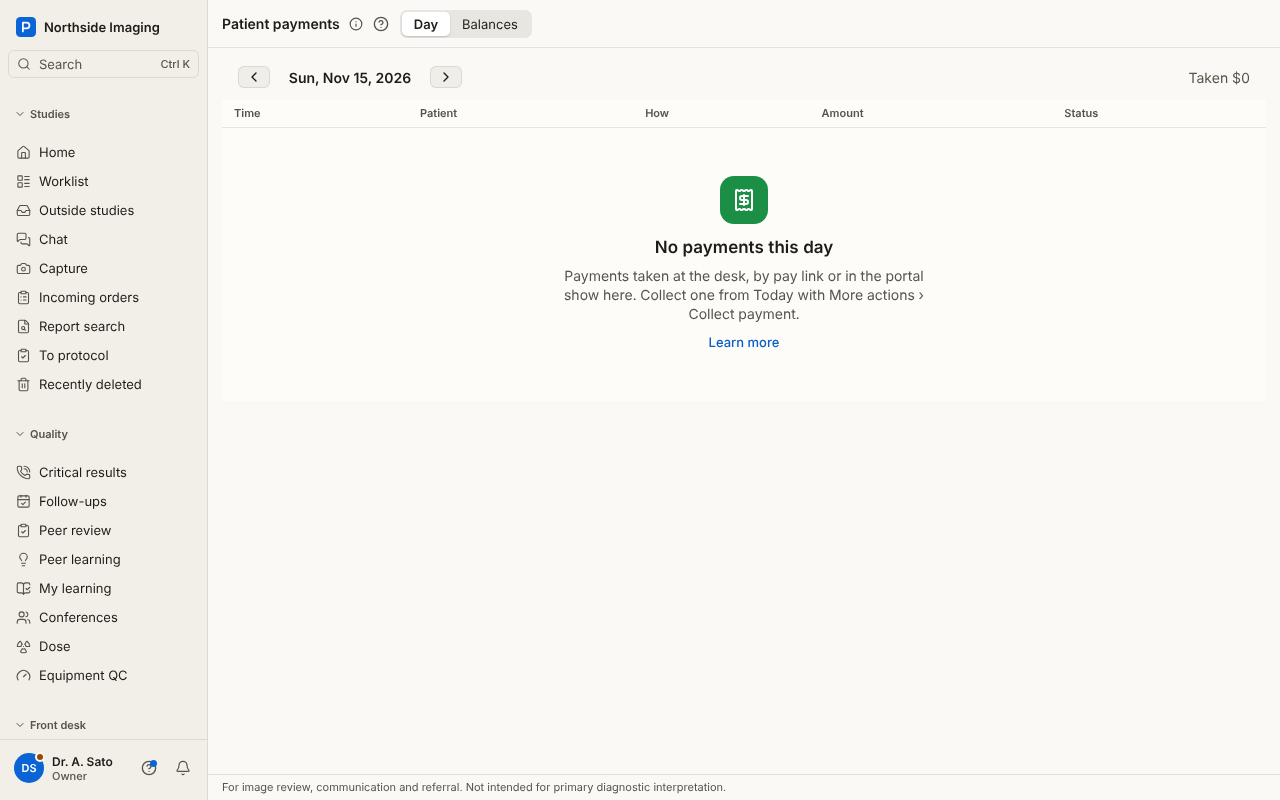
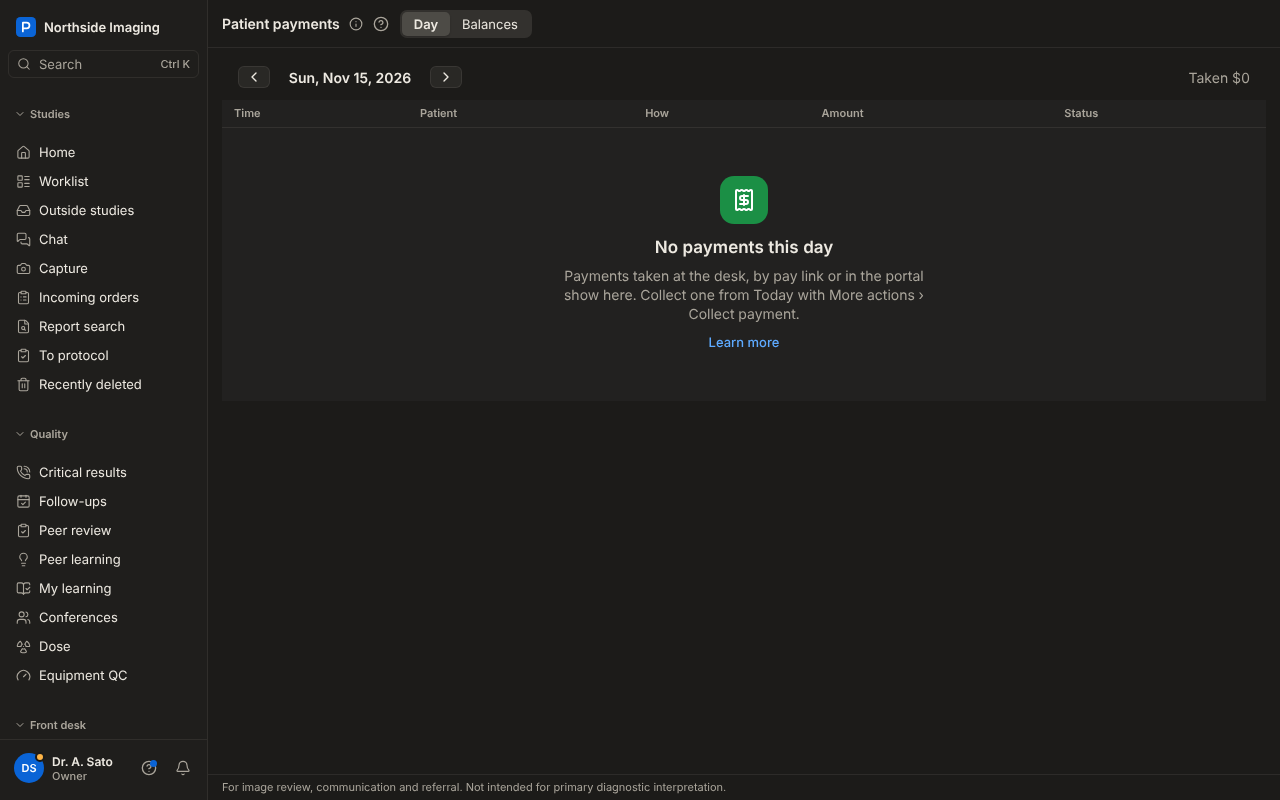
Patient payments shows the money patients pay the practice: what came in on a day, who still owes, and the day's close for tying out the bank deposit. Open any row to see the patient's balance, collect a payment or give a refund. Money goes to the practice's own Stripe account; card details never reach PacsPilot.
Who can use it
Anyone whose role has Take patient payments, send pay links and estimates and close the day. Refunds also need Refund and void patient payments. The page appears under Front desk when patient payments are on in Settings › Payments and scheduling is on.
How to collect a payment
1. On Today, open a row's More actions menu and choose Collect payment…, or select a patient on this page and choose Collect payment. 2. Check the amount. It starts at the estimate's patient share when there is one, otherwise at the balance. 3. Choose how the patient pays: - QR: shows a code on your screen. The patient scans it with their phone camera and pays on Stripe's secure page. The sheet says Paid by itself once Stripe confirms the payment. - Email or Text: sends a pay link to the address or mobile number on file, or an address you type. Text appears only when text-to-pay is on, and needs a mobile number with text consent. Each link works once and expires after 7 days. - Paid elsewhere: records cash, a check (enter its number) or a payment taken on another card terminal (enter its receipt or approval number). Recording the same payment twice, for example after a double click, keeps one.
QR, Email and Text need Card payments on and a connected Stripe account. A card payment counts as paid only after Stripe confirms it, and the patient gets an email receipt.
How to refund a payment
- Select the patient on Day or Balances.
- Choose Refund… beside the payment.
- Enter the amount (all of what is left, or part of it) and a reason, then choose Refund.
Card refunds go back to the patient's card through Stripe and take Stripe's usual 5 to 10 days to show. For cash and checks, give the money back yourself; the refund is recorded on the balance. Refunds and disputes made in the practice's Stripe dashboard show here too, and owners and admins are notified when a patient disputes a charge.
How to save a card and set up a payment plan
With Card on file on under Settings › Payments, a patient's Balance has Saved cards and plans.
- Choose Save a card…, pick QR code on this screen, Email or Text message, then Show QR or Send link.
- The patient opens the link on their own phone, reads the card-on-file terms, ticks I agree and saves the card on Stripe's secure page. The card shows on the balance once Stripe confirms it; you see the brand, last 4 digits, expiry and the day the patient agreed.
- To charge it, choose Charge… beside the card, check the amount and choose Charge.
- To spread the balance, choose Payment plan…, pick the card, the total and 2 to 12 months, then Start plan. The first installment is charged now and the rest on the same day each month.
A declined installment is tried again twice, 3 days apart. After the last try the plan pauses and owners and admins get an alert. Resume charges the installment due at once; Pause and Cancel plan stop further charges. Remove takes the card off the practice's Stripe account and pauses any plan on it.
How to send a statement
With Statements on under Settings › Payments, a patient's Balance has Statements.
- Choose Send statement. The patient gets it in their patient portal when they have an account, and an email with a pay link for the balance when there is an address on file (and a text when text-to-pay is on and they gave text consent).
- A statement the patient could not get any of those ways shows To print. Choose PDF, print it and hand or mail it, then choose Mark printed.
The monthly run and the reminders go out by themselves on the schedule in Settings › Payments.
How to close the day
- Choose Daily close and move to the day with the arrows.
- Compare Taken, Refunded and Net with the cash drawer and checks. By method and Taken by split the payments; Patient, online are payments made from a pay link or the portal.
- Compare Card, net with Stripe payouts arriving this day. Stripe pays card payments out on its own schedule, usually two business days later and less its fees, so a payout matches an earlier day's card payments.
- Choose Export CSV for the practice's billing system: one row per payment and refund with the patient's MRN and name, the method, the amount, the check or receipt number and who took it. The download is recorded in the audit log.
Fields and columns
Day lists one day's payments in the practice's time zone, newest first. Use the arrows to move a day back or forward. Taken totals the paid payments; refunds made that day are listed under the payments.
- Time, Patient (name and MRN), How (card by pay link, card in the portal, cash, check with its number, paid elsewhere with its reference) and Amount.
- Status: Waiting (the patient opened the link and Stripe has not confirmed yet), Paid, Failed (the card was declined; the same link still works), Part refunded, Refunded, or Disputed (the patient disputed the charge with their bank; answer it in the practice's Stripe dashboard).
Balances lists every patient who owes the practice, oldest unpaid charge first. The boxes at the top total what is owed 0-30 days, 31-60 days, 61-90 days and over 90 days after the oldest unpaid charge; pick an age above the list to see only those patients. With Statements on, Statements shows the last statement's date or how many reminders went out, and Send to collections? once every reminder went out and the balance is still owed. That is for the biller to decide; PacsPilot does not send accounts to collections.
Daily close shows one day in the practice's time zone. Payments that failed or are still waiting are left out; card refunds Stripe has not confirmed yet are counted and noted as waiting. A payout shows Paid, or Failed or Canceled when the money did not reach the bank.
A patient's Balance shows what they owe now, estimate shares not yet due, their saved cards and payment plans (with card on file on), their payments and the ledger lines behind the balance. A plan shows its total, how many installments are paid, the next amount and date, and Active, Paused, Paid off or Canceled.
If something goes wrong
- The patient has no mobile number with text consent on file: record the patient's mobile number and text consent on their contact details, or use QR or Email.
- The patient has no email on file: type an address in Email, or use QR.
- Card payments are not set up or Stripe is not ready: the owner finishes connecting Stripe under Settings › Payments. Paid elsewhere still works.
- The link was made but could not be sent: try again, or show the QR code instead.
- The refund could not be made: Stripe refused it, for example because the payment is disputed. Nothing changed on the balance; try again later or refund from the Stripe dashboard.
- The card was declined when charging a saved card: nothing was charged. Ask the patient for another way to pay, or for a new card.
- The plan's card was removed: a plan cannot resume without its card. Save a new card and start a new plan for what is left.
- A QR payment stays on Waiting: Stripe has not told PacsPilot yet. Close the sheet; the payment shows as Paid on this page once Stripe confirms it.
Related
Updated November 16, 2026. Signed in? The same article is in the app's help panel: press
?.