Sign-in security
Set up single sign-on, SCIM provisioning, a custom hostname, the session policy, access reviews and emergency access for your practice.
What this page is for
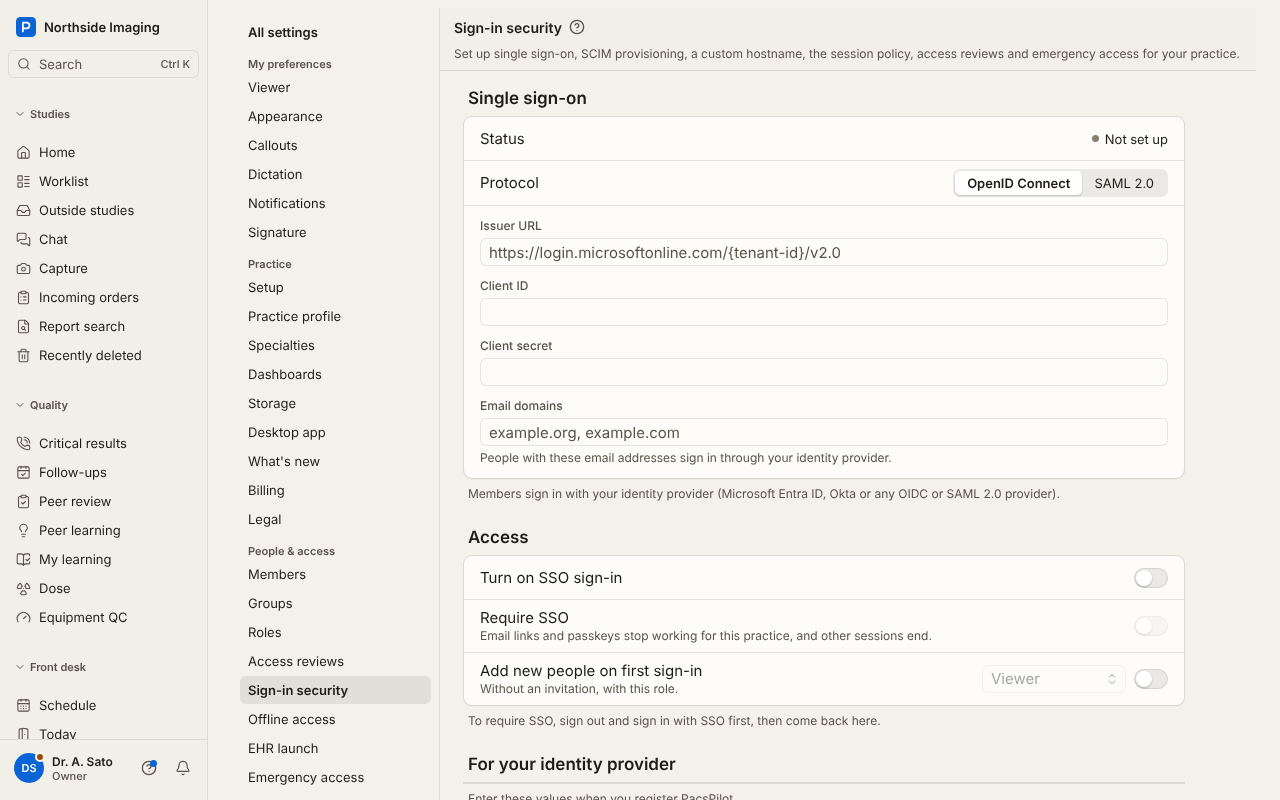
Settings › Sign-in security decides how everyone in your practice signs in. It has these groups, from top to bottom:
- Security events, last 24 hours: failed sign-ins, rate-limited requests, busy-database pauses and unsafe uploads, counted every 5 minutes. Counts only.
- Single sign-on and Access: connect your identity provider (OpenID Connect or SAML 2.0) and decide whether members must use it.
- For your identity provider: the values you enter when you register PacsPilot with your identity provider.
- Provisioning (SCIM) and Group mappings: let your identity provider add, update and remove members.
- Custom hostname: serve PacsPilot at your own hostname.
- Session policy: shorter sessions and stricter passkey rules than the PacsPilot defaults.
- Access reviews: a quarterly review of who still needs access.
- Emergency access: let members limited to a group open a patient's studies outside it for a limited time.
Who can use it
Only owners can open this page. It needs the tenant.security permission, which only
the owner role has and which a custom role cannot grant. Admins and other members do not see it in
Settings.
How to set up single sign-on
- Under Single sign-on, choose the Protocol: OpenID Connect or SAML 2.0.
-
For OpenID Connect, enter the Issuer URL, Client ID and
Client secret. For Microsoft Entra ID, use the issuer of your own directory (it
ends in
/{tenant-id}/v2.0). - For SAML 2.0, enter the IdP entity ID, the IdP sign-in URL and the Signing certificates in PEM format. During a certificate rollover, paste both certificates.
- Under Email domains, enter the domains whose people sign in through your identity provider, separated by commas.
-
Press Save. Under Email domain proof, add a DNS TXT record
named
_pacspilot-sso.followed by each domain (for example_pacspilot-sso.example.org), with the TXT value shown. Press Copy to copy it, then Check next to each domain. Sign-in through your identity provider works only for domains marked Proven. DNS changes can take a while to appear. - Copy the values under For your identity provider (redirect URIs for OIDC, or the SP entity ID and ACS URLs for SAML) into your identity provider. Press Copy next to a value to copy it.
- Switch on Turn on SSO sign-in.
- To add people who sign in without an invitation, switch on Add new people on first sign-in and choose their role: Viewer, Technologist or Physician.
- Press Save.
PacsPilot checks each domain's record again every day. If a record is missing for 7 days, that domain stops working, and when no proven domain is left single sign-on turns off and owners get an email.
Someone who also works at another PacsPilot practice is not linked on their first SSO sign-in. They sign in the usual way and approve the link on their home page first.
How to require SSO
You can only require SSO from a session that signed in through the connection, so an untested connection cannot lock you out.
- Set up SSO and save it, as above.
- Sign out, then sign in with SSO.
- Come back to this page and switch on Require SSO. Do not change the identity provider settings in the same step.
- Press Save, then Require SSO in the confirmation.
Email links and passkeys stop working for the practice, and every other session ends at once. Members sign in again through your identity provider. While SSO is required, the identity provider fields and Remove SSO are locked; turn off Require SSO first to change them.
How to turn on provisioning (SCIM)
- Turn on single sign-on first.
- Under Provisioning (SCIM), switch on Provision members from your identity provider. This turns off Add new people on first sign-in.
- Copy the Tenant URL into your identity provider.
- Press Create token, copy the token from the SCIM secret token dialog, and paste it into your identity provider. It is not shown again.
- If groups mapped to Admin should give admin rights, switch on Allow admin from your identity provider. Owners are never set by your identity provider.
To replace the token, press Rotate token. The page shows until when the previous token keeps working. Revoke stops provisioning until you create a new token.
How to map identity provider groups
Groups appear under Group mappings once your identity provider pushes them.
- Press Add mapping.
- Choose the Identity provider group, a Role (a built-in role, a custom role or No role) and a Visibility group (All patients or one of your groups). Admins take no visibility group.
- Use Move up and Move down to order the mappings. The first mapping a member matches sets their role; the first with a visibility group sets their group. Members who match none lose access.
- Press Preview to see how many managed members change role or group, lose access or regain access.
- Press Save mappings.
How to add a custom hostname
- Under Custom hostname, enter the Hostname, such as imaging.example.org, and press Add hostname.
- Create the DNS records the page lists at your DNS provider. Each shows its type, purpose, Name and Value.
- Press Check again until the status shows Live.
Only one hostname can be set. Remove hostname stops sign-in at that hostname at once.
How to set a session policy
- Switch on Apply a session policy. When it is off, members are signed out after 15 minutes idle and 12 hours per session.
- Choose Sign out after inactivity (5, 10 or 15 minutes) and Longest session (1, 2, 4, 8 or 12 hours).
- Choose who needs a passkey under Passkey required for: Owners and admins or Everyone.
- Switch on Sign in with a passkey or SSO only or Device-bound passkeys only if you need them.
- Choose Sessions per member: No limit, or 1, 2, 3, 5 or 10.
- Press Save.
Signed-in members follow the new rules at their next request. If a passkey rule applies, the footer says how many members have no passkey yet; they can only add one until they do.
How to set up access reviews and emergency access
- Under Access reviews, switch on Quarterly access reviews.
- Choose Flag members inactive for and, if you want, Disable members inactive for. Disabling can never be sooner than flagging.
- Under Emergency access, switch on Allow emergency access and choose the Longest emergency access.
- Press Save.
A review opens on the first day of each quarter and is due 30 days later. Owners and members managed by your identity provider are never disabled automatically. Once emergency access is on, owners and admins see the Emergency access page.
Fields and columns
| Name | What it means |
|---|---|
| Status | Not set up, Set up, off, On, or On, required. |
| Protocol | OpenID Connect or SAML 2.0. |
| Issuer URL, Client ID, Client secret | Your OpenID Connect application. A saved secret shows as Unchanged. |
| IdP entity ID, IdP sign-in URL | Your SAML identity provider. |
| Signing certificates | The identity provider's PEM certificates, with the date each expires. |
| Email domains | People with these email addresses sign in through your identity provider. |
| Turn on SSO sign-in | Lets members sign in with your identity provider. |
| Require SSO | Email links and passkeys stop working and other sessions end. |
| Add new people on first sign-in | Adds people without an invitation, with the role you choose. |
| Redirect URIs (OIDC), SP entity ID and metadata URL (SAML), ACS URLs (SAML) | Values to enter in your identity provider. |
| Remove SSO | Deletes the connection. Linked identities are forgotten and members sign in with email links and passkeys again. |
| Save | Saves the group above it. |
| Provision members from your identity provider | Turns SCIM provisioning on or off. |
| Allow admin from your identity provider | Off: a group mapped to Admin gives no one admin rights. |
| Tenant URL | The SCIM base URL for your identity provider. |
| Secret token | When the token was created and last used. Create token, Rotate token and Revoke manage it. |
| Group mappings | Identity provider group, Role and Visibility group for each mapping, in order. |
| Preview, Save mappings | Show what a change does, then save it. |
| Hostname | Your own hostname. Live when members sign in there, Pending while waiting for DNS and the certificate. |
| DNS records to create at your DNS provider | The records to create, with Name and Value. |
| Check again, Remove hostname | Recheck the DNS records, or remove the hostname. |
| Apply a session policy | Off: 15 minutes idle, 12 hours per session. |
| Sign out after inactivity | Idle time before a member is signed out. |
| Longest session | Members sign in again after this, even when active. |
| Passkey required for | Owners and admins or Everyone. |
| Sign in with a passkey or SSO only | Email sign-in links stop working for members who have a passkey. |
| Device-bound passkeys only | Refuses passkeys synced through iCloud or Google; security keys and Windows Hello work. |
| Sessions per member | Signing in again ends the oldest session. |
| Quarterly access reviews | Owners and admins confirm who still needs access each quarter. |
| Flag members inactive for | Flagged members stand out in the review. |
| Disable members inactive for | Turns their membership off automatically, or Never. |
| Allow emergency access | Members limited to a group can open a patient's studies outside it for a limited time, giving a reason. |
| Longest emergency access | How long one emergency access lasts at most. |
If something goes wrong
- Sign in with this SSO connection before enforcing it, and do not change the IdP settings in the same step: sign out, sign in with SSO, and turn on Require SSO without other changes. The switch stays greyed out until you have signed in with SSO.
- Turn off enforcement before changing the IdP settings or Turn off enforcement before removing SSO: switch off Require SSO, save, then make the change.
- Could not read the issuer's OpenID configuration: check the Issuer URL and that your identity provider is reachable. The issuer must be a public https address on port 443 that serves its configuration without a redirect.
- No TXT record … was found: check the record's name and value with your DNS provider, wait for the change to appear, then press Check again.
- Use the issuer of your own Entra ID directory (…/{tenant-id}/v2.0): replace the shared issuer with your directory's own.
- A certificate is not a valid PEM X.509 certificate or A certificate has expired: paste a current certificate from your identity provider.
- Turn on single sign-on before SCIM provisioning: the provisioning switch stays off until SSO is on.
- Turn on "Allow admin from your identity provider" first: a mapping to Admin needs that switch.
- Admins see every study and take no visibility group: clear the visibility group on the Admin mapping.
- White-label hostnames are available after go-live: custom hostnames are for production practices only.
- That hostname is already in use or Remove the current hostname before adding another: choose another hostname, or remove the current one first.
- Use a hostname on your own domain: enter a hostname under a domain you own.
- Add a passkey to your own account before requiring one (or a device-bound passkey): add one from Passkeys and sessions… in your user menu, then save again.
- Disable after must be at least the flag-after days: choose a longer disable time.
- Settings changed at the same time; try again: reload the page and save again.
Related
Updated October 23, 2026. Signed in? The same article is in the app's help panel: press
?.