Today
The front desk board for today's exams, grouped by where each patient is, with check-in, start, complete and walk-in.
What this page is for
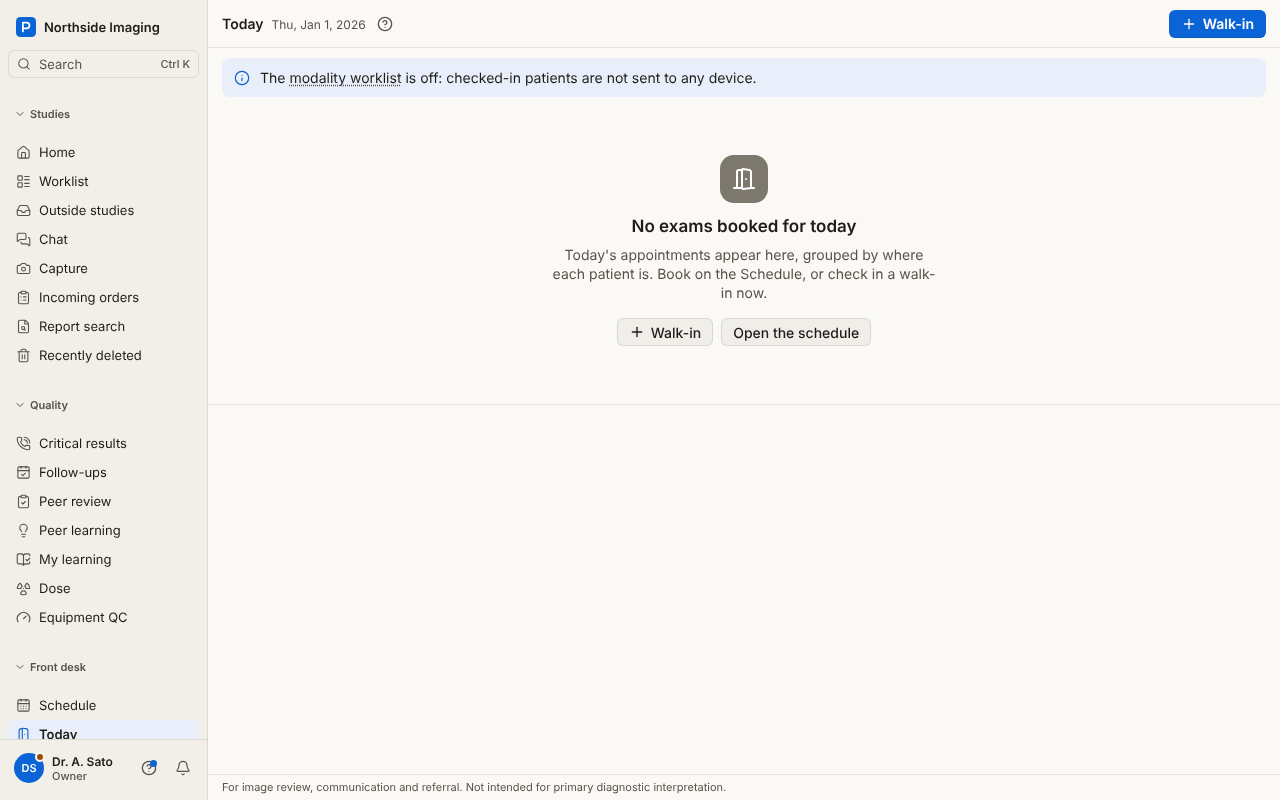
Today is the front desk board. It lists today's booked exams in five groups: Expected, Arrived, In progress, Completed and Not arrived. Each group shows how many exams it holds. You check patients in, start and complete exams, and book walk-ins from here.
When you check a patient in, the exam is sent to the modality worklist of the room's device, so the technologist can pick it up on the scanner. The board updates on its own when anyone changes an appointment, and every minute so the Late flag stays current.
Who can use it
You need the permission See the schedule, front desk and patients to see the board. To check in, start, complete, cancel or book a walk-in, you also need Book, move and check in patients. Owners, admins and technologists have both by default. Physicians can see the board but not change it.
The page only appears once an admin turns on scheduling in Settings › Scheduling. If you do not see Today under Front desk in the sidebar, scheduling is off for your practice or your role does not include it. Ask an admin.
How to check a patient in
- Find the patient under Expected.
- Choose Check in.
The row moves to Arrived and shows which device the exam was sent to. If you checked in the wrong patient, open the row's More actions menu and choose Undo check-in.
How to start and complete an exam
- On an arrived row, choose Start. The row moves to In progress.
- When the exam is done, choose Complete….
- Add a Tech note for the reading physician if needed.
- If contrast was used, tick Contrast given and fill in Agent (required), Volume (mL), Route and Lot. With the contrast record on, the Contrast card replaces these fields; see the help article Record contrast given.
- If the exam stopped early, pick the reason under Exam ended early.
- Choose Complete.
When the practice uses protocoling, a protocoled exam shows Protocol: and the protocol code under the patient. Choose it to see the protocol, the contrast plan, the technologist's instructions and the patient prep. The Complete… sheet shows the same at the top. A red Protocol changed means a radiologist set or changed the protocol after the patient arrived: check it before you scan.
How to book a walk-in
- Choose Walk-in.
- Pick or register the patient, choose the Procedure and the Room.
- Check the Reason (it starts as "Walk-in") and choose Book and check in.
The walk-in is booked for now, over any other booking, and checked in at once.
How to mark a no-show or cancel
- No-show: open More actions on an expected row and choose No-show, then confirm. A no-show cannot be undone and counts in the patient's no-show history.
- Cancel…: pick a Reason, and tick Cancel the order too if the exam is no longer needed. Otherwise the order goes back to the Order queue.
How to build an estimate
Where the practice offers patient estimates (Settings › Payments), and your role may take patient payments:
- On an expected or arrived row, open More actions and choose Build estimate.
- The row shows a chip with the patient's expected share, such as Est. $420.
For a self-pay booking (no active insurance on file, or marked self-pay) the estimate uses the practice's self-pay price, else the fee schedule. For an insured patient it uses the plan's contract rate from Settings › Payments › Payer rates, else the fee schedule, and the deductible, copay and coinsurance from the latest eligibility answer. Until eligibility is checked the chip shows the full expected charge with before plan. Building again makes a new version and replaces the old one. A chip reading Estimate out of date means the procedure or the patient's insurance changed since it was built: build it again.
Good Faith Estimates
Where the practice has Good Faith Estimates on (Settings › Payments), booking a patient with no active insurance, or a booking marked self-pay, builds a Good Faith Estimate at once. The row shows when it is due, such as GFE due Tue 5 pm, in the practice time zone:
- Booked at least 10 business days ahead: due within 3 business days of booking.
- Booked at least 3 business days ahead: due by the end of the next business day.
- Booked fewer than 3 business days ahead: no deadline applies, but you can still give one.
To give it, open More actions on the row:
- Print Good Faith Estimate opens the PDF to print or save.
- Mark Good Faith Estimate given records that you handed it to the patient.
- Send Good Faith Estimate to portal posts it to the patient's portal, and the patient gets the usual portal notice.
Once given, the chip shows the amount, such as GFE $1,200. A red GFE overdue means the deadline passed and it was not given; owners, admins and technologists also get an alert. Every Good Faith Estimate that is given is kept for six years. Business days are Monday to Friday, not counting the practice's holidays from Settings › Reader schedule; until the practice has its own list, US federal holidays are skipped.
Fields and columns
| Name | What it means |
|---|---|
| Expected | Booked for today and not checked in yet. |
| Arrived | Checked in, waiting for the exam to start. |
| In progress | The exam has started. |
| Completed | The exam is done. |
| Not arrived | Exams from earlier days in the past week, or from today once the day is over, that were never checked in. |
| Time | The start time in the practice time zone. A date shows in front when the exam is from another day. |
| Patient | Name, MRN, birth date and procedure. |
| Room | The room the exam is booked in. Hidden on phones. |
| Late | The patient is not checked in and the start time is more than the practice's no-show wait in the past. |
| Form flagged | An intake form answer needs review. |
| Not checked in | Images arrived for the exam before anyone checked the patient in, so it moved to In progress on its own. |
| Protocol | The protocol chosen for the exam. Choose it to see the instructions and contrast plan. |
| Protocol changed | The protocol was set or changed after the patient arrived. Check it before you scan. |
| Sent to | The worklist device the checked-in exam went to. |
| No worklist device | The room has no worklist device, so the exam was not sent to any scanner. |
| Est. and GFE | The expected share from the latest estimate, or when the Good Faith Estimate is due. before plan is the full charge. |
| Status | Scheduled, Arrived, In progress or Completed. |
| Row button and More actions | The next step for the row (Check in, Start or Complete…), and the other actions (No-show, Undo check-in, Cancel…). |
| Walk-in | Books a patient now and checks them in. |
If something goes wrong
- "Today's board could not be loaded": choose Retry.
- "The exam could not be updated": someone may have changed the exam first. The board reloads, so check the row and try again.
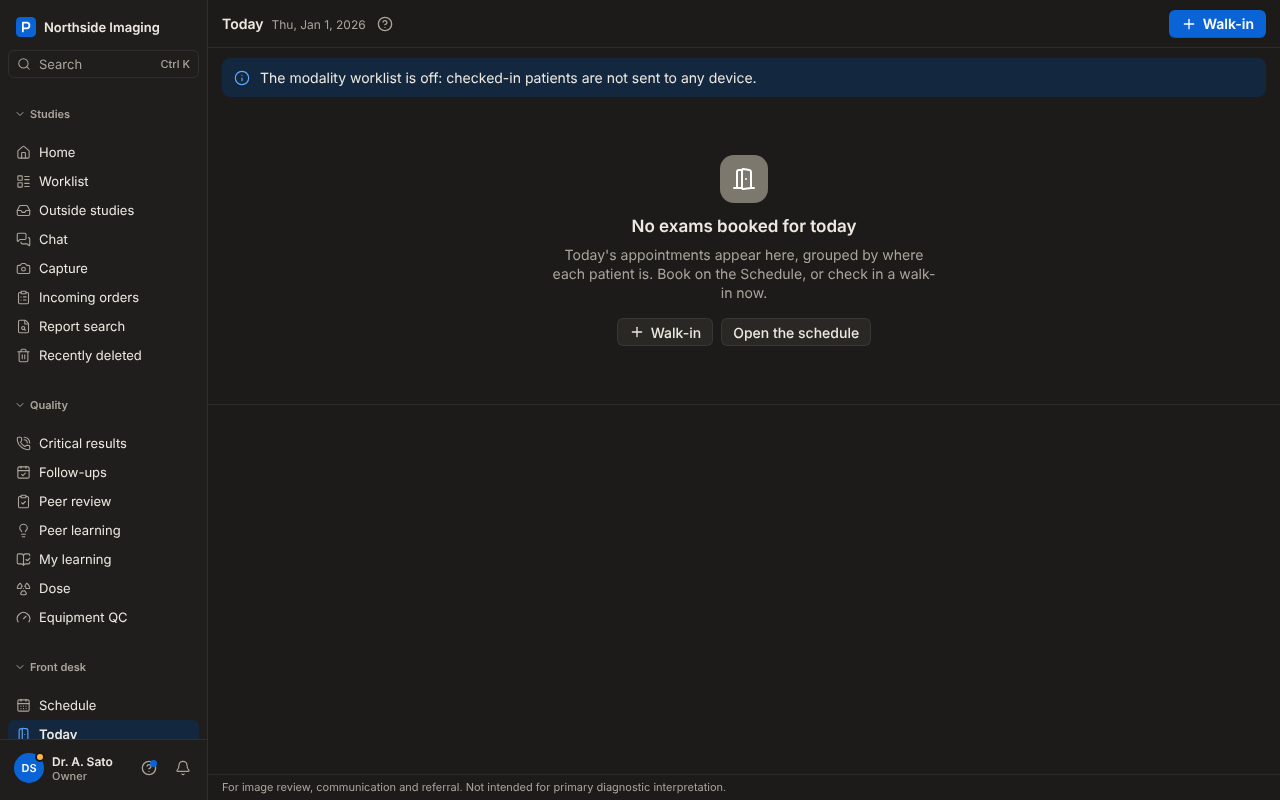
- "The modality worklist is off": checked-in patients are not sent to any device. An admin turns it on in Settings › Modality worklist.
- "No worklist device" on a row: the room has no device chosen. An admin sets the room's Worklist device in Settings › Scheduling.
- "Set a self-pay price, a payer rate or a fee schedule amount for this procedure first": the estimate has nothing to price the exam with. An admin adds a price in Settings › Payments › Prices or a fee in the charge master.
- "No exams booked for today": nothing is booked yet. Book on the Schedule, or choose Walk-in.
Related
Updated November 8, 2026. Signed in? The same article is in the app's help panel: press
?.