Order queue
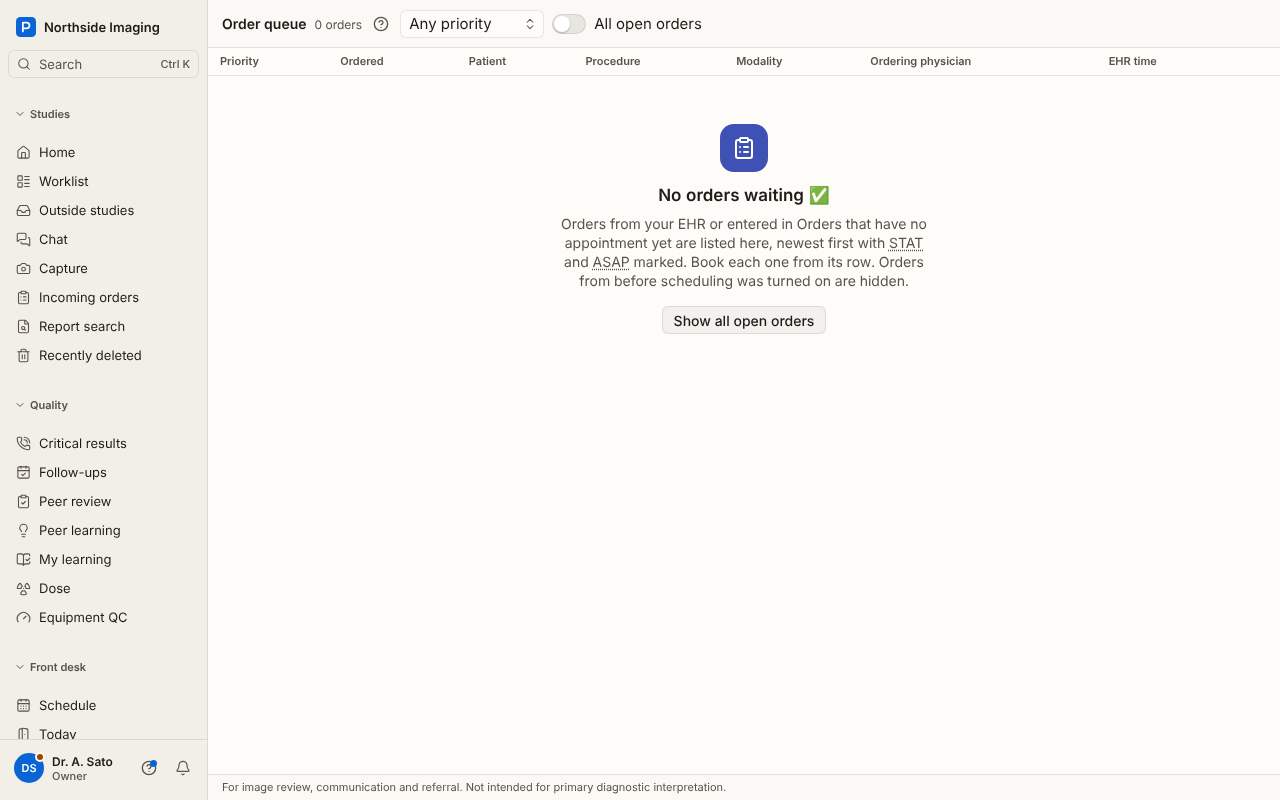
Open orders that have no appointment yet, newest first with STAT and ASAP marked, so you can book each one.
What this page is for
The Order queue lists open orders that still need an appointment. Orders come from your EHR or are entered in PacsPilot. The newest are at the top, and STAT and ASAP orders are marked. Book each order from its row, and it leaves the queue.
By default the queue shows only orders created since scheduling was turned on. Turn on All open orders to see older ones too. The count in the sidebar shows how many orders are waiting.
Who can use it
You need the permission See the schedule, front desk and patients to see the queue. To book an order, you also need Book, move and check in patients. Owners, admins and technologists have both by default. Physicians can see the queue but not book.
The page only appears once an admin turns on scheduling in Settings › Scheduling. If you do not see Order queue under Front desk in the sidebar, scheduling is off for your practice or your role does not include it. Ask an admin.
How to book an order
- Find the order. Use the priority and modality filters to narrow the list.
- Choose Book on its row. The Book dialog opens with the order's patient and procedure filled in.
- Pick a Date, a Room if you like, and one of the free times.
- Choose Book.
If the order's procedure is not in your practice's procedure list, choose one in Procedure before you book. To book outside free times, tick Overbook and give a reason.
How to find older or specific orders
- Choose a priority (STAT, ASAP or Routine) or a modality to filter the list. Clear filters shows everything again.
- Turn on All open orders to include orders from before scheduling was turned on.
- Choose Show more at the bottom to load the next page.
The filters stay in the page address, so you can bookmark or share the view.
Fields and columns
| Name | What it means |
|---|---|
| Priority filter | Any priority, STAT, ASAP or Routine. |
| Modality filter | Any modality, or one of the modalities of your practice's rooms. Hidden when no rooms are set up. |
| All open orders | Off: only orders since scheduling was turned on. On: every open order. |
| Count | Under the title. Without filters, the number of orders waiting. With a filter, how many matching orders are loaded so far ("+" means there are more). |
| Priority | STAT, ASAP or Routine. |
| Ordered | When the order was created. |
| Patient | The patient's name and MRN. |
| Procedure | The ordered procedure's description or code. |
| Modality | The kind of exam ordered. |
| Ordering physician | Who placed the order. |
| EHR time | The time the EHR asked for, if it sent one. |
| Book | Opens the Book dialog for this order. |
| Show more | Loads the next page of orders. |
If something goes wrong
- "The order queue could not be loaded": choose Retry.
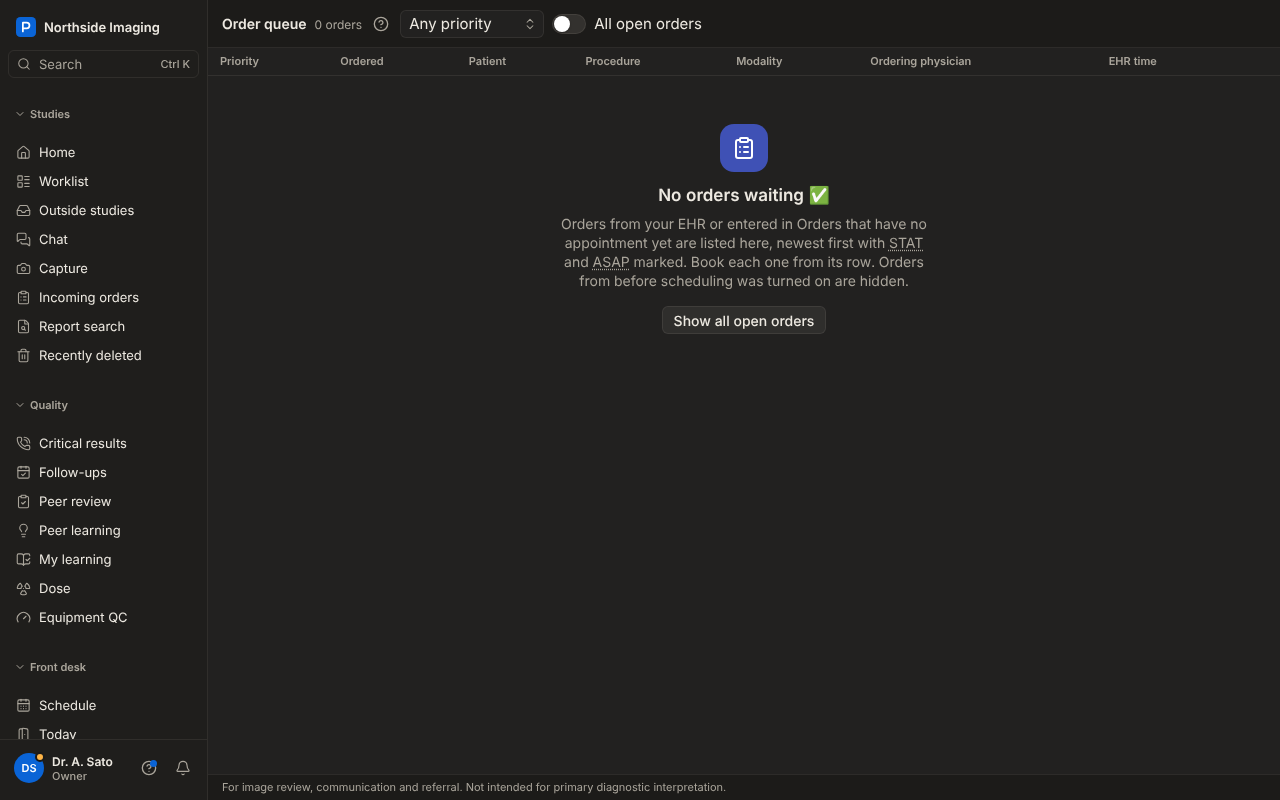
- "No orders waiting": every order has an appointment. If you expected older orders, choose Show all open orders.
- "No orders match these filters": choose Clear filters.
- "No free time on this day" in the Book dialog: pick another day or room, or overbook with a reason.
- An order you booked is still listed: the queue refreshes on its own after a booking. If it stays, reload the page.
Related
Updated October 19, 2026. Signed in? The same article is in the app's help panel: press
?.