EHR results
Send signed reports and amendments to your EHR or interface engine as HL7 or FHIR, and check, filter and resend each delivery.
What this page is for
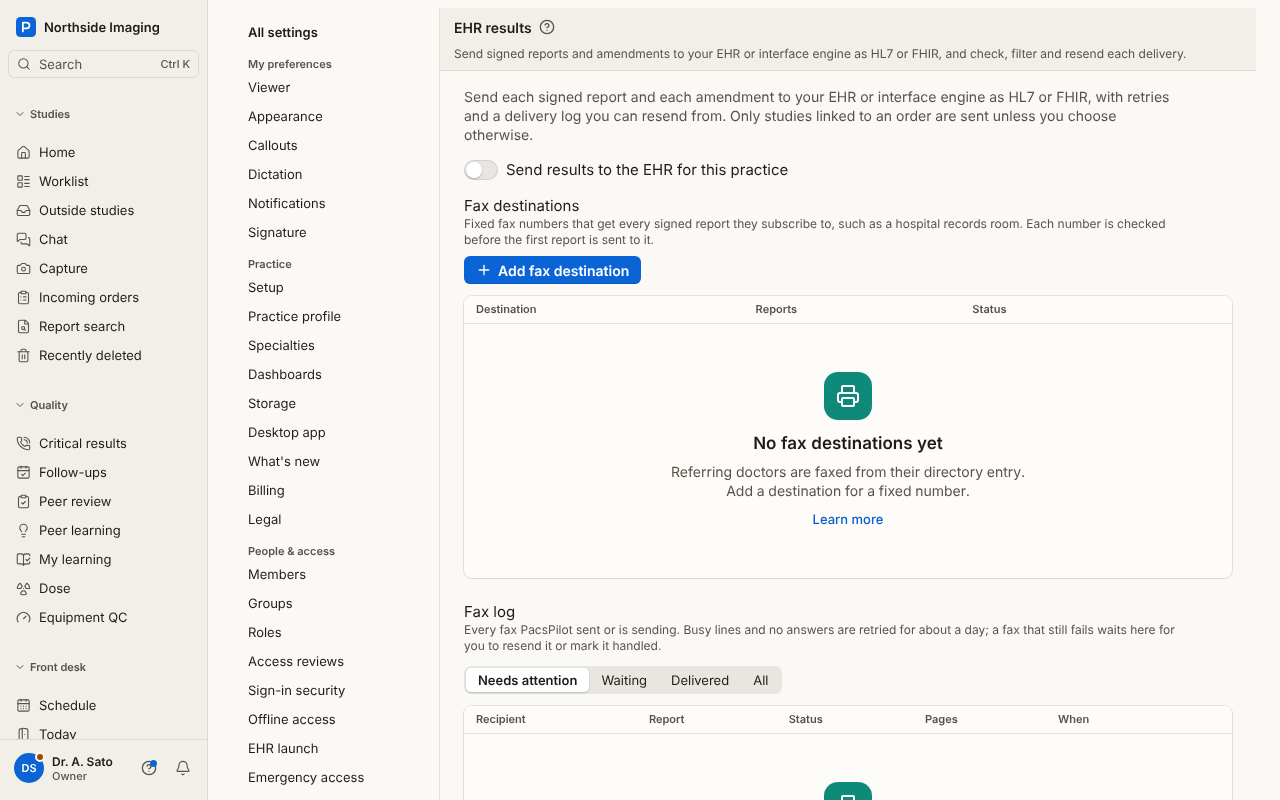
Settings › EHR results sends each signed report and each amendment to your EHR or interface engine as HL7 or FHIR. Failed messages retry, and a delivery log lets you check and resend each one. Only studies linked to an order are sent unless you choose otherwise.
The page has two tabs once results are turned on:
- Destinations: the interface engines and FHIR servers that receive results.
- Deliveries: every message sent, with its status.
When PacsPilot offers fax for your practice, a Fax tab is also shown, whether or not EHR results are on. It has the fixed fax destinations and the fax log.
Who can use it
Owners and admins, or any member whose role has the permission to change practice settings. If your role does not have it, the page is not in Settings.
Sending is off until someone switches on Send results to the EHR for this practice. While it is off, signing a report works as before and nothing is sent. Opening studies from the EHR is a separate page, EHR launch.
How to turn on EHR results
- Open Settings › EHR results.
- Switch on Send results to the EHR for this practice.
- Add a destination, as below.
How to add a destination
1. On the Destinations tab, press Add destination. 2. Kind: choose HL7 v2 over HTTPS, HL7 v2 over MLLP (site agent) or FHIR R4. Press Next. 3. Address: enter a Name. It is shown on reports as "Sent to …", so keep patient details out of it. - For HTTPS HL7, enter the Endpoint URL. For FHIR, enter the FHIR base URL. It must be public HTTPS with a host name. Redirects are not followed. - For MLLP, choose the Site agent on the same network as the interface engine, then enter the LAN host (a private IP address) and Port. 4. Press Next. 5. Events: under Send when, tick the events to send. Signed report and Amended report are ticked for a new destination. Other events are offered when the matching feature is on for your practice. 6. Set the message options: - HL7: Version, the sending and receiving application and facility (MSH-3 to MSH-6), Attach the report PDF (OBX type ED) and, for HTTPS, Wait for an HL7 acknowledgement (AA) before counting it delivered. - FHIR: MRN system, Report identifier system and Include the report PDF (presentedForm). 7. Tick Also send studies without an order only if the EHR should receive them. They are matched by MRN only and often land in the EHR's reconciliation queue. Press Next. 8. Sign-in: choose the Authentication and enter its details. Credentials are encrypted and never shown again. 9. Tick the confirmation that the receiver is covered by your business associate agreement, then press Add destination. 10. Test: press Send test to check the connection, then press Done. For HL7 the test is marked as a test (MSH-11 T) and uses a made-up patient. For FHIR it reads the server's metadata and requests a token. Test messages for MLLP destinations are not available yet.
At most 10 destinations can be added. Add destination is greyed out once you reach the limit.
How to check and resend a delivery
- Open the Deliveries tab, or press the failing count on a destination.
- Narrow the list with Destination, Status, From and To. The dates search every message, not only the ones loaded. The count above the list shows how many match; a + means older ones are not loaded yet. Press Clear to remove the filters.
- Press Details on a row (or the row itself) to see its status, result, attempts and times.
- Press Show message to see the message and the acknowledgement. This shows patient details and is recorded in the audit log.
- Press Resend to send the same message again. For a message the receiver already acknowledged, PacsPilot asks you to confirm, because it can file a duplicate result in the chart.
To resend every failed message at once, set Status to Failed if you like, then press Resend all failed above the list and confirm with Resend all. Only the failed messages shown are resent, one after another. Press Show older first to include older ones.
How to pause, edit or delete a destination
- Pause stops sending to a destination. Turn on starts it again.
- Edit walks through the same steps. Stored credentials stay unless you type new ones.
- Delete removes the destination. Messages still waiting for it are cancelled. Messages already delivered stay in the EHR.
How to fax reports to a fixed number
Fax is set up under Fax first. Referring doctors are faxed from their entry in Referrers; a fax destination is for a fixed number, such as a hospital records room.
- On the Fax tab, press Add fax destination.
- Enter a Name and the Fax number, a US or Canada number.
- Under Reports to fax, choose Signed reports, Amended reports or both. Switch on Also fax reports on studies without an order if this number should get those too.
- Press Save. The number is checked before the first report is faxed to it; faxes wait as On hold until then.
Use Edit, Pause or Turn on, and Delete on a fax destination's row. Deleting cancels faxes still waiting for it.
How to handle a failed fax
- On the Fax tab, the Fax log opens on Needs attention: failed faxes and faxes on hold, with the reason.
- Press Resend to try the same number again, or enter another checked number under Send to another number.
- Press Mark handled when the report reached the recipient another way, such as by phone or mail.
Busy lines and no answers are retried for about a day before a fax shows as Failed. Waiting, Delivered and All show the rest of the log.
Fields and columns
| Name | What it means |
|---|---|
| Send results to the EHR for this practice | The practice switch. Nothing is sent while it is off. |
| Destinations, Deliveries | The two tabs. |
| Destination | The destination's name and address. |
| Kind | HL7 · HTTPS, HL7 · MLLP or FHIR R4. |
| Events | The events it receives, or a count when there are more than two. Unordered too means it also receives studies without an order. |
| Status | Active or Paused, and a failing count when messages to it failed. Press the count to see them. |
| Last delivered | When a message to it was last delivered, or Never. |
| Add destination | Opens the steps to add one. |
| Edit, Pause, Turn on, Delete | Change, stop, start or remove a destination. |
| Time | When the message was last sent, acknowledged or created. |
| Message | The event, such as Signed report or Amended report, and the amendment number. |
| Status (Deliveries) | Queued, Sending, Delivered, Failed, Skipped or Cancelled. |
| Result | The acknowledgement code, HTTP status or error, the number of attempts and the next try. |
| Details | Opens the message's details. |
| Show older | Loads older messages. |
| Resend all failed | Sends each failed message shown again. Shown when more than one failed message is listed. |
| Show message | Shows the message and the acknowledgement. Viewing is recorded in the audit log. |
| Resend | Sends the same message again. |
| Open the report | Opens the report the message was built from. |
| Fax destination | On Fax: the name and fax number, the reports it gets, and Active or Paused. |
| Fax log | On Fax: the recipient and number, the report, the status (Waiting, Sending, On hold, Delivered, Failed) and why, pages and time. |
| Mark handled | On Fax: takes a failed fax off Needs attention when the report reached the recipient another way. |
If something goes wrong
- Could not load the setting or Could not load destinations: press the retry button. If it keeps failing, reload the page.
- The destination could not be saved: read the message in the banner, fix the step it names and save again.
- The test could not be sent: check that the destination is active and its address is right.
- A delivery shows Failed: read the Result. It says, for example, No answer in time, Address not found, Secure connection failed, Refused by the receiver, Receiver error, Receiver reported an error (AE), Receiver rejected it (AR), No acknowledgement, Network error or Sign-in to the receiver failed. Fix the cause with the receiver's team, then press Resend.
- A delivery shows Skipped with No linked order: the study has no order. Tick Also send studies without an order on the destination if the EHR should receive it.
- PDF too large, sent without it: the message was over 4 MB with the PDF, so it was sent without it.
- This message is still being sent: wait for it to finish before you resend.
- Resent 3 of 5 after Resend all failed: the rest could not be resent. Read the reason in the banner, then press Resend all failed again.
- No matching deliveries: try another destination, status or date.
- A fax shows On hold: the reason says why, such as Waiting for the number to be checked, The monthly page limit is reached or Waiting for quiet hours to end. It sends by itself once the reason is cleared.
- A fax shows Failed with Not a fax line or Not a valid number: correct the number, then press Resend and enter the corrected number.
- This report was already faxed to that number: it was delivered there; nothing more is needed.
- A practice can have up to 10 EHR destinations: delete one you no longer use before you add another.
Related
Updated October 21, 2026. Signed in? The same article is in the app's help panel: press
?.