Forms before your visit
Fill in the forms your practice needs before a visit. Save your answers for later or send them to your practice.

What this page is for
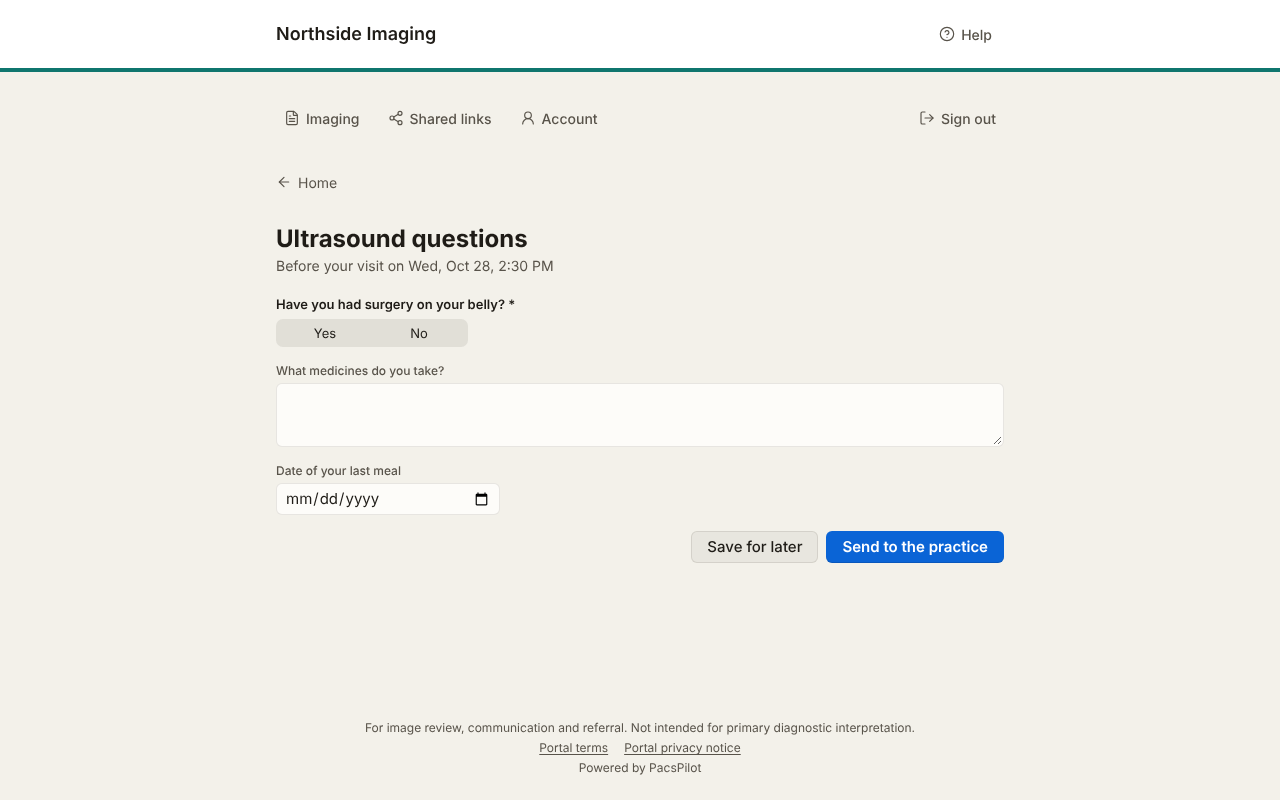
Some practices ask you to fill in a form before a visit. For example, they may ask about your health or past scans. This page shows one form and the date of your visit.
Filling it in at home saves time on the day of your visit.
Who can use it
You can use it if your practice uses forms and you have a visit coming up. You find your forms under Forms to fill on the first page of the portal.
How to fill in a form
- Open the form from Forms to fill.
- Answer the questions. Questions you must answer are marked.
- To stop and come back later, choose Save for later. Your answers are kept.
- When you are done, choose Send to the practice.
After you send it, the form leaves Forms to fill. You cannot change it after that. If you need to change an answer, call your practice.
Fields and columns
| Name | What it means |
|---|---|
| Form name | The name of the form, as your practice wrote it. |
| Before your visit on | The date and time of the visit the form is for. |
| Questions | What your practice wants to know. Some need an answer. |
| Save for later | Keeps your answers so you can finish later. |
| Send to the practice | Sends the form. You cannot change it after that. |
If something goes wrong
- This form could not be loaded. Check your internet, then choose Try again.
- This form is not in your portal. The link may be old. Go back to Home.
- This form was already sent to your practice. There is nothing more to do.
- Your answers could not be saved. Wait a moment, then try again.
- A question you must answer is empty. Fill it in, then send the form again.
Related
Updated October 19, 2026. Signed in? The same article is in the app's help panel: press
?.