Migration
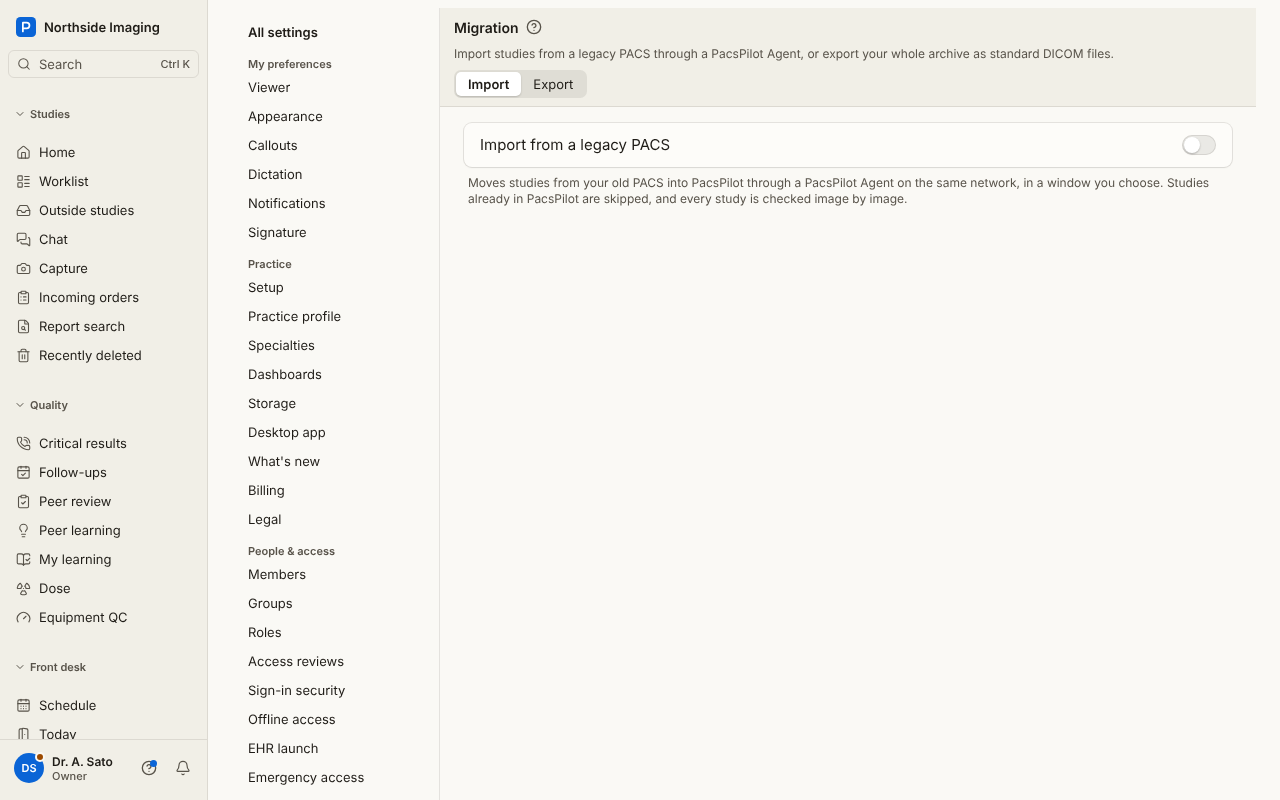
Import studies from a legacy PACS through a PacsPilot Agent, or export your whole archive as standard DICOM files.
What this page is for
Settings › Migration has two tabs:
- Import moves studies from your old PACS into PacsPilot through a PacsPilot Agent on the same network, in a window you choose. Studies already in PacsPilot are skipped, and every study is checked image by image.
- Export exports every study as standard DICOM files with a DICOMDIR and a manifest, to your own storage bucket or as downloads. It is free and audited.
Who can use it
Owners and admins can open this page. It needs the tenant.settings permission.
Only owners can turn on Whole-archive export, add storage buckets, start an
export and download it, each time confirmed with their passkey. This needs the
tenant.export permission, which only owners have. Admins see
Owners export the archive on the Export tab instead.
Migration shows in Settings once import or export is on. You can also reach it from Migration from a legacy PACS on Sites, which shows once the practice has a PacsPilot Agent.
During the trial, only a test run of the newest 50 studies is possible.
How to prepare the legacy PACS
- On Sites, add the old PACS as a device of the agent on its network.
- Tick Migration source: import this PACS's history through the agent, and choose Retrieve with (C-MOVE (most PACS) or C-GET) and the Search limit.
- Save the device.
How to start an import
- On the Import tab, switch on Import from a legacy PACS.
- Press New migration.
- Source: choose the Legacy PACS. On the old PACS, add the agent as a DICOM destination with the AE title, Address and Port shown, and allow it to search. Press Test to check the connection, then Continue.
- Studies: enter Studies from and Studies until, and choose All modalities or tick the ones you want. Press Continue. Newest studies come over first, so recent priors are available after the first night.
- Window and limits: choose When the agent may work (Evenings and weekends, Around the clock or Custom) and the limits. The box below shows an estimate.
- Tick Test run: the newest 50 studies only if you want to try it first.
- Press Start migration. The agent starts listing studies at its next check-in.
How to follow and control an import
- Press a row under Migrations to open it.
- Read the status line, the counts, By month and the Studies list. Use Show studies to filter by status, and Search studies to find one by MRN, accession or part of the patient name.
- Use Pause and Resume, Window and limits to change when and how fast the agent works, or Retry to queue short and failed studies again.
- Press Report (CSV) to download the reconciliation report.
- Press Cancel migration to stop it. Studies already moved stay in PacsPilot. Studies not moved yet are left on the legacy PACS, and the migration cannot be resumed.
- Press Migrations to go back to the list.
How to export the whole archive
- On the Export tab, switch on Whole-archive export.
- To export into your own storage, press Add bucket under Your storage buckets, enter the Name, Service address, Bucket, Region, Folder, Access key ID and Secret access key, and save. The bucket is tested. Use a bucket covered by a business associate agreement with its provider, and keep it private.
- Under Archive exports, press Export archive.
- Choose Export to: Downloads or Storage bucket, and the Bucket.
- Choose the Format: Compatible or HTJ2K as archived.
- Tick Only changes since the last export if you only need what changed.
- Press Confirm with passkey and start. You get an email when it is ready.
One export runs at a time. Downloads come as one zip per file-set of up to 10 GB or 2,000 studies and can be downloaded for 7 days.
How to move an old endoscopy system in
While the Endoscopy and GI pack is on, Moving endoscopy in lists the steps for an old endoscopy capture system: use DICOM query and retrieve where it has it, otherwise export its images to a folder, then run a dry run before you import.
- Pick the File name rule that matches how the export names its folders and files. The example under the list shows what each rule reads.
- Press Choose export folder and pick the export. Only the file names are read and sent; no image leaves your computer. You can also paste the paths, one per line.
- Press Run dry run. It counts the files the rule can read, the procedures and patients they make, and lists patients that are not in PacsPilot yet and files the rule could not read.
- Fix the rule or add the missing patients until nothing important is left, then import.
Nothing is imported by the dry run, and each one is recorded in the audit log with counts only.
Fields and columns
| Name | What it means |
|---|---|
| Import, Export | The page's two tabs. |
| Import from a legacy PACS | Turns legacy PACS import on or off. |
| New migration | Starts the three-step dialog: Source, Studies, Window and limits. |
| Source | The legacy PACS device, Cloud bucket for read-only bucket imports, or Removed device. Test run and Read-only badges. |
| Studies from | The date range, or Whole bucket. |
| Status | Queued, Running, Paused, Copying, Finished, Cancelled or Failed. |
| Progress | Studies done out of those found, or Listing studies…. |
| Started | When the migration started. |
| Legacy PACS, AE title, Address, Port | The source and the values to enter on the old PACS. |
| Test the connection | The agent checks the connection, counts yesterday's studies on the PACS and asks it to send one study PacsPilot already has. Only counts come back. |
| When the agent may work | In the agent computer's local time. Evenings and weekends is Monday to Friday 19:00 to 06:00, and all weekend. |
| From, To, days, All weekend, around the clock | The custom window. |
| Bandwidth (Mbit/s) | How much of the clinic's upload the migration may use. |
| Studies an hour | The most studies an hour. |
| Studies at a time | 1 is gentlest on the PACS. |
| Agent disk (GB) | Pause above this much migration data on the agent. |
| Free disk (%) | Pause below this much free space. |
| Found, Already here, Moved, Matched, Short, Failed | Studies on the legacy PACS in the range, skipped because PacsPilot has them, retrieved by the agent, with every image arrived, with fewer images than the source, and that could not be retrieved. |
| By month | Per month, matched and already here out of found. |
| Patient, Study date, Accession, Modalities | The study as listed on the legacy PACS. |
| Images | Images archived out of images on the source. |
| Status (studies) | Waiting, Already here, Queued, Moving, Checking, Matched, Short, Extra images, Failed or Cancelled, with the try number and reason. |
| Pause, Resume, Window and limits, Retry, Report (CSV), Cancel migration | Control an import. |
| Whole-archive export | Turns archive export on or off. Owners only. |
| Your storage buckets | Name, Bucket and folder, Service, and Status (Tested or Not tested), with Test and Remove. |
| Archive exports | Started, To, Status and Progress of each export. |
| Export to | Downloads or Storage bucket. |
| Format | Compatible opens in any DICOM viewer or PACS but is larger and slower. HTJ2K as archived is smallest and fastest, but older viewers and PACS cannot open most of it. |
| Only changes since the last export | Exports only what changed since the last export started. |
| File-sets | Each file-set's studies, files, size, status and download. |
| Studies with problems | Studies left out or written uncorrected, by file-set. |
If something goes wrong
- No migration source yet: press Open Sites, add the old PACS as a device of the agent and tick Migration source.
- Update the agent at … before migrating from it: update the PacsPilot Agent on that computer.
- The test failed. Fix the step below and test again.: the failing step says what to fix.
- The agent did not run the test. Check that it is online.: check the agent on Sites.
- Enter both dates or The first date must not be after the last: correct the date range.
- This device already has a migration running: open that migration instead.
- Turn on legacy PACS import first: switch on Import from a legacy PACS.
- This migration has finished or This migration can no longer be changed: start a new migration if you need more studies.
- Paused: disk nearly full: free space on the agent computer, or raise Agent disk (GB) in Window and limits.
- Short or Failed studies: press Retry to queue them again.
- Only an owner can change archive export: ask the owner.
- Add a storage bucket and test it first: add a bucket under Your storage buckets before exporting to one.
- The export could not be started: try again. Starting an export needs your passkey.
- Could not load the migration settings: press Retry.
Related
Updated November 8, 2026. Signed in? The same article is in the app's help panel: press
?.