Offline access
Keep working in the browser through a lost connection, and choose how long and how much each computer keeps and for which roles.
What this page is for
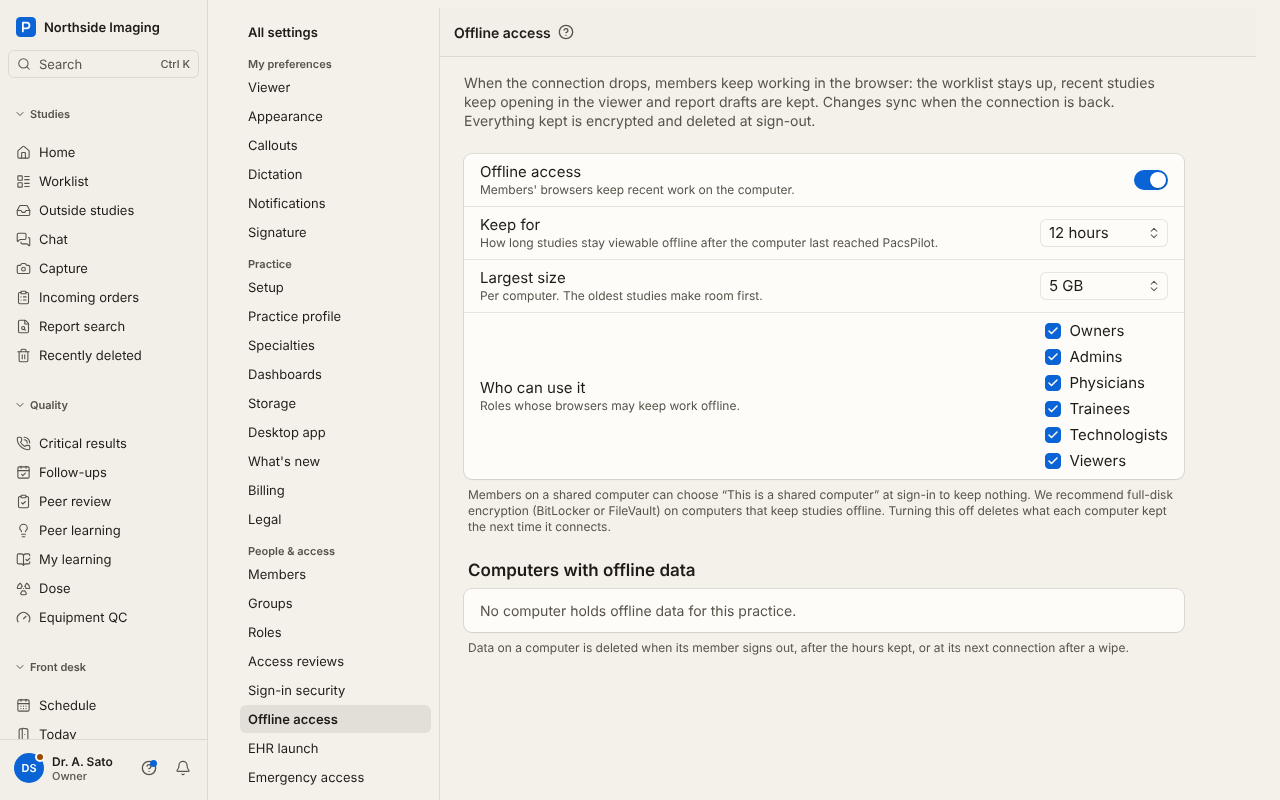
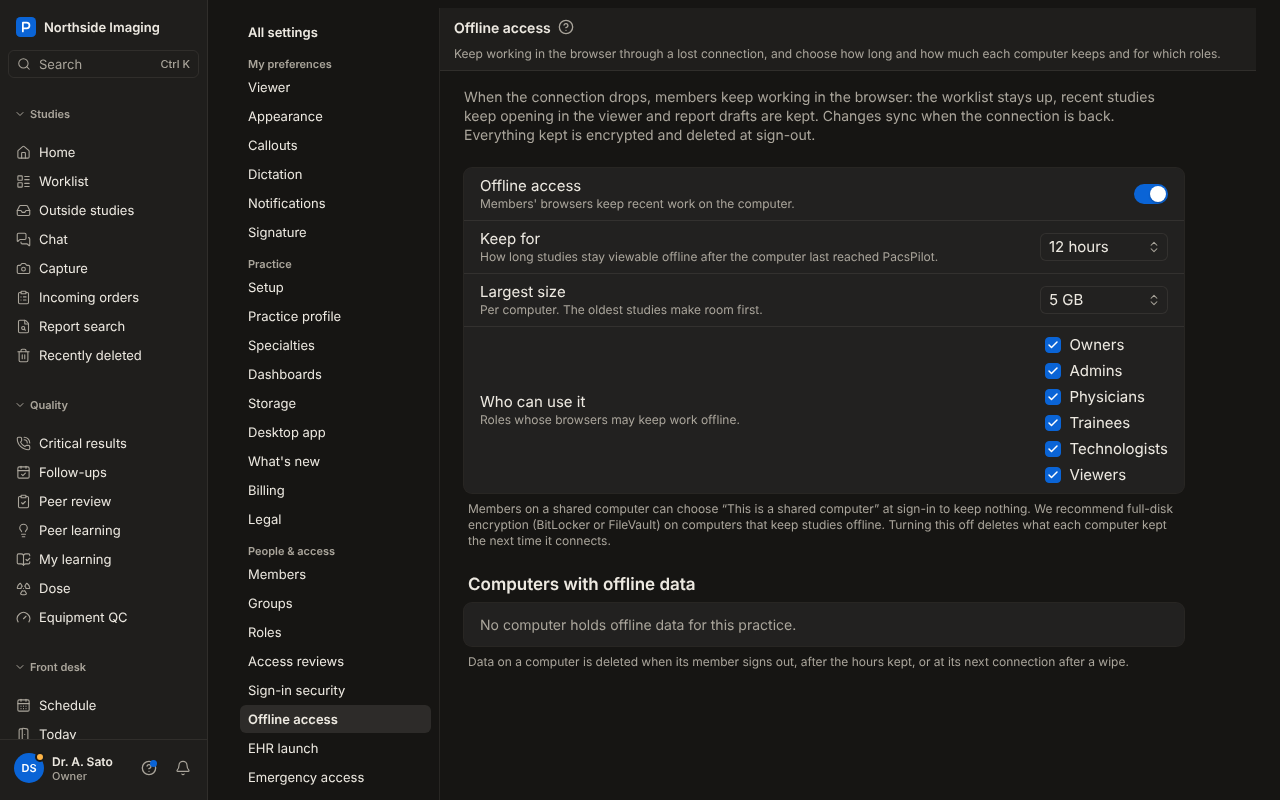
A train, a car, or a hospital Wi-Fi drop should not stop a reading session. With offline access on, members keep working in the browser while the connection is gone: the worklist stays up, studies they opened recently keep opening in the viewer, and report drafts are kept. Changes made offline sync by themselves when the connection is back.
Settings › Offline access decides whether members' browsers keep this work on the computer, for how long, how much space it may use, and which roles may use it. It is on for every practice unless you turn it off.
Signing reports always needs a connection.
Who can use it
Owners and admins can open this page. It needs the tenant.settings permission, so a
custom role with that permission can open it too.
How to change what is kept
- Choose Keep for: how long studies stay viewable offline after the computer last reached PacsPilot (1 to 72 hours).
- Choose Largest size for each computer (1 to 50 GB). The oldest studies make room first.
- Under Who can use it, tick the roles whose browsers may keep work offline.
Each change saves as soon as you make it.
How to turn offline access off
- Switch off Offline access.
Each computer deletes what it kept the next time it connects. The offline notice still shows when the connection drops, so members know why an action did not go through.
Computers with offline data
The list under the settings shows each computer that holds offline data for your practice, whose it is, and when it last connected. To wipe one, for example a lost laptop:
- Open the ⋯ menu on its row and choose Wipe on next connection.
The data on that computer can no longer be unlocked online straight away, and the browser deletes it the next time it connects. Each member sees their own computers in Passkeys and sessions in the account menu, and can wipe them there too.
Unlocking offline data after a reload
While a tab is open, the offline data stays unlocked through an outage. If the page reloads or a new tab opens with no connection and no other PacsPilot tab is open, the page says You're offline:
- Unlock with passkey works when the member has set it up on that computer: account menu › Passkeys and sessions › Use a passkey offline. It needs a browser and passkey that support it (most recent Chrome, Edge and Safari versions with Touch ID, Windows Hello or a phone passkey).
- Otherwise what's kept on the computer opens as soon as the connection is back.
Fields and columns
| Name | What it means |
|---|---|
| Offline access | Members' browsers keep recent work on the computer. |
| Keep for | How long studies stay viewable offline after the computer last reached PacsPilot. |
| Largest size | The most space offline data may use on one computer. |
| Who can use it | Roles whose browsers may keep work offline. Members in other roles see only the notice. |
Everything kept is encrypted and deleted at sign-out. Members on a shared computer can choose This is a shared computer when they sign in, and nothing is kept for that sign-in. We recommend full-disk encryption (BitLocker or FileVault) on computers that keep studies offline.
If something goes wrong
- Could not load the settings: press Retry.
- Could not change the setting: the switch or choice goes back to what it was. Try again.
- Settings changed at the same time; try again: someone else changed this page at the same time. Reload it and make your change again.
- This browser or passkey cannot unlock offline data: the passkey or browser lacks the support offline unlock needs. Reconnecting still unlocks the data.
Related
Updated October 22, 2026. Signed in? The same article is in the app's help panel: press
?.