Billing
See your practice's plan, trial and subscription, usage and prices, the next invoice's usage lines and past invoices, and manage payment methods in Stripe.
What this page is for
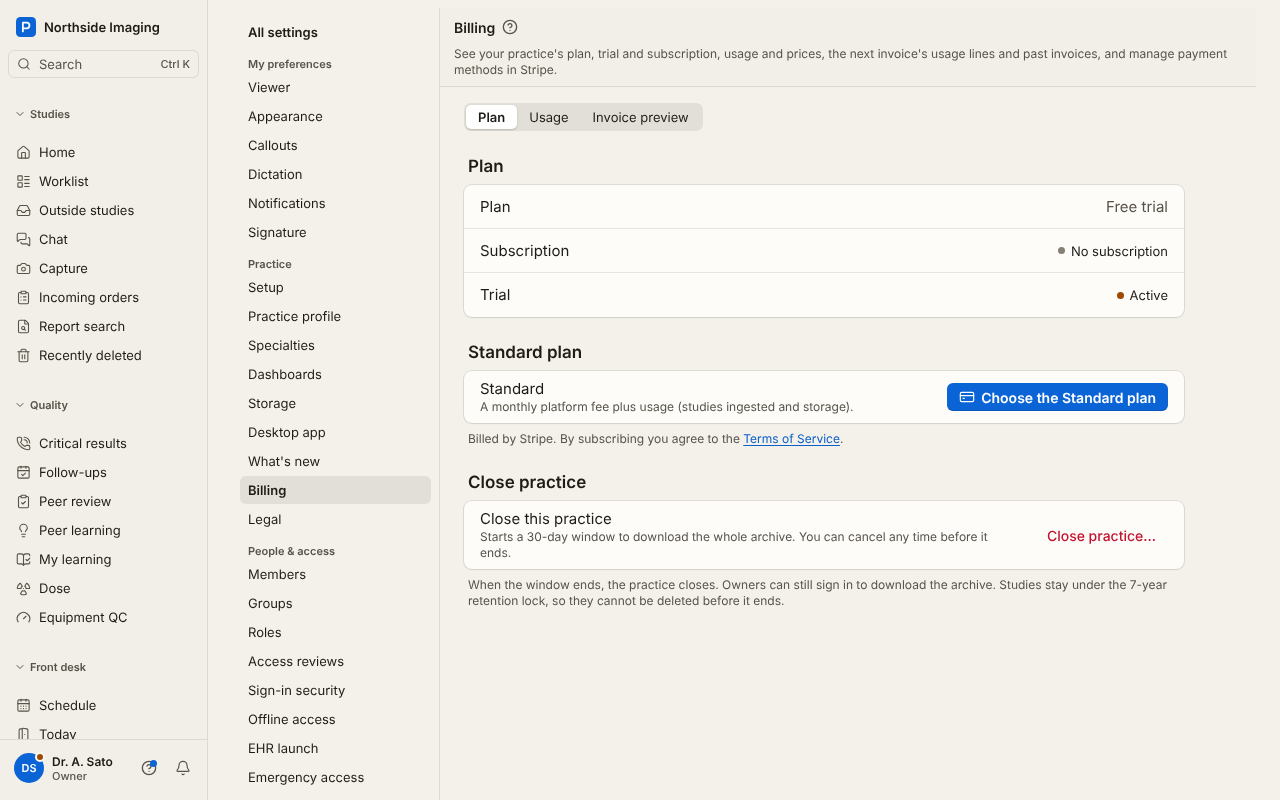
Settings › Billing shows your practice's plan, the state of its subscription and, during a trial, when the trial ends. From here you subscribe to the Standard plan, and open Stripe to manage payment methods, invoices and cancellation.
Billing is handled by Stripe. Subscribing and managing payment open Stripe's own pages, which bring you back here when you finish.
The page has up to four tabs:
- Plan: the plan, subscription, payment and closing the practice.
- Usage: each billable item this billing period and in past periods, with quantity, unit price and amount.
- Invoice preview: the usage lines your next invoice will carry so far.
- Invoices: past invoices from Stripe, with a link to open each one.
Usage and Invoice preview appear once PacsPilot counts usage for your account. Invoices appears once your practice has a Stripe customer record.
Who can use it
Only owners can open this page. It needs the billing permission, which only the owner role has and which a custom role cannot grant. Admins and other members do not see it in Settings.
How to subscribe to the Standard plan
- Open Settings › Billing.
- Under Standard plan, press Choose the Standard plan. Stripe Checkout opens.
- Enter your payment details in Stripe and confirm.
- Back on this page, a banner says "Thanks, your subscription is being set up." The page updates once Stripe confirms it.
The Standard plan is a monthly platform fee plus usage (studies ingested and storage). By subscribing you agree to the Terms of Service.
How to update your payment method or see invoices
- Under Payment, press Manage next to Payment method and invoices.
- Stripe opens. Change the payment method, download invoices or cancel the subscription there.
Manage shows once your practice has a Stripe customer record, which is created when you first go to checkout.
How to see your usage
- Open Settings › Billing and choose the Usage tab.
- The table lists each billable item, such as studies ingested, storage or fax pages, with the quantity, the unit price and the amount.
- To see an earlier period, choose it under Billing period. A period that was already invoiced shows Invoiced next to the total.
Usage is counted each night for the day before. Items marked Estimated, such as viewing bandwidth, are measured from samples. When the quantity charged is lower than the quantity used, for example because some pages are included in your plan, the table shows both.
When the period has a Dictation line, Dictation by user below the table lists each person's dictation minutes, sessions and last use, so you can see who dictated. It shows minutes only; the price is on the Dictation line.
When a price is going up, a notice at the top of Usage says which item, the old and new unit price and the date it changes, at least 30 days ahead. Owners also get an email.
What messaging costs appear on my bill?
Emails, text messages and faxes your practice sends are grouped under Messaging at the top of the Usage tab, with the quantity, unit price and amount of each and a subtotal.
- Emails counts every email PacsPilot sends for your practice: alerts and digests, shared images and upload links, reports and exports, invitations, patient portal notices and reminders. PacsPilot's own mail to you, such as sign-in links and billing notices, is not counted.
- Emails by kind splits the email count by what was sent, so you can see what drove it. The bill has one Emails line; the kinds are not priced separately.
- Text messages counts message segments, and Fax pages and Dedicated fax numbers count faxes sent and fax numbers held.
- The bars below show messages per day for the last 30 counted days.
An email the practice's daily email limit stopped is not counted. Messaging lines that round to $0.00 are left off the invoice but still show here.
Image processing is the processor time used for your images, in vCPU-minutes. Under the usage table, Image processing by job splits it by job, such as storing images, preparing studies for viewing, downloads and de-identification.
How to check the next invoice
- Choose the Invoice preview tab.
- Each line shows the item, the quantity and the unit price, for example "Fax pages, 1,240 × $0.09", and the amount rounded to the cent.
Items priced at $0 are left off the invoice. The lines are added to the invoice for the period when Stripe creates it, next to your plan's monthly fee.
If a banner says Estimates only, usage is counted and priced but not on your invoices yet. Your plan is billed as before.
How to see past invoices
- Choose the Invoices tab.
- Press Open on an invoice to see it in Stripe, where you can download it or pay it.
Invoices that Stripe is still preparing are not listed until they are final.
How to close your practice
Close practice appears at the bottom of this page once self-service closing is available for your account.
- Press Close practice… and read the confirmation.
- Press Confirm with passkey and close, then confirm with your passkey.
- For the next 30 days everything works as usual. Download the whole archive from Settings › Migration.
- When the 30 days end, the practice closes. A practice that went live keeps its studies under the 7-year retention lock, and owners can still sign in to download the archive. A trial's data is deleted.
To change your mind, press Keep the practice before the 30 days end. Closing does not cancel your plan: cancel it with Manage under Payment method and invoices.
Fields and columns
| Name | What it means |
|---|---|
| Plan | Free trial or Standard. |
| Subscription | No subscription, Active, Payment overdue, Canceled, Waiting for payment, or Needs attention for any other state. |
| Trial | Shown during a trial without a subscription: when the trial ends, with an Active or Ended badge. |
| Status | Read-only when the practice is suspended. Restore the subscription to upload again. |
| Standard plan | Shown while the practice has no active subscription. Choose the Standard plan opens Stripe Checkout. |
| Payment method and invoices | Manage opens the Stripe customer portal. |
| Close practice | Starts or cancels the 30-day window before the practice closes. |
| Item | On Usage: the billable item. Estimated marks items measured from samples. |
| Quantity | On Usage: how much was used, in the item's unit, and how much was charged when that is lower. |
| Unit price | On Usage: your price for one unit. |
| Amount | On Usage: quantity charged × unit price. On Invoice preview: the line's amount, rounded to the cent. |
| Invoice, Date, Total | On Invoices: the Stripe invoice number, when it was issued, and its total. |
| Status | On Invoices: Paid, Due, Unpaid, Void, or Needs attention for any other state. |
If something goes wrong
- Payment overdue: update your payment method with Manage to keep uploading.
- Needs attention: Stripe reports a state this page does not show. Use Manage under Payment method and invoices to see it in Stripe.
- Your trial has ended. The practice is read-only until you choose a plan.: press Choose the Standard plan.
- Read-only: the practice is suspended. Restore the subscription to upload again.
- Checkout was canceled. Nothing was charged.: you left Stripe Checkout before paying. Press Choose the Standard plan to try again.
- This practice already has a subscription; use the billing portal: use Manage instead.
- A sandbox practice cannot subscribe or go live: sandbox practices hold synthetic data only and cannot have a plan.
- Billing is not available for this practice: contact PacsPilot support.
- Could not load billing: reload the page.
- Could not load usage, Could not load the invoice preview or Could not load invoices: press Retry.
- No usage in this period yet: usage is counted each night, so a new period fills in from the next day.
Related
Updated October 26, 2026. Signed in? The same article is in the app's help panel: press
?.