Routing
Send matching studies automatically to DICOM devices, DICOMweb receivers or reading pools by rule, and follow every send.
What this page is for
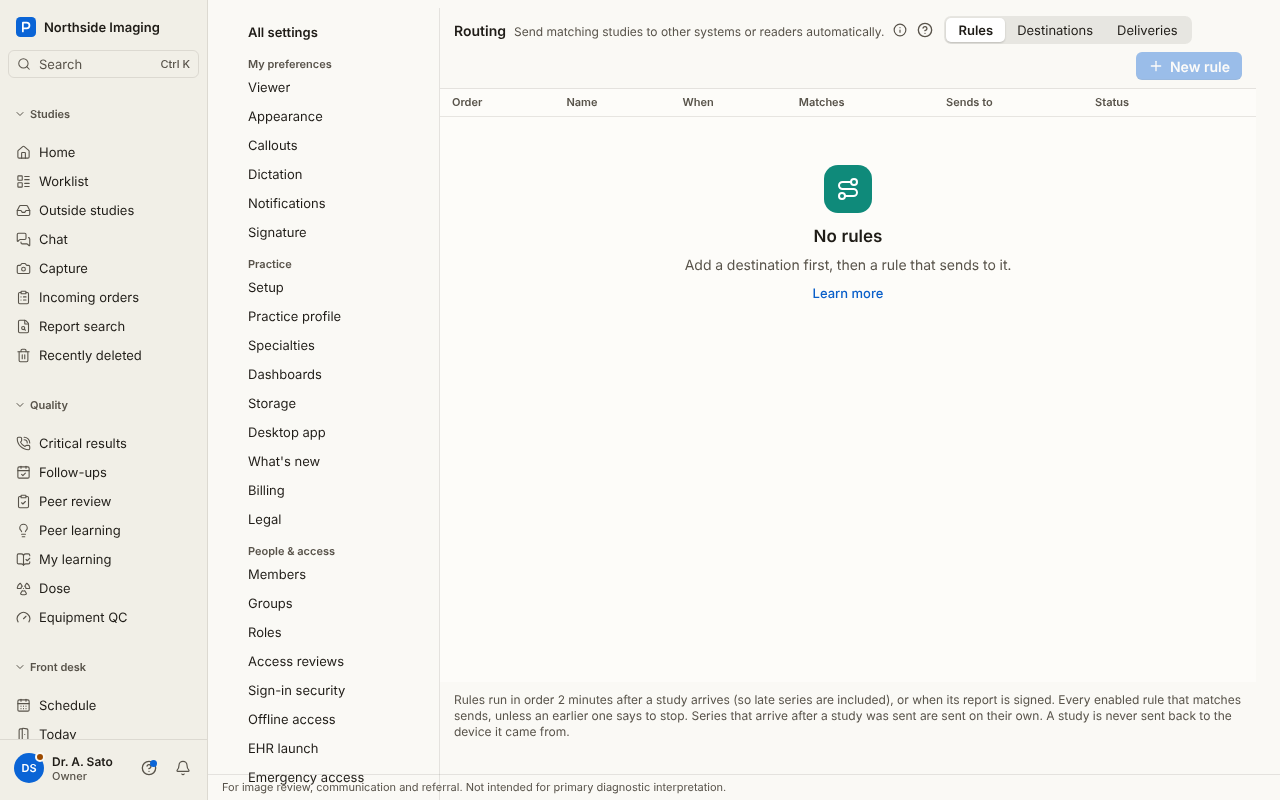
Settings › Routing sends matching studies to other systems or readers automatically. It has three tabs:
- Rules: ordered rules that say which studies to send, when, and where.
- Destinations: where studies go. A destination is a DICOM device behind a site agent, a DICOMweb (STOW-RS) receiver, or a reading pool of members.
- Deliveries: every send, with its status, and Retry and Cancel.
Rules run in order 2 minutes after a study arrives (so late series are included), or when its report is signed. Every enabled rule that matches sends, unless an earlier one says to stop. Series that arrive after a study was sent are sent on their own. A study is never sent back to the device it came from.
Who can use it
Owners and admins can open this page. It needs the admin.users permission.
Routing is turned on with the Routing switch on
Sites, which needs the
tenant.settings permission. Routing shows in Settings once it is on.
While it is off, the page says
Routing is off: rules are saved but nothing is sent.
Rules and destinations that an AI app owns show Managed by AI hub and are changed on AI apps only.
How to add a destination
- Choose the Destinations tab and press New destination.
- Choose the Kind: DICOM device, DICOMweb (STOW-RS) or Reading pool.
- Enter a Name and leave Destination is on switched on.
- For a DICOM device, choose the Device. Studies are sent by the site agent on that device's network (C-STORE). The device must be listed on Sites under a site agent that is up to date.
- For DICOMweb, enter the STOW-RS URL (a public https address), choose the Format and the Credentials, and tick The practice has a business associate agreement with this receiver. Studies are sent with patient details.
- For a reading pool, tick the Readers. Each study is assigned to the reader with the fewest unread studies who can see it.
- Press Create destination.
To check a DICOMweb destination, press Test on its row. The test sends no study data.
How to add a rule
- Add at least one destination first.
- Choose the Rules tab and press New rule.
- Enter a Name and leave Rule is on switched on.
- Under Send when, choose Study arrives or Report signed.
- Under Match studies, fill in only what you need. Leave a field empty to match anything; a study must match every field you fill in.
- Tick Also send prior studies fetched from other systems or Stop here: later rules do not run for studies this rule matches if you need them.
- Under Send to, tick one or more destinations.
- Press Create rule.
Use the up and down arrows on a row to change the order. Press Preview to see how many recent studies match a rule. Nothing is sent by a preview.
How to follow and fix sends
- Choose the Deliveries tab.
- Use All, Waiting, Failed, Sent or Cancelled to narrow the list.
- Read the reason under a failed send's status.
- Press Retry on a failed or cancelled send, or Cancel on one that is waiting or running. With more than one failed send shown, Retry all failed sends each of them again after you confirm.
- Press Show more to load older sends.
Fields and columns
| Name | What it means |
|---|---|
| Rules, Destinations, Deliveries | The page's three tabs. |
| New rule, New destination | Add a rule or destination. New rule needs a destination first. |
| Order | The order rules run in. |
| Name | The rule's or destination's name. |
| When | Study arrives or Report signed. |
| Matches | What the rule matches, or Every study, plus priors too and then stop when set. |
| Sends to | The rule's destinations. |
| Status (rules and destinations) | On or Off. |
| Preview, Edit, Delete | Count matching studies, change, or delete. A destination a rule still sends to cannot be deleted. |
| Kind | DICOM device, DICOMweb (STOW-RS) or Reading pool. |
| Target | The device and site, the STOW-RS URL, or the pool's readers. |
| Test | Checks a DICOMweb destination with its saved credentials. |
| Modalities | Any of these, separated by commas, such as CT, MR. |
| Body parts | As written in the series' Body Part Examined, such as CHEST, HEAD. |
| Arrived from | Gateway, Site agent, Browser upload, DICOMweb (STOW), Fetched prior, Outside upload link or Migration. |
| Sites | Only studies from these sites. |
| Sent by (AE titles) | The device that sent the study through a site, separated by commas. |
| Study description starts with | Matches the start of the study description. |
| Device | The DICOM device a destination sends to. |
| STOW-RS URL | The receiver's public https address. |
| Format | Standard (Explicit VR Little Endian) or As stored (HTJ2K compressed). Most receivers need standard uncompressed images. |
| Credentials | None, User name and password, or Access token. Stored encrypted and never shown again. |
| Also send AI results | Sends SR and SEG series from AI apps. Off, AI results stay in PacsPilot. Shown when AI apps are available. |
| Readers | Members in a reading pool. Viewers cannot be in a pool. |
| Study | The patient, accession number and description, and late images sent on their own. |
| Destination, Rule | Where it went and which rule sent it, or Sent by hand. |
| Status (deliveries) | Queued, Running, Done, Failed or Cancelled, with the reason and how many images were sent or refused. |
| Queued | When the send was queued. |
| Retry, Cancel, Show more | Send again, stop a send, or load more. |
| Retry all failed | Sends every failed delivery shown again. The count next to the filter is how many deliveries are shown. |
If something goes wrong
- Routing is off: rules are saved but nothing is sent: turn on Routing on Sites.
- No rules with Add a destination first: create a destination, then a rule.
- Pick at least one destination: tick a destination under Send to.
- Could not load routing: press Retry. Could not load deliveries: reload the page.
- Add the device in Sites, under a site agent that is up to date, to send studies to it: list the device on Sites and update the agent if needed.
- Confirm the practice has a business associate agreement with this receiver: tick the agreement box before turning the destination on.
- The STOW-RS URL is not usable: use a public https address of the receiver.
- Another destination has that name: choose another name.
- The rule "…" sends here; change it first: remove the destination from that rule, then delete it.
- Only failed or cancelled sends can be retried or This send already finished: reload the list.
- Delivery reasons such as The device did not answer. Check that it is on and its address and port., The receiver refused our credentials (401). Update them in Destinations. or The destination needs a business associate agreement confirmed: fix what the reason names, then press Retry.
- No pool member can see this study: add a reader who can see that study to the pool.
Related
Updated October 19, 2026. Signed in? The same article is in the app's help panel: press
?.