Retention
Decide how long each kind of study is kept, place legal holds, and dispose of old studies through purge batches a second person approves.
What this page is for
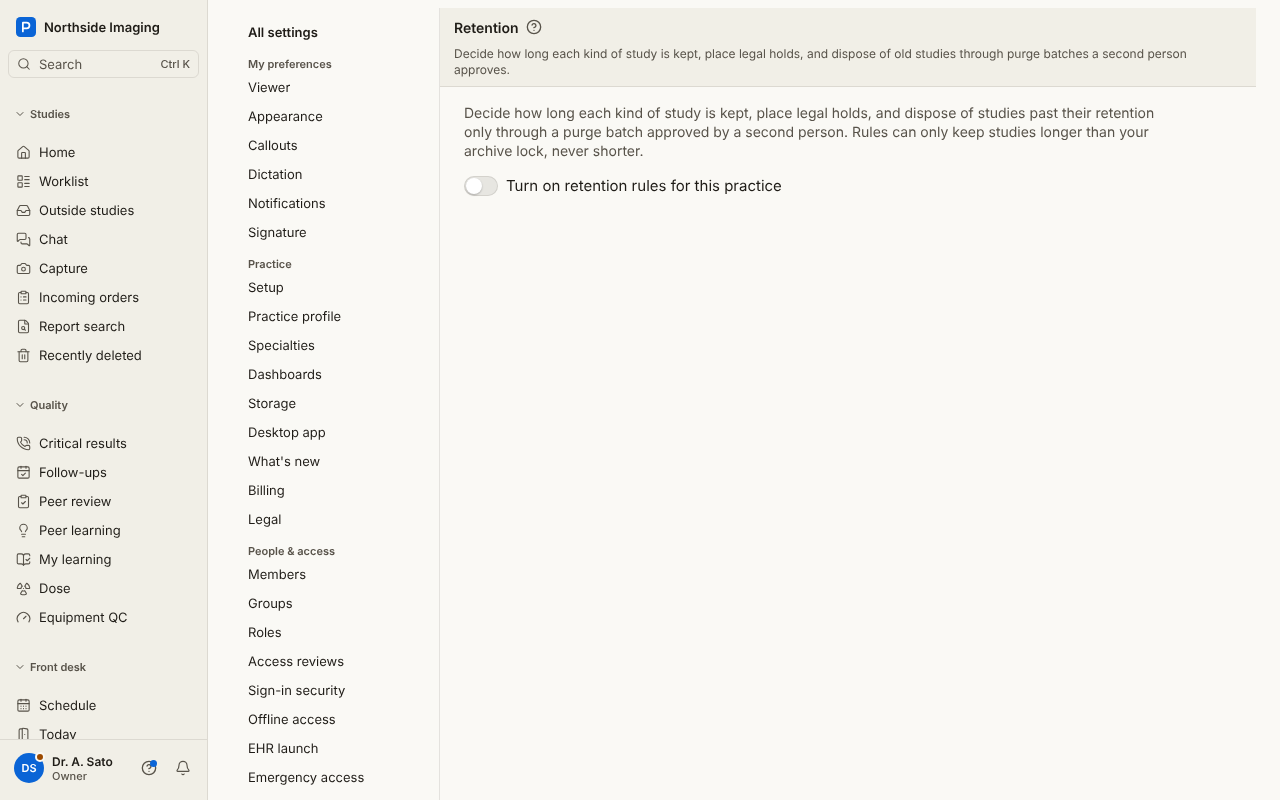
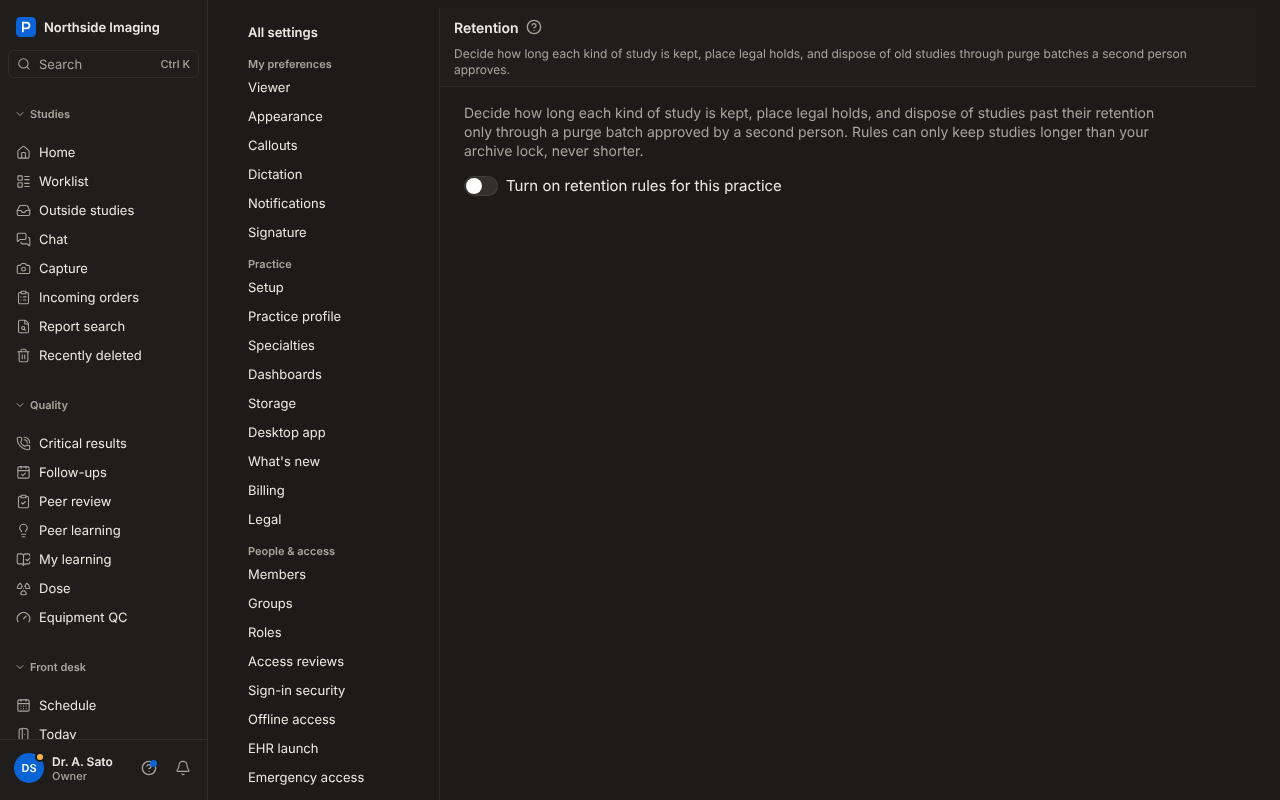
Settings › Retention decides how long each kind of study is kept, places legal holds, and disposes of studies past their retention only through a purge batch approved by a second person. Rules can only keep studies longer than your archive lock, never shorter.
Once retention is on, the page has three tabs:
- Policy: the retention rules, saved as numbered policy versions.
- Legal holds: holds on a patient or a study that block deletion and purges.
- Purge: eligibility reports and purge batches.
Saving a policy deletes nothing. Studies past their retention only become candidates in an eligibility report after the archive lock ends and when they have no legal hold or active share link.
Who can use it
Owners and admins see the whole page. It needs the tenant.settings permission.
Members with the retention.approve permission but not
tenant.settings (physicians, by default) see only Purge batches,
where they can approve or reject batches someone else requested.
Retention is off until an owner or admin switches on Turn on retention rules for this practice. Legal holds are enforced either way.
How to set the retention policy
- Switch on Turn on retention rules for this practice and choose the Policy tab.
- Press Add rule, or Edit on a rule.
- Enter a Name. Under Applies to, fill in only what the rule should match, or leave every field empty for the default rule.
- Under Keep, choose For a number of years from the study date, Until the patient reaches an age, plus years, or Forever.
- Press Add rule or Update rule.
- Check the preview below the table: how many sampled studies are kept by the rules, past their retention, or need review.
- Press Save policy.
Every matching rule applies and the longest wins. The policy needs a default rule that applies to every study before it can be saved. A policy holds at most 50 rules. Discard changes goes back to the saved version.
How to start from a state preset
- On the Policy tab, press Start from a state preset.
- Choose the State and read its values. Each shows Reviewed or Needs legal review.
- Type your practice name to confirm that your own counsel approved these retention periods.
- Press Replace rules with this preset, review the rules, then press Save policy.
Presets are a starting point only. PacsPilot has not had these periods reviewed by counsel, and your practice is responsible for the periods it saves. Stop using the preset keeps the rules but drops the link to the preset.
How to place or release a legal hold
- Choose the Legal holds tab and press Add hold.
- Choose Patient or One study.
- For a patient, enter the Patient ID (MRN) and, if needed, the Issuer of patient ID. The hold covers every study of this patient, including ones that arrive later. For one study, enter the Study instance UID.
- Enter the Reason and, if you want, a Reference such as a matter or ticket number.
- Press Place hold.
To end a hold, press Release, enter a Reason, and press Release hold. Once released, the covered studies can be deleted again, and studies already deleted are purged when their lock allows.
How to purge studies past their retention
- Save a policy first.
- Choose the Purge tab and press Run report. The report checks every study against your saved rules, the archive lock, legal holds and share links. It deletes nothing.
- When it finishes, read how many studies are in each state, and use Show studies to list them. Export CSV downloads the report.
- Press Request purge batch. Optionally enter a Study year to include only that year, and a Note. Press Request batch.
- A different member approves the batch under Purge batches: press Approve, check See the studies if needed, and press Approve and delete, then confirm with a passkey.
A batch holds up to 500 eligible studies and must be approved within 14 days. Each study is checked again at approval. Studies still eligible leave the worklist at once, can be restored from Recently deleted for 7 days, and their images are then erased for good. The member who requested a batch can Cancel it; anyone else who can approve can Reject it.
Fields and columns
| Name | What it means |
|---|---|
| Turn on retention rules for this practice | Turns retention on and shows the tabs. |
| Policy, Legal holds, Purge | The page's tabs. |
| Archive lock note | How many years studies are locked from receipt. Rules cannot be shorter. |
| Version, saved | The saved policy version and when it was saved. Unsaved changes while you edit. |
| Start from a state preset, Add rule, Save policy, Discard changes | Edit and save the policy. |
| Name (rules) | The rule's name. |
| Applies to | What the rule matches, or Every study (default). |
| Keep | How long the rule keeps a study. |
| In sample | How many sampled studies the rule matches. |
| Modalities | Any of these, separated by commas. MG covers mammography. |
| Also match studies with a breast body part on any series | Adds studies with a breast body part. |
| Patient younger than (years at the study) | Needs a birth date; studies without one need review. |
| Description contains | Any of up to 5 terms, separated by commas. |
| Procedure codes | From the linked order; any of these, separated by commas. |
| Keep studies, Years, Until age, Plus years | How long matching studies are kept. Years must be at least the archive lock. |
| Covers | The patient (with issuer) or study a hold covers. |
| Reason, Reference | Why the hold was placed, and a matter or ticket number. The reference is never included in emails. |
| Placed | When the hold was placed. |
| Status (holds) | On hold, or when it was released. |
| Add hold, Release | Place or end a hold. |
| Run report | Starts an eligibility report. |
| Studies by state | Eligible, Locked, Retained by rules, Legal hold, Shared and Needs review, with counts and sizes. |
| Show studies | Lists the studies in one state, or All studies. |
| Study UID, Modality, Year, State | The study and why it is or is not eligible. Needs review shows the reason, such as No study date or No birth date. |
| Keep until, Lock until, Size | When its retention and lock end, and its size. |
| Export CSV, Request purge batch | Download the report, or ask to dispose of its eligible studies. |
| Requested, By | When and by whom a batch was requested. |
| Studies, Size, Note | How many studies the batch holds (press it to see them), their size, and the note. |
| Status (batches) | Awaiting approval, Approved, Rejected, Cancelled or Expired. |
| Approve, Reject, Cancel | Decide a batch, or cancel your own. |
If something goes wrong
- Add a default rule that applies to every study before saving: add a rule with every Applies to field empty.
- Years must be a whole number from … (the archive lock) to 100: rules cannot be shorter than the archive lock.
- Age must be a whole number from 1 to 30 or Use at most 5 description terms: correct the rule.
- Type your practice name to confirm that your own counsel approved these retention periods: type the practice name exactly in the preset dialog.
- The policy was changed by someone else; reload and try again: reload the page and make your change again.
- An active hold already covers this: the patient or study is already on hold.
- No such study: check the Study instance UID.
- Save a retention policy before running a report: save a policy on the Policy tab first.
- A report is already running for this practice: wait for it to finish.
- The report … failed. Run it again.: press Run report.
- The report is more than 7 days old; run a new one: press Run report, then request the batch again.
- No eligible study matches: choose another study year, or leave it empty.
- A second person must approve the batch you requested: ask another owner, admin or physician to approve it.
- This batch expired; request a new one or This batch was already decided: request a new batch if you still need one.
- Needs review studies: fix the missing or unreadable study date or birth date with a correction. They are never eligible until corrected.
Related
Updated October 19, 2026. Signed in? The same article is in the app's help panel: press
?.