Eye screening
Grade diabetic eye screening photos from your capture sites, with an optional blind second reader, and see the program's results by site and reader.
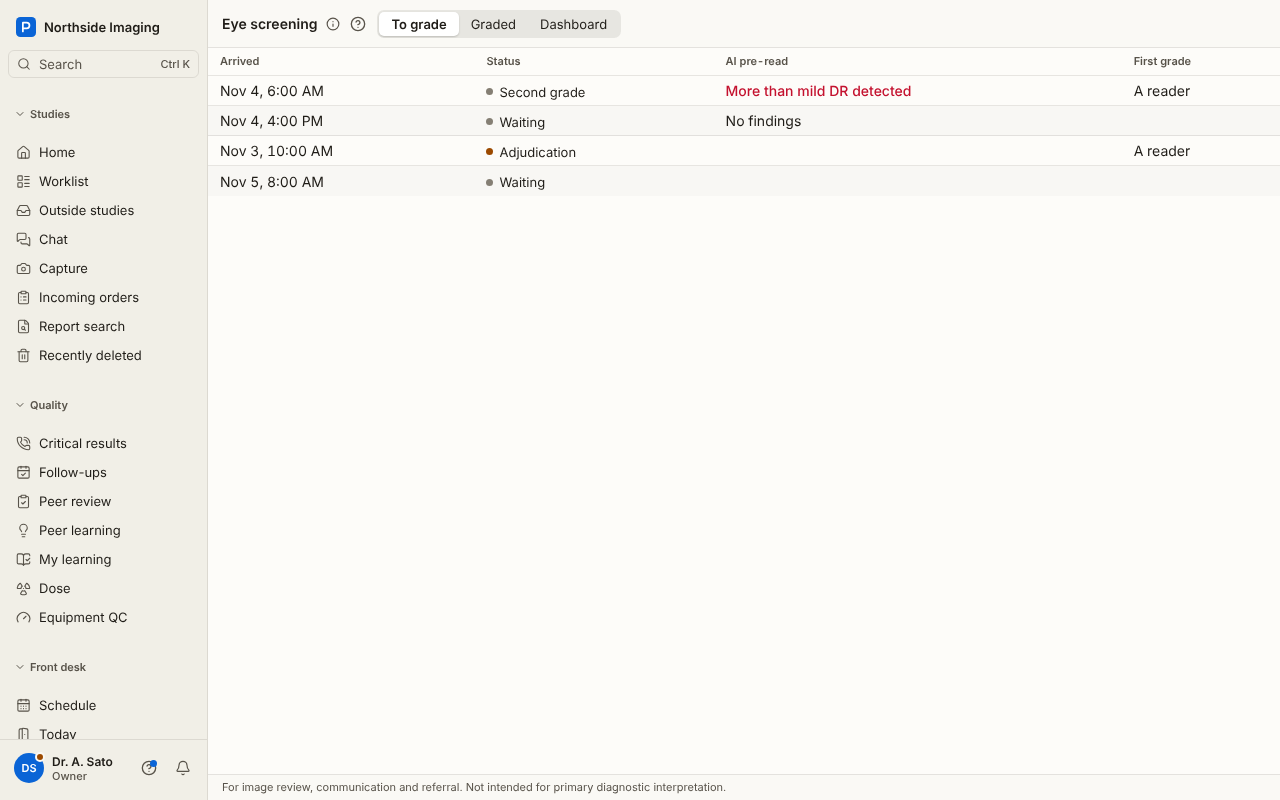
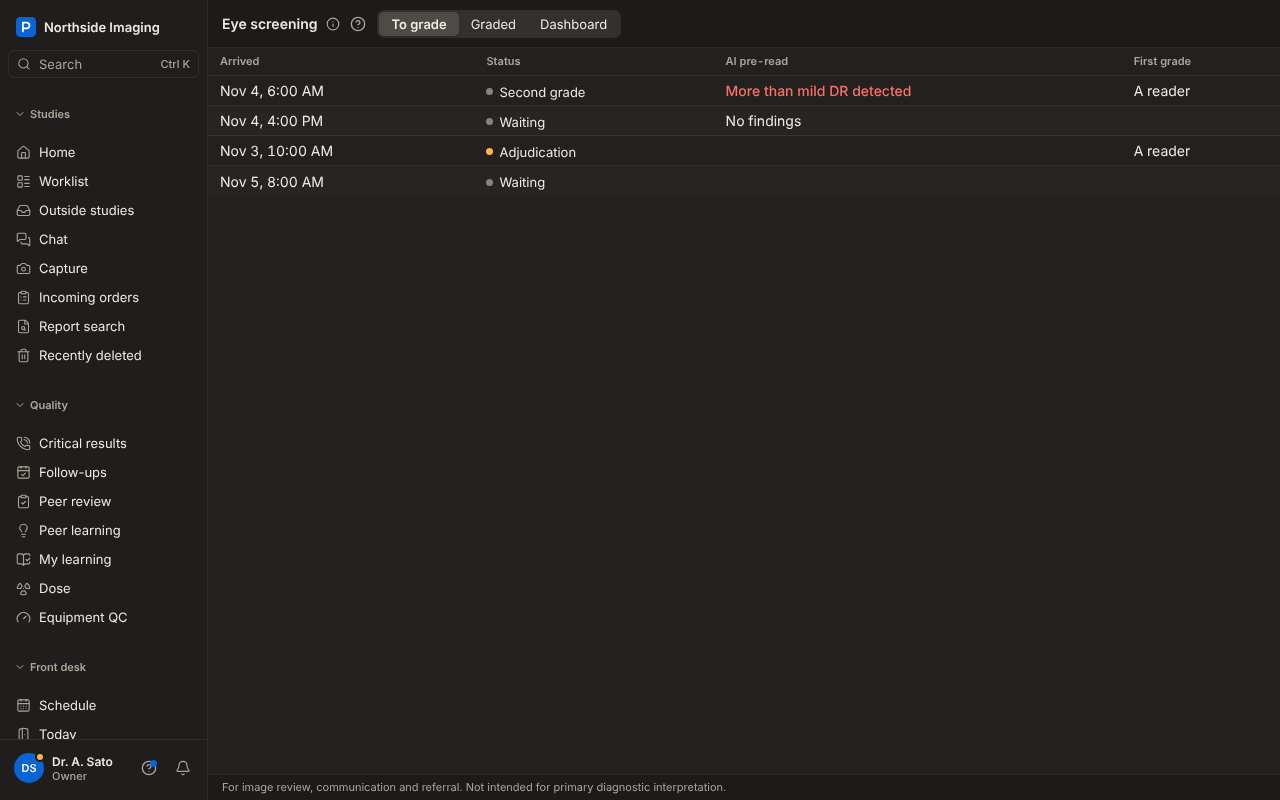
An eye screening program takes fundus photos from primary care clinics, pharmacies or mobile vans, has your readers grade them, and sends the result back with the date of the next screen.
What this page is for
The Eye screening page has three views. To grade is the queue of cases waiting for a grade. Cases with an urgent AI pre-read come first, then the oldest. Graded shows finished cases, newest first. Dashboard counts the program's cases for the last 30 days, 90 days or year.
Eye screening is part of the Ophthalmology pack and starts turned off. An owner or admin turns on Eye screening under Settings › Specialties, below Ophthalmology. While it is off, this page says so.
Who can use it
Owners, admins and physicians grade cases, and see only the studies their visibility group covers. Owners and admins set up programs and capture sites. The dashboard is open to anyone who can grade or manage.
How to set up a program
- Open Eye screening. With no program yet, owners and admins see Set up a screening program.
- Type the program's name. Tick A second reader grades every case blind if the program needs two readers.
- Choose Create program. Capture sites and recall rules are added through the API for now.
How to grade a case
- Choose a case in To grade. The form shows the diabetes type, the last HbA1c as the site typed it, and any symptoms.
- Choose Open the photos to read them in the viewer, then come back.
- For each eye, leave Gradable ticked and pick the retinopathy level and whether macular edema is present. Untick Gradable and pick the reason if the photos cannot be read.
- Pick the Referral, add a note if needed, and choose Save grade.
With a second reader on, the case waits for another reader, who does not see the first grade. If the two grades disagree, the case goes to adjudication, and the adjudicator sees both grades before saving the final one.
How to read the result letters
Choose a graded case, then Result letters. One letter goes to the capture site's referring doctor and one goes to the patient in plain words. Both give the date of the next screen.
Fields and columns
- Arrived: when the case came in from the capture site.
- Status: Waiting, Second grade, Adjudication or Graded. Waiting for another reader means you gave the first grade.
- AI pre-read: the words an AI hub app returned for the study, if your practice connected one. A pre-read only orders the queue. A reader grades every case.
- Result: the final referral.
- Dashboard: screened, graded, the share of cases where both eyes could be graded, the share of gradable cases that needed a referral, urgent referrals, median hours from arrival to final grade, and cases graded later than the program's turnaround.
If something goes wrong
- The page says eye screening is off: an owner or admin turns it on under Settings › Specialties.
- Someone else graded this case; reload it: another reader saved a grade first. Close the case and open it again.
- The second grade must come from another reader: you gave the first grade, so another reader grades it second.
- An urgent referral: the practice's webhooks hear about it, and with critical results on, it also becomes an urgent critical result for the referring doctor.
Related
Updated November 5, 2026. Signed in? The same article is in the app's help panel: press
?.