Critical results
Open critical result findings waiting for the referrer to acknowledge them or for a documented call, most urgent and oldest first.
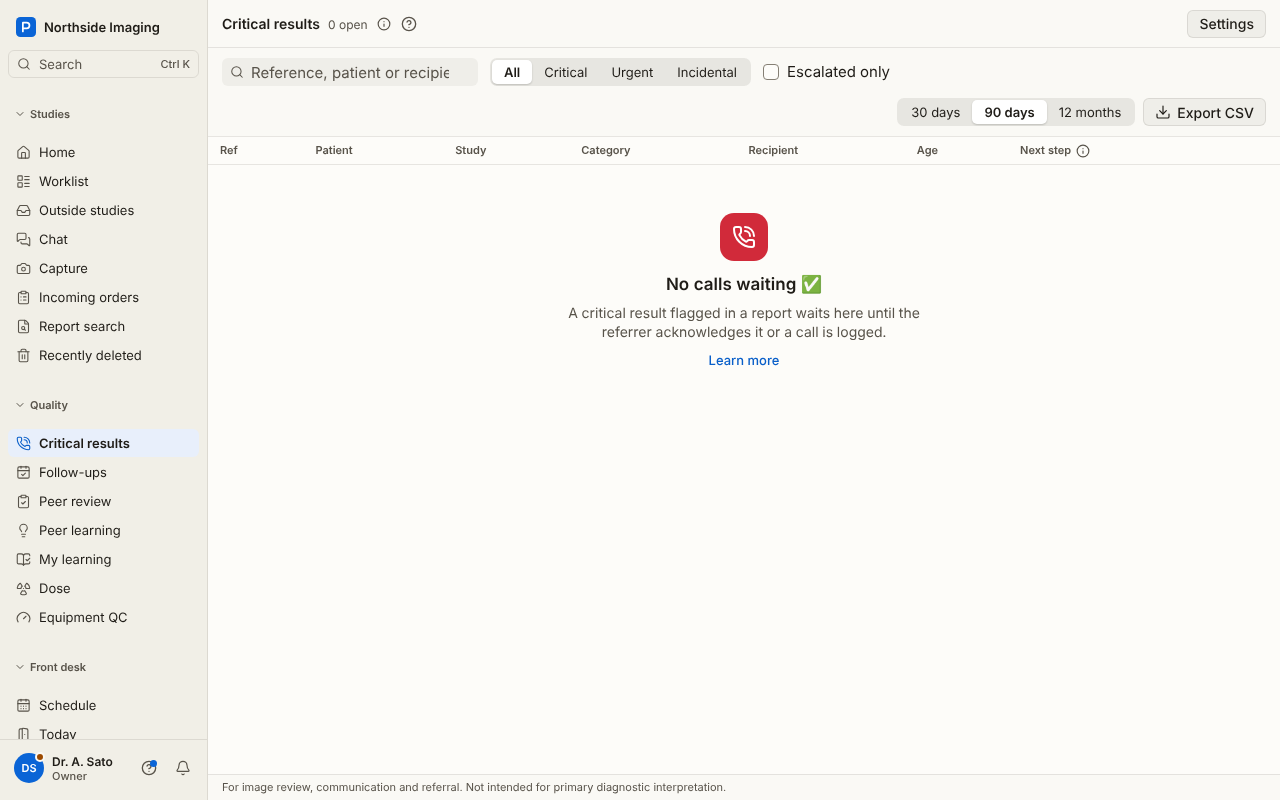
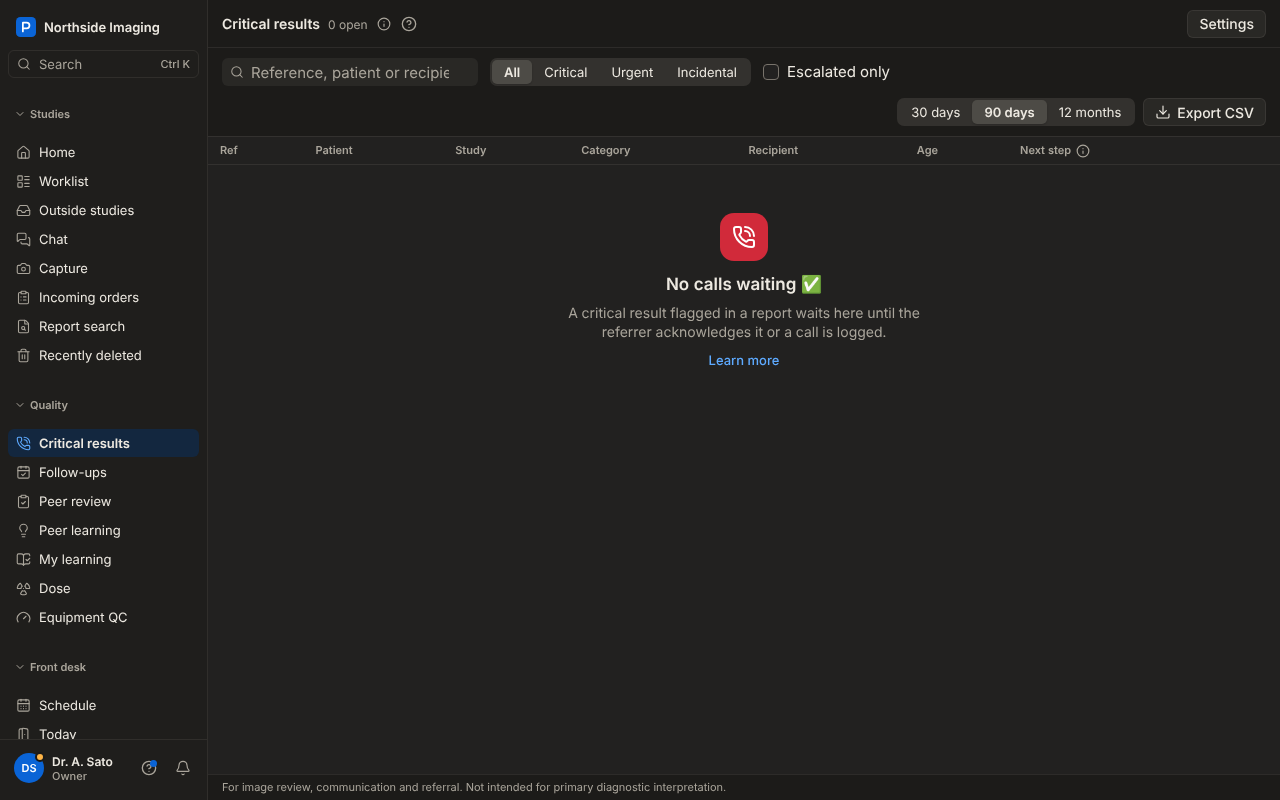
What this page is for
When a radiologist flags a critical result on the report page, PacsPilot sends a notice to the referring clinician and escalates until the loop closes. This page is the communications queue: every open finding you can see, sorted by level (critical, then urgent, then incidental) and then by age, oldest first. From here you document phone calls, resend the notice and open the report.
With the Vascular and vein pack on, the report page's flag dialog offers common vascular findings, such as acute DVT, free-floating thrombus or a pseudoaneurysm. One press starts the summary and picks your most urgent category; finish the sentence with the side and segment, and change the category if your policy says otherwise.
A finding leaves the queue when its category's closing condition is met. Depending on the category, that is a documented call where the referrer read the result back, or any acknowledgement (the link in the notice, an in-app acknowledgement or a call). The page refreshes on its own when a finding changes.
Who can use it
Owners, admins and physicians can use this page, or any member whose custom role includes "Document calls and work the communications queue". The Nurse navigator role made from Follow-ups includes it.
You may not see the page because:
- Critical results is off for the practice. An owner or admin turns it on in Settings › Critical results.
- Your role does not include the permission above. Technologists and viewers do not have it by default.
Export CSV shows only for members who can read the audit log (owners and admins by default). The Settings button shows only for members who can change practice settings.
You see only findings on studies inside your visibility group.
How to document a call
- Find the finding. Type a reference, patient name, MRN, category or recipient in Search critical results, or use the level filter.
- Press Document call on its row.
- Enter Who you spoke to and, if you like, Their role.
- Choose the Outcome. If you reached them and they repeated the result back, tick They read the result back to me.
- Check Time of the call. It starts at now; you can set it up to 24 hours back.
- Add a Note if needed, then press Save call.
If the call meets the category's closing condition, the finding closes and leaves the queue. Otherwise it stays open and escalation continues.
How to resend the notice
Press Resend on the row. PacsPilot emails the notice to the recipient again at once. Resend shows only when the recipient is a referrer from the directory. You can resend a finding at most 5 times an hour.
How to filter the queue
- Choose All, Critical, Urgent or Incidental to show one level.
- Tick Escalated only to show findings that have passed at least one escalation step.
- The level and Escalated only are kept in the page address, so you can share or reload the link. The search text is not kept, because it may hold a patient name.
- Press Show all open findings in an empty result to clear the search and filters.
The queue shows at most 200 open findings. The count under the title shows "200+" when there are more; use the filters to narrow it.
How to export turnaround times
- Choose 30 days, 90 days or 12 months.
- Press Export CSV.
The file has one row per finding flagged in that period, open or closed: reference, level, category, flag and close times in UTC, minutes to close, how it closed, status and the number of escalation steps. It holds no patient names and no finding text. The export is recorded in the audit log.
Fields and columns
| Name | What it means |
|---|---|
| Search critical results | Matches the reference, patient name, MRN, category or recipient of the findings already loaded |
| All, Critical, Urgent, Incidental | Show every level, or level 1, 2 or 3 only |
| Escalated only | Show only findings that have been escalated |
| 30 days, 90 days, 12 months | The period for Export CSV |
| Export CSV | Downloads the turnaround file for the chosen period |
| Settings | Opens Settings › Critical results |
| Ref | The finding's reference, such as CRF-7KQ2MX. Notices and acknowledgement links use it instead of patient details |
| Patient | The patient's name, with the MRN in brackets |
| Study | The study's modalities and description |
| Category | The finding category, colored by level. "Escalated" follows it when escalation has started |
| Recipient | The referrer or member the notice goes to, or "No recipient" |
| Age | How long ago the finding was flagged, in minutes, hours or days |
| Next step | The next escalation step and when it runs, such as "Notice sent again in 3 h", or "No steps left". Call needed means an escalation step asked someone to phone the recipient |
| Document call | Opens the call form |
| Resend | Sends the notice again now |
| Report | Opens the study's report page |
| Who you spoke to | The person you reached or tried to reach. Required, up to 128 characters |
| Their role | Their job, such as nurse or covering physician. Optional |
| Outcome | Reached, Left a message, No answer or Wrong number |
| They read the result back to me | Shown when the outcome is Reached. Tick it only when they repeated the result back |
| Time of the call | When the call took place. It cannot be in the future or more than 24 hours ago |
| Note | Optional, up to 500 characters |
| Save call | Saves the call to the finding's communication log |
If something goes wrong
- "Could not load the critical results queue": press Retry. If it keeps failing, reload the page.
- "The recipient has no email address; call them instead": the recipient has no email in the directory. Document a call, or add an email under Settings › Referrers.
- "At most 5 notices per finding per hour": wait before resending, or call the recipient.
- "This finding is closed or withdrawn" or "This finding was withdrawn": someone closed or withdrew it while you worked. The queue reloads without it.
- "The call time must be within the last 24 hours": set Time of the call to a time in the last 24 hours.
- "Critical results is turned off for this practice": an owner or admin turned the feature off. Ask them to turn it on in Settings › Critical results.
- A finding you expect is missing: it may be closed, or its study may be outside your visibility group.
Related
- Follow-ups: follow-up exams recommended in reports.
- Critical results settings: switches, categories and escalation steps.
- Referrers: the directory of clinicians that notices go to.
Updated November 1, 2026. Signed in? The same article is in the app's help panel: press
?.