PFT lab, sessions and trends
Read and sign pulmonary function tests from the PFT lab worklist, see the curves, and follow a patient's lung function over time.
What this page is for
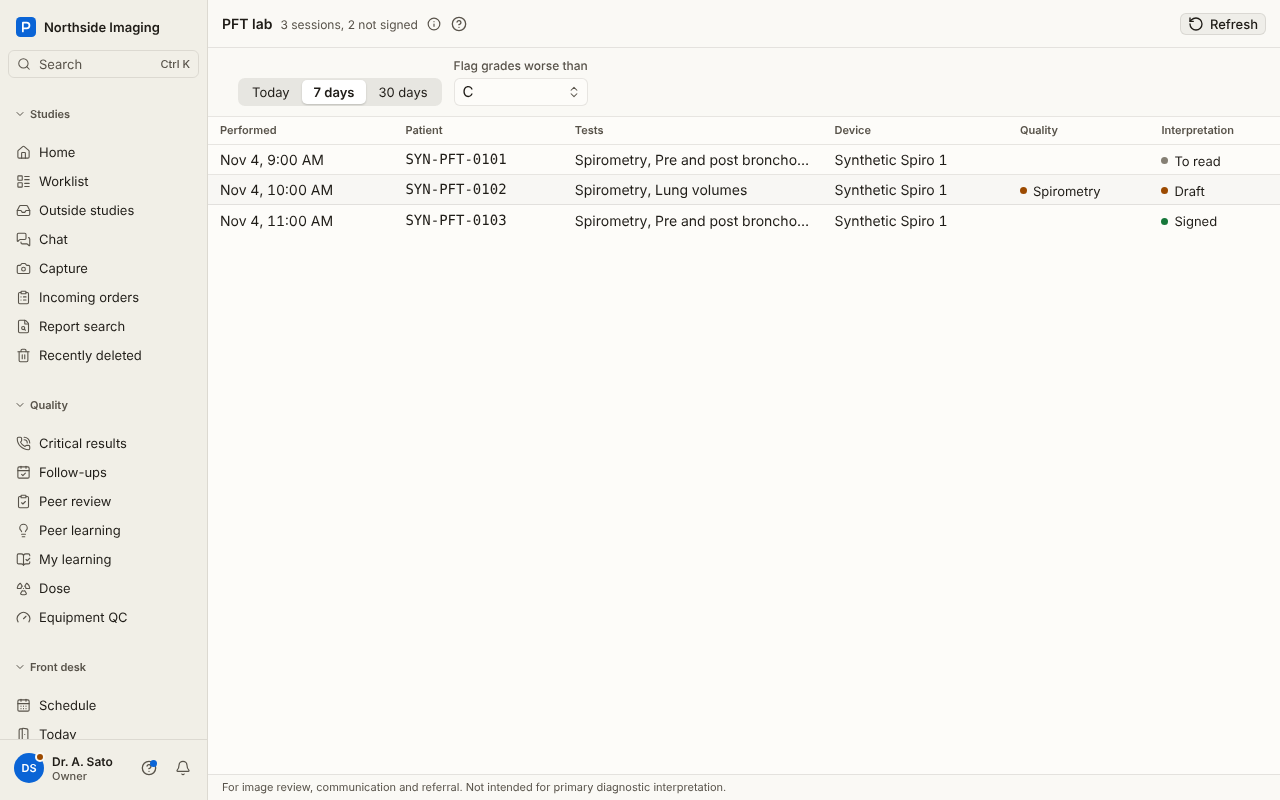
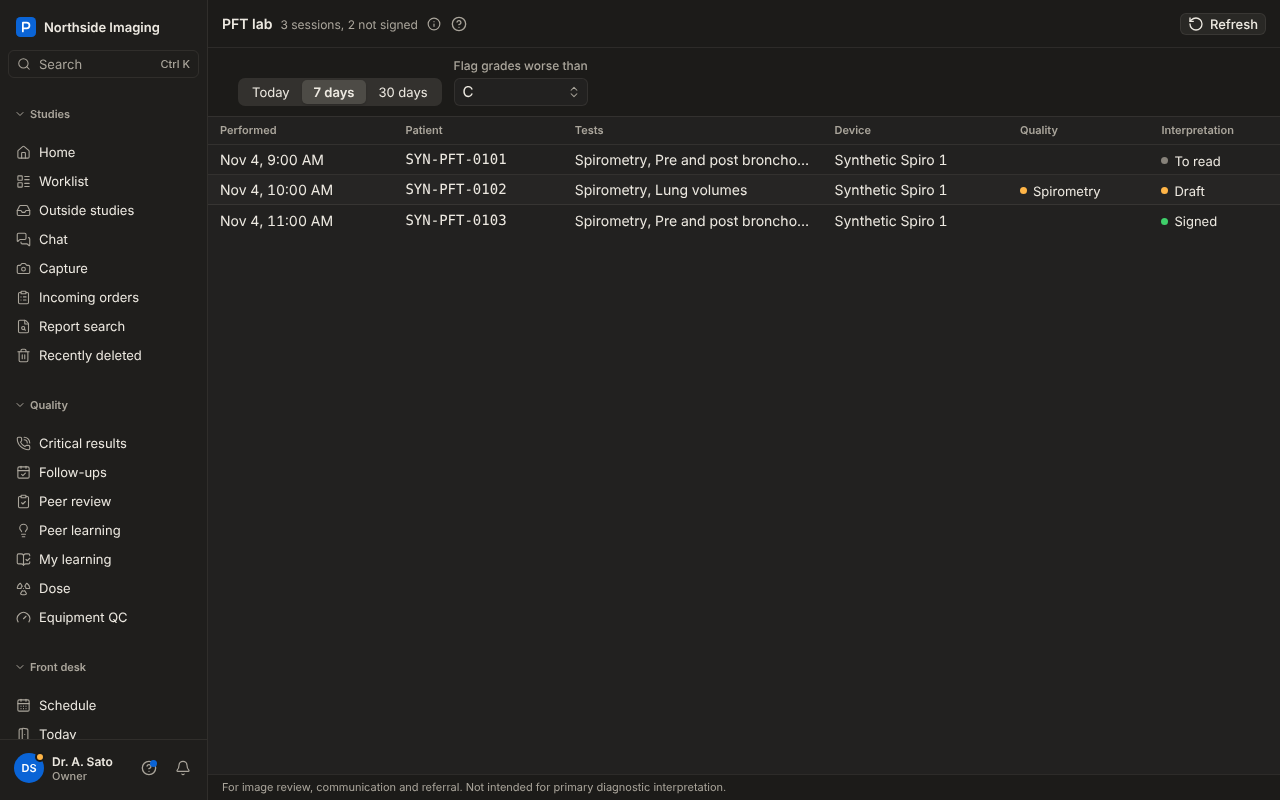
Specialties › PFT lab lists the pulmonary function test (PFT) sessions performed in the range you pick, newest first. Each row shows the tests in the session, the device, any test whose quality grade is worse than your threshold, and whether the interpretation is still to read, a draft or signed. Select a row to open the session.
The page appears while the Pulmonology pack is on under Settings › Specialties. See the Lung function (PFT) results help article for how results arrive.
Who can use it
Members who can see studies see the PFT lab and sessions for patients they can see. Members who can sign reports, such as physicians, interpret and sign. Members who can enter PFT results verify sessions someone else typed in.
How to work the list
- Open Specialties › PFT lab.
- Pick Today, 7 days or 30 days.
- Under Flag grades worse than, pick your lab's threshold. C is the default. Sessions with a test graded below it show that test in amber, so it can be repeated or noted in the report.
- Select a session to open it.
How to read and sign a session
The session page shows each measure before and after the bronchodilator with the device's own predicted value, % predicted, z-score and lower limit of normal (LLN). Where the PFT system sent curves, the flow-volume loop and volume-time curve show every effort, before the bronchodilator in blue and after in amber, with the device's best effort in bold.
- Pick the Pattern, Severity and Gas transfer.
- Type the Bronchodilator response as the PFT system reported it.
- Optionally write a Sentence for the patient in plain words.
- Select Save draft to come back later, or Sign to finish. A signed interpretation cannot be changed.
Once the pack's clinical reviewer has signed the pack off, a suggested pattern appears above the choices. It uses only the device's own z-scores and limits of normal, names the figures it used, and is never filled in for you.
A session typed in by hand shows a banner until another member selects Verify values. It cannot be signed until then.
Patient-friendly view
Select Patient-friendly on a session to see the plain-language summary: your sentence for the patient and each measure with the device's % of the expected value and whether it is in the normal range. The expected values are always the ones the PFT system calculated.
How to follow a patient over time
Select Trends on a session. Pick a measure and before or after the bronchodilator. The measured value is drawn as one line across all sessions. Wherever the device or the reference equations changed, a dashed line marks the change and a note names it, so a jump caused by new equations is never read as a change in the patient. The patient's sessions are listed below the chart.
Fields and columns
- Performed: when the PFT system says the tests were done.
- Patient: the patient ID the results came with.
- Tests: spirometry, bronchodilator, lung volumes, diffusion and the other tests in the session.
- Device: the PFT system's maker and model.
- Quality: tests whose device grade is worse than your threshold.
- Interpretation: To read, Draft or Signed.
If something goes wrong
- A session is missing: check the range, and that the patient is one you can see. Typed-in sessions appear as soon as they are saved; they count in trends only after they are verified.
- No curves: the PFT system did not send curve data for that session.
- No suggestion: the pack's clinical sign-off is not done yet, or the session lacks the FEV1/FVC figures it needs.
Related
- Specialties: the Lung function (PFT) results article covers how results arrive
- PFT vendor maps
Updated November 4, 2026. Signed in? The same article is in the app's help panel: press
?.