Urology clinic day
Today's urology patients with the imaging and device reports done that day, waiting for the urologist or seen, and the Urology worklist column.
What this page is for
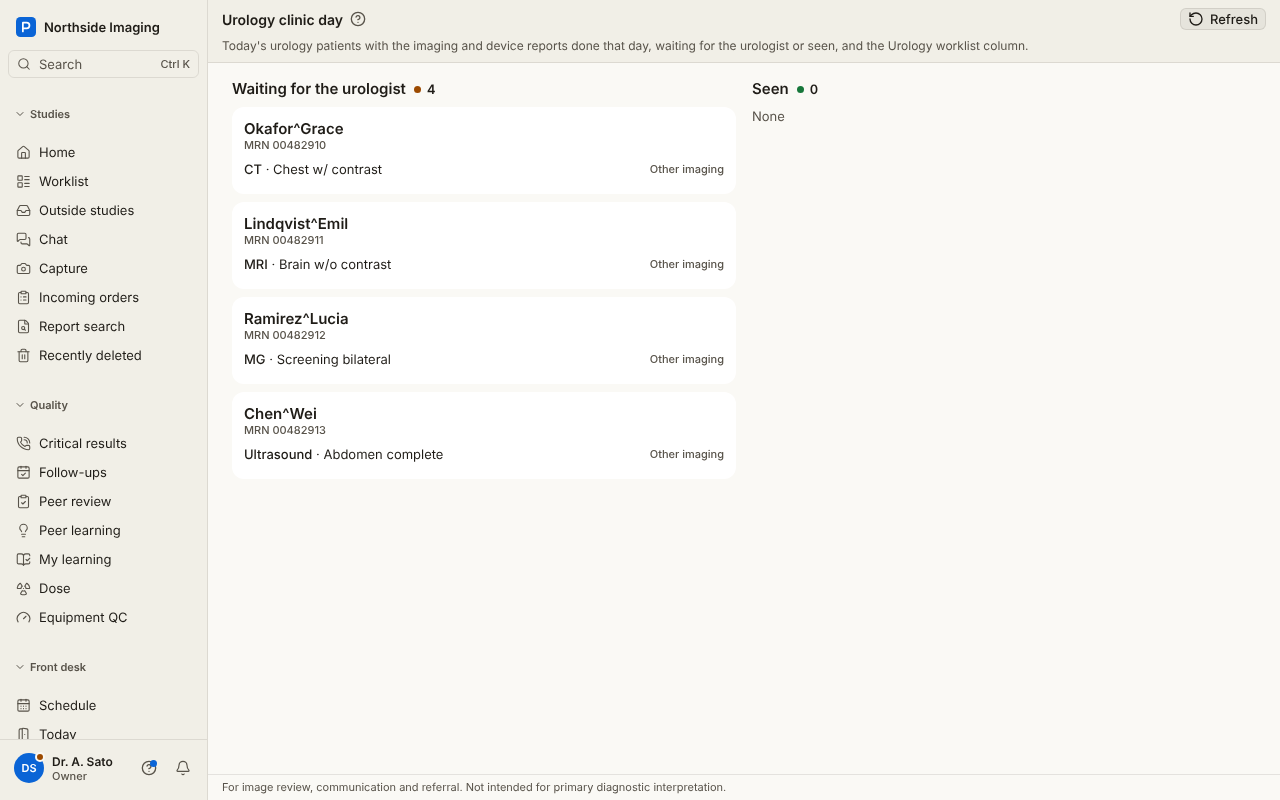
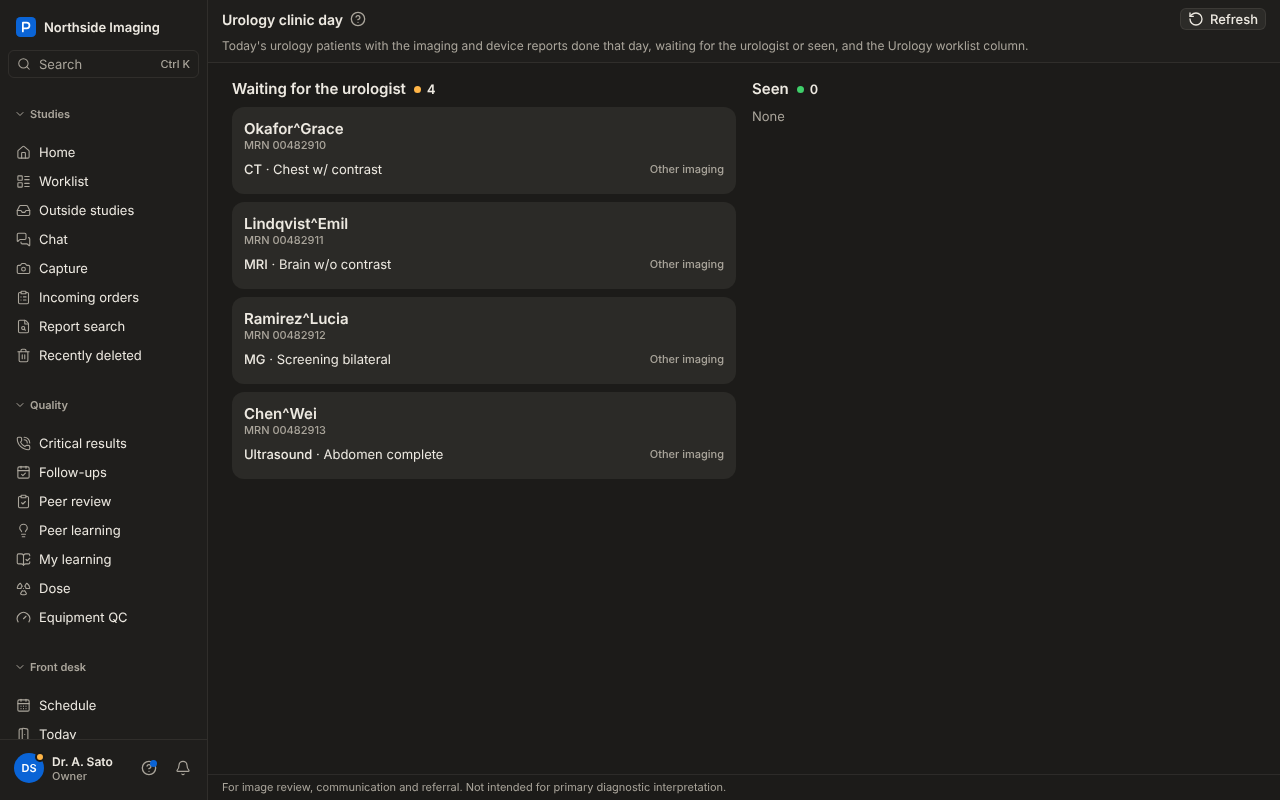
Specialties › Urology clinic day shows today's patients with what was done for them today: a bladder scan or post-void residual (PVR), ultrasound, CT, MRI, uroflow, urodynamics or cystoscopy. Patients are in two groups:
- Waiting for the urologist: at least one of the patient's studies today has no signed report and is not marked reviewed.
- Seen: every study the patient had today is signed or marked reviewed.
Each study shows what was done and its lane on the urology timeline (prostate, stones, kidneys, bladder, function). A study that is already seen but belongs to a waiting patient says Seen instead.
The page appears while the Urology pack is on under Settings › Specialties. It reads today's studies by study date, so images or device reports from a device with the wrong date show on that date instead.
Who can use it
Members who can see studies see the clinic day. It shows only the studies you can already see on the worklist.
How to see who is waiting
- Open Specialties › Urology clinic day.
- Read the Waiting for the urologist group first; the number beside each group is how many patients are in it. Patients are listed in the order their first study arrived.
- Select a study to open it in the viewer.
- Select a patient's name to open their urology timeline, with earlier imaging, PSA and device values.
- Select Refresh to pick up studies that arrived since.
How to show the Urology column on the worklist
While the urology pack is on, the worklist offers a Urology column with each study's timeline lane.
- On the worklist, open Columns.
- Under Study, turn on Urology.
The column is the first one dropped when the table is narrow. Practices without the pack do not see it.
Fields and columns
- Patient: the name and MRN from the images. Select the name to open the urology timeline.
- Study: what was done (PVR, Uroflow, Urodynamics, Cystoscopy, or the modality) and the study description.
- Lane: where the study sits on the urology timeline: Prostate, Stones, Kidneys, Bladder, Function or Other imaging. A seen study of a waiting patient shows Seen instead.
- Urology worklist column: the same lane, per study.
If something goes wrong
- The page is missing from the sidebar: the Urology pack is off under Settings › Specialties.
- A patient is missing: the study's date is not today, the study has no images yet, or you cannot see that study on the worklist.
- A patient stays in Waiting: one of today's studies has no signed report and is not marked reviewed. Sign the report or mark the study reviewed.
- A study shows the wrong kind or lane: the kind and lane come from the study description and modality. Fix the description on the study, or set the device's study description in its export settings.
Related
Updated November 6, 2026. Signed in? The same article is in the app's help panel: press
?.