Clients
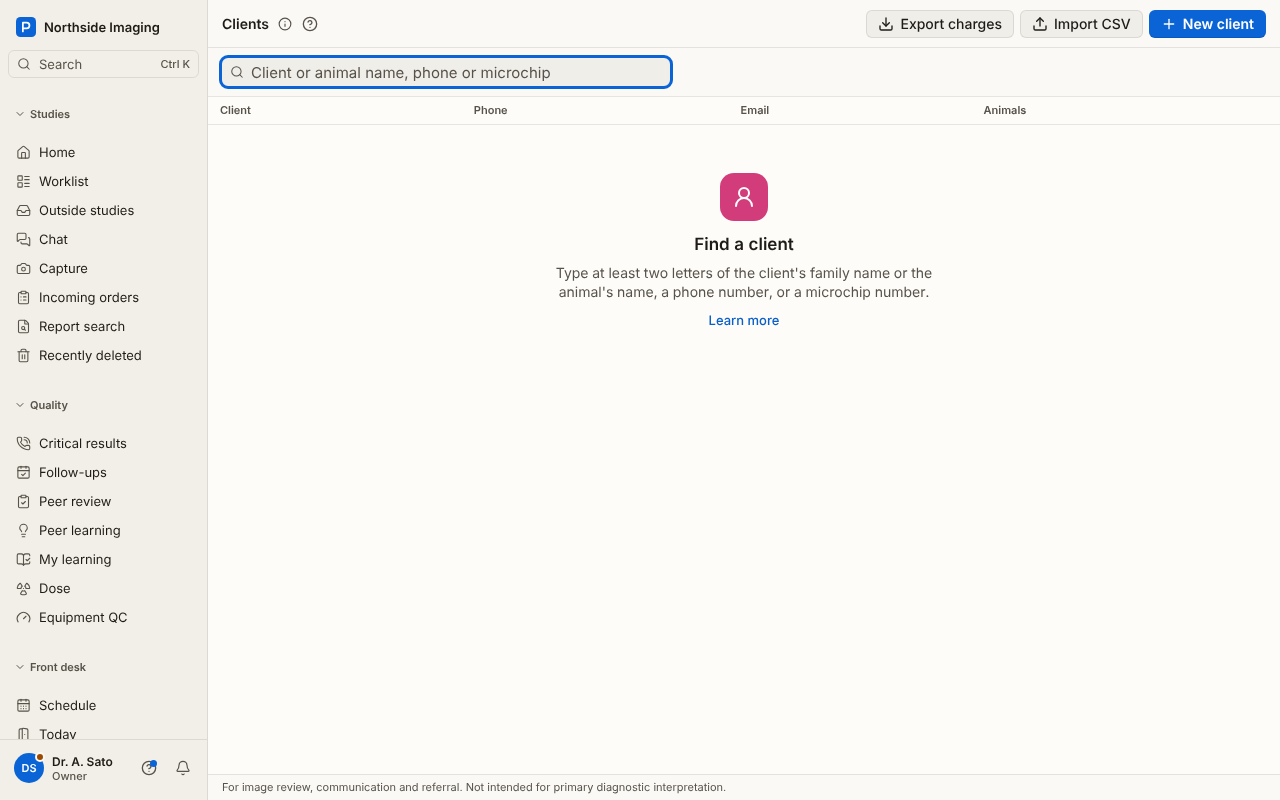
Find a veterinary client by name, animal name, phone or microchip, add and import clients, and export charges for your practice software.
What this page is for
Veterinary practices keep each animal's owner as a client. This page finds a client and shows their animals. It is in the sidebar under Front desk when your practice kind is Veterinary (see Specialties).
Who can use it
Members who can see the schedule can search and open clients. Adding, editing and importing
clients needs the client.write permission. Owners, admins and technologists have it.
How to find a client
Type at least two characters in the search box:
- the client's family name, or the start of it
- the animal's name
- a phone number, with or without spaces and dashes
- a microchip number
Results show each client's phone, email and animals. Open a client to see their details and every animal they own, are a co-owner of, or act as agent for.
How to add or edit a client
- Press New client.
- Type their family name (the only required field), and add phone numbers and an email if you have them.
- Press Add client.
To change a client, open them, edit the fields and press Save.
How to import clients and animals
At go-live, export clients and animals from your practice management software as a CSV file with one row per animal.
- Press Import CSV and choose the file.
- Press Check file. PacsPilot checks the whole file and lists each problem by line and column.
- Fix any problems in the file, choose it again and check it again.
- When the check finds no problems, press Import.
The file needs an owner column and an animal column. It can also have:
| Column | What goes in it |
|---|---|
| phone, email | The owner's contact details |
| patient_id | Your chart number or MRN for the animal. Leave it empty to have one made |
| birth_date | YYYY-MM-DD |
| sex | M, F, MN (male neutered), FS (female spayed), MI or FI (intact) |
| species, breed | As your software writes them, such as Canine or Labrador |
| neuter | Intact, neutered or spayed, when sex does not say |
| microchip, colour | As written on the record |
| weight | In kg |
A file holds at most 2,000 animals. Importing the same file twice does not create duplicate clients: animals with the same patient ID are updated, and clients are matched by name and phone. Problem lists name the line and column only, never what was in it, and the audit log records how many rows an import wrote, never the names.
How to export charges
Veterinary practices do not use CPT codes or insurance claims. Instead, each completed appointment is one charge at its procedure's price, and you bill it in your practice management software.
- Set a Price on each procedure in Scheduling settings.
- On this page, press Export charges.
- Choose the From and To dates (at most 93 days) and the format: CSV, or HL7 DFT if your practice management software imports HL7 charge files.
- Press Download.
The file has the date of service, accession, chart number or MRN, animal, species, client, procedure code and name, and the price. It uses each procedure's price at the time you export. The file contains patient information: keep it where only billing staff can open it. Each download is recorded in the audit log, without names. Owners and admins can export charges.
How to invite an owner to the portal
When your practice has the patient portal on, an open client shows Owner portal. The portal shows the owner the released reports and images of every animal they own or co-own. Agents do not see the animals.
- Open the client.
- Press Invite to portal.
- Check the email, and type the owner's own date of birth, not the animal's.
- Tick I checked this date of birth with the owner, then press Send invite.
The owner gets an email with a sign-in link and no animal or owner details. They sign in with
their date of birth, and can add a passkey later. When you link another animal to the client as
owner or co-owner, the portal shows it too. When you remove the link, the portal stops showing it.
Manage the account (resend, unlock, disable) under
Patient accounts. Inviting needs the
portal.manage permission.
Fields and columns
| Name | What it means |
|---|---|
| Search clients | Client or animal name, phone or microchip. |
| Client | The client's name, family name first. |
| Phone, Email | The client's contact details. |
| Animals | Each animal's name and species. |
| Second phone | On an open client: another number to reach them. |
| Animals (open) | Each animal with species, breed and chart number or MRN, and the role when the client is a co-owner or agent. |
| Owner portal | Whether the client has a portal account, its state, and how many animals it shows. |
If something goes wrong
- "Search failed": choose Retry.
- "No clients found": check the spelling, or try the phone or microchip number.
- "That client could not be opened": the link may be old. Search for the client instead.
- Saving says someone else changed the client: close the client, open it again and redo your change.
- Import is grayed out: press Check file first, and fix every problem it lists.
- An appointment is missing from the charges: only completed appointments are exported. Complete it on the Schedule, then export again.
- The price column is empty: the procedure has no price yet. Set one in Scheduling settings.
Related
Updated October 24, 2026. Signed in? The same article is in the app's help panel: press
?.